

To free up storage without deleting important files, use cloud backup services to securely store photos, videos, and documents online. Transfer large files like high-resolution videos to external drives or SSDs, then delete local copies. Regularly review your storage with built-in tools to identify large or duplicate files and move rarely accessed content to external or cloud storage. Maintaining this organized approach helps prevent clutter and keeps your device running smoothly—discover more smart tips to optimize your storage.
Listen free for 30 days with Audible
Thousands of audiobooks and originals — cancel anytime.
As an affiliate, we earn on qualifying purchases.
Key Takeaways
- Use cloud backup solutions to securely store files and free local space without losing access.
- Transfer large media and files to external storage devices, then delete local copies.
- Regularly review and organize files to identify and move rarely accessed data to external or cloud storage.
- Utilize storage management tools to locate large or duplicate files for cleanup.
- Keep only essential files on internal storage, and automate backups to streamline ongoing storage optimization.
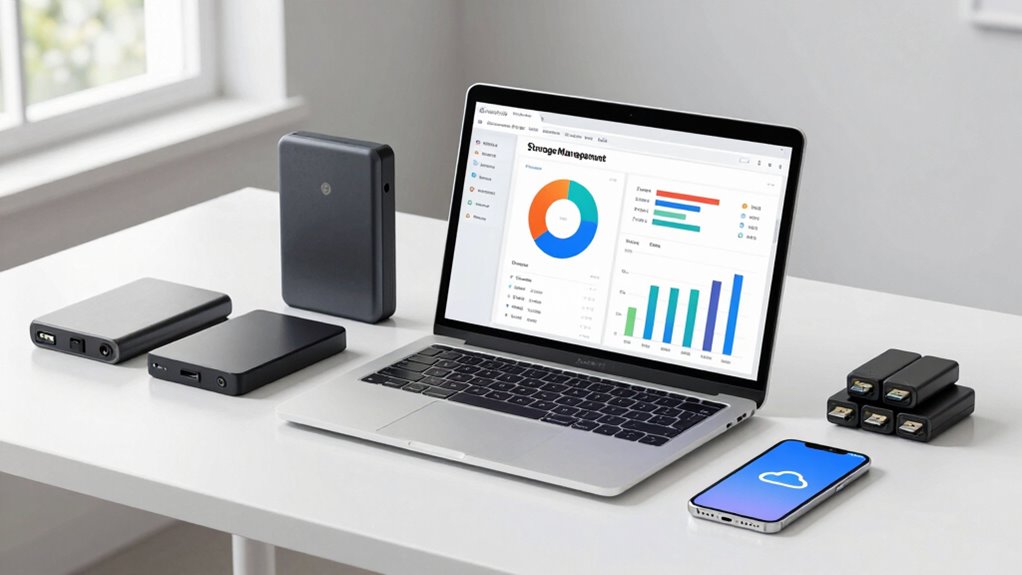
Running out of storage can be frustrating, but you don’t have to delete important files to free up space. Instead, consider using a cloud backup service to move your files off your device. Cloud backup allows you to securely store photos, videos, and documents online, freeing up local storage without losing access to your data. Many services offer automatic backups, so once you set it up, your files are safely stored in the cloud and accessible from any device with an internet connection. This way, you keep your device clutter-free without sacrificing your important files.
Use cloud backup to free space and access files from any device securely.
Another effective method is to utilize external drives. External hard drives or SSDs provide a substantial amount of extra storage that you can plug into your computer or device when needed. You can transfer large files, such as high-resolution videos or extensive photo libraries, onto these drives and then delete the local copies from your device. External drives are especially useful for backing up entire folders or archives, giving you peace of mind knowing that your data is safely stored externally. Plus, they’re portable, so you can carry your backups wherever you go. Utilizing storage management tools can also help you identify the largest files taking up space, making it easier to decide what to move or delete. Regularly reviewing your storage usage and understanding storage capacity can help you optimize your space more effectively. Developing a good digital organization habit can further streamline this process and prevent clutter from accumulating over time.
To maximize storage efficiency, start by reviewing your files and identify those you rarely access but want to keep. Move these files to your external drive or upload them to your cloud backup. For everyday use, keep only the essential files on your device’s internal storage. This approach ensures that your device runs smoothly and quickly without sacrificing any important data. Additionally, many devices and operating systems now have built-in tools that help you manage storage more effectively. These tools can identify large files, duplicate files, or files you haven’t opened in a while, making it easier for you to decide what to move or delete. Using automatic backup features can further streamline this process, saving you time and effort. By routinely managing your storage this way, you prevent clutter from piling up and avoid the temptation to delete irreplaceable files.
Furthermore, understanding the contrast ratio of your device can help you optimize the viewing experience when managing media files, ensuring that your stored content looks its best on your screens. Regularly reviewing your storage and making use of these techniques can help you maintain an organized digital space without losing access to your important data.
As an affiliate, we earn on qualifying purchases.
Frequently Asked Questions
Can Cloud Storage Help Free up Local Disk Space Effectively?
Yes, cloud storage can help free up local disk space effectively. By using cloud backup, you can store your files securely online, freeing up space on your device. Data synchronization ensures your files stay updated across devices without cluttering your local storage. This way, you access everything you need without sacrificing space, keeping your system organized and efficient. Just make sure you choose a reliable cloud service for maximum results.
Are There Any Risks Involved in Compressing Files for Storage?
Compressing files for storage does involve some risks, mainly related to file integrity and compression risks. If the compression process isn’t done correctly or if the files become corrupted, you might lose access or damage important data. Always use reliable compression tools, verify the integrity of files after compression, and keep backups. This way, you minimize risks and guarantee your files stay safe and accessible.
How Often Should I Review My Storage to Prevent Issues?
Think of your storage like a garden—regular maintenance keeps everything flourishing. You should review your storage at least once a month to identify unnecessary files and perform a storage cleanup. This habit prevents clutter from piling up and causing issues. By consistently monitoring your storage, you guarantee your device runs smoothly and stays organized, making future management easier and avoiding potential problems before they grow out of control.
Do External Drives Help in Managing Device Storage Better?
External drives definitely help in managing device storage better. They offer extra space for your files, backups, and large media, reducing the load on your device’s internal storage. By regularly transferring data to external drives, you prevent your device from slowing down or running out of space. This way, you can keep important files safe and organized, making storage management more efficient and hassle-free.
What Tools Can Automatically Identify Unnecessary Files?
You can use tools like CCleaner, Disk Cleanup, or BleachBit for automatic file cleanup and junk removal. These tools scan your device for unnecessary files, temporary data, and cache, then suggest or automatically delete them, freeing up storage space efficiently. They help you identify and remove clutter without risking your important files, making storage management easier and more effective.
Conclusion
Now, with your storage freed up, imagine your device as a clear, open sky—bright and expansive. Files and apps breathe freely, running smoothly without clutter clouding the view. You’ve transformed a cramped, overwhelmed space into a streamlined sanctuary where everything you need shines brightly. Keep this space tidy, and your digital world will stay vibrant and efficient, ready for whatever comes next. Your device is now a well-organized room, inviting, calm, and ready to serve you seamlessly.
NFL season / tailgating Picks
team gear
As an affiliate, we earn on qualifying purchases.