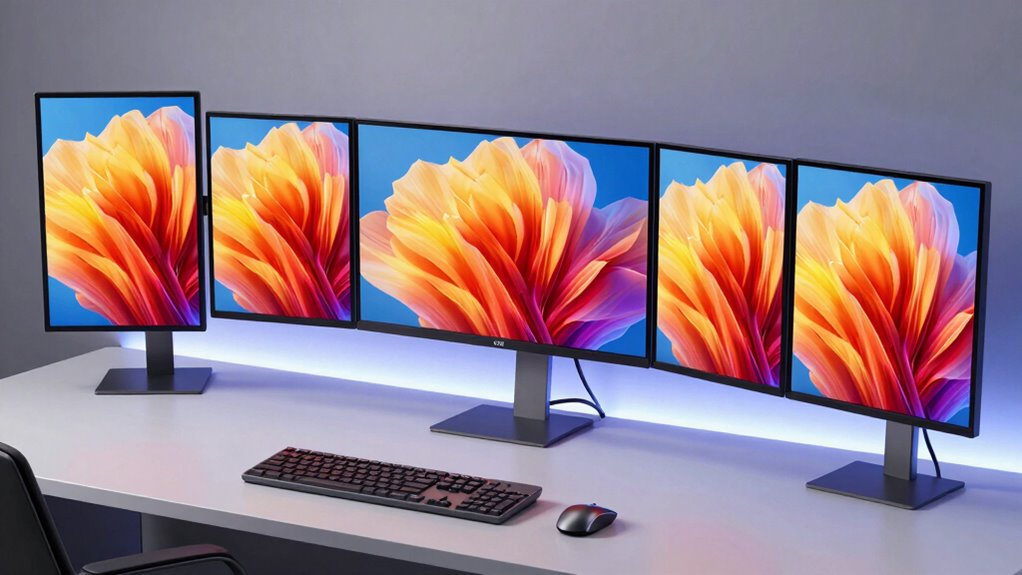

If you’re looking to upgrade your setup with the best Thunderbolt monitors for 2026, I’ve found five excellent options that combine stunning displays, wide color gamuts, and professional connectivity features. Think high-resolution 4K and 5K screens with HDR and color accuracy, plus Thunderbolt 4 or 3 ports for fast data transfer and charging. These monitors cater to creative professionals and power users alike. Keep exploring, and I’ll guide you through the top choices to match your needs.
Key Takeaways
- Prioritize monitors with Thunderbolt 4 or higher for fast data transfer, high power delivery, and daisy chaining capabilities.
- Choose models with 4K or 5K resolutions and wide color gamuts (sRGB, DCI-P3, Adobe RGB) for professional-grade visual fidelity.
- Ensure compatibility with Windows and macOS, and look for certification standards like Pantone or Calman for color accuracy.
- Opt for ergonomic features such as height, tilt, and swivel adjustments to support long-term comfort during extended use.
- Select monitors with HDR support, deep contrast ratios, and professional calibration options for precise, vibrant visuals.
| Samsung 34” ViewFinity Curved Monitor with HDR10 |  | Creative & Multitasking Power | Screen Size: 34 inches | Resolution: 3440 x 1440 (ultra-wide QHD) | Connectivity Options: Thunderbolt 4, HDMI, DisplayPort, USB 3 Hub, LAN | VIEW LATEST PRICE | See Our Full Breakdown |
| LG 40U990A-W 40-Inch 5K2K Curved Monitor | 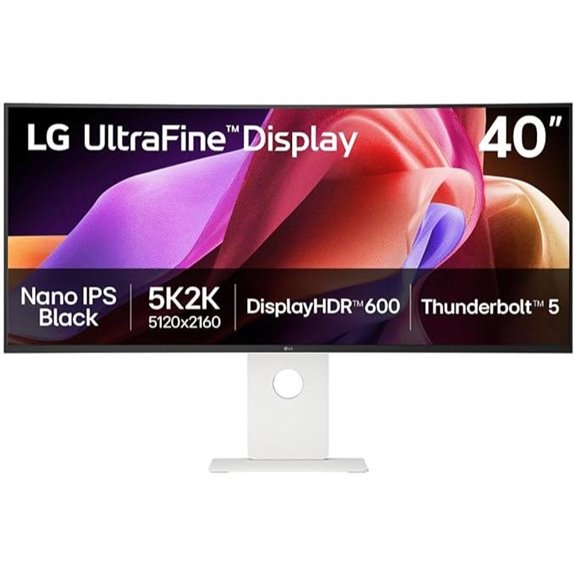 | Professional-Grade Visuals | Screen Size: 40 inches | Resolution: 5120 x 2160 (5K2K) | Connectivity Options: Thunderbolt 5, HDMI 2.1, DisplayPort 2.1, USB-C | VIEW LATEST PRICE | See Our Full Breakdown |
| Dell UltraSharp 32-inch 4K Thunderbolt Monitor | 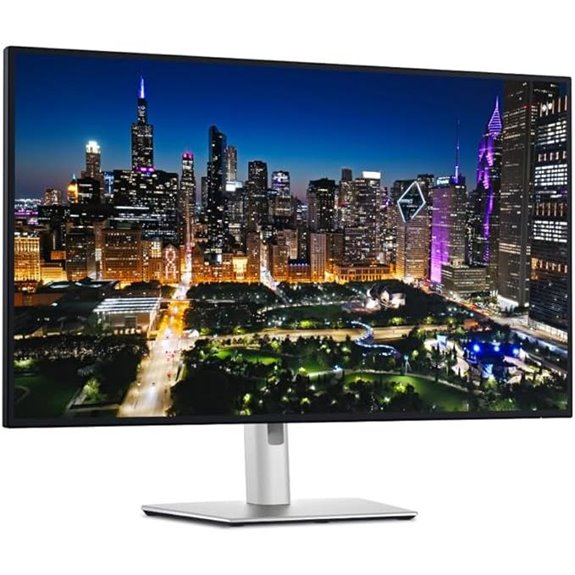 | Reliable Performance | Screen Size: 32 inches | Resolution: 3840 x 2160 (4K UHD) | Connectivity Options: Thunderbolt 4, HDMI 2.1, DP 1.4, USB-C, USB-A | VIEW LATEST PRICE | See Our Full Breakdown |
| ViewSonic 32-Inch 4K UHD IPS Monitor with Thunderbolt 4 | 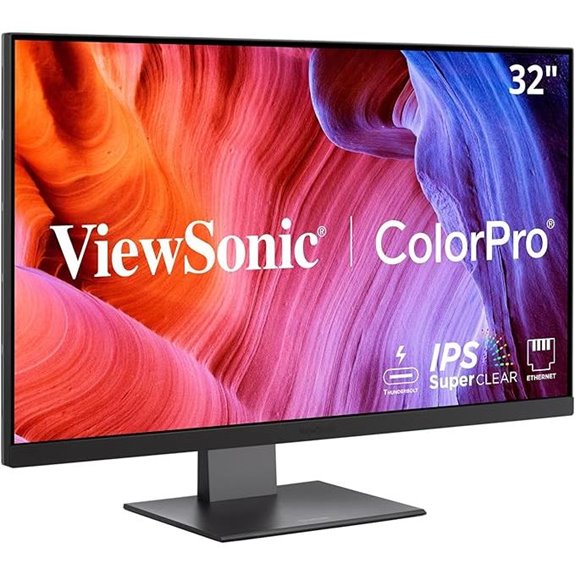 | Versatile Productivity | Screen Size: 32 inches | Resolution: 3840 x 2160 (4K UHD) | Connectivity Options: Thunderbolt 4, USB-C, USB Hub, HDMI, DisplayPort | VIEW LATEST PRICE | See Our Full Breakdown |
| BenQ 27″ 4K UHD Thunderbolt 3 Monitor with Calibration | 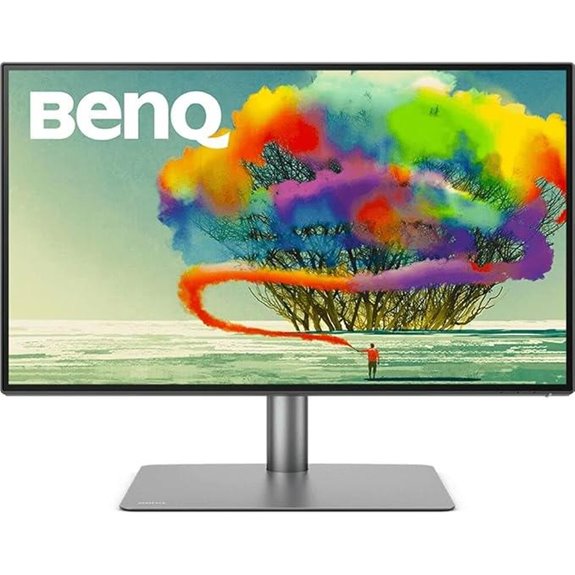 | Precision Color | Screen Size: 27 inches | Resolution: 3840 x 2160 (4K UHD) | Connectivity Options: Thunderbolt 3, USB-C, USB Hub, HDMI, DisplayPort | VIEW LATEST PRICE | See Our Full Breakdown |
More Details on Our Top Picks
Samsung 34” ViewFinity Curved Monitor with HDR10
If you’re looking for a monitor that combines stunning visuals with versatile connectivity, the Samsung 34” ViewFinity Curved Monitor with HDR10 is an excellent choice. Its 34-inch ultra-wide curved display with 1000R curvature and 21:9 aspect ratio offers an immersive viewing experience. HDR10 support delivers vibrant, true-to-life colors, while the adaptive 100Hz refresh rate and AMD FreeSync ensure smooth visuals for gaming and content creation. The Thunderbolt 4 port provides 90W charging and fast data transfer, alongside HDMI, DisplayPort, USB, and Ethernet ports. Plus, the ergonomic stand and built-in speakers make it perfect for long work sessions and multimedia use.
- Screen Size:34 inches
- Resolution:3440 x 1440 (ultra-wide QHD)
- Connectivity Options:Thunderbolt 4, HDMI, DisplayPort, USB 3 Hub, LAN
- Color Coverage:Not specified (HDR10 supported)
- Adjustable Stand:Height, tilt, swivel
- Built-in Speakers:Yes
- Additional Feature:KVM switch functionality
- Additional Feature:Adaptive 100Hz refresh rate
- Additional Feature:Built-in speakers
LG 40U990A-W 40-Inch 5K2K Curved Monitor
The LG 40U990A-W 40-Inch 5K2K Curved Monitor stands out as an ideal choice for creative professionals and power users who demand exceptional color accuracy, sharp detail, and seamless connectivity. Its 40-inch Nano IPS Black panel delivers stunning visuals with a 5120×2160 resolution, supporting VESA DisplayHDR 600 for deep blacks and vivid highlights. With up to 99% DCI-P3 color gamut and a 2000:1 contrast ratio, it ensures vibrant, accurate images. Equipped with Thunderbolt 5, HDMI 2.1, and DisplayPort 2.1, it supports fast data transfer, dual displays, and charging—perfect for multitasking and professional workflows.
- Screen Size:40 inches
- Resolution:5120 x 2160 (5K2K)
- Connectivity Options:Thunderbolt 5, HDMI 2.1, DisplayPort 2.1, USB-C
- Color Coverage:Up to 99% DCI-P3
- Adjustable Stand:Tilt, height, swivel
- Built-in Speakers:Yes
- Additional Feature:120Hz gaming refresh rate
- Additional Feature:Dual Thunderbolt 5 ports
- Additional Feature:Stylish white aesthetic
Dell UltraSharp 32-inch 4K Thunderbolt Monitor
For creative professionals seeking stunning image quality and seamless connectivity, the Dell UltraSharp 32-inch 4K Thunderbolt Monitor stands out as an ideal choice. It features the world’s first Enhanced IPS Black technology, offering a 3000:1 contrast ratio and 47% deeper blacks for exceptional clarity. The vibrant 4K UHD resolution, covering 99% DCI-P3 and sRGB, ensures accurate color reproduction. With a smooth 120Hz refresh rate and TÜV-certified eye comfort features, it’s perfect for long work sessions. The Thunderbolt 4 hub simplifies your setup, delivering 140W power and supporting daisy chaining, making this monitor both powerful and versatile for any professional environment.
- Screen Size:32 inches
- Resolution:3840 x 2160 (4K UHD)
- Connectivity Options:Thunderbolt 4, HDMI 2.1, DP 1.4, USB-C, USB-A
- Color Coverage:99% DCI-P3, sRGB 100%
- Adjustable Stand:Tilt, height, swivel
- Built-in Speakers:Yes
- Additional Feature:3000:1 contrast ratio
- Additional Feature:Ambient Light Sensor
- Additional Feature:Eco-friendly materials
ViewSonic 32-Inch 4K UHD IPS Monitor with Thunderbolt 4
Professional creators and multitaskers will appreciate the ViewSonic 32-Inch 4K UHD IPS Monitor with Thunderbolt 4 for its stunning visuals and versatile connectivity. Its 32-inch display delivers sharp 4K resolution with excellent color accuracy, covering 100% Adobe RGB and 98% DCI-P3, plus HDR400 support. The ergonomic design allows tilt, swivel, rotate, and height adjustments for all-day comfort. With Thunderbolt 4, USB-C, DisplayPort, HDMI, and a USB hub, it offers fast data transfer and up to 100W power delivery. This premium docking monitor seamlessly enhances workflows, whether for home or office, combining high-quality visuals with flexible connectivity options.
- Screen Size:32 inches
- Resolution:3840 x 2160 (4K UHD)
- Connectivity Options:Thunderbolt 4, USB-C, USB Hub, HDMI, DisplayPort
- Color Coverage:100% Adobe RGB, 98% DCI-P3
- Adjustable Stand:Tilt, height, swivel, rotate
- Built-in Speakers:Yes
- Additional Feature:Pantone Validated certification
- Additional Feature:HDR400 support
- Additional Feature:100% Adobe RGB
BenQ 27″ 4K UHD Thunderbolt 3 Monitor with Calibration
If you’re looking for a monitor that delivers exceptional color accuracy and seamless connectivity, the BenQ 27″ 4K UHD Thunderbolt 3 Monitor with Calibration is an excellent choice. Its IPS panel offers vivid visuals and wide viewing angles, with 95% P3 and 100% sRGB coverage, plus Delta E ≤ 3 for precise color reproduction. Designed for creative professionals, it features Pantone validation and Calman verification, along with a built-in calibration report to guarantee consistent performance. The Thunderbolt 3 port provides fast data transfer, device syncing, video output, and 65W charging, while daisy chain support simplifies multi-monitor setups.
- Screen Size:27 inches
- Resolution:3840 x 2160 (4K UHD)
- Connectivity Options:Thunderbolt 3, USB-C, USB Hub, HDMI, DisplayPort
- Color Coverage:95% P3, 100% sRGB
- Adjustable Stand:Ergonomic adjustments including tilt, swivel, height
- Built-in Speakers:Yes
- Additional Feature:Calibration report included
- Additional Feature:65W power delivery
- Additional Feature:ICC Sync compatibility
Factors to Consider When Choosing a Monitor With Thunderbolt
When choosing a monitor with Thunderbolt, I always check for compatibility with my devices to guarantee seamless connections. I also consider display resolution and color accuracy to meet my work needs, along with ergonomic features for comfort. Finally, I look at the available connectivity options to make sure the monitor fits into my setup perfectly.
Compatibility With Devices
Choosing a monitor with Thunderbolt requires guaranteeing it’s compatible with your device’s specific features. First, check that the monitor supports the same Thunderbolt version (3, 4, or 5) as your device for maximum performance. It’s also important to verify your operating system (Windows, macOS, etc.) is compatible with the monitor’s Thunderbolt functions and driver requirements. Additionally, confirm that the monitor’s Thunderbolt port can deliver the necessary power and data transfer speeds for your workflow. If you plan to connect multiple devices, guarantee the monitor supports daisy chaining. Finally, review your device’s ports and see if adapters or cables are needed for a seamless connection. Compatibility is essential to maximize your setup’s efficiency and avoid connectivity issues.
Display Resolution Quality
Since display resolution directly affects image clarity and workspace size, selecting the right resolution is vital for maximizing your monitor’s performance with Thunderbolt. Higher resolutions like 4K or 5K deliver sharper images and more detailed visuals, which are especially important for professional and creative tasks. They also allow you to fit more content on the screen at once, boosting multitasking and productivity. Monitors with greater resolution often support advanced color accuracy and HDR, enhancing visual fidelity. However, it’s essential to confirm your hardware can handle higher resolutions smoothly, as they demand more powerful graphics hardware. Choosing the right resolution balances image quality, performance, and your system’s capabilities, ensuring you get the most out of your Thunderbolt-enabled monitor.
Connectivity Options Needed
To make the most of a Thunderbolt-enabled monitor, you need to pay close attention to its connectivity options. First, verify it has a Thunderbolt port, like Thunderbolt 4 or 5, for fast data transfer and versatile connections. Check if the port supports power delivery, which can charge your laptop or devices, reducing cable clutter. Compatibility is key, so confirm that the monitor matches your devices’ Thunderbolt version for seamless performance. Additionally, consider other ports like HDMI, DisplayPort, or USB-C to connect peripherals and expand your setup. If you plan to connect multiple monitors or devices, look for daisy chaining support via Thunderbolt. These features will maximize your monitor’s utility and keep your workspace organized and efficient.
Ergonomic Adjustment Features
When selecting a monitor with Thunderbolt, it’s important to think about its ergonomic adjustment features. Adjustable height, tilt, swivel, and rotate options let me customize the monitor’s position for maximum comfort. This flexibility helps me maintain proper posture by aligning the screen with my eye level, reducing neck and shoulder strain during long work sessions. Easily modifying angles and height supports a more natural viewing position, preventing repetitive strain injuries that can develop over time. These ergonomic features are especially vital in professional environments where I spend hours at my desk. A monitor with extensive adjustments not only enhances my productivity but also promotes better overall well-being by minimizing fatigue and discomfort. Prioritizing these features ensures my setup is both efficient and comfortable.
Color Accuracy Standards
Choosing a monitor with Thunderbolt isn’t just about speed and connectivity; color accuracy plays a crucial role in making sure your work looks exactly as intended. Look for standards like Delta E ≤ 3, which indicates minimal color deviation for precise reproduction. Coverage of color gamuts like sRGB, Adobe RGB, and DCI-P3 shows the monitor’s ability to display a wide range of colors accurately. Certifications such as Pantone Validated and Calman Verified guarantee it meets professional benchmarks. Regular calibration reports help verify consistent color performance over time. Additionally, a high bit depth of 8-bit or higher enhances color gradation, reducing banding and ensuring smooth transitions. Prioritizing these standards ensures your monitor delivers true-to-life colors, essential for professional editing, design, and creative work.
Frequently Asked Questions
Are Thunderbolt Monitors Compatible With All Laptops?
Thunderbolt monitors aren’t compatible with all laptops, but they work well with those that have Thunderbolt ports. I’ve found that Macs and some high-end Windows laptops support Thunderbolt, guaranteeing fast data transfer and charging. However, many budget or older laptops lack this port, so you’ll need an adapter or different connection type. Always check your laptop’s specifications before buying to ensure compatibility and get the best performance.
How Do Thunderbolt Ports Impact Monitor Refresh Rates?
Think of Thunderbolt ports as gateways to a faster world. They substantially impact monitor refresh rates by supporting higher data transfer speeds, which enables smoother visuals, especially in gaming or professional editing. With Thunderbolt, you can enjoy refresh rates up to 144Hz or higher, depending on the monitor. This ensures your display keeps up with your fast-paced work or play, providing a seamless, lag-free experience.
Can I Daisy-Chain Multiple Monitors via Thunderbolt?
Yes, you can daisy-chain multiple monitors via Thunderbolt. I’ve done it myself, connecting two or more displays through a single Thunderbolt port using compatible monitors with Thunderbolt support. This setup simplifies cable management and preserves ports on your computer. Just make certain your monitors support Thunderbolt daisy-chaining and that your computer’s graphics can handle the combined display output for smooth performance.
What Is the Typical Latency for Thunderbolt-Connected Monitors?
Thunderbolt-connected monitors typically have a latency of around 1 to 3 milliseconds, which is barely noticeable during everyday use. I find this impressive because it’s fast enough for gaming and professional work, like video editing, without lag issues. This low latency guarantees smooth visuals and quick response times, making Thunderbolt an excellent choice for those who need high performance. I recommend it if you want seamless multitasking and crisp visuals.
Do Thunderbolt Monitors Support Touchscreen Functionality?
Yes, some Thunderbolt monitors do support touchscreen functionality, but it’s not a standard feature across all models. If touchscreen capability is essential for you, I recommend checking specific models that advertise this feature. I’ve found that high-end brands often include touch support, making your workflow more interactive. Just make sure to verify the specs before purchasing, since not every Thunderbolt monitor offers this feature.
Conclusion
Choosing the right Thunderbolt monitor can truly elevate your setup, making workflows smoother and visuals sharper. Did you know that professionals using high-quality displays report up to 30% increased productivity? Investing in a top-tier monitor isn’t just about picture quality—it’s about enhancing your entire experience. So, weigh your needs carefully, and you’ll find a perfect match that boosts both your creativity and efficiency. Your ideal setup is just a connection away!