If you’re looking for the best monitors for your MacBook in 2026, I recommend checking out options like the BenQ 27-inch 4K Thunderbolt 3, ASUS ProArt 27-inch, and portable models from KYY and InnoView. These screens offer excellent compatibility, color accuracy, and flexibility, with features like USB-C support, adjustable ergonomics, and high resolutions. To find the perfect fit, pay attention to power delivery and port variety — stick with me, and you’ll get the full scoop.

Get the latest gadgets delivered free with Prime
- Fast, free delivery on millions of items
- Prime Video, Amazon Music and more included
- Member-only deals all year
Key Takeaways
- Compatibility with Thunderbolt 3, USB-C, and macOS features ensures seamless connectivity and optimal performance with MacBook models in 2026.
- High color accuracy (Delta E ≤ 2), wide gamuts (DCI-P3, sRGB), and 4K resolution deliver professional-grade visual quality for creatives.
- Adjustable ergonomic stands (height, tilt, swivel) improve comfort during long work sessions with MacBook setups.
- Portable monitors with lightweight, slim designs and versatile connectivity support on-the-go productivity for MacBook users.
- Multiple ports (HDMI, DisplayPort, USB-C) and high power delivery (65W+) streamline workflows and charging needs.
| BenQ 27-Inch 4K Thunderbolt 3 Monitor with USB-C | Best Professional Display | Connectivity: Thunderbolt 3, USB-C, HDMI, DisplayPort | Resolution: 4K UHD | Screen Size: 27 inches | VIEW LATEST PRICE | See Our Full Breakdown | |
| 15.6″ Portable Triple Screen Monitor Extender | Most Versatile Portable | Connectivity: USB-C, HDMI, Mini HDMI | Resolution: Full HD (1920×1080) | Screen Size: 15.6 inches (dual) | VIEW LATEST PRICE | See Our Full Breakdown | |
| KYY 15.6″ FHD Portable USB-C Monitor with Stand | Easy Setup & Portability | Connectivity: USB-C, USB-A, HDMI | Resolution: Full HD (1920×1080) | Screen Size: 15.6 inches (dual) | VIEW LATEST PRICE | See Our Full Breakdown | |
| ASUS ProArt 27″ Monitor WQHD IPS USB-C Eye Care | Creative Workhorse | Connectivity: USB-C, DisplayPort, HDMI | Resolution: WQHD (2560×1440) | Screen Size: 27 inches | VIEW LATEST PRICE | See Our Full Breakdown | |
| BenQ PD2706QN 27” 2K QHD Monitor with USB-C | Best Color Accuracy | Connectivity: USB-C, USB 3.1, Daisy Chain | Resolution: 2K QHD (2560×1440) | Screen Size: 27 inches | VIEW LATEST PRICE | See Our Full Breakdown | |
| InnoView 15.6″ FHD Portable Monitor with Speakers | Budget Travel Companion | Connectivity: USB-C, HDMI, USB-C pass-through | Resolution: Full HD (1920×1080) | Screen Size: 15.6 inches (dual) | VIEW LATEST PRICE | See Our Full Breakdown |
More Details on Our Top Picks
BenQ 27-Inch 4K Thunderbolt 3 Monitor with USB-C
If you’re a MacBook user looking for a high-quality external monitor that seamlessly integrates with your device, the BenQ 27-Inch 4K Thunderbolt 3 Monitor with USB-C is an excellent choice. It features a stunning 27-inch 4K UHD IPS display with AQCOLOR technology, covering 100% sRGB, Rec.709, and 95% DCI-P3 color spaces for accurate visuals. Factory calibration guarantees color precision, and uniformity correction maintains consistency across the screen. With Thunderbolt 3, it supports fast data transfer, 65W power delivery, and single-cable connectivity, reducing clutter and boosting productivity. Adjustable ergonomics and versatile ports make it perfect for professional workflows.
- Connectivity:Thunderbolt 3, USB-C, HDMI, DisplayPort
- Resolution:4K UHD
- Screen Size:27 inches
- Portability:Stationary
- Adjustable Stand:Yes (height, tilt, swivel, pivot)
- Color Support:100% sRGB, Rec.709, DCI-P3
- Additional Feature:Uniformity correction technology
- Additional Feature:KVM switch included
- Additional Feature:Quick color adjustments with Hotkey Puck G2
15.6″ Portable Triple Screen Monitor Extender
The 15.6-inch Portable Triple Screen Monitor Extender stands out as an excellent choice for MacBook users who need to boost productivity on the go. Its dual IPS panels deliver crisp, Full HD visuals with a 1200:1 contrast ratio, making multitasking smooth and clear. Compatibility is seamless across Windows, MacOS, Android, and more, thanks to plug-and-play USB-C and HDMI connections. The screens flip and swivel for easy sharing and collaboration, while the sturdy stand and foldable design guarantee portability. Whether I’m working, gaming, or presenting, this extender elevates my setup effortlessly, offering flexibility and high-quality visuals wherever I need them.
- Connectivity:USB-C, HDMI, Mini HDMI
- Resolution:Full HD (1920×1080)
- Screen Size:15.6 inches (dual)
- Portability:Portable, foldable
- Adjustable Stand:Yes (tilt, swivel)
- Color Support:Standard color, HDR support
- Additional Feature:360° flip capability
- Additional Feature:Supports multiple device types
- Additional Feature:Foldable into carrying case
KYY 15.6″ FHD Portable USB-C Monitor with Stand
For MacBook users needing a portable, multi-screen setup on the go, the KYY 15.6″ FHD Portable USB-C Monitor with Stand stands out with its easy plug-and-play design and flexible rotation features. It connects via a single USB-C cable, reducing clutter and simplifying setup. The dual 15.6-inch FHD IPS screens offer vibrant colors, wide viewing angles, and support rotation from 0° to 360°, making sharing easy. Its lightweight aluminum build and adjustable stand provide comfortable viewing angles, whether in landscape or portrait mode. With user-friendly controls and included cables, it’s a versatile, efficient choice for expanding your MacBook workspace anywhere.
- Connectivity:USB-C, USB-A, HDMI
- Resolution:Full HD (1920×1080)
- Screen Size:15.6 inches (dual)
- Portability:Portable, foldable
- Adjustable Stand:Yes (tilt, rotation)
- Color Support:Vibrant color, HDR
- Additional Feature:Rotatable screens (0°-360°)
- Additional Feature:User-friendly control wheel
- Additional Feature:Aluminum alloy lightweight design
ASUS ProArt 27″ Monitor WQHD IPS USB-C Eye Care
Creativity and color accuracy are essential for MacBook users, making the ASUS ProArt 27″ Monitor an ideal choice. Its 27-inch WQHD IPS panel offers vibrant visuals with 100% sRGB and Rec. 709 coverage, calibrated for professional-grade color precision with Delta E < 2. Supporting a 75Hz refresh rate and Adaptive-Sync ensures smooth motion, perfect for editing or creative work. With extensive connectivity like USB-C with 65W Power Delivery, DisplayPort, HDMI, and USB 3.1, it’s versatile for multi-device setups. Eye care features reduce strain during long sessions, and the height-adjustable stand guarantees ergonomic comfort. Plus, a 3-month Adobe Creative Cloud subscription sweetens the package.
- Connectivity:USB-C, DisplayPort, HDMI
- Resolution:WQHD (2560×1440)
- Screen Size:27 inches
- Portability:Stationary
- Adjustable Stand:Yes (height, tilt, swivel, pivot)
- Color Support:100% sRGB, wide color gamut
- Additional Feature:Factory-calibrated with Calman
- Additional Feature:Supports daisy chaining (up to 4 monitors)
- Additional Feature:Eye care technology
BenQ PD2706QN 27” 2K QHD Monitor with USB-C
If you’re looking for a monitor that delivers precise color accuracy straight out of the box, the BenQ PD2706QN is an excellent choice for MacBook users in 2026. It’s factory-calibrated with 95% P3, 100% sRGB/Rec.709 coverage, and an average Delta E ≤ 2, ensuring consistent, vibrant colors. The Nano Matte panel reduces glare and preserves contrast, even in bright environments. With a single USB-C port providing 90W power, data, video, and charging are simplified with one cable. Plus, its ergonomic design, support for 100Hz refresh rate, and daisy chaining capabilities make it perfect for professional workflows.
- Connectivity:USB-C, USB 3.1, Daisy Chain
- Resolution:2K QHD (2560×1440)
- Screen Size:27 inches
- Portability:Stationary
- Adjustable Stand:Yes (tilt, height)
- Color Support:95% P3, sRGB, Rec.709
- Additional Feature:Nano Matte anti-glare panel
- Additional Feature:100Hz refresh rate support
- Additional Feature:Seamless ICCsync profile switching
InnoView 15.6″ FHD Portable Monitor with Speakers
The InnoView 15.6″ FHD Portable Monitor stands out as an excellent choice for MacBook users seeking mobility without sacrificing screen quality. Its 15.6-inch IPS display offers crisp 1920×1080 resolution, wide 178° viewing angles, HDR support, and low blue light technology to protect your eyes. It’s ultra-slim, lightweight, and comes with a durable cover that doubles as a stand, making it perfect for travel or remote work. With versatile connectivity options—including two USB-C ports and an HDMI port—it supports power pass-through and is compatible with various devices, including MacBooks, smartphones, and gaming consoles.
- Connectivity:USB-C, HDMI, USB-C pass-through
- Resolution:Full HD (1920×1080)
- Screen Size:15.6 inches (dual)
- Portability:Portable, foldable
- Adjustable Stand:Yes (tilt, rotation)
- Color Support:HDR support, vibrant color
- Additional Feature:HDR support included
- Additional Feature:Protective cover doubles as stand
- Additional Feature:Supports both landscape and portrait modes
Factors to Consider When Choosing a Monitor for MacBook Users
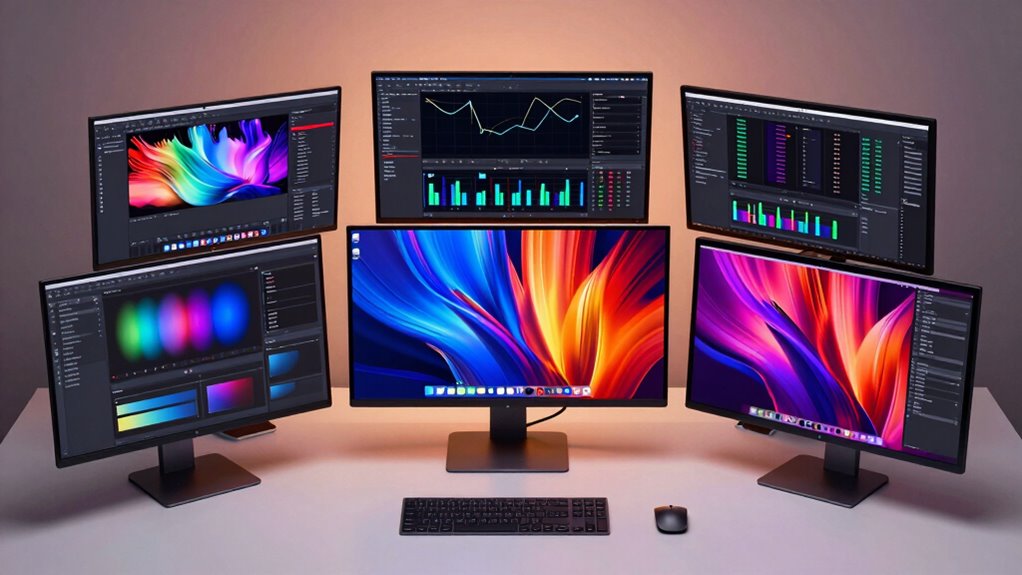
When choosing a monitor for your MacBook, I consider compatibility with macOS to guarantee smooth operation. I also look for high color accuracy, solid connectivity options, ergonomic adjustments, and sharp screen resolution to enhance my workflow. These factors help me find a display that meets my needs and complements my MacBook setup.
Compatibility With MacOS
Choosing a monitor that plays well with your MacBook involves more than just matching ports; it’s about ensuring seamless compatibility with macOS-specific features. Look for displays that support True Tone and Night Shift, which help maintain consistent color and reduce eye strain. Confirm the monitor has Thunderbolt 3 or USB-C ports to enable easy connection and power delivery, eliminating clutter and the need for extra adapters. It’s also essential to check if the monitor works with macOS color profiles and ICC color management, ensuring accurate and consistent colors across devices. Additionally, verify that its drivers and firmware are compatible with the latest macOS updates to avoid connectivity or functionality issues. Ultimately, choose models explicitly mentioning compatibility with MacBook models and Apple-specific display protocols for the best experience.
Color Accuracy Standards
Ensuring your monitor delivers accurate colors is key for professional and creative work on a MacBook. Color accuracy standards like Delta E ≤ 2 or ≤ 3 indicate minimal color deviation, which is essential for precise color reproduction. A wide color gamut, such as 100% sRGB, Rec.709, or DCI-P3, expands the range of reproducible colors, making visuals vibrant and true to life—ideal for design, photography, and video editing. Factory calibration and tools like Calman help keep colors consistent right out of the box. Support for MacOS-compatible color spaces like Display P3 ensures seamless color matching. Additionally, uniformity correction features maintain consistent brightness and color across the entire screen, reducing color shifts and supporting color-sensitive workflows.
Connectivity Options Available
Ever wonder how to keep your MacBook seamlessly connected to a monitor without cluttering your workspace? The key is choosing a display with the right connectivity options. Look for monitors with USB-C or Thunderbolt 3/4 ports for a single-cable connection that handles video, data, and power delivery—saving you space and hassle. Confirm compatibility with macOS features like Display P3 color profiles and ICC profile synchronization for color accuracy. Multi-port options, such as HDMI, DisplayPort, or extra USB-C ports, expand your peripheral connections. Also, check that the monitor can deliver sufficient power (65W or higher) via USB-C to charge your MacBook while working. For multi-monitor setups, consider daisy chaining through Thunderbolt or DisplayPort to keep your desk tidy and efficient.
Ergonomic Adjustments
When it comes to setting up a comfortable workspace with your MacBook and monitor, ergonomic adjustments play a vital role. Monitors with adjustable height, tilt, swivel, and pivot let you customize your viewing angles, reducing strain during long use. An adjustable stand helps you find the perfect position, supporting better eye alignment and posture. Switching between portrait and landscape modes adds flexibility, making it easier to handle different tasks and optimize ergonomic comfort. Proper positioning minimizes neck, shoulder, and eye fatigue, which can boost your productivity and prevent repetitive strain injuries. Investing in a monitor with these ergonomic features guarantees your workspace is tailored to your needs, making long hours at your MacBook more comfortable and healthier over time.
Screen Resolution Quality
Choosing the right monitor resolution is essential for MacBook users because it directly impacts image clarity and workflow efficiency. A higher resolution delivers sharper images and more detailed visuals, which is vital for tasks like photo editing, graphic design, and video production. For example, 4K resolution (3840×2160) provides four times the pixel density of Full HD (1920×1080), resulting in vibrant, crisp displays. WQHD (2560×1440) offers a good balance between detail and system resource use, making it suitable for professional workflows. It’s important to match or exceed your MacBook’s native display resolution to guarantee consistent quality and avoid scaling issues. Higher resolutions also enhance multitasking, allowing you to view multiple applications or windows clearly without sacrificing image quality.
Power Delivery Capability
A crucial factor to examine is whether the monitor supports Power Delivery (PD) with at least 65W, guaranteeing your MacBook charges efficiently while in use. If the monitor’s USB-C port can’t deliver the right wattage, your MacBook may charge slowly or not at all, especially during demanding tasks. Higher power delivery capacity helps maintain battery health and keeps your MacBook powered through intensive work sessions. It’s necessary to verify that the monitor’s PD specs match or exceed your MacBook’s charging needs. Compatibility with Thunderbolt 3 or USB-C standards ensures seamless power transfer alongside data and video, preventing any bottlenecks. Prioritizing sufficient power delivery guarantees your MacBook stays charged, productive, and ready to go without interruptions.
Port Selection Diversity
Having a variety of port options on your monitor can considerably streamline your workspace by reducing the need for multiple adapters and dongles. When choosing a monitor, look for diverse ports like Thunderbolt 3, USB-C, HDMI, and DisplayPort, which provide broad compatibility with different MacBook models and peripherals. Multiple port types let you connect several devices simultaneously, saving you from constant switching or extra adapters. USB-C ports supporting Power Delivery can charge your MacBook while transferring data, simplifying your setup. Thunderbolt 3 offers blazing-fast data transfer rates up to 40 Gb/s, ideal for professional tasks like video editing or large file transfers. A monitor with versatile port options guarantees compatibility across both older and newer MacBooks, making your workspace more efficient and adaptable.
Frequently Asked Questions
How Do I Ensure Compatibility With My Macbook’s Software and Peripherals?
To guarantee compatibility with your MacBook’s software and peripherals, I recommend checking the monitor’s specifications for macOS support and compatibility with Thunderbolt or USB-C ports. I always verify that the monitor’s drivers are compatible with my macOS version. Additionally, I make sure it has the necessary ports for my peripherals. Reading reviews and manufacturer details helps me confirm seamless integration, preventing any surprises or compatibility issues.
What Is the Best Monitor for Color Accuracy and Professional Work?
The Dell UltraSharp U2723QE is my top pick for color accuracy and professional work. Its 27-inch 4K display covers 99% sRGB and 98% DCI-P3, ensuring vibrant, true-to-life colors. I love how it offers factory calibration for precise results right out of the box. The wide color gamut and high resolution make it perfect for photo editing, graphic design, or any creative task demanding accuracy.
Are There Specific Monitors Optimized for macOS Updates and Features?
Think of your MacBook as a sleek spaceship, and the monitor as its loyal co-pilot. Yes, some monitors are crafted to harmonize seamlessly with macOS updates and features. I look for displays with built-in compatibility, like Thunderbolt support and optimized color profiles, ensuring smooth integration. These monitors feel like an extension of my Mac, making updates effortless and my workflow as smooth as a well-oiled machine.
Which Monitors Offer the Best Portability for Macbook on the Go?
If you’re looking for portable monitors for your MacBook, I recommend models like the ASUS ZenScreen, Anker PowerExpand, or the Lenovo ThinkVision M14. They’re lightweight, easy to carry, and connect seamlessly via USB-C, making them perfect for on-the-go work or travel. I personally find these options reliable and compact, ensuring I stay productive anywhere without sacrificing screen quality or portability.
How Do I Optimize Monitor Settings for the Best Macbook Display Experience?
Think of your monitor as a canvas—setting it right transforms your entire work experience. I recommend adjusting brightness and contrast to match your environment, calibrating color settings for accuracy, and enabling night mode for comfort. Always keep your display’s resolution sharp and refresh rate smooth. By fine-tuning these elements, you’ll create a seamless, vibrant display that makes your MacBook feel like an extension of your creative vision.
Conclusion
Choosing the right monitor is like finding the perfect compass for your creative journey. With options ranging from stunning 4K displays to portable wonders, you can elevate your MacBook experience effortlessly. Whether you’re crafting masterpieces or crunching data, these monitors are your trusty sidekicks, ready to amplify your workflow. So, pick your ideal partner and let your productivity soar — your digital horizon awaits!
Halloween Picks
halloween
As an affiliate, we earn on qualifying purchases.