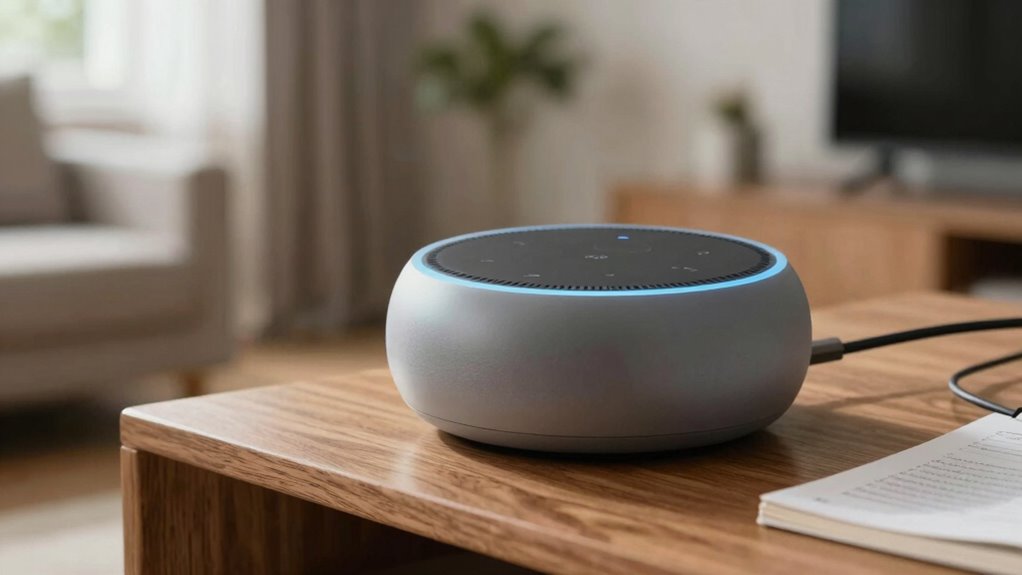

If your smart speaker stops listening, start by checking if the microphone is turned on and unobstructed, since debris or mute mode can prevent it from hearing you. Make certain the device is connected to a stable Wi-Fi network and that any firmware updates are complete, as outdated software can cause issues. Adjust speaker placement for better voice pickup and reduce background noise. If problems persist, you can find more detailed steps to troubleshoot and fix the issue ahead.

Get the latest gadgets delivered free — and shop member deals
- Fast, free delivery on millions of items
- Access to Prime Big Deal Days deals on October 6–7
- Prime Video, Amazon Music and more included
Key Takeaways
- Ensure the microphone is enabled, unobstructed, and not muted; check indicator lights for status.
- Reduce background noise and speak clearly for better voice recognition accuracy.
- Verify firmware and app updates are current to prevent listening issues.
- Confirm the device is connected to a stable Wi-Fi network and restart if needed.
- Clear debris from the microphone and test microphone functionality regularly.

Many users have experienced moments when their smart speakers suddenly stop listening or fail to respond to commands, leading to frustration and confusion. When this happens, the first thing to check is your device’s voice command accuracy. Sometimes, the smart speaker might struggle to pick up your voice clearly due to background noise or a misinterpretation of your command. Make sure you’re speaking clearly and directly towards the device. Adjusting the speaker’s placement or reducing ambient noise can substantially improve how well it recognizes your voice. Additionally, check if the microphone is enabled and unobstructed; dirt or debris can mute the microphone, impeding its ability to detect your commands. Many devices have a mute button or indicator light—if you see it activated, turn it off and test again.
Another common issue stems from firmware update problems. Firmware updates are vital for maintaining your smart speaker’s performance, security, and new feature integration. If your device isn’t responding properly, it could be because it’s stuck in the middle of an update or has missed a recent one. Check the app associated with your speaker to see if any updates are pending or have failed to install. Sometimes, these updates fix bugs or improve voice command accuracy. If you notice update issues, verify your device is connected to a stable Wi-Fi network, as interrupted connections can cause update failures. Restarting your speaker can also help initiate or resume updates. If problems persist, manually reinstall the firmware through the app or device settings—consult the manufacturer’s instructions for this process. Also, ensure your device’s firmware and software are up to date, as outdated versions can affect microphone performance and responsiveness. Regularly checking for firmware updates can help prevent such issues from occurring. Keep in mind that software conflicts or other settings misconfigurations may also impact microphone function and should be reviewed if troubleshooting persists.
smart speaker microphone mute button
As an affiliate, we earn on qualifying purchases.
As an affiliate, we earn on qualifying purchases.
Frequently Asked Questions
Can Software Updates Fix Listening Issues?
Yes, software updates can fix listening issues by improving voice recognition and fixing bugs. When your smart speaker isn’t listening properly, updating the software is a key troubleshooting step. Updates often include enhancements that optimize how the device processes commands and responds. So, if you’re experiencing listening problems, check for the latest updates first, as they can resolve existing issues and improve overall performance.
Do Privacy Settings Affect Microphone Access?
Yes, your privacy settings can affect microphone access and voice recognition. When you adjust these settings, you control what data your smart speaker collects, which may disable or limit its ability to listen for commands. Privacy concerns often prompt users to restrict microphone permissions, so reviewing and updating these settings guarantees your device listens only when you want it to, balancing convenience with security.
How Do I Reset My Smart Speaker?
To reset your smart speaker, start by unplugging it from the power source, wait about 30 seconds, then plug it back in. This simple step can resolve voice command troubleshooting issues. Make sure your speaker placement is ideal—avoid placing it near walls or obstructions that block sound. If problems persist, consult the device’s reset instructions in the user manual or app, which often involve holding specific buttons until the speaker resets.
Is Microphone Damage Permanent?
Microphone damage isn’t always permanent, but it can affect your smart speaker’s audio quality and microphone durability. If your device’s microphone stops responding or sounds muffled, it might be due to damage. You should check for physical damage, debris, or moisture. Sometimes, resetting or replacing parts helps. However, if the microphone’s internal components are broken, professional repair or replacement may be necessary to restore peak audio quality.
Can Wi-Fi Problems Cause Listening Failures?
Yes, Wi-Fi problems can cause listening failures. When your smart speaker experiences Wi-Fi connectivity issues, it can’t reliably send or receive data, which disrupts voice recognition. Make certain your Wi-Fi connection is stable, and your device is within range of your router. Restart your router if needed. A strong, steady Wi-Fi connection is essential for your smart speaker to accurately recognize and respond to your voice commands.
Conclusion
So, you’ve checked the basics, but your smart speaker still stays silent when you need it most. Could it be something deeper, a hidden glitch lurking beneath the surface? The mystery remains, and the next step might reveal a surprising culprit or a simple fix you never expected. Don’t give up just yet—sometimes, the solution is closer than you think. Stay tuned, because the answers might be just around the corner, waiting to surprise you.
Halloween Picks
halloween
As an affiliate, we earn on qualifying purchases.