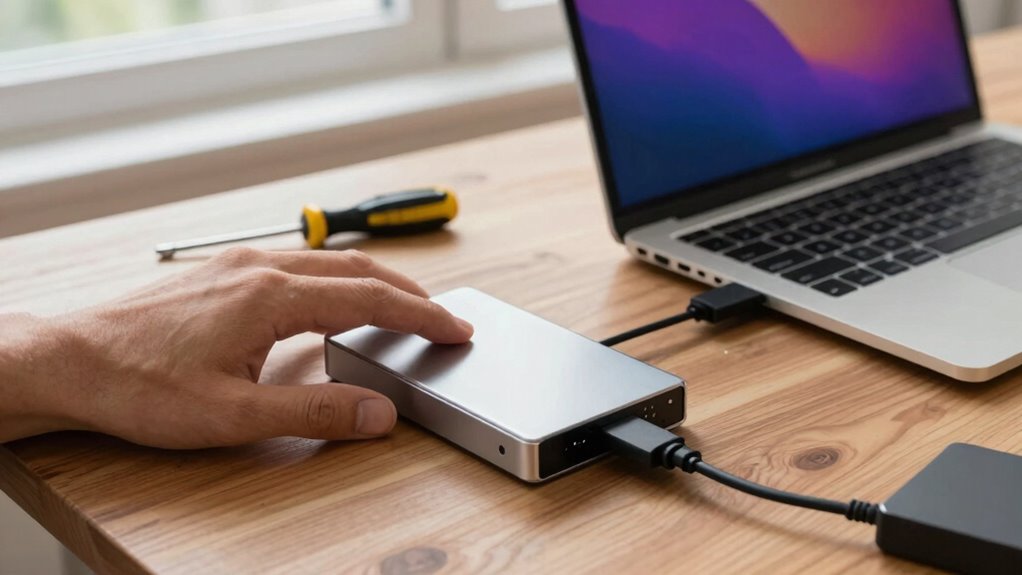

If your external drive isn’t showing up, first check your connections—make sure cables are secure and try a different port or cable. Open Disk Management or Disk Utility to see if the drive appears but isn’t mounted or initialized. Avoid formatting until you recover important files. If issues persist, check for hardware problems or consider using data recovery software. For more detailed steps to troubleshoot, keep exploring solutions that could get your drive working again.

Get the latest gadgets delivered free with Prime
- Fast, free delivery on millions of items
- Prime Video, Amazon Music and more included
- Member-only deals all year
Key Takeaways
- Check physical connections and cables to ensure the drive is securely connected and functioning properly.
- Use Disk Management or Disk Utility to see if the drive is uninitialized, offline, or has a drive letter conflict.
- Try mounting the drive manually or assign a new drive letter to resolve recognition issues.
- Run data recovery software before formatting if the drive shows up but is inaccessible.
- Consider professional repair services if hardware issues persist or the drive remains undetected.
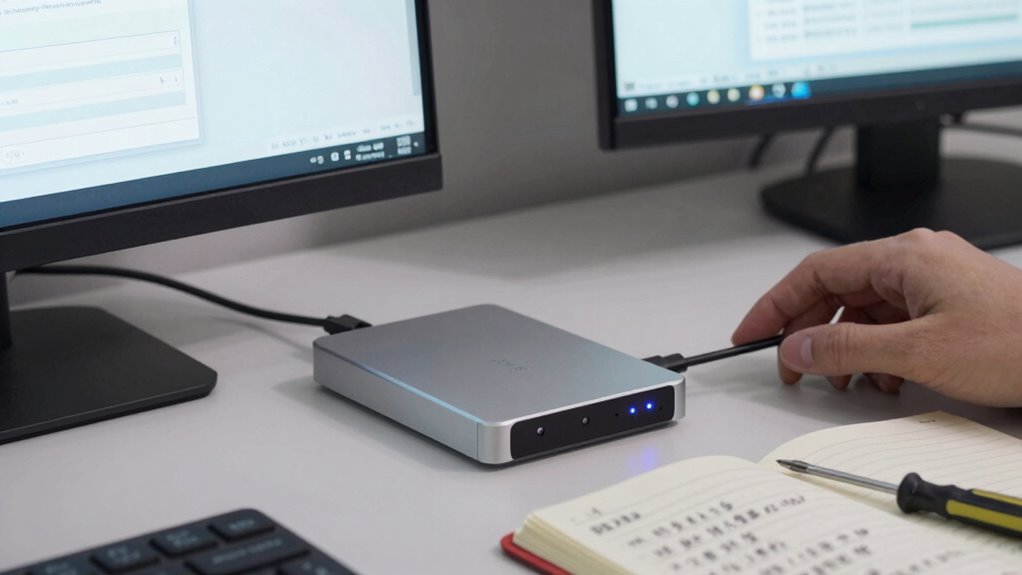
If your drive still isn’t recognized, head to your device manager or disk management utility to see if the drive appears there. On Windows, open Disk Management by right-clicking on the Start menu and selecting it. If your drive shows up but isn’t accessible, it might be uninitialized, offline, or have a drive letter conflict. Right-click on the drive to troubleshoot these issues, assign a new drive letter, or initialize the disk if needed. On a Mac, open Disk Utility to check if the drive appears; if it does, but isn’t mounted, you can try mounting it manually. Ensuring the drive’s file system compatibility is correct can also help prevent detection issues. When your drive appears but isn’t accessible, be cautious before formatting. Drive formatting erases all data on the drive, which can be problematic if you haven’t backed up important files. If data recovery is your priority, avoid formatting and instead use data recovery software to retrieve your files. Many tools can scan drives even if they aren’t showing up normally, helping you recover documents, photos, and videos. Additionally, understanding drive health and potential hardware issues can assist in diagnosing persistent problems. Regularly checking the hardware connections can often resolve detection issues caused by loose or faulty cables. It’s also beneficial to be aware that sound vibrations from certain tools or movements could potentially affect sensitive hardware components over time. Once you’ve recovered what you need, you can then consider drive formatting if the drive remains unresponsive or corrupted. Formatting can often resolve issues caused by filesystem corruption or malware, but only after data recovery attempts are complete. If your drive isn’t detected at all, and data recovery isn’t an option or has failed, your best bet is to consider professional repair services. Sometimes, hardware problems like a failed controller or damaged platters require expert intervention. Avoid trying to open the drive yourself unless you’re qualified, as this could cause further damage. In many cases, a combination of troubleshooting steps—checking connections, managing disk settings, attempting data recovery, and careful drive formatting—can resolve the problem. Remember, rushing into drive formatting without trying to recover your data first can lead to permanent loss. Stay patient, evaluate your options, and act accordingly to get your external drive working again or to recover your precious data.
external hard drive data recovery software
As an affiliate, we earn on qualifying purchases.
As an affiliate, we earn on qualifying purchases.
Frequently Asked Questions
Can I Recover Data From a Non-Visible External Drive?
Yes, you can recover data from a non-visible external drive. First, verify your drive isn’t hidden or disabled in Drive visibility settings. Use data recovery software designed for external drives to scan and retrieve lost files. If the drive still isn’t visible, check your device manager or Disk Management to identify any issues. Sometimes, reconnecting or updating drivers can make the drive visible again for successful data recovery.
Why Does My External Drive Work on One Computer but Not Another?
Your external drive might work on one computer but not another due to USB compatibility issues or drive encryption settings. Check if both computers support the drive’s USB version and format. Also, verify if drive encryption is enabled, which can prevent access on different systems. Updating drivers, disabling encryption temporarily, or reformatting the drive (if data is backed up) can resolve these issues and guarantee compatibility across devices.
How Do I Update Drivers for My External Drive?
Think of updating your external drive’s drivers like giving your car a tune-up. First, open Device Manager, locate your drive, and right-click to select “Update driver.” Choose “Search automatically for updated driver software,” and Windows will look for the latest version. If it finds an update, it’ll install it, and your drive letter should be recognized properly. Just make sure your system is connected to the internet for the best results.
Is It Safe to Format My External Drive to Fix Issues?
Yes, it’s safe to format your external drive to fix issues, but you should back up your data first. Formatting erases everything, so make certain your drive isn’t encrypted or, if it is, decrypt it beforehand. Always create a data backup to prevent loss. Once backed up, you can format the drive, which often resolves connection problems and improves performance. Just remember, formatting will delete all data, so proceed cautiously.
What Should I Do if My External Drive Shows as “Offline”?
If your external drive shows as “offline,” start by checking drive encryption settings, as encryption issues can cause this. Make sure your device is compatible with the drive’s hardware, as incompatible hardware might prevent it from appearing online. You can also try reconnecting the drive, updating drivers, or using disk management tools. If problems persist, verify encryption status and hardware compatibility to troubleshoot further effectively.
Conclusion
If your external drive still doesn’t appear, don’t give up. Try disconnecting and reconnecting it, or plugging it into a different port. Sometimes, a simple restart or updating your drivers can do the trick. Did you know that over 60% of data recovery issues are caused by drive detection problems? Staying patient and methodical can save your files and frustration. With these tips, you’ll have your external drive working again in no time!
Fall Picks
fall essentials
As an affiliate, we earn on qualifying purchases.