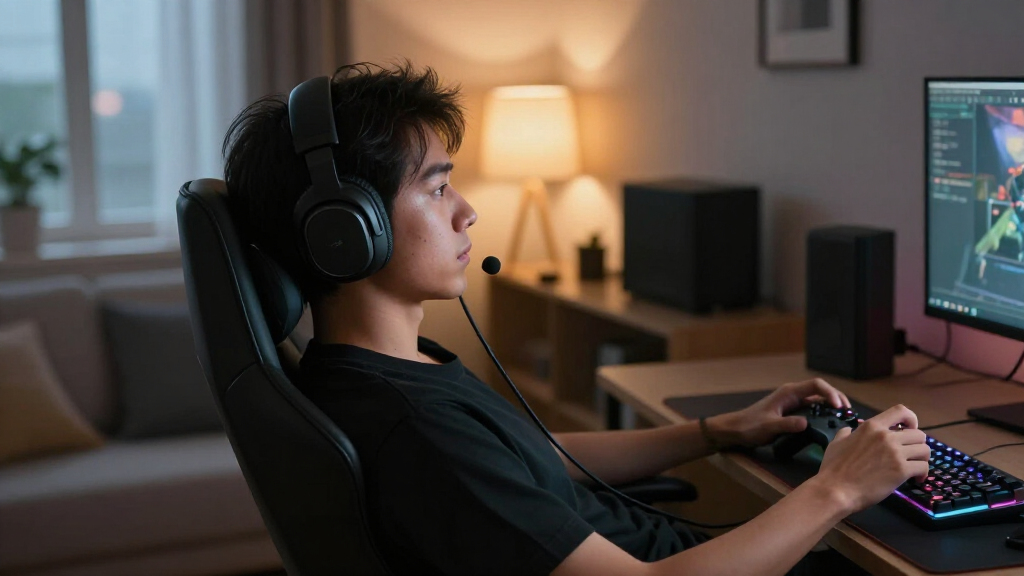
This guide walks you through setting up a wireless gaming headset from unboxing to verified working order: charging it, connecting it to your PC or console, configuring audio and microphone settings, and eliminating the most common wireless problems like lag, dropouts, and muted chat. It is written for beginners — no audio expertise is assumed. By the end, you will have a headset that works across your games and voice chat, with the correct device selected everywhere it needs to be. Expect to spend 30 to 45 minutes, most of it waiting for the battery to charge before first use.

Get the latest gadgets delivered free — and shop member deals
- Fast, free delivery on millions of items
- Access to Prime Big Deal Days deals on October 6–7
- Prime Video, Amazon Music and more included

Turtle Beach Stealth 700 Gen 3 Wireless Gaming Headset
- ✔ Connectivity: 2.4 GHz wireless and Bluetooth 5.2
- ✔ Drivers: 60 mm Eclipse dual drivers
- ✔ Battery life: Up to 80 hours

SteelSeries Arctis Nova 5 Wireless Multi-System Gaming Headset
- ✔ Connectivity: 2.4 GHz wireless and Bluetooth 5.3
- ✔ Battery life: Up to 60 hours
- ✔ Fast charging: 15 minutes for up to 6 hours

Turtle Beach Stealth 600 Wireless Gaming Headset
- ✔ Connectivity: 2.4 GHz wireless and Bluetooth
- ✔ Bluetooth version: 5.2 or 5.4 (listed inconsistently)
- ✔ Drivers: 50 mm Nanoclear
Difficulty: Beginner | Time: 30-45 minutes
What You’ll Need
Tools & Materials:
- A wireless gaming headset (2.4GHz USB dongle type or Bluetooth)
- The included USB transmitter dongle and USB cables
- A PC (Windows 10/11) or a PlayStation 5, PlayStation 4, Xbox Series X|S, or Nintendo Switch
- A free USB port on your gaming device (USB-A or USB-C depending on your dongle)
- Internet access if the headset has companion software or firmware updates
Knowledge:
- Basic ability to open system settings on your PC or console
- Knowing which console or platform you play on (this determines the connection method)
Check compatibility before you start. Xbox consoles require headsets explicitly labeled Xbox-compatible — a standard 2.4GHz dongle will not work on Xbox. PlayStation, PC, and Switch work with almost any USB dongle headset. Bluetooth-only headsets work on PC, PS5, PS4, and Switch (in docked mode) but introduce more latency and lower mic quality than dongle connections, so use the dongle whenever one is included. Keep your receipt or packaging until setup is confirmed working.
Turtle Beach Stealth 700 Gen 3 Wireless Gaming Headset
The Stealth 700 Gen 3 earns our top spot because it solves the problem most wireless headsets ignore: switching between systems without re-pairing. The included dual USB transmitters let you leave one plugged into a console and another in a PC, hopping between them on the fly — and while connected over 2.4 GHz, you can also stay paired to a phone over Bluetooth 5.2 simultaneously. That combination is something neither the Stealth 600 nor the Arctis Nova 5 fully replicates.Sound-wise, the 60 mm Eclipse dual drivers are the largest in this lineup, giving it a clear edge over the Stealth 600’s 50 mm drivers when it comes to low-end presence and spatial detail. The 10-band EQ and Advanced Superhuman Hearing mode let you tune footsteps and subtle cues — though, like its siblings here, the real customization lives in the Swarm II app rather than on the headset itself. The flip-to-mute mic with AI noise reduction is convenient, but the flip mechanism means there’s no retractable boom like the Nova 5 offers.Battery life matches the Stealth 600 at up to 80 hours, and a 15-minute quick charge buys about 3 hours of play — respectable, though the Nova 5 charges faster per minute. The steel-reinforced headband and glasses-friendly ProSpecs cushions make it comfortable for extended sessions, and the lay-flat design travels better than most. Compared with the Stealth 600, you’re paying for bigger drivers, simultaneous connections, and the dual-dongle convenience; if those don’t matter to you, the cheaper model covers the basics nearly as well.
Pros:
- Dual USB transmitters for effortless console-to-PC switching
- Simultaneous 2.4 GHz wireless and Bluetooth 5.2 connections
- Largest drivers in this lineup at 60 mm with 10-band EQ
- 80-hour battery life with quick charging
Cons:
- Multiplatform switching depends on keeping track of USB transmitters
- Advanced audio and mic settings require the Swarm II app
- Flip-to-mute mic is less elegant than a retractable boom
Best for: Gamers who split time between a console and PC, or who want game audio and phone audio at the same time
Not ideal for: Buyers who want everything adjustable on-headset, or anyone frustrated by managing multiple USB dongles
Bottom line: The most complete package here — if simultaneous connections and big-driver sound matter, the Stealth 700 Gen 3 justifies the premium.
“The most complete package here — if simultaneous connections and big-driver sound matter, the Stealth 700 Gen 3 justifies the premium.”
SteelSeries Arctis Nova 5 Wireless Multi-System Gaming Headset
The Arctis Nova 5 takes a different philosophy than both Turtle Beach models. Instead of hardware-based platform switching, it goes broad on compatibility — PC, PlayStation, Nintendo Switch, Meta Quest, phones, and tablets — from a single 2.4 GHz connection plus Bluetooth 5.3. For anyone whose gaming life includes a Switch or a Quest headset, it’s effectively the only sensible pick in this trio, since the Turtle Beach options skip both platforms entirely.Its standout feature is the library of 100+ game audio presets, tuned per title rather than forcing you to build an EQ yourself. It’s a genuinely different approach from the Stealth 700’s manual 10-band EQ: the Nova 5 assumes you’d rather pick a preset and play, while Turtle Beach assumes you want to tinker. Both paths run through companion software, so neither is truly app-free. The retractable ClearCast mic is a design win over both Turtle Beach flip-to-mute mics — it disappears completely when you’re done gaming, which makes the headset double as ordinary headphones.At 60 hours of battery life, it trails the Turtle Beach pair’s 80-hour claim, but its fast charging is the best here: 15 minutes yields roughly 6 hours, double what the Stealth 700 manages in the same time. The neodymium drivers deliver clean, balanced sound, though without the 60 mm size of the Stealth 700’s drivers. We’d call this the pick for the pragmatic buyer — someone who wants capable audio, unusual platform reach, and quick top-ups rather than maximum battery endurance.
Pros:
- Broadest platform support, including Switch and Meta Quest
- 15-minute charge delivers up to 6 hours of use
- 100+ game-specific audio presets via companion app
- Retractable ClearCast microphone tucks away completely
Cons:
- 60-hour battery trails both Turtle Beach models
- Audio presets require the companion app
- No Xbox compatibility
Best for: Multi-device gamers, especially Switch and Quest owners, who value fast charging and per-game audio presets
Not ideal for: Xbox gamers (no Xbox support) or buyers chasing the longest possible battery life
Bottom line: The smart middle pick — fastest charging, widest platform reach, and a retractable mic at a lower tier than the Stealth 700.
“The smart middle pick — fastest charging, widest platform reach, and a retractable mic at a lower tier than the Stealth 700.”
Turtle Beach Stealth 600 Wireless Gaming Headset
The Stealth 600 proves you don’t need the flagship to get flagship endurance. Its up to 80 hours of battery life matches the Stealth 700 Gen 3 exactly, meaning the pricier model’s advantages — bigger drivers, dual transmitters, simultaneous Bluetooth — don’t include runtime. For marathon gamers or anyone who hates charging cables, that alone makes it a compelling pick.Where it differs from its bigger sibling is scale and flexibility. The 50 mm Nanoclear drivers are solid but don’t deliver the low-end authority of the Stealth 700’s 60 mm Eclipse drivers, and there’s no dual-transmitter setup for hopping between console and PC — you’re managing one connection at a time. Compared with the Arctis Nova 5, it covers Xbox (which the Nova 5 skips) but misses Switch and Quest support, so your platform list should drive that choice more than any spec sheet.Comfort is a quiet strength: the memory foam cushions with glasses-relief technology reduce the pressure points that plague glasses wearers during long sessions, a feature shared across the Turtle Beach line but genuinely absent from many competitors. The flip-to-mute mic with AI noise reduction handles voice cleanly, and Swarm II handles the deeper tuning. One thing to note: the listed Bluetooth version is inconsistent between sources (5.2 versus 5.4), so treat Bluetooth as a secondary convenience feature rather than a headline spec. If you want the essentials done well and battery life above all, this is the value play of the three.
Pros:
- 80-hour battery life matching the more expensive Stealth 700
- Supports both 2.4 GHz wireless and Bluetooth
- Glasses-friendly memory foam cushions
- Customizable audio and mic settings via Swarm II
Cons:
- Smaller 50 mm drivers can’t match the Stealth 700’s sound
- No dual-transmitter multiplatform switching
- Inconsistent Bluetooth version details and app-dependent customization
Best for: Budget-conscious Xbox, PlayStation, and PC gamers who prioritize battery life over advanced features
Not ideal for: Buyers who want simultaneous device connections, Switch/Quest support, or top-tier driver performance
Bottom line: The endurance champion of the lineup — most of the Stealth 700’s practical value at a lower tier, if you can live without its extras.
“The endurance champion of the lineup — most of the Stealth 700’s practical value at a lower tier, if you can live without its extras.”
As an Amazon Associate we earn from qualifying purchases.
Before You Start
Charge the headset fully before first pairing. Most wireless headsets ship with a partial charge at best, and a low battery during setup can cause pairing failures and audio dropouts that look like hardware faults. Plug the headset in using the included cable and let it charge until the indicator LED shows full — usually 2 to 4 hours. While it charges, unpack the USB dongle and identify where your USB ports are: use a port directly on the PC or console, not a hub or monitor passthrough, because hubs weaken the wireless signal and add lag.
Also decide where you will place the dongle. It needs a clear line of sight to the headset where you sit. If your PC sits under a metal desk or inside a cabinet, use the included USB extension cable (most headsets include one) to raise the dongle to desk level.
Step-by-Step Instructions
Step 1: Charge the headset fully
Connect the headset to power using the included charging cable and leave it until the charge LED indicates full. Refer to the quick-start sheet for what the LED colors mean — commonly solid or green for full, red or pulsing while charging.
Tip: Do not skip this step to ‘just test it quickly.’ A half-charged headset is the most common cause of failed first-time pairing.
Check: The LED shows the fully-charged color or pattern listed in the manual, and the headset powers on when you press the power button.
Step 2: Power on the headset
Press and hold the power button (usually 2 to 5 seconds) until you hear a power-on tone or see an LED light up. Release the button when you hear the tone — holding too long can put the headset into pairing mode instead.
Tip: If the headset announces ‘pairing’ immediately, you held the button too long. Power it off and try a shorter press.
Check: You hear a startup tone and the LED is lit, indicating power.
Step 3: Plug the USB dongle into your device
Insert the wireless USB dongle into a USB port directly on your PC or console. Wait 10 to 20 seconds for the device to recognize it. On PC, Windows will install drivers automatically; on console, the dongle is detected instantly with no visible message.
Tip: Avoid USB hubs, monitor ports, and keyboard passthroughs. Plug the dongle into the machine itself, or use the included extension cable to position it in the open.
Check: On PC, the dongle appears in Settings > Bluetooth & devices > Devices (or Device Manager under ‘USB devices’ / audio). On console, there is no error notification.
Step 4: Confirm the wireless connection
Most dongle headsets connect automatically within seconds of the dongle being recognized. Put the headset on — you should hear a connection tone. If nothing happens after 30 seconds, power the headset off, then power it back on within range of the dongle.
Tip: If your headset is Bluetooth-only, instead hold the power button until the LED flashes rapidly, then pair it through your device’s Bluetooth settings menu.
Check: You hear the connected tone, and audio from your device now plays through the headset.
Step 5: Set the headset as the default audio device (PC)
On Windows, right-click the speaker icon in the taskbar, select Sound settings, and under Output choose the headset (it may appear as ‘Headset’ or the product name). Then click the arrow next to it and confirm it is also set for input where needed. Scroll to Input and select the headset microphone as the default input device.
Tip: Many wireless headsets create two output entries — one standard and one ‘Chat’ device. If game audio sounds wrong, check the headset’s own software; some models route chat and game audio through separate devices by design.
Check: Play a YouTube video or game audio clip: sound comes through the headset, and the volume slider under Sound settings shows an active audio level.
Step 6: Configure the microphone (PC)
In the same Sound settings window, go to Input and speak normally. Watch the input level meter — it should rise as you talk. Adjust the input volume so your normal speaking voice reaches roughly 70 to 80 percent of the bar without maxing out. Then open Settings > Privacy & security > Microphone and confirm microphone access is enabled for desktop apps.
Tip: If the meter never moves, the wrong mic is selected — switch the Input device to the headset.
Check: The input level bar visibly moves when you speak and stays still when you are quiet.
Step 7: Set up on console (PlayStation, Switch, Xbox)
On PlayStation, go to Settings > Sound > Audio Output and select the USB headset for both Input and Output. On Switch, docked mode handles USB audio automatically — just plug in the dongle and adjust volume from the headset. On Xbox with a compatible headset, follow the same pattern: Settings > General > Volume & audio output, and select the headset where available.
Tip: PlayStation users: also check Settings > Sound > Audio Output > Microphone Level and raise it if teammates say you are quiet.
Check: Game audio plays through the headset, and the console’s mic level meter (PlayStation) responds to your voice.
Step 8: Install companion software and update firmware
If your headset has companion software (SteelSeries GG, Logitech G HUB, Corsair iCUE, Razer Synapse, HyperX NGENUITY, and similar), download it from the manufacturer’s website, install it, and connect the headset. Allow any firmware updates to complete — this fixes known bugs including connection dropouts and battery reporting errors.
Tip: Never unplug the headset or dongle during a firmware update. A interrupted update can brick the device. Keep it connected until the software confirms completion.
Check: The software shows the headset as connected with current firmware, and the battery percentage reads sensibly.
Step 9: Test in a real game and voice chat
Launch a game and play for five minutes. Test positional audio by turning your character while sounds play — footsteps and effects should shift clearly between ears. Then join a voice chat with a friend or use a mic-testing service to confirm they hear you clearly, without distortion or dropouts.
Tip: Keep the dongle at least 2 feet away from your Wi-Fi router and other USB 3.0 devices — both cause interference in the 2.4GHz band.
Check: Audio stays continuous for the full session, chat is clear in both directions, and no crackling or cutouts occur.
Common Mistakes to Avoid
- Plugging the dongle into a USB hub, monitor, or keyboard port, causing dropouts and lag. — Always use a port on the PC or console itself, or the included extension cable raised to desk height.
- Skipping the initial full charge, leading to failed pairing and random shutoffs. — Charge to full before the first connection, every time you set up or reset the headset.
- Leaving the default audio device unchanged on PC, so games keep playing through speakers. — Set the headset as both Output and Input in Windows Sound settings immediately after connecting.
- Buying a non-Xbox-compatible headset for an Xbox console. — Check the box for explicit Xbox compatibility before purchase; standard 2.4GHz dongles only work on PC, PlayStation, and Switch.
Troubleshooting
Problem: Audio crackles, cuts out, or drops for a second during gameplay.
Solution: Move the dongle closer with a USB extension cable, keep it in line of sight of the headset, and move it away from Wi-Fi routers, USB 3.0 hard drives, and other 2.4GHz devices. If your headset and software support a 5GHz or ‘low latency’ mode, enable it. Also verify the battery is above 20 percent — many headsets glitch at low charge.
Problem: The microphone is silent or teammates cannot hear you.
Solution: Check three things in order: the Input device in Sound settings is the headset, Windows Privacy settings allow microphone access, and the mic is not muted via the boom arm (flip-to-mute) or the mute button on the earcup. In Discord or your game’s audio settings, also confirm the correct input device is selected there — these apps override system defaults.
Problem: The headset will not pair with the dongle at all.
Solution: Power the headset off. Hold the power button for 6 to 10 seconds to enter pairing mode (check the manual for the exact pattern — some use a dedicated pairing button). Reinsert the dongle while the headset searches. If it still fails, forget the device in companion software and re-pair from scratch. As a fallback, charge both headset and test on another device to rule out a faulty dongle.
Problem: Noticeable delay between on-screen action and sound.
Solution: Confirm you are connected through the 2.4GHz dongle, not Bluetooth — Bluetooth adds 100–200ms of lag. If already on the dongle, close background apps consuming USB bandwidth, update firmware, and try a different USB port. On PC, disable any ‘audio enhancements’ on the output device in Sound settings, as these add processing delay.
What Success Looks Like
Setup is complete when all of the following hold: game audio plays through the headset with clear left-right positional distinction; a five-minute gaming session passes with no dropouts, crackling, or shutoffs; the person on the other end of a voice chat hears you clearly at a comfortable volume; the headset appears as the selected output and input device in your platform’s sound settings; and companion software (if applicable) shows the headset connected with updated firmware and an accurate battery reading. If any one of these fails, work through the troubleshooting section before regular use.
Next Steps
After confirming everything works, take a few minutes to tune your setup: adjust the equalizer in the companion software for your preferred game genre (many presets exist for footsteps in competitive shooters), and find your headset’s mic-monitoring or ‘sidetone’ setting so you can hear your own voice at a natural level. Establish a charging habit — dock or plug in the headset after each session so it is never dead when you want to play. Check the companion software monthly for firmware updates, since manufacturers regularly fix connection bugs. If dropouts persist after trying every interference fix, contact the manufacturer’s support while the warranty is active, and note that 2.4GHz headsets generally carry a one- to two-year warranty.
Frequently Asked Questions
Can I use one wireless headset on both PC and console?
Yes, if it is a multi-platform model. Most 2.4GHz dongle headsets work on PC, PlayStation, and Switch by moving the dongle between devices. Xbox requires an Xbox-compatible model. Switching usually means physically moving the dongle and re-pairing, which takes under a minute.
Is Bluetooth good enough for gaming, or do I need the dongle?
Use the dongle whenever one is included. Bluetooth adds noticeable audio delay, which throws off timing in fast games, and many Bluetooth codecs disable or downgrade the microphone while audio is playing. The 2.4GHz dongle delivers lower latency and better mic quality simultaneously.
How long should the battery last per charge?
Most modern wireless gaming headsets run 15 to 40 hours per charge, with the exact figure in the product specs. Real battery life is shorter with RGB lighting on and the volume turned high. If you get dramatically less than the rated time, update the firmware — battery reporting bugs are common and frequently fixed in updates.
Why does my headset work in Discord but not in my game, or vice versa?
Discord and most games have their own audio device selection that overrides the system default. Open the audio settings in whichever app is silent and select the headset there as well. Some headsets split game and chat into two separate devices — check the companion software’s mixer settings if one stream is missing.
Can I use the headset while it charges?
Usually yes — most models support play-while-charging, though some disable wireless in that mode and require the cable. The trade-off is that heat from charging plus gaming can slightly shorten long-term battery life, so use a full charge before sessions when possible rather than playing plugged in constantly.
Fall Picks
fall essentials
As an affiliate, we earn on qualifying purchases.