To configure your notifications so they help you, start by customizing alert settings for each app, choosing only essential notifications. Assign unique tones to distinguish urgency and use quiet modes during meetings or late hours. Regularly review and adjust your preferences to stay aligned with your needs, and be cautious of malicious alerts. Protect your privacy through appropriate settings, ensuring security. Keep these tips in mind to stay focused—there’s more to optimize your system effectively.
Key Takeaways
- Customize notification tones and types to differentiate urgent alerts from routine updates.
- Manage app-specific settings to control when and how notifications appear.
- Regularly review and adjust notification preferences to match your current priorities.
- Disable or silence notifications during meetings or late hours to minimize distractions.
- Use privacy and security settings to protect personal information and prevent malicious alerts.
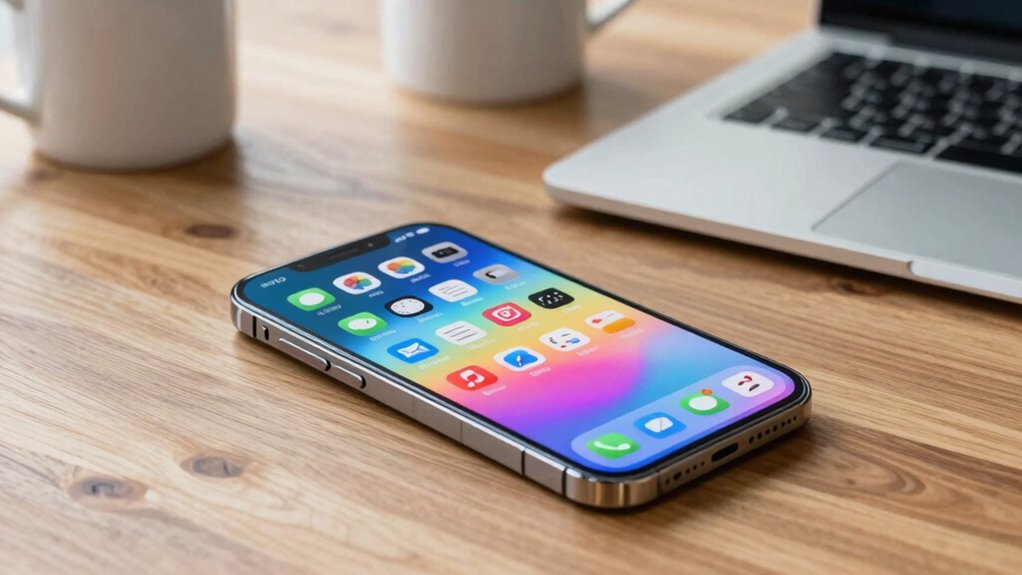
Notifications keep you informed and guarantee you never miss important updates, but configuring them correctly is essential to avoiding unnecessary distractions. When you set up your notifications properly, you control what alerts grab your attention and when they do so. One of the most effective ways to do this is through notification tone customization. Instead of generic sounds that blend into the background, you can assign specific tones to different apps or types of alerts. For example, you might choose a subtle chime for work emails and a louder alert for urgent messages. This way, your brain instantly recognizes the importance of an alert without you having to check your device constantly.
Assign distinct notification tones to different apps to quickly recognize alerts and minimize constant device checking.
Another vital aspect is managing app-specific alert settings. Many apps allow you to customize how and when you receive notifications. You might want social media apps to send only silent alerts or disable notifications during certain hours to preserve focus. On your device, navigate to the settings menu for each app to fine-tune these options. Disabling notifications during meetings or late at night prevents unnecessary disturbances. Some apps even let you choose the type of notification—whether it’s a banner, pop-up, or sound—giving you more control over how alerts appear. Additionally, understanding notification management can help you optimize your alert system for better productivity. Regularly reviewing your notification preferences ensures your setup remains aligned with your current priorities. Being aware of digital safety tips can also prevent you from falling victim to malicious notifications or scams that mimic legitimate alerts. Ensuring your device’s privacy settings are appropriately configured can further safeguard your information from unwanted access or exploitation.
custom notification tones for smartphone
As an affiliate, we earn on qualifying purchases.
As an affiliate, we earn on qualifying purchases.
Frequently Asked Questions
Can I Customize Notification Sounds for Different Apps?
Yes, you can customize notification sounds for different apps. You just need to access your device’s sound settings, then select “Notification tones” or “Sound customization.” From there, choose the app you want to modify, and pick a unique notification tone. This way, you’ll instantly recognize which app is alerting you, making it easier to prioritize your responses and stay organized without having to check your device constantly.
How Do I Prioritize Notifications From Important Contacts?
Your phone’s silent modes can become your best friend when you want to prioritize calls from important contacts. Use priority settings to guarantee notifications from loved ones or key colleagues always break through, even when everything else is silent. It’s like having a personal buffer of attention just for them, making sure you never miss essential messages while filtering out less critical alerts. Prioritizing contacts transforms your device into a tailored communication powerhouse.
Are There Ways to Disable Notifications During Specific Times?
Yes, you can disable notifications during specific times by setting Silent hours or activating Do Not Disturb mode. Silent hours automatically mute notifications during scheduled times, like overnight. Do Not Disturb temporarily blocks alerts when you need focus or rest. You can customize these settings in your device’s notification options, ensuring you don’t get disturbed during important periods, helping you maintain better focus or rest without missing critical alerts.
Can I See Notification History on My Device?
Yes, you can see your notification history on your device. Many smartphones store a log of recent notifications, allowing you to review missed alerts. Keep in mind notification etiquette by managing these logs to avoid unnecessary distractions. Also, consider privacy considerations, especially if sensitive information appears in your notification history. Regularly checking and clearing your notification log can help you stay organized while respecting privacy boundaries.
How Do I Manage Notifications on Multiple Devices Simultaneously?
To manage notifications across multiple devices, enable notification syncing in your settings so alerts stay consistent everywhere. Adjust device-specific alerts to customize what each device displays, ensuring you don’t miss important updates. Use your account or device management tools to sync notification preferences, and check individual device settings for any restrictions. This way, you maintain control and stay informed, no matter which device you’re using.
Conclusion
By customizing your notifications, you can stay informed without feeling overwhelmed. It’s tempting to disable them all, but that might cause you to miss important updates. Instead, tweak your settings so only the essentials come through—your inbox will thank you. Remember, a well-balanced notification setup keeps you productive and stress-free. Don’t let fear of missing out hold you back; with a little adjustment, notifications become your helpful sidekick, not your distraction.