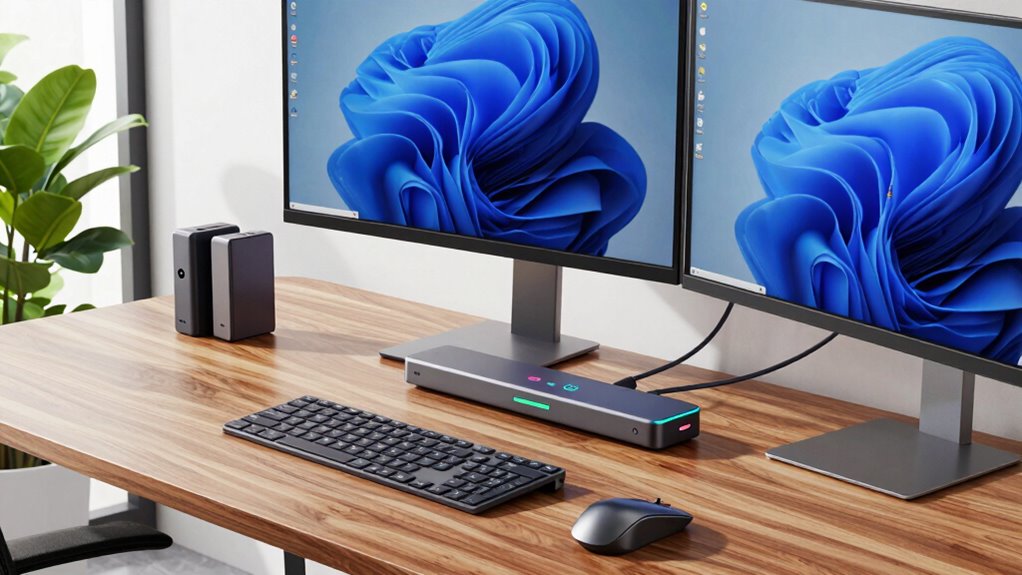

For anyone needing to connect dual monitors via a USB-C dock, the options can be overwhelming. The best models offer reliable 4K support, fast data transfer, and sufficient power delivery, but tradeoffs often involve size, price, and compatibility. The Plugable USB-C Docking Station stands out as a solid overall pick thanks to its driverless setup and broad compatibility. The Anker Prime Docking Station offers impressive power and port variety for demanding setups, while the Acer USB-C Docking Station balances features with affordability. Keep reading to see how each model stacks up and find the perfect fit for your needs.

Get the latest gadgets delivered free with Prime
- Fast, free delivery on millions of items
- Prime Video, Amazon Music and more included
- Member-only deals all year
Complete the kit



Key Takeaways
- Performance in dual 4K support and data transfer rates varies, but most models deliver 60Hz refresh rates for smooth visuals.
- Power delivery (PD) capacity is crucial for charging your laptop while using multiple displays—aim for at least 85W for most high-performance setups.
- Build quality and port selection differ significantly; premium docks often include more reliable materials and a broader array of ports.
- Compatibility, especially driverless operation and support for different operating systems, is a key consideration to prevent setup hassles.
- Size and design matter depending on workspace constraints; more compact options sacrifice some ports but improve portability.


| usb c dock for dual monitor | Number of Ports |
|---|---|
| Plugable USB-C Docking Station | — |
| Anker Prime Docking Station | 14 |
| Acer USB-C Docking Station Dua | — |
| Anker Nano 13-in-1 Laptop Dock | 13-in-1 desktop, 6-in-1 portable |
| Lenovo USB-C Dual Display Trav | 7 |
| Anker Dual Monitor USB-C Hub w | 8 |
| Anker 7-in-1 USB-C Hub with Du | 7 |
| Anker Nano USB-C Docking Stati | — |
More Details on Our Top Picks
Plugable USB-C Docking Station Dual Monitor 4K 60Hz (2×HDMI), 65W Charging, Gigabit Ethernet, USB-C & 3×USB-A 5Gbps, Audio, Driverless for Windows/ChromeOS
This dock shines for users who prioritize high-resolution multitasking with dual 4K monitors at 60Hz, thanks to its support for two HDMI outputs and easy plug-and-play setup on Windows and ChromeOS. Compared with the Anker Prime Docking Station, it offers slightly fewer ports but excels in video quality and simplicity. Its 65W charging is adequate for many ultrabooks but might fall short for power-hungry laptops, which is a tradeoff compared to higher-wattage options. The inclusion of gigabit Ethernet and audio jacks adds to its versatility. However, its limited compatibility with macOS for extended displays, and the reliance on host system support for video output, mean it’s best suited for Windows/Chromebook users. Overall, this dock makes the most sense for those seeking a reliable, straightforward dual 4K setup without extra fuss or high cost.
Pros:- Supports dual 4K monitors at 60Hz for crisp multitasking
- Driverless, plug-and-play setup simplifies installation
- Includes Ethernet, audio, and multiple USB ports for comprehensive connectivity
Cons:- Limited macOS compatibility for extended display modes
- Requires host support for DP Alt Mode and MST for video output
- Power delivery capped at 65W, which may be insufficient for some laptops
Best for: Windows or Chromebook users needing a simple, stable dual 4K monitor setup with essential peripherals
Not ideal for: Mac users who want extended desktop support or those with laptops requiring more than 65W charging
- Monitor Support:Dual HDMI up to 4K 60Hz
- Charging Power:65W
- Connectivity:USB-C, 3xUSB-A 5Gbps, Ethernet, Audio
- Compatibility:Windows 10+, Chromebook with DP Alt Mode + MST
- Included:110W power adapter, USB-C cable, Quick Start Guide
Our verdict“This dock is ideal for Windows and Chromebook users seeking a reliable, high-quality dual 4K display solution with minimal setup complexity.”
Anker Prime Docking Station, 14-Port with 160W Max Output, Dual 4K Displays, Fast Data Transfer
The Anker Prime offers impressive versatility with 14 ports, including support for dual 4K displays at 60Hz, and a robust 160W power output that can handle multiple devices simultaneously. When compared with the UGREEN 7-in-1 Dual Monitor Dock, it provides more ports and higher charging capacity, making it a better fit for users with extensive peripheral needs. Its high data transfer speeds (10Gbps) benefit those who regularly move large files. However, its lack of Linux support and the fact that it doesn’t handle above 1080p resolutions on some monitors can be limiting for creative professionals or Mac users, respectively. This makes it more suitable for Windows-based setups with multiple peripherals and high power demands. Overall, it offers excellent value for users who need a comprehensive, high-power dock without paying a premium for specialized features.
Pros:- Supports dual 4K displays at 60Hz with high-quality visuals
- Massive 160W power output for charging multiple devices
- Numerous ports for data, video, and peripherals with fast transfer speeds
Cons:- Limited compatibility with Linux systems
- Displays on macOS are limited to mirror mode, not extended desktop
- No support for resolutions above 1080p on some monitors
Best for: Power users with multiple peripherals and dual 4K monitors, primarily on Windows systems
Not ideal for: Linux users or those seeking advanced resolution support beyond 1080p or 2K@60Hz for professional workflows
- Number of Ports:14
- Max Power Output:160W
- Data Transfer Speed:10Gbps
- Display Support:Dual 4K at 60Hz
- USB-C Ports:3 at 100W max each
- USB-A Ports:1 at 12W max
Our verdict“This dock offers outstanding value for Windows users needing extensive connectivity and high power capacity in a single device.”
Acer USB-C Docking Station Dual Monitor, 9-in-1 Laptop Dock with 2 HDMI, 4K@60Hz, USB A&C 3.0, SD/Micro SD, 100W PD
This Acer dock provides reliable dual 4K monitor support via HDMI, combined with multiple USB ports and SD card slots, making it a strong choice for versatile connectivity. Compared with the UGREEN 7-in-1 Dock, it offers similar video capabilities but with a more traditional 9-in-1 setup primarily aimed at compatibility with various laptop brands. Its 100W charging is sufficient for most laptops, and the inclusion of SD/Micro SD slots adds convenience for photographers or content creators. A notable drawback is that Mac users can only mirror displays, not extend, which limits its appeal for Mac-centric workflows. The absence of included power adapter and the requirement for a USB-C port with video support are minor hurdles. Overall, this model suits users seeking a straightforward, well-rounded dock for dual 4K displays with broad compatibility.
Pros:- Supports dual 4K monitors at 60Hz with reliable HDMI output
- Includes SD and Micro SD card slots for quick data transfer
- Provides 100W power delivery for fast charging
Cons:- Mac OS only supports display mirroring, not extending
- Power adapter not included, adding extra cost
- Requires a USB-C port with video output support
Best for: Users with a variety of laptops (Dell, HP, Mac) needing dependable dual 4K support and SD card access
Not ideal for: Mac users wanting extended desktop modes or professionals requiring resolutions above 4K
- Number of HDMI ports:2
- Resolution:4K@60Hz
- USB-A ports:3
- USB-C ports:1
- SD card slots:Yes
- Power Delivery:100W
Our verdict“This dock is ideal for users requiring broad compatibility and dependable dual 4K support, especially on Windows and compatible laptops.”
Anker Nano 13-in-1 Laptop Docking Station with Detachable 6-in-1 Hub, USB-C 3 Display Docking (2 HDMI+1 DP), 10 Gbps USB-C, 3 USB-A, Audio, SD/TF, Ethernet, 100W Max PD for Dell/Lenovo/HP Home Office
This docking station stands out for its detachable hub design, offering both a full desktop and portable setup, ideal for professionals on the move. Its support for triple monitor configurations, including 2 HDMI and 1 DisplayPort, provides versatile display options that surpass many single or dual HDMI docks. Compared to the Plugable USB-C Dock, this model offers greater flexibility with its removable hub, making it more adaptable for travel or changing workspaces. The 100W power delivery and multiple video outputs make it suitable for demanding users. However, setup complexity and the need for compatible cables may be challenging for some. Mac users will find only mirrored display support, limiting the extended desktop benefit. Overall, this pick makes the most sense for those who value portability and multi-monitor flexibility in a single package.
Pros:- Detachable hub for portability and flexible workspace setup
- Supports triple 4K or dual 2K monitor configurations
- Provides 100W charging and a broad array of ports
Cons:- Setup can be complex for non-technical users
- Requires proper cables for optimal 10Gbps data transfer
- MacOS supports only mirror mode on multiple displays
Best for: Professionals who need a portable, multi-monitor setup with high flexibility for home and travel
Not ideal for: Users seeking a plug-and-play, simple dual-monitor station or those with Mac systems requiring extended displays
- Number of Ports:13-in-1 desktop, 6-in-1 portable
- Display Outputs:2 HDMI, 1 DisplayPort
- Max Resolution:4K@60Hz (single), dual 2K@60Hz
- Power Delivery:100W
- Supported Devices:Dell, Lenovo, HP, Windows laptops
- Included Accessories:USB-C cable, 140W power adapter
Our verdict“This dock is perfect for professionals needing a flexible, portable solution supporting multiple monitors and high power delivery.”
Lenovo USB-C Dual Display Travel Dock – 7 Ports, 4K Support, Universal Compatibility, Black
The Lenovo USB-C Dual Display Travel Dock stands out for its focus on portability combined with robust connectivity, supporting dual 4K displays via DisplayPort 1.4 and HDMI 2.0, which makes it ideal for remote workers and travelers. Compared with the Anker 7-in-1 Hub, it offers a similar number of ports but emphasizes eco-friendly materials and a sleek, compact design. Its 100W power delivery ensures fast charging, though it requires an additional charger for higher 135W setups, which could be inconvenient for power users. The dock’s universal compatibility across USB-C laptops makes it versatile, but some users may find the port arrangement tight, especially when using multiple devices simultaneously. If portability and eco-conscious design are priorities, this dock offers a compelling package, even with the tradeoff of needing an extra charger for maximum power.
Pros:- Supports dual 4K displays for high-quality visuals
- Universal compatibility with all USB-C laptops
- Includes a 100W USB-C power adapter for fast charging
- Eco-friendly design with recycled materials
Cons:- Requires additional charger for 135W power delivery boost
- Limited to USB-C laptops, not compatible with older models
- Some users may find the port arrangement tight
Best for: Travelers and remote professionals needing a portable, all-in-one docking solution with dual 4K support
Not ideal for: Heavy-duty office setups or users with older USB-C laptops without DisplayPort Alt Mode, as compatibility may be limited
- Number of Ports:7
- Display Outputs:2 (DisplayPort 1.4 and HDMI 2.0)
- Maximum Power Delivery:100W
- USB Ports:1 x USB-A 3.2, 2 x USB-C 10 Gbps
- Network:RJ45 Ethernet (10/100/1000M)
- Material:66% Post-Consumer Recycled Content
Our verdict“This dock is perfect for travelers who prioritize portability and eco-friendliness but accept some setup limitations.”
Anker Dual Monitor USB-C Hub with 8-in-1 Functionality
The Anker 8-in-1 USB-C Hub excels in delivering a compact, durable solution for dual 4K monitor setups, supporting high refresh rate outputs via HDMI and offering multiple connectivity options, including Ethernet and an SD card reader. It compares favorably to the Anker Nano Dock, providing more ports and a dedicated dual HDMI output, though it doesn’t include a charger—users will need to supply their own 85W power supply for optimal charging. Its aluminum enclosure enhances durability, making it suitable for mobile professionals who need a reliable, space-efficient dock. However, the dual HDMI outputs on macOS only mirror displays, limiting extended desktop use, and Linux compatibility is absent. For users seeking a portable, versatile dock with extensive ports, this model offers solid value despite the need for an external power source.
Pros:- Supports dual 4K monitors with high refresh rates
- Multiple connectivity options including Ethernet and SD card reader
- Compact aluminum design for durability and portability
- Power delivery up to 85W for fast charging
Cons:- Display on both monitors is mirrored on macOS
- Charger and USB-C cable not included
- Not compatible with Linux systems
Best for: Professionals who need a portable, multi-port dock capable of supporting dual 4K monitors on the go
Not ideal for: Mac users wanting extended dual displays or Linux users due to display mirroring and compatibility issues
- Hardware Interface:Ethernet, HDMI, MicroSD, USB 3.0
- Additional Features:HDMI™, Powered
- Total USB Ports:3
- Data Transfer Rate:5120 Megabytes Per Second
- Number of Ports:8
- Color:Gray
Our verdict“This hub suits mobile professionals needing a portable, multi-port solution, provided they have their own charger and are aware of macOS display limitations.”
Anker 7-in-1 USB-C Hub with Dual HDMI Display and 85W Power Delivery
The Anker 7-in-1 USB-C Hub offers a straightforward way to connect dual HDMI displays at 1080p@60Hz, making it a good pick for basic multitasking setups. It supports fast data transfer at 10Gbps and delivers 85W power for charging, though it requires a compatible USB-C port with DisplayPort Alt Mode and Power Delivery, which limits its universality. Compared to the more feature-rich Anker Nano Dock, this one emphasizes simplicity and affordability but sacrifices some higher-resolution support and extended display features. The absence of a wall charger means users must supply their own, which could be an inconvenience. If your primary goal is a simple dual HDMI setup for everyday work, this dock offers good value, with some tradeoffs in resolution and features.
Pros:- Supports dual HDMI displays at 1080p@60Hz
- Fast data transfer speeds of 10Gbps
- High power delivery up to 85W for charging
- Compatible with a wide range of laptops
Cons:- Requires a compatible USB-C port with DP Alt Mode
- Does not support 4K or extended dual displays on macOS
- Charger not included
Best for: Budget-conscious users needing a dual HDMI dock for 1080p displays and fast charging
Not ideal for: Power users requiring 4K dual displays or extended desktop support on macOS, due to resolution and display limitations
- Number of Ports:7
- Video Output:Dual HDMI, 1080p@60Hz
- Data Transfer Speed:10Gbps
- Power Delivery:85W output, 100W input
- Compatibility:USB-C, USB4, Thunderbolt, MacBook, Windows 10/11, ChromeOS
- Wall Charger Included:No
Our verdict“This budget-friendly dock fits users needing basic dual HDMI connectivity and quick charging without extra bells and whistles.”
Anker Nano USB-C Docking Station with Dual 4K HDMI, 8-in-1 USB-C Hub, 85W Power Delivery, SD/TF Card Reader for Windows Laptops
The Anker Nano USB-C Docking Station combines dual 4K HDMI outputs supporting 60Hz with fast data transfer and 85W charging, making it a versatile choice for Windows users who need extended dual monitors along with multiple USB devices. Compared to the Anker Dual Monitor Hub, it offers additional SD/TF card readers and a more comprehensive port selection, ideal for multitasking workflows. However, it does not support extended displays on macOS, only mirroring, which limits its use for Mac users. Its compatibility with Thunderbolt, USB-C, and USB4 ensures broad device support, but it does not include a charger, so users must have a 100W PD charger on hand. This dock is best for Windows users who want a full-featured, reliable dual monitor setup with extra ports, accepting some restrictions on Mac and Linux systems.
Pros:- Supports dual 4K displays at 60Hz
- Fast data transfer speeds up to 10 Gbps
- Includes SD/TF card readers for media transfer
- Provides up to 85W power delivery
Cons:- MacOS only mirrors displays, limiting extended desktop use
- Charger not included, requires a separate 100W PD charger
- USB ports do not support video output
Best for: Windows users seeking a multi-port, dual 4K display dock with data and media card support
Not ideal for: Mac or Linux users needing extended displays or those who prefer an all-in-one charger included in the package
- Connectivity:8-in-1 USB-C hub with HDMI, USB-C, USB-A, SD/TF card slots
- Max Power Delivery:85W
- Video Output:Dual 4K@60Hz HDMI ports
- Data Transfer Speed:10 Gbps
- Compatibility:Windows 10/11, ChromeOS, USB-C, USB4, Thunderbolt
- Charger Included:No
Our verdict“This docking station serves Windows professionals needing robust dual 4K support and media card options, with some limitations for Mac and Linux environments.”

How We Picked
The products in this roundup were evaluated based on their ability to reliably support dual 4K monitors at 60Hz, ensuring crisp visuals without lag. We prioritized docks with sufficient power delivery, ideally 85W or more, to keep laptops charged during extended use. Build quality and port versatility were also key, as a good dock should accommodate various peripherals beyond monitors. Ease of setup, including driver requirements and compatibility across Windows, Mac, and ChromeOS, influenced rankings. Price-to-value ratio played a role, with a focus on features delivered relative to cost. Ultimately, products that balanced performance, usability, and durability earned higher positions in this list.Factors to Consider When Choosing Usb C Dock For Dual Monitors
Choosing the right USB-C dock for dual monitors involves balancing several factors beyond just port count. Understanding your specific needs—whether for professional work, gaming, or casual use—helps narrow options and avoid overspending on unnecessary features. Carefully considering compatibility, power delivery, and size can prevent frustrations later. The following sections break down the key factors that will influence your decision and how to prioritize them based on your setup.Display Support and Refresh Rate
For dual monitors, ensuring the dock supports at least 4K resolution at 60Hz on each display is vital for smooth, clear visuals. Some docks may only support 4K at 30Hz or limit resolution when both ports are used simultaneously. If you plan to do detailed work or gaming, prioritize docks with proven dual 4K support at 60Hz. Keep in mind that supporting higher refresh rates or multiple displays often demands more advanced hardware, which can increase cost.
Power Delivery (PD) Capabilities
Power delivery determines how effectively the dock can charge your laptop while in use. For most users with high-performance laptops, an 85W or higher PD is advisable to avoid having to connect a separate charger. Lower wattage docks might still power smaller or less demanding devices but can slow down charging or leave your laptop underpowered during intensive tasks. Be cautious of docks with limited PD if you rely on your setup for work or creative projects.
Build Quality and Port Selection
Durability and port variety are often overlooked but are critical for long-term use. Metal enclosures tend to last longer and resist wear better than plastic ones. The number and types of ports—USB-A, USB-C, Ethernet, SD card slots—should match your peripheral needs. A dock with too few ports or incompatible standards can create bottlenecks or force additional adapters, complicating your workspace. Think about your current and future peripherals to select a flexible, well-built option.
Compatibility and Ease of Setup
Not all docks work seamlessly across different operating systems or require complex driver installations. A driverless, plug-and-play model reduces setup time and compatibility issues. Check whether the dock supports your OS—Windows, Mac, ChromeOS—and if firmware updates are needed. Compatibility issues can lead to dual monitor failures or peripheral malfunctions, making this a key factor for hassle-free use.
Size, Design, and Portability
The physical size and weight of the dock influence whether it fits into your workspace or travel bag. Compact docks are ideal for portable setups but may sacrifice port count or power capacity. Larger, more feature-rich docks often stay on your desk permanently, offering better stability and additional ports. Consider your workspace constraints and whether mobility is a priority to select a dock that balances size with features.
Frequently Asked Questions
Can I connect two 4K monitors to a USB-C dock that only supports 30Hz?
Connecting two 4K monitors to a dock limited to 30Hz will result in less smooth visuals, which can impact tasks like video editing or gaming. For most productivity tasks, 60Hz is preferable for fluid motion, especially on larger screens. If your workflow involves detailed design work or media consumption, choosing a dock with genuine 4K@60Hz support is advisable. Otherwise, a 30Hz refresh rate may suffice for basic office use but will feel sluggish for fast-moving content.
Is it safe to use a dock with lower power delivery if my laptop supports higher wattage charging?
Using a dock with less than your laptop’s maximum charging capacity is generally safe, but it means your device may not charge as quickly or might not stay charged during intensive use. If your laptop requires 100W, a dock providing only 65W or 85W will still power it but could slow down charging or cause battery drain under heavy load. For uninterrupted performance, selecting a dock with power delivery matching or exceeding your laptop’s needs prevents potential issues.
Will a USB-C dock work with both Windows and Mac laptops?
Most modern USB-C docks aim for broad compatibility, but some features—like specific display resolutions or power delivery—may vary between operating systems. Docks with driverless operation tend to work seamlessly across Windows and Mac, but it’s wise to check the manufacturer’s compatibility list. Certain docks might require additional drivers or software for full functionality, so verifying OS support before purchasing reduces setup surprises.
Should I prioritize port variety or dual 4K support when choosing a dock?
This depends on your peripheral needs. If you rely on many USB accessories, a dock with a wide port selection offers greater flexibility. However, if your primary goal is high-quality dual 4K display support, prioritize docks with proven 4K@60Hz capability. Balancing these factors involves considering your specific workflow; some docks excel at video output but have fewer ports, while others offer more connectivity but limited display support.
How important is build quality versus price for a dual monitor USB-C dock?
Build quality directly affects the longevity and reliability of your setup, especially for daily use or travel. Investing in a well-made dock can prevent issues like port failure or overheating. While cheaper options may seem appealing initially, they might not last as long or could cause connectivity problems. In most cases, paying a bit more for a durable, well-designed dock provides better value over time, especially if you depend on it for work or creative tasks.
Conclusion
For general office use and demanding multitasking, the Plugable USB-C Docking Station offers reliable performance and broad compatibility, making it the best overall choice. Those seeking the best value without sacrificing core features should consider the UGREEN 7-in-1 Dual Monitor Dock, which balances price and functionality. If you’re after a premium, feature-rich setup, the Anker Prime Docking Station provides extensive ports and high power delivery. Beginners or minimal users might prefer a simple, compact dock like the Lenovo USB-C Dual Display Travel Dock. For specialized needs, such as travel or compact setups, options like the Anker Nano USB-C Docking Station are excellent. Match your specific requirements to these profiles to make the best choice.Halloween Picks
halloween
As an affiliate, we earn on qualifying purchases.