
A JBOD enclosure lets you connect several drives as separate storage volumes, without requiring them to act as one RAID array. My best overall pick is the OWC ThunderBay 8 for its eight bays, Thunderbolt 3 connection, and included SoftRAID; the TerraMaster D4-320 is a simpler four-bay USB-C choice, while the SABRENT DS-SC5B suits buyers who want five bays and 10Gbps USB-C. The main tradeoffs are bay capacity versus footprint, faster host connections versus compatibility, and convenience features versus a straightforward diskless enclosure. Drive compatibility, cooling, and whether a product supports true JBOD rather than only RAID modes can change the right choice. Read on for the full comparison and buying advice.

Get the latest gadgets delivered free with Prime
- Fast, free delivery on millions of items
- Prime Video, Amazon Music and more included
- Member-only deals all year
Complete the kit



Key Takeaways
- The OWC ThunderBay 8 stands apart for demanding workflows: it combines eight bays, Thunderbolt 3, and SoftRAID, but its premium connection and software matter most when your computer and workload can use them.
- Four bays form the most flexible middle ground in this lineup: the TerraMaster D4-320, WAVLINK, SABRENT DS-SC4B, and CENMATE options vary in connections and cooling, so bay count alone does not settle the choice.
- USB-C does not mean every enclosure offers the same speed: the 10Gbps SABRENT models and the TerraMaster D4-320 are a different fit from the listed CENMATE USB 3.0 models.
- Capacity drives the CENMATE range: its two-, four-, six-, and eight-bay enclosures provide varied drive counts, but buyers should check the exact model’s interface and cooling rather than assume family-wide features.
- Two-bay models are for modest expansion, not maximum growth: the CENMATE and TerraMaster D2-320 are more compact starting points, while the five- to eight-bay choices reduce the need to replace the enclosure as storage needs grow.
| OWC ThunderBay 8 Eight-Bay Thunderbolt 3 Storage Enclosure with SoftRAID |  | Best Premium JBOD Enclosure | Drive bays: 8 | Supported drives: 2.5-inch and 3.5-inch SATA | Interface: Thunderbolt 3, USB Type-C | VIEW ON AMAZON | See Our Full Breakdown |
| CENMATE Aluminum 2-Bay 10 Gbps Hard Drive Enclosure with Cooling Fan |  | Best Compact 10 Gbps JBOD Enclosure | Drive bays: 2 | Drive compatibility: 2.5-inch and 3.5-inch SATA HDDs and SSDs | Maximum capacity: 20 TB per drive | VIEW ON AMAZON | See Our Full Breakdown |
| TerraMaster D4-320 4-Bay External Hard Drive Enclosure (Diskless) | 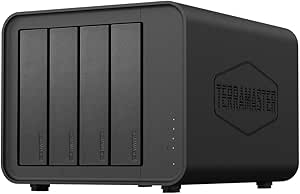 | Best Four-Bay Value for Straightforward JBOD | Drive bays: 4 | Maximum capacity: 120 TB total; up to 30 TB per drive | Supported drives: 3.5-inch SATA HDDs; 2.5-inch SATA HDDs or SSDs | VIEW ON AMAZON | See Our Full Breakdown |
| WAVLINK 4-Bay SATA HDD/SSD Enclosure with USB-C, HDMI, and Cooling Fans |  | Best Four-Bay Pick for a USB-C Desk Setup | Drive bays: 4 | Drive compatibility: 3.5-inch and 2.5-inch SATA HDDs and SSDs | Maximum capacity: 88 TB | VIEW ON AMAZON | See Our Full Breakdown |
| CENMATE 4-Bay SATA HDD/SSD Enclosure with USB 3.0 |  | Best Basic Four-Bay JBOD Enclosure | Drive bays: 4 | Supported drives: 2.5-inch and 3.5-inch SATA HDDs and SSDs | Maximum capacity: 20 TB per drive; 80 TB total | VIEW ON AMAZON | See Our Full Breakdown |
| TerraMaster D2-320 2-Bay USB RAID Enclosure (Diskless) |  | Best for Flexible Two-Drive Setups | Drive bays: 2 | Interface: USB 3.2 Gen 2 Type-C | Maximum transfer rate: 10 Gbps | VIEW ON AMAZON | See Our Full Breakdown |
| CENMATE 8-Bay Aluminum Hard Drive Enclosure with Cooling Fans |  | Best for Maximum Bay Count | Drive bays: 8 | Supported drives: 2.5-inch and 3.5-inch SATA HDDs and SSDs | Maximum capacity: 20 TB per drive; 160 TB total | VIEW ON AMAZON | See Our Full Breakdown |
| CENMATE 4-Bay SATA HDD/SSD Enclosure with Cooling Fan |  | Best for USB and eSATA Flexibility | Drive bays: 4 | Supported drives: 2.5-inch and 3.5-inch SATA HDDs and SSDs | Maximum capacity: 20 TB per drive; 80 TB total | VIEW ON AMAZON | See Our Full Breakdown |
| CENMATE 6-Bay Aluminum HDD/SSD Enclosure with Cooling Fans |  | Best for Fast Six-Drive Expansion | Drive bays: 6 | Supported drives: 2.5-inch and 3.5-inch SATA HDDs and SSDs | Maximum capacity per drive: 20 TB | VIEW ON AMAZON | See Our Full Breakdown |
| SABRENT 5-Bay USB-C 10Gbps 3.5-Inch Hard Drive Enclosure and DAS Dock (DS-SC5B) |  | Best for Convenient Drive Swaps | Drive bays: 5 | Drive compatibility: 3.5-inch SATA HDDs or SSDs | Maximum capacity: 100 TB (5 × 20 TB) | VIEW ON AMAZON | See Our Full Breakdown |
| CENMATE 6-Bay Aluminum SATA HDD/SSD Enclosure with Cooling Fans and USB 3.0 |  | Best for Maximum Capacity on USB 3.0 | Drive bays: 6 | Drive compatibility: 2.5-inch and 3.5-inch SATA HDDs and SSDs | Maximum stated capacity: 20 TB per drive; 120 TB total | VIEW ON AMAZON | See Our Full Breakdown |
| CENMATE Aluminum 2-Bay SATA Hard Drive Enclosure with Cooling Fan |  | Best Compact Expandable JBOD | Drive bays: 2 | Drive compatibility: 2.5-inch and 3.5-inch SATA HDDs and SSDs | Maximum stated capacity: 20 TB per drive; 40 TB total | VIEW ON AMAZON | See Our Full Breakdown |
| CENMATE 4-Bay Aluminum Hard Drive Enclosure with Cooling Fan | | Best Value for Four-Drive Expansion | Drive bays: 4 | Drive compatibility: 2.5-inch and 3.5-inch SATA HDDs and SSDs | Maximum stated capacity: 20 TB per drive; 80 TB total | VIEW ON AMAZON | See Our Full Breakdown |
| SABRENT 4-Bay USB-C 10Gbps Hard Drive Enclosure (DS-SC4B) |  | Best for Faster USB-C JBOD | Drive bays: 4 | Supported drives: 3.5-inch SATA HDDs or SSDs | Maximum stated capacity: Up to 80 TB (4 × 20 TB) | VIEW ON AMAZON | See Our Full Breakdown |
| jbod enclosure | Drive bays | Interface | Maximum transfer rate | Supported drives |
|---|---|---|---|---|
| OWC ThunderBay 8 Eight-Bay Thu | 8 | Thunderbolt 3, USB Type-C | Up to 2586 MB/s | 2.5-inch and 3.5-inch SATA |
| CENMATE Aluminum 2-Bay 10 Gbps | 2 | USB 3.2 Gen 2, USB-A and USB-C | Up to 10 Gbps | — |
| TerraMaster D4-320 4-Bay Exter | 4 | — | — | 3.5-inch SATA HDDs; 2.5-inch SATA HDDs or SSDs |
| WAVLINK 4-Bay SATA HDD/SSD Enc | 4 | — | — | — |
| CENMATE 4-Bay SATA HDD/SSD Enc | 4 | — | — | 2.5-inch and 3.5-inch SATA HDDs and SSDs |
| TerraMaster D2-320 2-Bay USB R | 2 | USB 3.2 Gen 2 Type-C | 10 Gbps | 3.5-inch and 2.5-inch SATA HDDs; 2.5-inch SATA SSDs |
| CENMATE 8-Bay Aluminum Hard Dr | 8 | USB 3.0, USB-A and USB-C | 5 Gbps | 2.5-inch and 3.5-inch SATA HDDs and SSDs |
| CENMATE 4-Bay SATA HDD/SSD Enc | 4 | — | 5 Gbps | 2.5-inch and 3.5-inch SATA HDDs and SSDs |
| CENMATE 6-Bay Aluminum HDD/SSD | 6 | USB 3.2 Gen 2, USB-A/USB-C | 10 Gbps | 2.5-inch and 3.5-inch SATA HDDs and SSDs |
| SABRENT 5-Bay USB-C 10Gbps 3.5 | 5 | USB-C, USB 3.2 Gen 2 | — | — |
| CENMATE 6-Bay Aluminum SATA HD | 6 | USB 3.0, USB-A/USB-C | Up to 5 Gbps | — |
| CENMATE Aluminum 2-Bay SATA Ha | 2 | USB 3.0, USB-A/USB-C | Up to 5 Gbps | — |
| CENMATE 4-Bay Aluminum Hard Dr | 4 | USB 3.0, USB-A/USB-C | Up to 5 Gbps | — |
| SABRENT 4-Bay USB-C 10Gbps Har | 4 | USB-C, USB 3.2 Gen 2 | Up to 10 Gbps | 3.5-inch SATA HDDs or SSDs |
More Details on Our Top Picks
OWC ThunderBay 8 Eight-Bay Thunderbolt 3 Storage Enclosure with SoftRAID
For buyers who need eight bays and a faster host connection, the ThunderBay 8 is the most workstation-oriented option here. Its dual Thunderbolt 3 ports support daisy chaining, and the included SoftRAID Premium adds RAID choices alongside JBOD operation. That makes it more flexible than the USB-only TerraMaster D4-320, which offers four bays but no RAID support. The tradeoff is that the ThunderBay 8’s premium connectivity and software may be more than a straightforward archive or backup setup needs. It is also diskless, so drive costs and setup are separate, and details about compatibility with older Thunderbolt versions are unclear. I’d choose it for a multi-drive Mac or Windows workstation, not a simple low-cost expansion.
Pros:- Eight bays accommodate both 2.5-inch and 3.5-inch SATA drives
- Dual Thunderbolt 3 ports allow daisy chaining
- SoftRAID Premium and several RAID modes are included
- Supports JBOD as well as RAID configurations
Cons:- Diskless design requires a separate drive purchase and installation
- Older Thunderbolt compatibility details are unclear
- Its eight-bay capacity and Thunderbolt feature set may be excessive for basic storage expansion
Best for: Mac or Windows workstation owners who need eight SATA drive bays, Thunderbolt daisy chaining, and the option to use RAID software or JBOD.
Not ideal for: Buyers seeking an inexpensive USB enclosure for basic file storage, or anyone who needs drives included and clear documentation for older Thunderbolt hosts.
- Drive bays:8
- Supported drives:2.5-inch and 3.5-inch SATA
- Interface:Thunderbolt 3, USB Type-C
- Maximum transfer rate:Up to 2586 MB/s
- RAID modes:RAID 0, 1, 4, 5, 1+0 (10), and JBOD
- Compatibility:Mac, Windows
- Dimensions:9.4 × 10.2 × 7.1 inches
- Weight and material:7.3 kg; aluminum
- Warranty:1-year limited
Our verdict“Choose the ThunderBay 8 for a high-capacity workstation setup that can make use of Thunderbolt 3, daisy chaining, and optional RAID management.”
CENMATE Aluminum 2-Bay 10 Gbps Hard Drive Enclosure with Cooling Fan
The CENMATE 2-bay enclosure is a compact pick for someone who wants two independent SATA drives, quick swaps, and a modern USB connection without RAID setup. Tool-free installation and hot swapping make drive changes less of a project than on a more workstation-focused unit such as the OWC ThunderBay 8. Its USB 3.2 Gen 2 connection is rated up to 10 Gbps, and the aluminum body plus built-in fan address heat in a small chassis. But this is not a RAID enclosure or NAS, so it does not combine drives into a protected or network-accessible volume. The fan’s stated 40–50 dB noise may also be noticeable in a quiet room. I’d pick it for simple, flexible desktop storage, not a silent or redundant setup.
Pros:- Accepts two 2.5-inch or 3.5-inch SATA HDDs and SSDs
- Tool-free installation and hot swapping simplify drive changes
- USB 3.2 Gen 2 supports transfer rates up to 10 Gbps
- Aluminum body, built-in fan, and daisy-chain expansion are provided
Cons:- Does not support RAID or NAS functions
- The fan is specified at approximately 40–50 dB
- Two bays provide less capacity for expansion than the TerraMaster D4-320 or four-bay options
Best for: Desktop users who want two swappable SATA drives, tool-free installation, and 10 Gbps USB connectivity without configuring RAID.
Not ideal for: Buyers who need RAID, NAS functions, more than two bays, or a quiet enclosure for a noise-sensitive workspace.
- Drive bays:2
- Drive compatibility:2.5-inch and 3.5-inch SATA HDDs and SSDs
- Maximum capacity:20 TB per drive
- Interface:USB 3.2 Gen 2, USB-A and USB-C
- Maximum transfer rate:Up to 10 Gbps
- Cooling and fan noise:Built-in 2-inch fan; approximately 40–50 dB
- Hot swapping and daisy chaining:Hot swapping supported; up to 3 devices
- Compatibility:Windows 7 or later, Mac 9.1 or later, Linux
- Dimensions and weight:7.95 × 5.2 × 3.6 inches; 0.96 kg
Our verdict“Choose this CENMATE when two easy-to-swap drives and 10 Gbps USB matter more than RAID, NAS, or quiet operation.”
TerraMaster D4-320 4-Bay External Hard Drive Enclosure (Diskless)
The D4-320 focuses on the essentials of a four-drive direct-attached JBOD enclosure: tool-free trays, hot swapping, broad operating-system compatibility, and USB-C at up to 10 Gbps. Its stated 120 TB ceiling gives it more room for a growing drive collection than the two-bay CENMATE 802TC, while avoiding that model’s specified 40–50 dB fan-noise figure. The tradeoff is a lack of RAID support, so buyers wanting mirrored or striped configurations should look at the OWC ThunderBay 8 instead. TerraMaster also uses a plastic enclosure, rather than the aluminum construction found on several alternatives. I’d favor this model for a practical multi-drive storage pool where simple access and capacity matter more than RAID features or premium materials.
Pros:- Four bays support up to 120 TB total capacity as specified
- Tool-free trays and hot swapping make drive installation and replacement simpler
- USB 3.2 Gen 2 offers transfer rates up to 10 Gbps
- Compatible with Windows, Mac, and Linux
Cons:- RAID is not supported
- Plastic enclosure material is less premium than the aluminum OWC ThunderBay 8
- Drives are not included
Best for: Home-office and media users who need up to four SATA drives, hot swapping, and 10 Gbps USB-C across Windows, Mac, or Linux.
Not ideal for: Buyers who require hardware or software RAID, an aluminum chassis, or a faster Thunderbolt connection.
- Drive bays:4
- Maximum capacity:120 TB total; up to 30 TB per drive
- Supported drives:3.5-inch SATA HDDs; 2.5-inch SATA HDDs or SSDs
- RAID:Not supported
- Interface and transfer rate:USB Type-C, USB 3.2 Gen 2; up to 10 Gbps
- Compatibility:Windows, Mac, Linux
- Drive handling:Hot swapping; tool-free trays
- Dimensions and weight:8.74 × 7.05 × 6.06 inches; 1.3 pounds
- Enclosure material:Plastic
Our verdict“Choose the D4-320 for four-drive USB-C JBOD storage when easy swaps and broad compatibility matter more than RAID or an aluminum build.”
WAVLINK 4-Bay SATA HDD/SSD Enclosure with USB-C, HDMI, and Cooling Fans
WAVLINK gives this four-bay enclosure a feature mix that sets it apart from the more storage-focused TerraMaster D4-320: alongside 10 Gbps USB-C, it has an HDMI output rated for up to 4K at 60Hz and individual drive power switches. Those switches can make drive-by-drive handling more convenient than a standard enclosure, while dual fans activate at 48°C to limit constant fan operation. The caveat is that HDMI is not a general-purpose display connection: the host USB-C port must support video. Buyers using 2.5-inch drives also need to source mounting brackets separately. Compared with the D4-320, WAVLINK offers more desk-oriented extras but specifies a lower total capacity of 88 TB. I’d choose it when those added controls and video output suit the host setup.
Pros:- Four bays accept 3.5-inch and 2.5-inch SATA drives
- USB-C connection supports transfer rates up to 10 Gbps
- HDMI output supports up to 4K at 60Hz with a compatible host
- Individual power switches and temperature-activated dual fans add drive-level control and cooling
Cons:- HDMI video requires a host USB-C port that supports video
- Mounting brackets for 2.5-inch drives are not included
- Specified maximum capacity of 88 TB is lower than the TerraMaster D4-320’s 120 TB
Best for: Users building a four-drive desktop setup who can use USB-C video output and want individual drive switches alongside 10 Gbps storage.
Not ideal for: Buyers with a USB-C host that lacks video support, or anyone who wants to install 2.5-inch drives without sourcing separate brackets.
- Drive bays:4
- Drive compatibility:3.5-inch and 2.5-inch SATA HDDs and SSDs
- Maximum capacity:88 TB
- Data transfer rate:Up to 10 Gbps
- Connectivity:USB 3.2 Type-C, HDMI
- HDMI output:Up to 4K at 60Hz; requires a compatible host USB-C port
- Cooling:Dual fans activate at 48°C
- Individual power switches:Yes
- Material and warranty:Aluminum; 12 months
Our verdict“Pick WAVLINK if its HDMI output and individual drive switches fit your desktop workflow; otherwise, the TerraMaster D4-320 offers a more straightforward four-bay USB-C option.”
CENMATE 4-Bay SATA HDD/SSD Enclosure with USB 3.0
This CENMATE is a pared-back way to connect four SATA drives when basic JBOD expansion is the goal. Tool-free installation and hot swapping keep routine drive changes simple, and its aluminum construction gives it a different feel from the plastic TerraMaster D4-320. The main compromise is connection speed: USB 3.0 is rated up to 5 Gbps, half the stated 10 Gbps available from the D4-320 and the WAVLINK four-bay model. It also specifies a limit of 80 TB total, compared with TerraMaster’s 120 TB. There is no RAID feature listed, and drives must be purchased separately. I’d select it for straightforward multi-drive storage on a modest USB setup, rather than for high-throughput work or a large expansion plan.
Pros:- Four bays support 2.5-inch and 3.5-inch SATA HDDs and SSDs
- Tool-free installation reduces setup effort
- Hot swapping supports drive changes without powering off
- Aluminum construction and compatibility with Windows, Mac, and Linux
Cons:- USB 3.0 is limited to a stated maximum of 5 Gbps, below the TerraMaster D4-320 and WAVLINK options
- Maximum stated capacity is 80 TB total
- Requires separate SATA drives and does not list RAID support
Best for: Users who want four SATA drive bays, hot swapping, and tool-free setup for ordinary desktop storage on a USB 3.0 connection.
Not ideal for: Buyers who need 10 Gbps transfers, RAID support, more than 80 TB total capacity, or a turnkey package with drives included.
- Drive bays:4
- Supported drives:2.5-inch and 3.5-inch SATA HDDs and SSDs
- Maximum capacity:20 TB per drive; 80 TB total
- Interface and transfer rate:USB 3.0; up to 5 Gbps
- Drive handling:Hot swapping; tool-free installation
- Compatibility:Windows 7 and above, Mac 9.1 and above, Linux
- Material and color:Aluminum; black
- Weight:0.34 kg
Our verdict“Choose this CENMATE for simple four-drive expansion when USB 3.0 speed and an 80 TB ceiling meet your needs.”
TerraMaster D2-320 2-Bay USB RAID Enclosure (Diskless)
The TerraMaster D2-320 is the pick here when RAID choices matter more than bay count. Its two SATA bays support JBOD, Single, RAID 0, and RAID 1, so you can keep drives separate, combine them, or mirror data—options the CENMATE 6-Bay and 8-Bay enclosures do not provide. The tradeoff is capacity: this tops out at two drives, while those CENMATE models can house substantially larger collections. Its 10 Gbps USB-C connection also offers a faster stated interface than their 5 Gbps USB 3.0 connection, though actual transfer speeds depend on the drives and computer. Tool-free trays and an automatically adjusting fan suit a desk-side setup, but this remains direct-attached storage, not a NAS, and the drives must be supplied separately.
Pros:- Offers JBOD, Single, RAID 0, and RAID 1 modes.
- 10 Gbps USB 3.2 Gen 2 Type-C connection.
- Supports up to 44 TB across two drives.
- Tool-free trays and temperature-adjusting fan simplify desk-side use.
Cons:- Two bays provide less expansion than the six- and eight-bay CENMATE enclosures.
- Drives are not included.
- Direct-attached storage cannot serve files as a NAS.
Best for: A home-office user who wants two drives with a choice of JBOD, separate-disk, or mirrored operation over a fast USB connection.
Not ideal for: Buyers building a large multi-drive array or wanting shared network storage; it has only two bays and no NAS function.
- Drive bays:2
- Interface:USB 3.2 Gen 2 Type-C
- Maximum transfer rate:10 Gbps
- Supported drives:3.5-inch and 2.5-inch SATA HDDs; 2.5-inch SATA SSDs
- Maximum capacity:22 TB per drive; 44 TB total
- Modes:RAID 0, RAID 1, JBOD, Single
- Compatibility:Windows, Mac, Linux
- Dimensions:8.74 × 4.69 × 6.06 inches
Our verdict“Choose the D2-320 if you want two-drive flexibility and RAID options rather than the higher capacity of a multi-bay enclosure.”
CENMATE 8-Bay Aluminum Hard Drive Enclosure with Cooling Fans
For buyers whose priority is fitting many drives in one enclosure, the CENMATE 8-Bay offers the largest bay count in this batch. It holds up to eight SATA HDDs or SSDs, with a stated 160 TB total capacity, and tool-free hot-swappable bays make replacing a drive more convenient than on the four-bay CENMATE model, which does not support hot swapping. The tradeoff is a slower 5 Gbps USB 3.0 link; the six-bay CENMATE supports USB 3.2 Gen 2 at up to 10 Gbps. This is a straightforward DAS enclosure, not a RAID controller or NAS, so drive management and redundancy depend on the host system and your own setup. Two fans provide active cooling, but their stated 40–50 dB noise may be unwelcome in a quiet workspace.
Pros:- Eight bays accommodate a large drive collection in one enclosure.
- Supports up to 20 TB per drive and 160 TB total.
- Tool-free installation and hot swapping simplify drive changes.
- Aluminum body, two fans, and daisy-chain expansion support a larger DAS setup.
Cons:- USB 3.0 is limited to a stated 5 Gbps, slower than the six-bay CENMATE’s 10 Gbps interface.
- No RAID or NAS functionality is provided.
- Two fans are specified at approximately 40–50 dB.
Best for: A media archivist or workstation owner who needs eight SATA drives in one enclosure and can manage storage and redundancy through the connected computer.
Not ideal for: Noise-sensitive users, buyers who need built-in RAID or NAS features, or anyone prioritizing a 10 Gbps connection.
- Drive bays:8
- Supported drives:2.5-inch and 3.5-inch SATA HDDs and SSDs
- Maximum capacity:20 TB per drive; 160 TB total
- Interface:USB 3.0, USB-A and USB-C
- Maximum transfer rate:5 Gbps
- Cooling:Two 2.9-inch fans; approximately 40–50 dB
- Expansion:Daisy-chain up to 3 devices
- Storage mode:Direct-attached storage; no RAID or NAS
Our verdict“Pick this model for eight-bay capacity and hot swapping, but choose the six-bay CENMATE if connection speed matters more than two extra bays.”
CENMATE 4-Bay SATA HDD/SSD Enclosure with Cooling Fan
The CENMATE 4-Bay distinguishes itself with USB 3.0 and eSATA, giving buyers a choice of connection that the USB-only models in this group lack. That can be useful in a workstation already equipped with eSATA, but multi-bay access over eSATA depends on a compatible computer port with RAID support; the connection is not a simple guarantee of independent access to all four drives. Its 80 TB stated capacity lands between the two-bay TerraMaster D2-320 and the eight-bay CENMATE, while the D2-320 offers built-in RAID modes and a 10 Gbps USB link. This model instead keeps the setup focused on basic DAS storage. Hot swapping is not supported, so drive changes are less convenient than with the six- and eight-bay CENMATE enclosures, and its fan may be audible nearby.
Pros:- Four bays support up to 80 TB total capacity.
- Offers both USB 3.0 and eSATA connections.
- Aluminum enclosure and built-in fan provide active cooling.
- Supports 2.5-inch and 3.5-inch SATA HDDs and SSDs.
Cons:- Hot swapping is not supported.
- Using multiple bays through eSATA depends on a compatible computer port with RAID support.
- The fan is specified at approximately 40–50 dB.
Best for: A desktop user with an eSATA-equipped computer who wants four SATA drives and values connection choice over hot swapping or built-in RAID modes.
Not ideal for: Users who regularly swap drives, need a 10 Gbps USB connection, or expect the enclosure itself to provide RAID functionality.
- Drive bays:4
- Supported drives:2.5-inch and 3.5-inch SATA HDDs and SSDs
- Maximum capacity:20 TB per drive; 80 TB total
- Interfaces:USB 3.0, eSATA
- Maximum transfer rate:5 Gbps
- Cooling:2-inch fan; approximately 40–50 dB
- Hot swapping:Not supported
- Compatibility:Windows 7 and above, Mac 9.1 and above, Linux
Our verdict“Choose this four-bay model if eSATA compatibility is useful to your setup; otherwise, the D2-320 offers clearer RAID options and the six-bay CENMATE adds faster USB.”
CENMATE 6-Bay Aluminum HDD/SSD Enclosure with Cooling Fans
The CENMATE 6-Bay is a strong middle ground for a growing DAS collection: it gives you six drive slots and a stated 10 Gbps USB 3.2 Gen 2 connection, without stepping up to the eight-bay model’s slower 5 Gbps USB 3.0 interface. Compared with the SABRENT 5-Bay, it adds a drive bay and supports both 2.5-inch and 3.5-inch SATA drives, while the SABRENT provides per-bay power switches and activity LEDs. Tool-free installation and hot swapping suit users who change drives often; daisy chaining can extend the setup across multiple devices. But this is not a RAID enclosure or NAS, so it will not provide those features itself. The two fans are rated around 40–50 dB, a tradeoff for active cooling that may matter if the enclosure sits close to your desk.
Pros:- Six bays support drives up to 20 TB each.
- USB 3.2 Gen 2 provides a stated transfer rate of up to 10 Gbps.
- Tool-free installation and hot swapping ease drive changes.
- Two fans and daisy-chain support suit an expandable desktop DAS setup.
Cons:- Does not provide RAID or NAS functionality.
- Fan noise is stated at around 40–50 dB.
- Unlike the SABRENT 5-Bay, it does not list individual drive power switches or activity LEDs.
Best for: A video editor or data-heavy desktop user who needs six SATA drives, a 10 Gbps USB link, and convenient hot swapping.
Not ideal for: Buyers who need RAID or NAS features, want per-bay power controls, or are sensitive to fan noise near a workstation.
- Drive bays:6
- Supported drives:2.5-inch and 3.5-inch SATA HDDs and SSDs
- Maximum capacity per drive:20 TB
- Interface:USB 3.2 Gen 2, USB-A/USB-C
- Maximum transfer rate:10 Gbps
- Cooling:Two 2.7-inch fans; around 40–50 dB
- Daisy-chain capacity:Up to 120 TB across 3 devices
- RAID/NAS support:No
Our verdict“Choose the six-bay CENMATE for fast USB connectivity and room to grow, provided you do not need built-in RAID or quiet operation.”
SABRENT 5-Bay USB-C 10Gbps 3.5-Inch Hard Drive Enclosure and DAS Dock (DS-SC5B)
The SABRENT DS-SC5B puts day-to-day drive access ahead of maximum bay count. Its trayless design, hot-swap support, individual power switches, and activity LEDs make it easier to manage five 3.5-inch SATA drives than the four-bay CENMATE, which does not support hot swapping. A temperature-controlled 120 mm fan adjusts cooling to drive heat, while the 10 Gbps USB-C link matches the stated speed of the six-bay CENMATE. The CENMATE takes the capacity lead with six bays and supports 2.5-inch drives; this SABRENT is limited to 3.5-inch drives and tops out at a stated 100 TB. Like the other non-RAID options here, it is DAS rather than a NAS, and the enclosure does not include drives.
Pros:- Five bays support up to 100 TB of stated capacity.
- Trayless, tool-free design supports hot swapping.
- Per-bay power switches and activity LEDs make drive control more direct.
- Temperature-controlled 120 mm fan and 10 Gbps USB-C connection.
Cons:- Supports 3.5-inch SATA drives only, unlike the six-bay CENMATE’s 2.5-inch and 3.5-inch support.
- Does not provide RAID or NAS functionality.
- Drives are not included.
Best for: A desktop user with several 3.5-inch SATA drives who wants quick, tool-free swaps and individual drive controls.
Not ideal for: Users who need 2.5-inch drive support, more than five bays, built-in RAID, or network-attached storage.
- Drive bays:5
- Drive compatibility:3.5-inch SATA HDDs or SSDs
- Maximum capacity:100 TB (5 × 20 TB)
- Interface:USB-C, USB 3.2 Gen 2
- Data transfer rate:10 Gbps
- Cooling:120 mm PWM temperature-controlled fan
- Drive installation:Trayless, tool-free hot swap
- Connectivity mode:Direct-attached storage; no RAID
Our verdict“Pick the SABRENT if convenient hot swapping and per-drive controls matter more than the CENMATE 6-Bay’s extra slot and broader drive-size support.”
CENMATE 6-Bay Aluminum SATA HDD/SSD Enclosure with Cooling Fans and USB 3.0
For a desktop archive that needs room for several SATA drives, this six-bay CENMATE offers up to 120 TB of stated capacity and accepts both 2.5-inch and 3.5-inch drives. Tool-free installation and hot swapping make adding or replacing disks less of a chore than using a dock for each drive. Compared with the CENMATE 4-Bay Aluminum Hard Drive Enclosure, the extra bays provide more space in one unit, but the connection remains USB 3.0 at up to 5 Gbps, not the faster 10 Gbps USB-C interface of the SABRENT DS-SC4B. Two fans help move heat away from a densely populated enclosure, though their stated 40–50 dB noise may be unwelcome near a desk. This is direct-attached storage only: it does not provide RAID or NAS functions, so drive management and redundancy are up to the host and user.
Pros:- Six bays support 2.5-inch and 3.5-inch SATA HDDs and SSDs.
- Tool-free installation and hot swapping simplify drive changes.
- Up to 120 TB stated capacity in one enclosure.
- Aluminum body and two fans provide active cooling.
Cons:- USB 3.0 tops out at 5 Gbps, below the SABRENT DS-SC4B’s stated 10 Gbps link.
- Two fans are specified at 40–50 dB and may be audible.
- No RAID or NAS support; drives operate as direct-attached storage.
Best for: Desktop archive builders who want to attach as many as six mixed-size SATA drives to one computer over USB.
Not ideal for: Noise-sensitive users and buyers who need hardware RAID, NAS access, or higher-bandwidth USB-C.
- Drive bays:6
- Drive compatibility:2.5-inch and 3.5-inch SATA HDDs and SSDs
- Maximum stated capacity:20 TB per drive; 120 TB total
- Interface:USB 3.0, USB-A/USB-C
- Maximum transfer rate:Up to 5 Gbps
- Cooling:Two 2.7-inch fans
- Expansion:Daisy-chain up to 3 devices; up to 360 TB stated
- Dimensions and weight:7.95 × 5.2 × 8.19 inches; 1.6 kg
- Storage mode:Direct-attached storage; no RAID or NAS
Our verdict“Choose this six-bay model when drive count and stated capacity matter more than quieter operation or faster USB bandwidth.”
CENMATE Aluminum 2-Bay SATA Hard Drive Enclosure with Cooling Fan
This two-bay CENMATE is the space-conscious choice for attaching a pair of SATA drives without buying a larger multi-bay enclosure. It takes both 2.5-inch and 3.5-inch disks, supports hot swapping, and offers USB daisy-chain expansion for up to three devices. That gives it a practical growth path: start with two drives, then add another enclosure if a single box no longer fits the job. Against the CENMATE 4-Bay Aluminum Hard Drive Enclosure, this model uses less desk space but holds half as many drives per unit; the four-bay model is the better fit for a consolidated archive. The USB 3.0 connection reaches up to 5 Gbps, while the single fan is listed at around 40–50 dB. As with the other CENMATE DAS models here, it has no RAID or NAS, so buyers seeking an array or network storage should look elsewhere.
Pros:- Two bays accept both 2.5-inch and 3.5-inch SATA drives.
- Tool-free installation and hot swapping make drive replacement straightforward.
- Daisy-chain support allows expansion to as many as three devices.
- Compact footprint compared with the four- and six-bay CENMATE models.
Cons:- Only two drives fit in one enclosure, limiting consolidated capacity.
- USB 3.0 provides up to 5 Gbps rather than the 10 Gbps offered by the SABRENT DS-SC4B.
- The fan is rated around 40–50 dB, and there is no RAID or NAS support.
Best for: Home users and small-office operators who need two SATA drives now and may expand with additional USB enclosures later.
Not ideal for: Buyers building a large single-box archive, seeking RAID or NAS, or placing storage beside a noise-sensitive workspace.
- Drive bays:2
- Drive compatibility:2.5-inch and 3.5-inch SATA HDDs and SSDs
- Maximum stated capacity:20 TB per drive; 40 TB total
- Interface:USB 3.0, USB-A/USB-C
- Maximum transfer rate:Up to 5 Gbps
- Cooling and fan noise:2-inch fan; around 40–50 dB
- Expansion:Daisy-chain up to 3 devices; up to 120 TB stated
- Dimensions and weight:7.95 × 5.2 × 3.5 inches; 0.96 kg
- RAID/NAS support:No
Our verdict“Pick this enclosure for a compact two-drive setup with a USB expansion path, not for a high-capacity or networked storage system.”
CENMATE 4-Bay Aluminum Hard Drive Enclosure with Cooling Fan
This four-bay enclosure is a straightforward way to bring several SATA disks under one USB connection without moving up to the six-bay CENMATE. It accepts 2.5-inch and 3.5-inch HDDs or SSDs, with up to 80 TB stated total capacity, and includes the 12V adapter and USB-A/USB-C cable. Tool-free drive access and compatibility with Windows, Mac, and Linux suit a mixed-device household or office. Compared with the two-bay CENMATE, it gives an archive more room before another enclosure is needed; compared with the SABRENT DS-SC4B, however, its USB 3.0 link is limited to 5 Gbps rather than 10 Gbps. The built-in fan supports active cooling, but its stated 40–50 dB output can be intrusive. This is a simple JBOD-style DAS choice, not a RAID or NAS appliance.
Pros:- Four bays support both 2.5-inch and 3.5-inch SATA HDDs and SSDs.
- Up to 80 TB stated total capacity keeps several drives in one unit.
- Includes a USB-A/USB-C cable and 12V power adapter.
- Works with Windows, Mac, and Linux.
Cons:- USB 3.0 transfer rate is limited to up to 5 Gbps.
- The fan is specified at 40–50 dB and may not suit quiet rooms.
- No RAID or NAS support is provided.
Best for: Users consolidating up to four SATA drives for local backups, media libraries, or general desktop storage.
Not ideal for: Buyers who need hardware RAID, network sharing, quieter cooling, or the higher USB bandwidth of a 10 Gbps enclosure.
- Drive bays:4
- Drive compatibility:2.5-inch and 3.5-inch SATA HDDs and SSDs
- Maximum stated capacity:20 TB per drive; 80 TB total
- Interface:USB 3.0, USB-A/USB-C
- Maximum transfer rate:Up to 5 Gbps
- Cooling and fan noise:2-inch fan; 40–50 dB
- Included items:USB-A/USB-C cable, 12V power adapter, manual
- Dimensions and weight:7.95 × 5.2 × 5.75 inches; 1.37 kg
- RAID/NAS support:No
Our verdict“Choose this model for a practical four-drive USB enclosure when capacity matters more than 10 Gbps speed or RAID features.”
SABRENT 4-Bay USB-C 10Gbps Hard Drive Enclosure (DS-SC4B)
The SABRENT DS-SC4B stands apart from the CENMATE four-bay models with a 10 Gbps USB-C connection, individual drive connections, and per-bay switches and activity LEDs. Those controls make it easier to manage disks separately than a basic enclosure, while trayless hot swapping speeds drive changes. It accommodates up to four 3.5-inch SATA drives and uses a 92 mm fan for active cooling. Compared with the CENMATE 4-Bay Aluminum Hard Drive Enclosure, the SABRENT offers twice the stated USB link rate and more visible per-drive controls, but it is heavier and is listed for 3.5-inch drives rather than both 2.5- and 3.5-inch formats. It operates as JBOD, not hardware RAID, so it suits direct-attached storage rather than buyers expecting an array managed by the enclosure. Drives are not included.
Pros:- USB-C 3.2 Gen 2 supports transfer rates up to 10 Gbps.
- Individual drive connections, bay switches, and activity LEDs aid drive-level control.
- Trayless hot swapping makes disk changes convenient.
- A 92 mm fan provides active cooling for a populated enclosure.
Cons:- Supports 3.5-inch SATA drives according to the listed specifications, unlike CENMATE models that also list 2.5-inch support.
- No hardware RAID; it operates as JBOD.
- Drives are not included, and the enclosure weighs 9 pounds.
Best for: Desktop users with several 3.5-inch SATA drives who want 10 Gbps USB-C, individual bay controls, and hot swapping.
Not ideal for: Buyers needing hardware RAID or NAS, a lightweight enclosure, included drives, or confirmed 2.5-inch drive support.
- Drive bays:4
- Supported drives:3.5-inch SATA HDDs or SSDs
- Maximum stated capacity:Up to 80 TB (4 × 20 TB)
- Interface:USB-C, USB 3.2 Gen 2
- Maximum transfer rate:Up to 10 Gbps
- Drive mode:JBOD; not RAID
- Cooling:92 mm fan
- Dimensions and weight:9.1 × 5.8 × 5.9 inches; 9 pounds
- Power adapter:Auto-switching 100–240V
Our verdict“Choose the DS-SC4B when faster USB-C and individual bay controls matter more than RAID, lower weight, or 2.5-inch drive compatibility.”

How We Picked
I ranked these enclosures by how well their stated features support a practical JBOD setup: number of bays, host connection, cooling provisions, and the clarity of the product’s intended role. A connection only earns weight when it matches a likely workload; Thunderbolt 3 makes the OWC a stronger fit for fast, multi-drive workstations, while USB 3.0 models can make more sense for simpler storage expansion. I also compared usability factors such as whether a model is diskless, whether its design offers active cooling, and whether the product description identifies RAID or software features that may affect setup.
The order favors useful balance over the largest bay count alone. The OWC leads for its combination of capacity, Thunderbolt, and included software; the TerraMaster and SABRENT models rank well when their connection and bay count suit a broader range of setups. CENMATE models remain relevant for buyers choosing capacity or a more modest configuration, but similar bay counts make it important to check the exact interface and cooling details. I treat product descriptions as the basis for comparison, not as proof of tested transfer speeds, drive compatibility with every system, or RAID behavior. Buyers should confirm those points against their host computer and intended drives.
Factors to Consider When Choosing Jbod Enclosure
Before choosing a JBOD enclosure, I would match the enclosure to the role it will play in the whole storage setup. A high bay count does not automatically mean better performance, and a fast connector cannot make an older host port faster. These decisions help avoid paying for unused capacity or buying a unit that does not behave the way your backup or editing workflow requires.
Confirm That the Enclosure Supports Your Intended JBOD Setup
JBOD is often used to describe multiple disks presented individually, but product naming can blur the line between JBOD, RAID, and a multi-drive dock. Check whether each disk appears as a separate volume, whether the enclosure has a hardware mode switch, and whether any included software changes how the disks are presented. Do not assume that a RAID-capable unit can be switched into every configuration you want. If you plan to mix drive sizes or replace disks independently, individual disk visibility is often more useful than a fixed array. Match the enclosure’s supported modes to the operating system and backup software you already use.
Match the Connection to Both the Computer and the Workload
Thunderbolt 3 and 10Gbps USB-C serve different compatibility and performance needs, while a USB 3.0 connection may be sufficient for general file storage. The host port, cable, and enclosure all affect the connection, so a faster enclosure cannot exceed what the computer supports. For large media projects or several active drives, bandwidth can matter more than an extra bay. For backups that run overnight, convenience and capacity may outweigh peak transfer rates. Check whether the cable is included and whether your computer’s port supports the protocol you intend to use; connector shape alone does not confirm speed.
Choose Bay Count for Growth, Not Just Today’s Drive Collection
Count the drives you expect to use over the enclosure’s life, including whether you will reserve a bay for a replacement or a separate backup disk. A two-bay unit keeps a small setup compact, but may force an enclosure upgrade when your library grows. Four bays offer a useful compromise for many home offices and creative workstations, while six- and eight-bay units suit larger collections and reduce the number of separate enclosures. More bays also mean a larger footprint, more cabling, and greater attention to heat and drive vibration. Leave room for the enclosure where airflow is not blocked.
Treat Cooling and Noise as Part of the Storage Plan
Several drives operating together produce more heat than a single external disk, so fan design and unobstructed airflow matter for sustained use. A cooling fan can help manage heat, but it also adds another moving part and may create noticeable noise near a desk or recording space. A fanless or compact design should not be placed in a closed cabinet unless its cooling design supports that placement. Think about where the enclosure will sit and how often it will run, rather than judging cooling by fan count alone. Keep dust buildup and access for cleaning in mind if the unit will operate continuously.
Check Drive Fit, Capacity Limits, and Replacement Access
Confirm support for the drive sizes and form factors you own, including whether the enclosure accepts both 3.5-inch hard drives and 2.5-inch drives or SSDs. Product titles may mention HDDs and SSDs without spelling out every capacity limit, so verify specifications for the exact model before buying. Tool-free trays can make swaps easier, but the practical value depends on how often you replace or rotate disks. Also consider whether a failed drive can be removed without disturbing the others. This matters especially for JBOD users who want to maintain separate volumes and replace one disk at a time.
Budget for the Whole System, Including Drives and Backups
Many multi-bay enclosures are sold diskless, which gives you control over drive choice but leaves the largest part of the storage plan to buy separately. Compare the cost and capacity of the drives you plan to install, plus any separate backup target; JBOD does not create a backup merely by holding several disks. Do not fill every bay with irreplaceable data and assume that multiple drives provide redundancy. A backup plan should account for accidental deletion, enclosure failure, and a drive failing independently. If a model includes management software or a specialized host connection, factor in whether your current computer can use those features.
Frequently Asked Questions
Does a JBOD enclosure protect my files if one drive fails?
Usually, no: JBOD describes how multiple disks are exposed or grouped, not a guarantee of redundancy. If disks appear as separate volumes, a failure generally affects the data on that particular disk, though a failed enclosure, cable, or power supply can interrupt access to all installed drives. RAID modes may provide redundancy, but they are not a substitute for a separate backup and may change how disks can be moved between systems. Check the enclosure’s exact operating modes before loading it with important files. Keep another copy of anything you cannot replace.
Can I move the drives from a JBOD enclosure to another enclosure or computer?
Sometimes, but it depends on the disk format, operating system, and whether the original enclosure used a hardware RAID arrangement or other management layer. Individually presented drives are generally easier to move than disks tied to a proprietary array configuration. Before moving a disk, confirm that the receiving computer supports its file system and that the enclosure does not require a particular controller mode. Avoid changing RAID or mode switches while disks contain data unless the manual explains the consequences. A separate backup protects you if a move or reconfiguration goes wrong.
Will a 10Gbps USB-C enclosure run at 10Gbps on any USB-C port?
No. USB-C describes the connector, not the supported data rate or protocol, and the computer’s port may have a lower speed limit. The cable also needs to support the required connection; a charging-focused or older cable can reduce performance or prevent the intended mode from working. Check the computer’s port specifications and the enclosure’s connection requirements before purchase. Even with a matching port, actual file transfers depend on the drives and workload. This is why a fast enclosure can be a poor fit for a host that cannot use its connection.
Should I choose a four-bay enclosure or jump to six or eight bays?
Choose four bays if your current drives fit comfortably and you value a smaller, simpler setup. Six or eight bays make more sense when you already have several drives, expect steady growth, or want separate disks for different projects without adding another enclosure. More bays do not automatically improve speed, and filling them can increase heat, noise, and power needs. Consider the enclosure’s physical location and how you will back up each disk as capacity grows. If you are unsure, estimate your storage needs over the next few years rather than buying solely for today’s drive count.
Can I use an enclosure that supports RAID as a plain JBOD enclosure?
Possibly, but support varies by model and by how its modes are controlled. Some products offer individual-disk presentation, while others may require a particular RAID setting or software to manage multiple drives. Read the manual for the exact model and confirm how it presents disks to your operating system before installing data. Changing modes later can erase or make existing data inaccessible, so set the intended configuration before use. If simple separate volumes are your priority, favor clear documentation over assuming that a RAID label includes the JBOD behavior you need.
Conclusion
For most buyers seeking a capable multi-drive workstation enclosure, I would start with the OWC ThunderBay 8 as the best overall choice: its eight bays, Thunderbolt 3, and included SoftRAID distinguish it from the USB-focused options, provided your computer supports Thunderbolt. For a best value in practical four-bay expansion, compare the TerraMaster D4-320 with the CENMATE four-bay models and choose based on the specific connection and cooling details you need. The OWC is also my best premium recommendation; the TerraMaster D2-320 is the more approachable starting point for someone with just two drives. For five-bay USB-C storage, the SABRENT DS-SC5B is a focused fit, while buyers who need six or more bays should compare the CENMATE six- and eight-bay models against their host connection and airflow requirements. Before deciding, confirm true JBOD behavior, drive compatibility, and a separate backup plan.
Halloween Picks
halloween
As an affiliate, we earn on qualifying purchases.