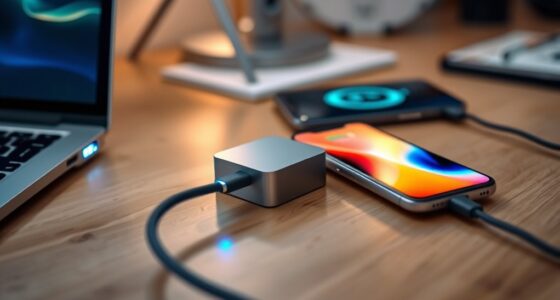
To fix sync problems between your phone and computer, start by ensuring you’re signed into the same cloud account on both devices, then check your internet connection. Turn Bluetooth on and off, unpair and re-pair devices if needed, and keep them close together. Update your apps and device software regularly, restart both devices, and reset network settings if issues persist. Following these steps can often resolve the issue, and more tips lie ahead if you need further help.

Get the latest gadgets delivered free with Prime
- Fast, free delivery on millions of items
- Prime Video, Amazon Music and more included
- Member-only deals all year
Key Takeaways
- Ensure both devices are logged into the same cloud account and have stable internet connections.
- Restart devices and reconnect or re-pair Bluetooth devices if applicable.
- Check and update device software, apps, and firmware regularly.
- Verify sync settings are enabled and manually trigger sync if automatic sync fails.
- Clear app caches, reset network settings, or reinstall apps to resolve persistent issues.
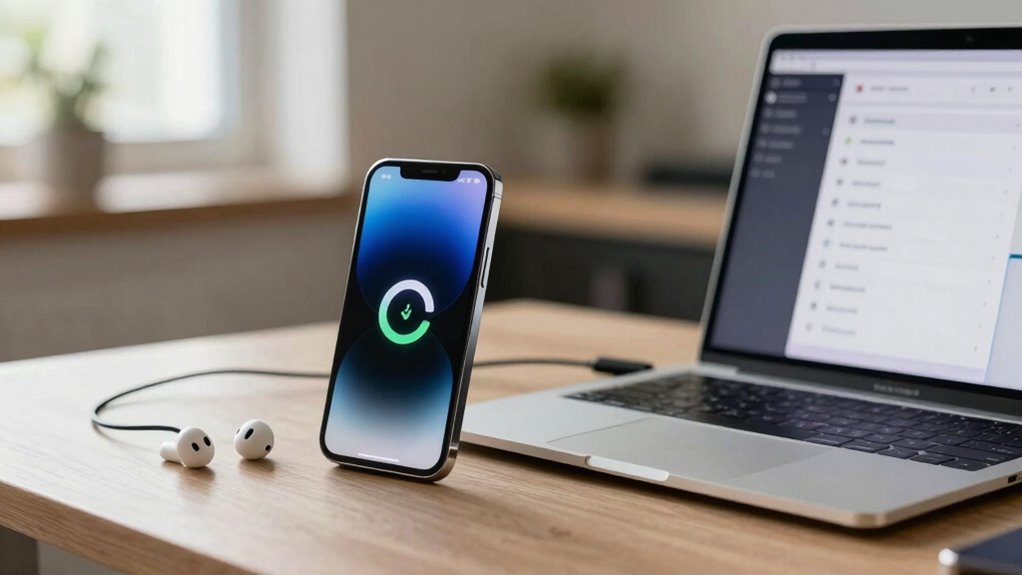
Have you ever struggled with your phone and computer not syncing properly? It can be incredibly frustrating, especially when you rely on your devices to stay updated and organized. Often, the root of these issues lies in how data is transferred and stored. To start, check your cloud storage settings. Cloud storage services like Google Drive, iCloud, or OneDrive are designed to keep your files seamlessly synchronized across devices. If your files aren’t updating, ensure you’re signed into the same account on both your phone and computer. Sometimes, signing out and signing back in can refresh the connection. Also, verify that you’re connected to the internet, as a poor connection can hinder the syncing process. Clearing the cache of your cloud app or reinstalling it can resolve minor glitches that prevent proper synchronization.
Ensure you’re signed into the same cloud account on all devices and check your internet connection for smooth syncing.
Another common culprit is Bluetooth connectivity, especially if you’re trying to transfer files or use device-specific features. Bluetooth can be unreliable if it’s not properly paired or if there’s interference. Make sure Bluetooth is enabled on both devices, and double-check that they’re paired correctly. If the connection seems unstable, turn Bluetooth off and back on, or unpair and re-pair your devices. Keep in mind that Bluetooth has a limited range, so ensure your phone and computer are close enough to maintain a strong connection. Sometimes, interference from other wireless devices or thick walls can cause disruptions. Moving closer or reducing interference can solve these issues. Additionally, understanding wireless connectivity can help you troubleshoot and optimize your device connections more effectively. Being aware of signal interference sources can further improve your device performance. Moreover, ensuring your devices are on the same network can significantly impact the speed and reliability of sync.
Furthermore, checking for software updates ensures that your devices have the latest features and security patches, which can resolve bugs affecting sync functionality. Beyond these, check your device settings. Ensure that automatic sync options are enabled on both your phone and computer. On many devices, you can find this in the settings under accounts or cloud sync options. Sometimes, manual sync is required if automatic sync is turned off. Also, update your device software and apps regularly, since outdated versions can have bugs that interfere with syncing. If you’re using third-party apps for synchronization, confirm they are compatible with your operating system versions. Additionally, understanding the contrast ratio of your devices can influence how well images appear across your screens, which is especially important if you’re viewing synced media.
Finally, restart your devices. This simple step often clears temporary glitches affecting Bluetooth and cloud services. If problems persist, consider resetting your network settings, which can resolve underlying connectivity issues. Remember, keeping your devices and apps up to date plays a significant role in maintaining smooth synchronization. By systematically checking your cloud storage setup, Bluetooth connections, and device settings, you can resolve most sync problems and keep your data flowing effortlessly between your phone and computer.
cloud storage synchronization device
As an affiliate, we earn on qualifying purchases.
As an affiliate, we earn on qualifying purchases.
Frequently Asked Questions
Can I Sync My Phone With Multiple Computers Simultaneously?
Yes, you can sync your phone with multiple computers simultaneously, but it depends on your account management and the apps you’re using. Many services, like cloud storage or email, support multiple device syncs through a single account, allowing seamless access across devices. However, some apps limit sync to one device at a time. Check your app’s settings and account management options to guarantee smooth, multi-device syncing without conflicts.
What Should I Do if My Phone’s Storage Is Full During Sync?
They say “a stitch in time saves nine,” so act quickly when your phone’s storage is full during sync. First, delete unnecessary files or apps to free up space. Use cloud backup services to offload photos, videos, and documents, reducing local storage needs. Practice good storage management by regularly reviewing your files and backing up data, ensuring smooth and continuous sync without running out of space.
How Do I Prevent Data Loss During Sync Errors?
To prevent data loss during sync errors, guarantee you regularly back up your data to the cloud and enable data encryption. This way, even if sync issues occur, your information stays secure and recoverable. Always verify that your cloud backup is up-to-date before syncing, and use encrypted connections to protect sensitive data. These steps help safeguard your files and prevent any potential loss during sync disruptions.
Is There a Way to Sync Without Using Wi-Fi?
Yes, you can sync without Wi-Fi by using offline transfer methods like Bluetooth syncing. Enable Bluetooth on both your phone and computer, then pair the devices. Once connected, you can transfer files directly without an internet connection. This method is handy for quick, small data transfers when Wi-Fi isn’t available. Just make certain Bluetooth is active and within range, and you’re all set for seamless offline syncing.
How Long Does a Typical Phone-Computer Sync Take?
A typical phone-computer sync can take anywhere from a few seconds to several minutes, depending on the amount of data, like cloud backup files, you’re syncing. Data encryption and security settings might slightly extend this time, but they guarantee your information stays protected. If you’re syncing large files or many apps, it’s best to be patient; the process is worth it for secure, seamless access across devices.
Conclusion
When you face sync issues between your phone and computer, don’t panic—try troubleshooting step-by-step. For example, if your contacts aren’t syncing, check your internet connection and verify both devices are updated. Imagine losing important contacts just before an event; fixing the sync problem quickly can save the day. By staying patient and following these tips, you’ll get your devices working together smoothly again, keeping your data accessible and organized without stress.
Halloween Picks
halloween
As an affiliate, we earn on qualifying purchases.