
To fix slow Wi-Fi without buying new gear, start by optimizing your router’s placement—position it centrally, elevated, and away from metal objects or thick walls. Change the Wi-Fi channel through your router’s settings to avoid interference from nearby networks or devices like cordless phones and microwaves. Reduce interference from other electronic devices or environmental obstacles. Adjusting antenna angles or upgrading your existing router’s firmware can also boost performance. Keep exploring for more easy solutions to improve your internet speed.

Get the latest gadgets delivered free with Prime
- Fast, free delivery on millions of items
- Prime Video, Amazon Music and more included
- Member-only deals all year
Key Takeaways
- Identify and reduce environmental interference by moving electronic devices away from the router.
- Change your router’s channel settings to less crowded frequencies for better performance.
- Optimize router placement centrally, elevated, and away from walls or metal objects.
- Adjust antenna angles and remove obstructions to improve signal coverage.
- Regularly restart your router and update firmware to maintain optimal connection stability.

Ever wonder why your Wi-Fi suddenly slows down? One common culprit is Wi-Fi interference, which occurs when signals from other devices or networks disrupt your router’s connection. This interference can happen if you live in a densely populated area or have multiple electronic devices competing for the same frequency. To minimize this, start by identifying sources of interference, such as cordless phones, microwave ovens, or neighboring Wi-Fi networks. Once you know what’s causing the problem, you can try changing your router’s channel settings through its admin interface. Switching to a less crowded channel often results in a more stable, faster connection.
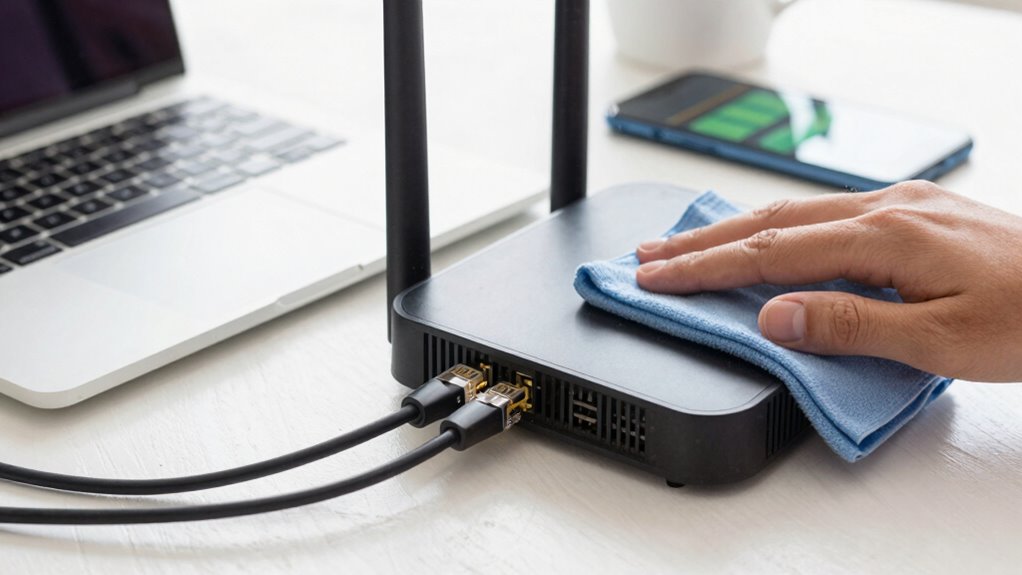
Another vital step is paying attention to your router placement. How you position your router directly impacts your Wi-Fi speed and coverage. If your router sits tucked away in a closet, basement, or behind furniture, signals can get blocked or weakened, leading to sluggish performance. Instead, place your router in a central, open location, ideally elevated off the ground. Keep it away from metal objects, thick walls, and electronic appliances that emit interference. This ideal placement ensures your Wi-Fi signal can radiate evenly throughout your space, reducing dead zones and boosting speed. Additionally, router placement influences how effectively your Wi-Fi signals can penetrate obstacles, so experimenting with different locations can help optimize coverage.
Proper router placement in a central, open, elevated spot boosts Wi-Fi speed and reduces dead zones.
Beyond physical placement, consider the environment around your router. Large mirrors, thick concrete walls, and dense furniture can all hinder Wi-Fi signals. If repositioning isn’t enough, you can also experiment with adjusting the antenna angles or upgrading to a router that supports multiple streams for better coverage. Sometimes, simply elevating your router a few feet off the floor can make a noticeable difference in signal strength. Moreover, understanding interference sources in your environment can help you better address persistent issues that affect your Wi-Fi quality. Recognizing wireless signal interference as a common factor allows you to implement targeted solutions to improve your network’s speed and stability. Additionally, being aware of electronic device interference can help you further fine-tune your setup for optimal performance.
As an affiliate, we earn on qualifying purchases.
Frequently Asked Questions
How Can I Improve Wi-Fi Speed on Multiple Devices Simultaneously?
To improve Wi-Fi speed on multiple devices simultaneously, start by optimizing device placement—position your router centrally and elevate it for better coverage. Reboot your router regularly to refresh connections and clear potential glitches. Limit interference by reducing the number of devices using bandwidth at once, and prioritize essential devices through Quality of Service (QoS) settings if available. These simple steps can considerably boost your Wi-Fi performance across all devices.
Does Changing My Wi-Fi Channel Affect Connection Speed?
Think of your Wi-Fi as a busy highway; changing your channel is like switching lanes to avoid traffic jams. Yes, changing your Wi-Fi channel can improve connection speed by reducing Wi-Fi interference from neighboring networks. Proper router placement also acts like clearing obstacles on the road, boosting signal strength. Experiment with different channels and position your router centrally, away from walls or electronic devices, to keep your digital highway flowing smoothly.
Can Software Updates Impact My Wi-Fi Performance?
Yes, software updates can impact your Wi-Fi performance. Manufacturers often release updates to fix firmware bugs that may cause connection issues, improve security, and optimize performance. Additionally, updates can help your router better manage network congestion, reducing slowdowns during peak usage times. Keeping your router’s firmware current guarantees you benefit from these improvements, leading to a more stable and faster Wi-Fi connection.
How Do I Identify if My Wi-Fi Is Being Throttled?
Think of your Wi-Fi like a busy highway—if traffic suddenly slows, it might be throttling. To identify it, run speed tests at different times and check for consistent slowdowns. Network congestion and signal interference often cause these issues, especially during peak hours or with crowded networks. If your speeds drop considerably compared to your plan, or if multiple devices slow down simultaneously, your connection might be throttled.
Are There Specific Settings to Optimize Wi-Fi for Streaming or Gaming?
To optimize your Wi-Fi for streaming or gaming, focus on your wireless security settings and router placement. Guarantee your router is placed centrally, elevated, and away from interference sources. Update your security settings to prioritize quality of service (QoS), which allocates bandwidth efficiently. Disabling unnecessary devices and using a dual-band router can also improve performance. These steps help reduce lag and buffering, giving you a smoother experience during gaming or streaming sessions.
Conclusion
In summary, fixing slow Wi-Fi doesn’t always mean buying new equipment. Sometimes, a simple restart of your router or changing its position can boost your speed. For instance, Sarah moved her router to a central spot in her house, and her connection improved dramatically. So, before splurging on new gear, try these quick fixes. You might just find that better, faster Wi-Fi is within your reach—no extra cost needed.
Halloween Picks
halloween
As an affiliate, we earn on qualifying purchases.