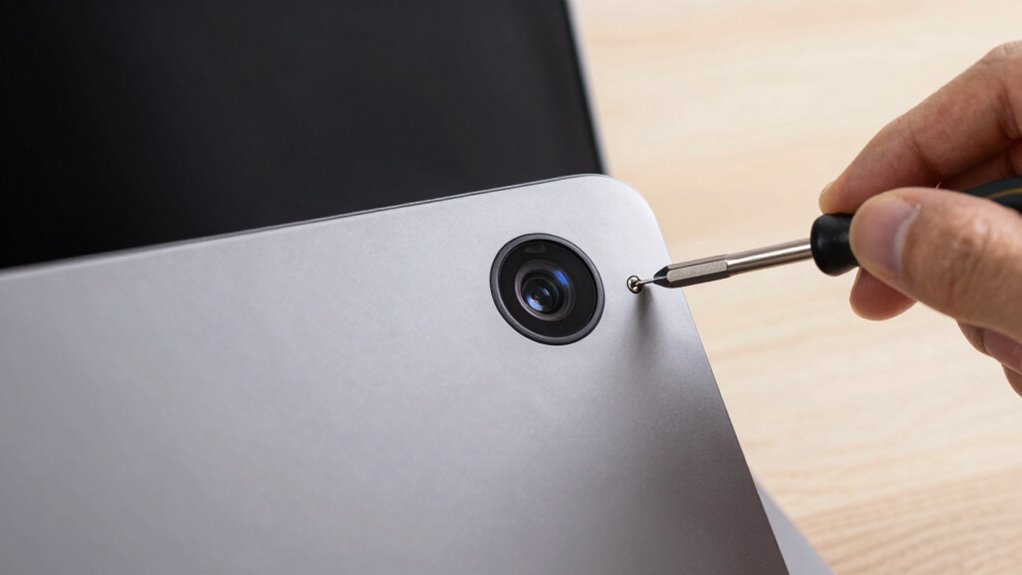

To fix common webcam problems fast, make sure your camera is positioned at eye level and faces directly at you for clearer video. Improve lighting by using natural light or additional lamps to avoid shadows. Check that your webcam drivers are updated and properly installed, and restart your device if needed. Clean the lens gently with a soft cloth to remove smudges. These simple steps can quickly enhance your video quality—keep going to discover more tips for perfecting your setup.

Get the latest gadgets delivered free with Prime
- Fast, free delivery on millions of items
- Prime Video, Amazon Music and more included
- Member-only deals all year
Key Takeaways
- Ensure the webcam driver is up to date and properly installed.
- Check camera settings in the app and select the correct device.
- Clean the lens with a soft cloth to remove smudges or dust.
- Improve lighting by positioning lights in front of or beside you.
- Stabilize the camera and align it at eye level for clearer video.

Having trouble with your webcam? It’s a common issue, but often, the fix is straightforward. One of the first things you should check is your camera positioning. If your webcam isn’t aligned properly, your image might be blurry, tilted, or poorly framed. Adjust the camera so it’s at eye level, facing directly at you. This not only improves your appearance on calls but also helps you look more professional. Make sure it’s stable and not wobbling, which can cause distracting shifts during video chats. Proper camera positioning ensures that your face is centered and clearly visible, making interactions smoother. Additionally, ensuring your camera is properly installed and configured can prevent many common issues from occurring in the first place. It’s also beneficial to periodically review your setup, especially if you notice recurring problems, as hardware or software updates can sometimes introduce new challenges. Regularly checking your device drivers helps maintain optimal webcam performance and avoid compatibility issues.
Adjust your webcam to eye level for clearer, more professional video calls.
Lighting adjustments are equally critical to fix common webcam problems. Poor lighting can make you appear dark, washed out, or grainy. To improve this, find a well-lit space where natural light hits your face evenly. Avoid sitting with your back to a window, as this creates a silhouette effect. Instead, position yourself so that light illuminates your face from the front or side. If natural light isn’t enough, consider adding a desk lamp or ring light. Adjust the brightness to avoid harsh shadows or glare, which can distort your image. Good lighting not only enhances your appearance but also helps your webcam focus better, resulting in clearer video quality. Using proper lighting techniques can significantly boost your video clarity and overall appearance.
If your webcam still isn’t working properly after adjusting camera positioning and lighting, check your device settings. Ensure your webcam driver is up to date and properly installed. Sometimes, outdated drivers or software conflicts can cause issues like no video feed or poor image quality. Restart your computer and reopen your video conferencing app to see if that resolves the problem. Also, verify that the correct camera is selected in your app’s settings, especially if you have multiple devices connected. These small adjustments can eliminate many common issues quickly. Keeping your device drivers current is vital for optimal webcam performance and avoiding compatibility issues. Additionally, periodically cleaning your webcam lens ensures the best image quality and prevents blurry footage caused by dirt or smudges.
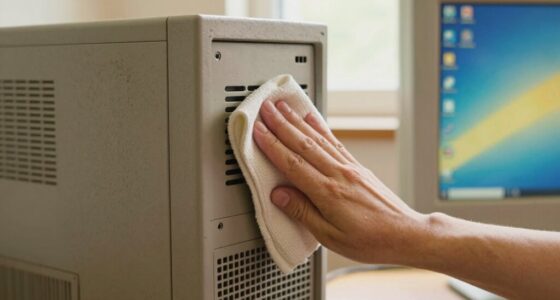
Finally, keep your webcam lens clean. Smudges, dust, or fingerprints can make your video appear blurry or distorted. Gently wipe the lens with a soft, lint-free cloth to restore clarity. Combining proper camera positioning, effective lighting adjustments, updated drivers, and a clean lens usually resolves most webcam problems fast. By taking these simple steps, you can guarantee your webcam delivers crisp, professional-quality video during your calls, saving you both time and frustration.
As an affiliate, we earn on qualifying purchases.
Frequently Asked Questions
Can I Fix My Webcam Issues Without Technical Skills?
Yes, you can fix your webcam issues without technical skills by trying simple DIY fixes first. Start by checking connections and updating your webcam drivers. If hardware seems faulty, consider affordable hardware upgrades like a new USB port or webcam. These steps are straightforward and don’t require advanced knowledge. Regularly cleaning the lens and ensuring software settings are correct can also improve performance, making troubleshooting manageable for anyone.
How Do I Update My Webcam Drivers Manually?
To update your webcam drivers manually, first visit your webcam manufacturer’s website and find the latest driver update for your device. Download the driver file to your computer. Then, go to Device Manager, locate your webcam under “Imaging Devices,” right-click it, and select “Update Driver.” Choose “Browse my computer for driver software,” and navigate to the downloaded driver file for manual installation. This guarantees your webcam runs smoothly with the latest updates.
What Are Some Quick Troubleshooting Tips for Webcam Noise?
Did you know that audio interference is a top cause of webcam noise? To fix it fast, check for software conflicts by closing unnecessary apps that use your webcam or microphone. Move electronic devices away from your webcam to reduce interference. Adjust your microphone volume and noise suppression settings in your software. Restart your computer if needed, and make sure your audio drivers are up-to-date. These quick steps can substantially improve your webcam’s audio quality.
Can Malware Cause Webcam Problems? How to Check?
Yes, malware can cause webcam problems by hijacking your camera or disabling its functionality. To check, run malware detection with reputable security software on your device. Make sure your security software is updated, then perform a full scan. If malware is detected, follow the software’s instructions to quarantine or remove threats. Regular malware checks help keep your webcam and device secure from malicious interference.
Is There a Way to Test Webcam Functionality Online?
Yes, you can test your webcam online easily. Use online testing tools designed for webcam diagnostics, which prompt you to grant camera access and then display your webcam feed. These tools help you verify if your webcam is working correctly without installing software. Simply search for “online webcam test” or “webcam diagnostics” to find reliable options, and follow the instructions to make sure your camera functions properly.
Conclusion
So, next time your webcam acts up, remember that many issues stem from simple glitches or outdated drivers. Some say that restarting your device resets the system and clears minor bugs. While this might sound too easy, it’s surprisingly effective. Don’t overlook basic troubleshooting steps—they often solve problems faster than you think. With a little patience and quick fixes, you’ll be back to seamless video calls in no time. Trust the process—you might just discover it’s that simple!
Fall Picks
fall essentials
As an affiliate, we earn on qualifying purchases.