

To create a backup strategy that works, start by setting up automatic backups to prevent data loss from hardware failures, cyberattacks, or mistakes. Use cloud storage for off-site, scalable, and remote access options, and keep multiple copies in different locations for added safety. Regularly test your backups to verify quick recovery. Keeping your plan updated helps you stay prepared for new threats. Stay with us to discover more tips on protecting your data effectively.

Get the latest gadgets delivered free with Prime
- Fast, free delivery on millions of items
- Prime Video, Amazon Music and more included
- Member-only deals all year
Key Takeaways
- Develop a regular backup schedule using automated tools to ensure consistent data protection.
- Use cloud storage for scalable, off-site backups accessible from any location.
- Implement multiple backup copies in different locations for enhanced disaster recovery.
- Test and update backup plans regularly to adapt to new threats and ensure data integrity.
- Combine backup strategies with security measures like versioning and encryption for added protection.
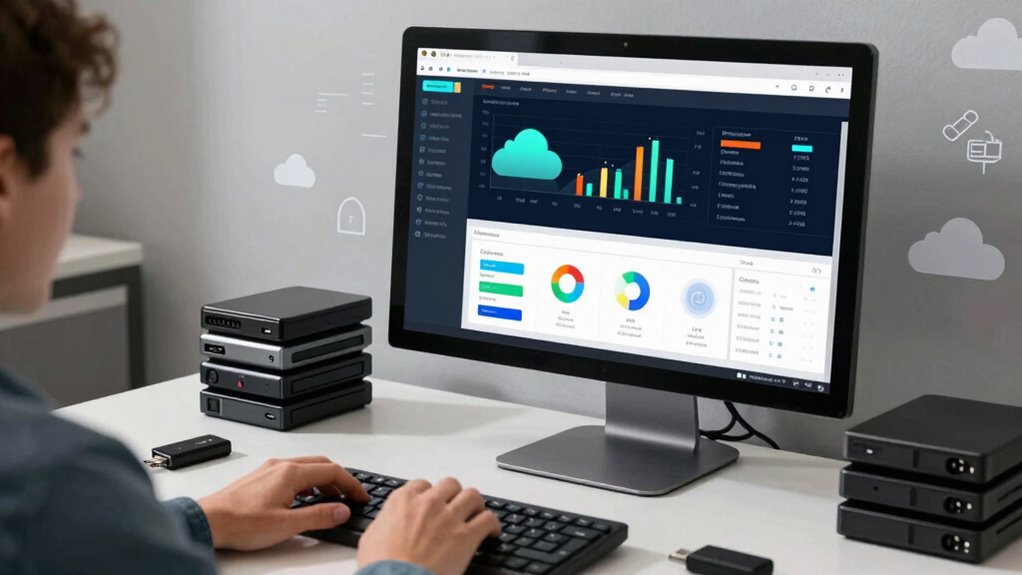
Have you ever lost important data because you weren’t prepared? It’s a common nightmare, but it’s one you can avoid with a solid backup strategy. The key is understanding how to protect your data efficiently and reliably. Cloud storage plays an essential role here, offering a flexible and accessible way to back up files off-site. Instead of relying solely on external drives or physical copies, cloud storage lets you automatically save copies of your data to remote servers. This way, if your local hardware fails, gets stolen, or suffers damage, your files remain safe and accessible from anywhere. The beauty of cloud storage is that it simplifies the backup process—many providers offer automatic backups, reducing the risk of human error. Plus, it’s scalable, so you can start small and expand as your data grows, without needing to buy new hardware every time.
However, relying solely on cloud storage isn’t enough. You need a thorough disaster recovery plan that includes multiple backup layers. Disaster recovery isn’t just about restoring files; it’s about ensuring your entire business or personal data environment can bounce back quickly after an incident. This means creating regular backup schedules, testing your backups, and knowing exactly how to restore data when needed. A good disaster recovery plan considers various scenarios—from hardware failures to cyberattacks—and has clear procedures for each. It also involves keeping multiple copies of critical data in different locations, such as on-premises, in the cloud, and possibly even in off-site physical storage. This multi-layered approach minimizes downtime and helps you resume normal operations faster. Incorporating redundant storage into your backup strategy further enhances your data resilience, especially when combined with versioning techniques that safeguard against data corruption or malware. Additionally, understanding disaster recovery principles can help you better prepare for unexpected data loss events.
You should also focus on versioning—saving multiple versions of your files over time—so you can revert to an earlier state if needed. This is especially important if your data gets corrupted or infected by malware. Automated backups are essential here; they ensure you don’t forget to back up regularly. Remember, the goal is to make data recovery effortless and trustworthy. By combining cloud storage with a well-crafted disaster recovery plan, you create a safety net that protects you from unforeseen events. Regularly review and update your backup procedures to adapt to new threats or changes in your data needs. It’s also beneficial to understand media literacy to recognize potential risks and misinformation that could impact your data security. With these strategies in place, you can confidently face any data disaster, knowing your information is secure and recoverable.
As an affiliate, we earn on qualifying purchases.
Frequently Asked Questions
How Often Should I Test My Backup Restoration Process?
You should test your backup restoration process at least once every three to six months to guarantee disaster recovery readiness. Regular testing helps verify data integrity and confirms that your backups can be successfully restored when needed. By doing so, you identify potential issues early, minimize data loss, and keep your recovery plan effective. Consistent testing is key to maintaining confidence in your backup system during critical moments.
What Is the Best Backup Method for Large Files?
Did you know that over 40% of data loss incidents involve large files? For backing up these, external drives are a solid choice because they offer fast transfer speeds and offline security. Cloud storage is also effective, especially for remote access and redundancy. Combining both methods guarantees you have a reliable, scalable backup strategy for large files, protecting your data no matter what happens.
How Do I Secure My Backup Data From Cyber Threats?
To safeguard your backup data from cyber threats, you should implement strong encryption protocols to protect your files both at rest and during transfer. Additionally, use access controls to restrict who can view or modify your backups. Regularly update your security measures, enable multi-factor authentication, and monitor access logs. These steps help guarantee your backup data remains confidential, secure, and resilient against potential cyber attacks.
Can I Automate My Backup Schedule Easily?
You can definitely make your backup process smoother with automation setup. Using scheduling tools, you can effortlessly plan regular backups, ensuring your data stays protected without constant oversight. Many backup solutions offer user-friendly automation options, allowing you to set it and forget it. This way, your backups happen consistently, reducing the risk of data loss and freeing up your time for other important tasks.
What Are the Costs Associated With Different Backup Options?
The costs of backup options vary; cloud storage often charges monthly fees based on storage size, while external drives have upfront costs. You should also consider data encryption costs, which can add to expenses if you choose advanced security features. Cloud backups might seem pricier but offer scalability and remote access, whereas physical backups are cheaper but less flexible. Balance your budget with your data security and accessibility needs to find the best fit.
Conclusion
By now, you’re armed with backup strategies so foolproof they could withstand a global catastrophe—think alien invasions or asteroid strikes! Your data will be so safe, it’ll practically be immortal, living on through every disaster imaginable. Remember, the key isn’t just backing up; it’s creating an unbreakable fortress of your digital life. So go ahead—backup like a superhero, because in the digital universe, you’re the ultimate defender of your precious information!
Fall Picks
fall essentials
As an affiliate, we earn on qualifying purchases.