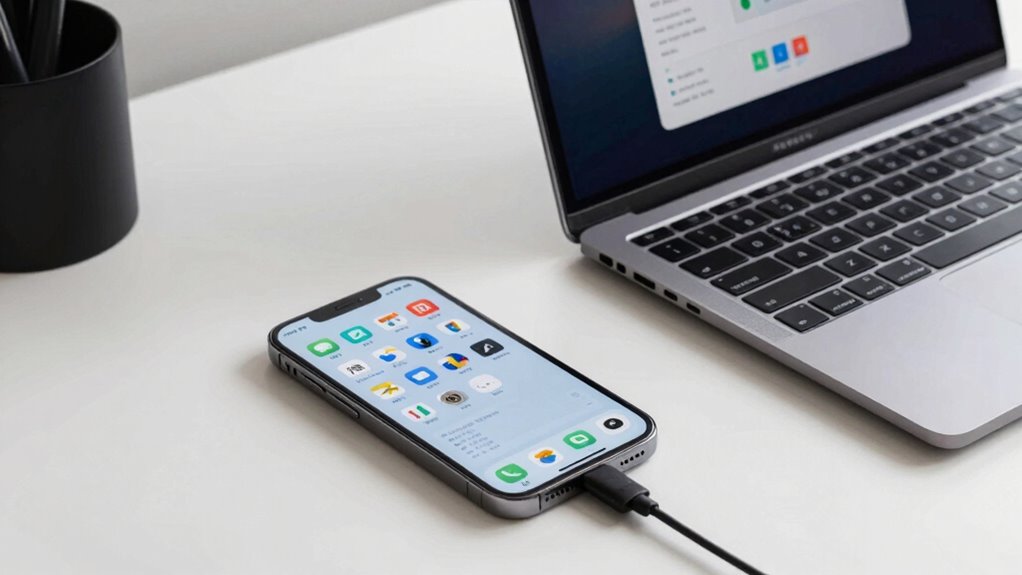

To set up device Handoffs between your iPhone and Mac, verify both are signed into the same Apple ID, connected to Wi-Fi, and have Bluetooth enabled. On your iPhone, go to Settings > Apple ID > iCloud and toggle on Handoff. On your Mac, open System Preferences > General and select “Allow Handoff.” Make sure your devices are compatible and up to date. If you continue exploring, you’ll learn additional tips to make the most of Handoff.

Get the latest gadgets delivered free with Prime
- Fast, free delivery on millions of items
- Prime Video, Amazon Music and more included
- Member-only deals all year
Key Takeaways
- Sign into the same Apple ID on both your iPhone and Mac.
- Enable Handoff in Settings > Apple ID > iCloud on iPhone, and in System Preferences > General on Mac.
- Connect both devices to the same Wi-Fi network and turn on Bluetooth.
- Ensure both devices support Handoff and have the latest software updates installed.
- Use compatible apps like Safari, Mail, or Notes to seamlessly transfer tasks between devices.
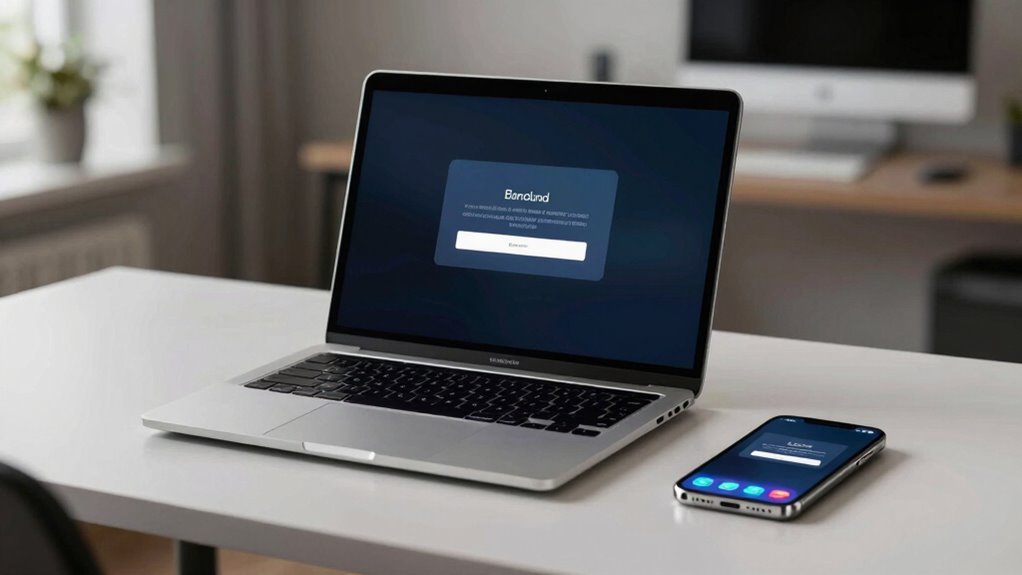
Ever wondered how to seamlessly continue your work or entertainment across multiple Apple devices? Setting up device handoffs makes this possible. It allows you to switch smoothly from your iPhone to your Mac or vice versa, without losing your place. To get started, confirm your devices meet the necessary requirements: both should be signed into the same Apple ID, connected to the same Wi-Fi network, and have Bluetooth enabled. This setup relies heavily on cloud synchronization and app integration, which work behind the scenes to keep everything in sync.
First, turn on Handoff on both your iPhone and Mac. On your iPhone, go to Settings, tap on your Apple ID at the top, then select iCloud. Scroll down and toggle on Handoff. On your Mac, open System Preferences, click on General, and check the box next to “Allow Handoff between this Mac and your iCloud devices.” Once enabled, your devices are ready to communicate effortlessly. Additionally, device compatibility is essential to ensure a smooth experience, as some older devices may not support Handoff features. Ensuring your devices are software up to date can also improve reliability.
Enable Handoff on iPhone and Mac in iCloud and System Preferences for seamless device communication.
Next, make sure the apps you want to use with Handoff support this feature. Most Apple-native apps like Safari, Mail, Messages, and Notes automatically support app integration. For third-party apps, check their settings or update them to the latest version, as developers often add Handoff support in updates. When you start working on a task on one device, your other device will recognize it through cloud synchronization, which keeps your data current across devices. For example, if you’re browsing a webpage in Safari on your iPhone, you’ll see an icon appear on your Mac’s Dock, allowing you to pick up right where you left off.
Using Handoff is straightforward. When you’re ready to switch devices, look for the Handoff icon on your lock screen or in the app switcher. On your Mac, a small icon appears near the Dock or in the app switcher, indicating the ongoing task. Simply click or tap it to continue your work instantly. The key is app integration; it guarantees that your apps communicate smoothly across devices, making the transition feel natural. As you switch back and forth, cloud synchronization updates your progress, so you never lose your place or latest edits.
Additionally, ensuring your devices support device handoffs is essential for a seamless experience. With this setup, you’ll find your workflow becomes more efficient. Whether you’re editing a document, browsing the web, or replying to messages, device handoffs make it easy to pick up right where you left off. The combination of cloud synchronization and app integration ensures your tasks stay connected across your Apple ecosystem, creating a seamless user experience that enhances productivity and convenience. Once everything’s configured, you’ll enjoy the fluidity that comes with truly integrated devices.
Frequently Asked Questions
Can I Use Device Handoff With Non-Apple Devices?
Device Handoff works mainly within the Apple ecosystem due to compatibility limitations and device restrictions. You can’t use Handoff with non-Apple devices like Android or Windows, as it relies on specific Apple features and services. If you’re looking to share tasks or info across different platforms, consider alternative solutions like third-party apps or cloud services that support cross-platform compatibility.
Does Handoff Work With Third-Party Apps?
Handoff mainly works with Apple’s ecosystem, so third-party apps often lack seamless cross-platform compatibility. While some third-party apps support app integration with Handoff, most don’t fully facilitate cross-device handoff features. To guarantee smooth device handoff, check if the apps you use support Handoff or offer their own cross-platform solutions. Keep in mind, the more integrated the app, the better your experience will be across your phone and computer.
How Do I Troubleshoot Handoff if It’s Not Working?
Sure, your devices might be compatible, but if Handoff refuses to cooperate, check network requirements first—Wi-Fi and Bluetooth need to be on and connected. Make certain both devices are signed into the same iCloud account and have Bluetooth enabled. Restart your devices to refresh their connections, and verify that Handoff is enabled in Settings. Sometimes, just turning things off and on again is the magic trick your setup needs.
Is an Internet Connection Required for Handoff?
Yes, an internet connection is required for handoff, primarily through Wi-Fi. Your devices need to be on the same Wi-Fi network and have Bluetooth enabled for seamless handoff functionality. Wi-Fi allows data transfer between devices, while Bluetooth helps establish the initial connection. Without a stable Wi-Fi connection and Bluetooth connectivity, handoff may not work properly, so make certain both are active and connected to the same network.
Can I Use Handoff Between Multiple Devices Simultaneously?
Yes, you can use Handoff between multiple devices simultaneously. It enables seamless multi-device synchronization, allowing you to switch effortlessly from one device to another. This feature works best with cross-platform compatibility, ensuring your activities transfer smoothly across your phone, tablet, and computer. Keep in mind, a stable internet connection enhances performance, but the primary requirement is that all devices are signed into the same Apple ID and have Handoff enabled.
Conclusion
Once you’ve set up device handoffs, your phone and computer become a seamless duet, dancing effortlessly together. Think of it as passing a baton smoothly in a relay race, ensuring you’re always in sync and moving forward without missing a beat. With just a few simple steps, you’ll enjoy a fluid connection that feels like magic—making your digital life smoother and more efficient. Now, go ahead and let your devices work together like a well-oiled machine.
Fall Picks
fall essentials
As an affiliate, we earn on qualifying purchases.