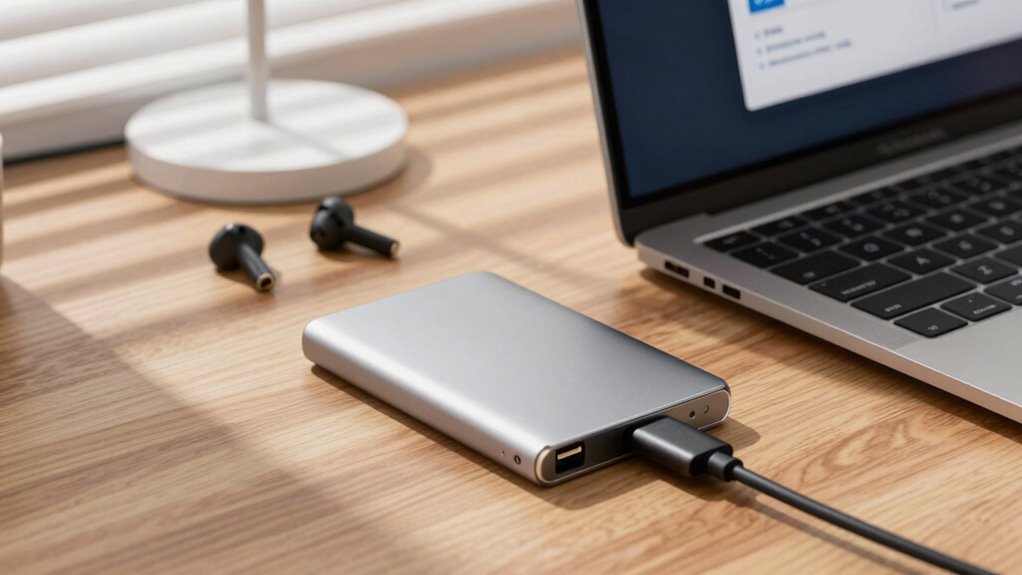
To set up an external SSD for backups, start by formatting the drive with the right file system—NTFS for Windows or APFS for macOS—and erase any existing data. Enable hardware or software encryption to protect your files, then choose reliable backup software to automate regular backups to the drive. Verify your backups and test restores to make sure everything works smoothly. Keep exploring each step to optimize your backup setup and keep your data safe.
Key Takeaways
- Choose the appropriate file system (NTFS or APFS) based on your operating system for compatibility.
- Format the SSD to erase old data and optimize performance before initial use.
- Enable hardware or software encryption to secure backup data from unauthorized access.
- Use reliable backup software to schedule automatic backups and designate the SSD as the destination.
- Regularly verify backup integrity and test restore procedures to ensure data reliability.
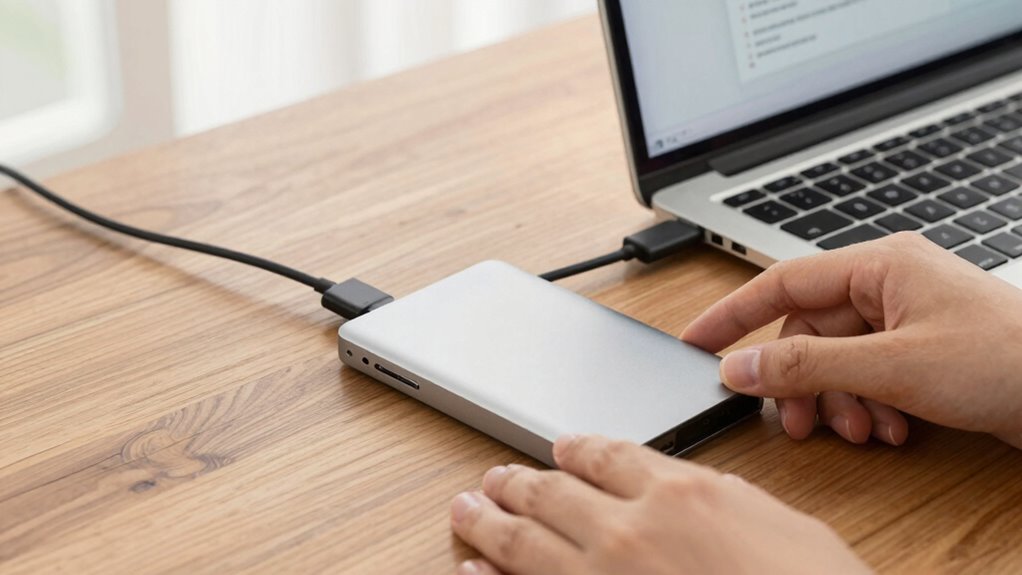
Have you ever wondered how to efficiently protect your data from unexpected loss? Setting up an external SSD for backups is a smart move, but it requires a few key steps to guarantee your information stays safe and accessible. First, you’ll want to prepare your SSD by formatting it properly. SSD formatting involves choosing the right file system—such as NTFS for Windows or APFS for macOS—and erasing any existing data. This process not only clears the drive but also optimizes it for performance and compatibility with your system. Make sure you back up any important data from the drive before formatting, as the process is irreversible. Additionally, understanding the contrast ratio of your drive can help you gauge its performance under different conditions, ensuring your backups are stored on a reliable and efficient device.
Once your SSD is formatted, the next essential step is to implement data encryption. Data encryption adds a layer of security, transforming your files into unreadable code unless a password or key is provided. Many modern SSDs and backup software offer built-in encryption options, making it straightforward to secure your backups. If your drive supports hardware encryption, enable it in the drive’s settings. Alternatively, you can use software solutions like BitLocker or FileVault, depending on your operating system. This way, even if someone gains physical access to your external drive, they won’t be able to access your sensitive information without the decryption key.
With the drive formatted and encryption in place, you’re ready to set up your backup process. Choose a reliable backup software that can automate scheduled backups, guaranteeing your data remains current without manual intervention. When configuring your backup, select your external SSD as the destination drive. Be sure to include all critical folders and files, or set up an entire system image for thorough recovery. Regularly verify that backups are completing successfully and test restoring files to confirm everything works smoothly.
As an affiliate, we earn on qualifying purchases.
Frequently Asked Questions
What Is the Best External SSD Brand for Backups?
The best external SSD brands for backups include Samsung, Western Digital, and SanDisk, known for reliability and fast speeds. When choosing, consider data encryption features to protect your files and guarantee compatibility with your device to avoid issues. These brands typically offer robust security and broad compatibility, making them ideal for safeguarding backups. Always check for encryption options and compatibility details before purchasing to ensure seamless backup experiences.
How Do I Securely Erase Data From an SSD?
To securely erase data from your SSD, start by encrypting it with data encryption tools like BitLocker or VeraCrypt, ensuring your data is protected during the process. Then, perform a secure erasure using specialized software such as Parted Magic or manufacturer tools. This process overwrites the data, making recovery impossible. Always back up important info beforehand, and double-check that the erasure completed successfully before disposing of or repurposing your drive.
Can I Use an External SSD With a Smart TV?
Can you use an external SSD with a smart TV? Absolutely! Think of your TV as a gatekeeper, allowing compatible devices through. Check your TV’s compatibility and supported formats first. Most smart TVs connect via a USB connection, so confirm your external SSD uses a compatible USB port. Once connected, navigate your TV’s menu to access media files. With the right setup, your external SSD becomes a portable media library at your fingertips.
How Do I Recover Files From a Corrupted SSD?
To recover files from a corrupted SSD, you should start with data recovery software designed for SSD corruption. Connect the SSD to your computer and run the software to scan for recoverable files. If this doesn’t work, consider professional data recovery services. Avoid reformatting or writing new data to the drive, as it can overwrite lost files, making recovery more difficult. Persistence and the right tools increase your chances of successful recovery.
What Are the Power Requirements for External SSDS?
Did you know that most external SSDs consume between 2 to 4 watts during active use? For your external SSD, the power requirements typically involve a USB connection that supplies power, making it energy-efficient and convenient. These drives are designed for low power consumption, ensuring minimal impact on energy efficiency. Check your SSD’s specifications, but generally, they don’t need an external power source, just a standard USB port for power.
Conclusion
Setting up your external SSD for backups is like planting a seed for peace of mind—nurturing your data’s safety so it can grow strong against any storm. With a simple setup, you’re creating a fortress that guards your memories and work. Remember, regular backups keep your digital garden flourishing. Take these steps today, and watch your peace of mind blossom, knowing your important files are protected and ready to thrive whenever you need them.