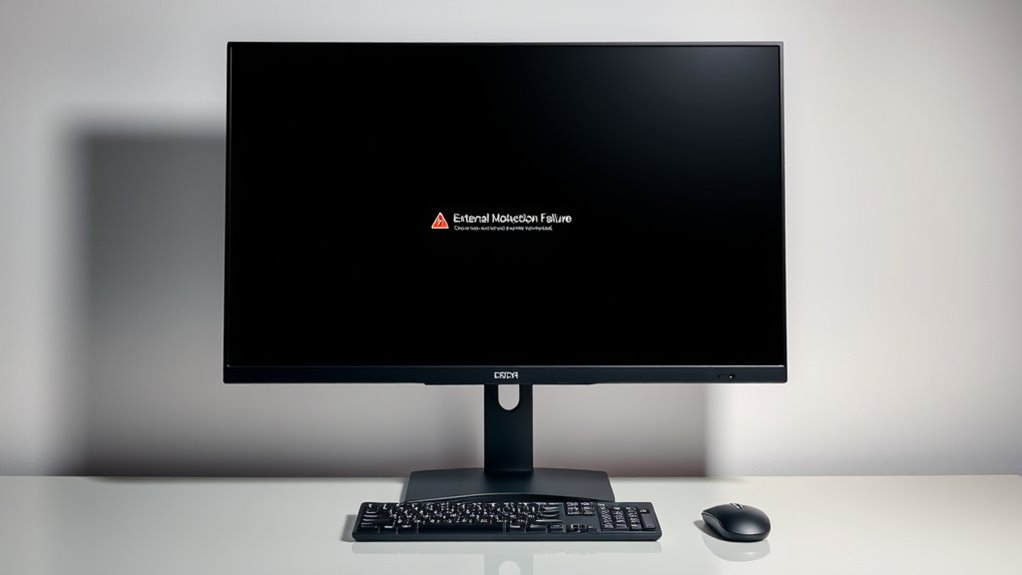

If your external monitor isn’t detected, start by checking your display connections and ensuring cables are secure and undamaged. Next, update your graphics drivers from the manufacturer’s website or through Device Manager, then restart your computer to apply changes. You can also try disconnecting and reconnecting the monitor or using the “Detect Displays” option. For more detailed steps that could resolve your issue, continue exploring effective troubleshooting methods.
Key Takeaways
- Check and adjust display settings to ensure the external monitor is detected and set to extend or duplicate mode.
- Update or reinstall graphics drivers from the manufacturer’s website for compatibility and bug fixes.
- Verify physical connections by testing different cables and ports for secure and functional hardware links.
- Use the “Detect Displays” button in display settings to prompt the system to recognize the monitor.
- Restart your computer after making driver updates or hardware adjustments to apply changes effectively.

If your external monitor isn’t being detected, it can be frustrating, but the issue is often fixable. The first thing you should check is your graphics settings. Sometimes, your display settings might not be configured correctly, preventing the monitor from being recognized. To do this, go to your display settings on your computer. On Windows, right-click on the desktop and select “Display settings.” Make sure your system detects the monitor and that it’s set to extend or duplicate your display. On Mac, open System Preferences, then Displays, and check if the external monitor appears. If it’s not showing up, try clicking the “Detect Displays” button (on Windows) or disconnecting and reconnecting the monitor to see if it prompts the system to recognize it.
Check your display settings and use the “Detect Displays” button to recognize your external monitor.
If adjusting the graphics settings doesn’t resolve the problem, the next step is to guarantee your drivers are up to date. Outdated or corrupted graphics drivers often cause detection issues. Head to your graphics card manufacturer’s website—NVIDIA, AMD, or Intel—and download the latest driver updates compatible with your system. Installing the most recent drivers can fix bugs that prevent your PC from recognizing external displays. After updating, restart your computer and see if the monitor is detected. If you’re using Windows, you can also update drivers through Device Manager. Right-click on the Start button, select “Device Manager,” expand “Display adapters,” right-click your graphics card, and choose “Update driver.” Select “Search automatically for updated driver software,” and Windows will handle the rest.
Sometimes, driver updates alone aren’t enough. You might need to uninstall your current graphics driver completely before reinstalling the latest version. To do this, go to Device Manager, right-click your graphics card, and choose “Uninstall device.” Check the box to delete driver software if prompted. Then, restart your PC and install the latest driver you downloaded. This clean installation can resolve conflicts that prevent your monitor from being detected.
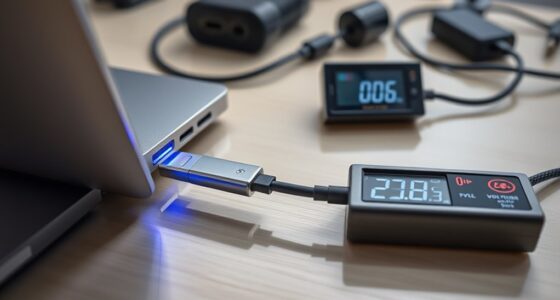
In addition to software fixes, check your physical connections. Use high-quality cables and ensure they’re securely plugged into both your monitor and your graphics card. If possible, try a different cable or port to rule out hardware problems. Also, test your monitor with another device or computer to confirm it’s working properly. Ensuring your hardware connections are reliable is a key component of lifestyle and maintaining an efficient workspace.
As an affiliate, we earn on qualifying purchases.
Frequently Asked Questions
Can Updating My Graphics Driver Fix External Monitor Issues?
Yes, updating your graphics driver can fix external monitor issues by improving monitor compatibility and resolving bugs. When you perform a graphics driver update, you guarantee your system supports the latest display features and fixes. This often helps your computer detect the external monitor correctly. Just make sure to download the driver from your GPU manufacturer’s website or use device manager to keep your drivers up-to-date for superior performance.
Why Does My Monitor Work on Another Device but Not Mine?
Did you know over 30% of monitor issues stem from hardware or compatibility problems? Your monitor works on another device but not yours because of potential monitor hardware faults or display compatibility issues. Check your cable connections, make certain your graphics drivers are up-to-date, and verify your display settings. If problems persist, test the monitor on your device with different cables or ports to rule out hardware conflicts.
Is There a Way to Troubleshoot HDMI or Displayport Connections?
To troubleshoot HDMI or DisplayPort connections, first check cable compatibility to make sure your cables match your device ports. Then, clean the ports gently with compressed air or a soft brush to remove dust and debris. Next, test with a different cable or port to identify if the issue persists. Updating your graphics drivers and restarting your device can also help resolve connection problems.
Could a Faulty Cable Cause External Monitor Detection Problems?
A faulty cable can absolutely cause external monitor detection issues, highlighting the importance of cable quality and connection stability. Even a slight defect disrupts signal transmission, making your monitor appear disconnected. You might think your device is fine, but a compromised cable can be the silent culprit. Check and replace your cables if needed, ensuring they’re high-quality and secure, so your display connection becomes reliable again.
How Do I Reset My Display Settings for Windows or Mac?
To reset your display settings, start by opening your system’s display or display calibration settings. On Windows, go to Settings > Display > Advanced display settings, then select your monitor and click ‘Reset’ or ‘Calibrate display’ to adjust color profiles and reset display calibration. On Mac, open System Preferences > Displays, then hold the Option key and click ‘Detect Displays’ to refresh the connection. This resets color profiles and display calibration, helping resolve detection issues.
Conclusion
Don’t let a stubborn external monitor keep you in the dark. Think of it as a puzzle waiting to be solved—you just need to find the right piece. With a little troubleshooting, you’ll have your display shining bright again, like a lighthouse guiding you home. Remember, patience and persistence turn tangled wires into clear signals. Soon enough, your screen will reconnect, illuminating your workspace and turning tech frustration into a victory dance.