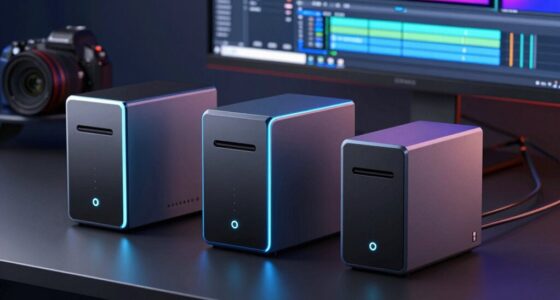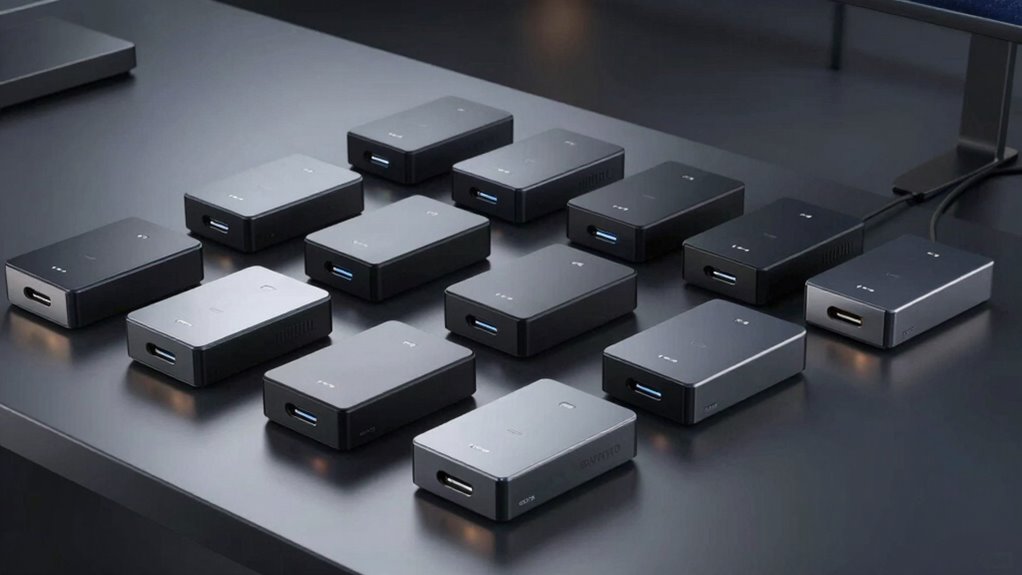

A USB-C RAID enclosure can add drive capacity, combine disks for speed or redundancy, or give a computer a multi-drive storage pool without a network server. My best overall pick is the QNAP TR-004 for buyers who want a dedicated four-bay RAID enclosure, while the Yottamaster PS500RC3 stands out for five-drive capacity and the TerraMaster D4-320 for straightforward four-bay direct-attached storage. The main tradeoffs are RAID control versus simple drive access, bay count versus footprint, and transfer speed versus the limits of the host connection. Compatibility also matters: USB-C describes the connector, not a guarantee of a particular data rate or RAID feature set. Read on for the full comparison and guidance on matching an enclosure to your drives and workload.

Get the latest gadgets delivered free with Prime
- Fast, free delivery on millions of items
- Prime Video, Amazon Music and more included
- Member-only deals all year
Complete the kit



Key Takeaways
- The QNAP TR-004 is the clearest fit for buyers prioritizing a dedicated four-bay RAID enclosure; it is a different proposition from multi-bay DAS units focused on straightforward external storage.
- Five-bay models—the Yottamaster PS500RC3 and SABRENT five-bay DAS—suit users who need room for more disks, but their extra capacity means a larger enclosure and more drives to manage.
- The TerraMaster D4-320 and D2-320 offer direct-attached storage in four- and two-bay formats; buyers should check that their RAID needs match the specific model rather than assuming every enclosure offers the same RAID controls.
- The CENMATE and MAIWO four-bay options highlight cooling as a practical differentiator for multi-drive setups, where sustained use can make airflow and fan noise part of the daily experience.
- The SABRENT DS-SC4B adds docking-station functionality to a four-bay enclosure, while the two-bay TerraMaster D2-320 is better suited to a smaller drive pool than a capacity-first setup.
| CENMATE 2-Bay Aluminum RAID Hard Drive Enclosure with Cooling Fan |  | Best Compact RAID Pick | Drive bays: 2 | Supported drives: 2.5-inch and 3.5-inch SATA HDDs and SSDs | Maximum capacity: 20 TB per drive; 40 TB total | VIEW ON AMAZON | See Our Full Breakdown |
| SABRENT 4-Bay USB-C 10Gbps Hard Drive Enclosure, Docking Station (DS-SC4B) |  | Best for Fast JBOD Expansion | Drive bays: 4 | Supported drive form factor: 3.5-inch SATA HDDs or SSDs | Maximum stated capacity: Up to 80 TB total in the product description | VIEW ON AMAZON | See Our Full Breakdown |
| CENMATE 4-Bay Aluminum RAID Hard Drive Enclosure with Cooling Fan |  | Best RAID-Mode Flexibility | Drive bays: 4 | Supported drives: 2.5-inch and 3.5-inch SATA HDDs and SSDs | Maximum capacity: 80 TB total; up to 20 TB per drive | VIEW ON AMAZON | See Our Full Breakdown |
| Yottamaster PS500RC3 5-Bay USB-C RAID Hard Drive Enclosure |  | Best for Maximum Drive Count | Drive bays: 5 | Supported drives: 2.5-inch and 3.5-inch SATA HDDs and SSDs | Maximum capacity: 110 TB total; 5 × 22 TB | VIEW ON AMAZON | See Our Full Breakdown |
| MAIWO 4-Bay USB-C SATA HDD/SSD RAID Enclosure with Cooling Fans | 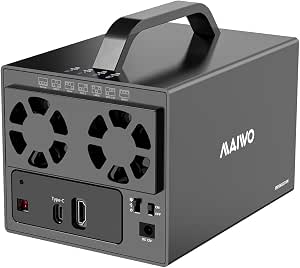 | Best for Adjustable Cooling | Drive bays: 4 | Supported drive sizes: 2.5-inch and 3.5-inch SATA | Maximum capacity: Conflicting information: 96 TB stated in description and 72 TB elsewhere | VIEW ON AMAZON | See Our Full Breakdown |
| QNAP TR-004 4-Bay USB Type-C RAID Enclosure (Diskless) |  | Best for RAID 5 and QNAP NAS Expansion | Drive bays: 4 | Drive compatibility: 3.5-inch SATA drives; screws included for 2.5-inch drives | RAID modes: RAID 0, RAID 1, RAID 5, JBOD, individual disks | VIEW ON AMAZON | See Our Full Breakdown |
| SABRENT 5-Bay USB-C 10Gbps 3.5-Inch Hard Drive Enclosure and DAS Dock |  | Best for Five Independent Drives | Drive bays: 5 | Drive type: 3.5-inch SATA HDDs or SSDs | Maximum listed capacity: 100TB (5 × 20TB) | VIEW ON AMAZON | See Our Full Breakdown |
| TerraMaster D2-320 2-Bay USB 3.2 Gen 2 RAID Enclosure (Diskless) |  | Best Compact RAID Enclosure | Bays: 2 | Drive compatibility: 2.5-inch and 3.5-inch SATA HDDs; 2.5-inch SATA SSDs | Maximum capacity: 22TB per drive; 44TB total | VIEW ON AMAZON | See Our Full Breakdown |
| TerraMaster D4-320 4-Bay External Hard Drive Enclosure (Diskless) | 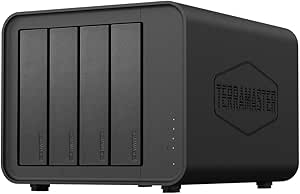 | Best High-Capacity Non-RAID Enclosure | Drive bays: 4 | Drive support: 3.5-inch SATA HDDs, 2.5-inch SATA HDDs, and 2.5-inch SATA SSDs | Maximum capacity: 30TB per drive; 120TB total | VIEW ON AMAZON | See Our Full Breakdown |
| usb c raid enclosure | Drive bays | Maximum capacity | RAID modes | Interface |
|---|---|---|---|---|
| CENMATE 2-Bay Aluminum RAID Ha | 2 | 20 TB per drive; 40 TB total | RAID 0, RAID 1, Normal, JBOD | USB 3.0, up to 5 Gbps |
| SABRENT 4-Bay USB-C 10Gbps Har | 4 | — | — | USB 3.2 Gen 2, USB Type-C |
| CENMATE 4-Bay Aluminum RAID Ha | 4 | 80 TB total; up to 20 TB per drive | RAID 0, 1, 3, 5, 10, Clone, Large, Normal | — |
| Yottamaster PS500RC3 5-Bay USB | 5 | 110 TB total; 5 × 22 TB | RAID 0/1/3/5/10, JBOD (SPAN), Clone | — |
| MAIWO 4-Bay USB-C SATA HDD/SSD | 4 | Conflicting information: 96 TB stated in description and 72 TB elsewhere | 7 modes, including RAID 0, 3, 5, 1/10, Clone, and JBOD | USB Type-C; USB A/C 3.1 |
| QNAP TR-004 4-Bay USB Type-C R | 4 | — | RAID 0, RAID 1, RAID 5, JBOD, individual disks | — |
| SABRENT 5-Bay USB-C 10Gbps 3.5 | 5 | — | — | — |
| TerraMaster D2-320 2-Bay USB 3 | — | 22TB per drive; 44TB total | RAID 0, RAID 1, JBOD, Single | USB 3.2 Gen 2 |
| TerraMaster D4-320 4-Bay Exter | 4 | 30TB per drive; 120TB total | — | USB 3.2 Gen 2, USB Type-C |
More Details on Our Top Picks
CENMATE 2-Bay Aluminum RAID Hard Drive Enclosure with Cooling Fan
I’d choose this two-bay CENMATE when I want a straightforward USB-C-connected RAID enclosure without giving up a small desktop footprint. It accepts 2.5- and 3.5-inch SATA drives and offers RAID 0, RAID 1, JBOD, and Normal, giving it more configuration choice than the SABRENT DS-SC4B, which is a four-bay JBOD enclosure without hardware RAID. The tradeoff is capacity and speed: two drives and a 5 Gbps USB 3.0 link suit a home archive or modest backup setup better than a large, fast media array. Its fan and aluminum shell help manage heat, but the stated 40–50 dB noise may be intrusive nearby. I’d also treat RAID setup carefully, since it can cause data loss; the listing notes no RAID software for Mac.
Pros:- Four modes, including RAID 1 and JBOD, provide useful two-drive flexibility
- Accepts 2.5-inch and 3.5-inch SATA HDDs and SSDs
- Tool-free installation reduces setup hassle
- Aluminum body and built-in fan help dissipate drive heat
Cons:- USB 3.0 tops out at 5 Gbps, below faster USB-C options in the roundup
- Fan noise is listed at about 40–50 dB
- RAID setup can result in data loss, and the listing says Mac RAID software is not provided
Best for: Home users who want a compact two-drive backup or RAID 1 setup with both 2.5-inch and 3.5-inch SATA drives.
Not ideal for: Video editors needing higher USB bandwidth, or Mac users who need included RAID configuration software.
- Drive bays:2
- Supported drives:2.5-inch and 3.5-inch SATA HDDs and SSDs
- Maximum capacity:20 TB per drive; 40 TB total
- RAID modes:RAID 0, RAID 1, Normal, JBOD
- Interface:USB 3.0, up to 5 Gbps
- Cooling:2-inch fan; approximately 40–50 dB
- Material:Aluminum alloy
- Compatibility:Windows 7 and later, Mac OS 9.1 and later, Linux
Our verdict“Pick this CENMATE for a compact two-drive RAID setup, but skip it if you need quieter operation or faster-than-5-Gbps transfers.”
SABRENT 4-Bay USB-C 10Gbps Hard Drive Enclosure, Docking Station (DS-SC4B)
The SABRENT DS-SC4B is the pick here for buyers who value four independent drive bays and a 10 Gbps USB-C link more than built-in RAID. Its hot-swappable trays make drive changes easier than with the CENMATE 4-Bay Aluminum RAID Enclosure, which offers multiple RAID modes but does not support hot-swapping. The key distinction is that this SABRENT operates in JBOD only: it presents drives independently rather than combining them in a hardware RAID array. That can suit rotating backup disks or a multi-drive archive, but it is the wrong match for someone seeking RAID 1 redundancy or RAID 5 capacity efficiency. Active cooling and metal construction suit sustained desktop use, while the nine-pound weight and external power supply make it a stay-put setup rather than a portable enclosure.
Pros:- Four hot-swappable trays simplify replacing or rotating drives
- USB-C connection supports transfer rates up to 10 Gbps
- Independent drive access suits separate disk workflows
- Aluminum and metal construction with active cooling
Cons:- JBOD-only operation provides no hardware RAID modes
- Drives are not included
- Nine-pound enclosure requires external power and is not a portable choice
Best for: Desktop users who need four hot-swappable SATA bays for separate backup, archive, or media drives and can manage storage without hardware RAID.
Not ideal for: Buyers who need hardware RAID modes, a lightweight enclosure, or a bus-powered drive solution.
- Drive bays:4
- Supported drive form factor:3.5-inch SATA HDDs or SSDs
- Maximum stated capacity:Up to 80 TB total in the product description
- Interface:USB 3.2 Gen 2, USB Type-C
- Maximum data transfer rate:10 Gbps
- Drive handling:Tool-free hot-swappable trays; independent drive access
- RAID support:JBOD only; no hardware RAID
- Build and dimensions:Aluminum; 9.1 × 5.8 × 5.9 inches
Our verdict“Choose the DS-SC4B for fast, hot-swappable four-drive expansion, not for a USB-C hardware RAID array.”
CENMATE 4-Bay Aluminum RAID Hard Drive Enclosure with Cooling Fan
This four-bay CENMATE earns its place through eight RAID and drive modes, including RAID 3, RAID 5, RAID 10, and Clone. That range gives it more array choices than the two-bay CENMATE, while the SABRENT DS-SC4B is a better fit when hot-swapping and 10 Gbps transfers matter more than RAID. The CENMATE’s USB 3.0 connection is limited to 5 Gbps, and eSATA adds a connection option for compatible computers, not a speed guarantee across every setup. Its four bays can hold up to 80 TB total, but drives cannot be hot-swapped, so changing disks means shutting down first. The fan and aluminum shell help with cooling, though the stated 40–50 dB noise makes it less suited to a quiet workstation. This is a DAS enclosure, not a NAS.
Pros:- Eight modes include RAID 0, 1, 3, 5, 10, Clone, Large, and Normal
- Four bays support up to 80 TB total using drives up to 20 TB each
- USB 3.0 and eSATA offer two connection options
- Aluminum enclosure and built-in fan support drive cooling
Cons:- Hot-swapping is not supported, so drive changes require shutdown
- USB connection is limited to 5 Gbps
- Fan noise is listed at approximately 40–50 dB
Best for: Users building a four-drive local storage array who want several hardware RAID layouts and do not need to swap disks while running.
Not ideal for: People who need hot-swappable bays, quieter operation, network-attached storage, or USB speeds above 5 Gbps.
- Drive bays:4
- Supported drives:2.5-inch and 3.5-inch SATA HDDs and SSDs
- Maximum capacity:80 TB total; up to 20 TB per drive
- RAID modes:RAID 0, 1, 3, 5, 10, Clone, Large, Normal
- Interfaces:USB 3.0 and eSATA
- Maximum data transfer rate:5 Gbps
- Cooling:Built-in fan; approximately 40–50 dB
- Drive swapping and system type:Hot-swapping not supported; DAS, no NAS support
Our verdict“Choose this CENMATE when RAID layout choice matters more than hot-swapping, quiet operation, or higher USB bandwidth.”
Yottamaster PS500RC3 5-Bay USB-C RAID Hard Drive Enclosure
With five bays and a stated 110 TB maximum capacity, the Yottamaster PS500RC3 is the capacity-focused choice in this group. It supports 2.5- and 3.5-inch SATA drives and includes RAID 0/1/3/5/10, JBOD, and Clone modes, giving it broader array options than the SABRENT DS-SC4B, which has four bays but no hardware RAID. There is a speed tradeoff: this Yottamaster’s USB 3.1 Type-C link is listed at 5 Gbps, while the SABRENT reaches 10 Gbps. The temperature-controlled 80 mm fan can adjust cooling as drive heat changes, but buyers must keep total drive power consumption within 78 W. I’d favor it for a large local archive or multi-drive backup set, not for users whose priority is maximum connection bandwidth.
Pros:- Five bays support up to 110 TB stated total capacity
- RAID 0/1/3/5/10, JBOD, and Clone modes cover varied storage layouts
- Accepts both 2.5-inch and 3.5-inch SATA drives
- Temperature-controlled 80 mm fan adjusts cooling to drive heat
Cons:- USB-C transfer rate is limited to 5 Gbps, below the SABRENT DS-SC4B
- Combined drive power consumption must stay within 78 W
- New drives may need formatting and partitioning before use
Best for: Archiving and backup users who want five SATA bays, several RAID modes, and a high stated total capacity in one desktop enclosure.
Not ideal for: Editors who prioritize 10 Gbps transfers or builders whose selected drives may exceed the 78 W total power limit.
- Drive bays:5
- Supported drives:2.5-inch and 3.5-inch SATA HDDs and SSDs
- Maximum capacity:110 TB total; 5 × 22 TB
- RAID modes:RAID 0/1/3/5/10, JBOD (SPAN), Clone
- Interface and transfer rate:USB 3.1 Type-C; up to 5 Gbps
- Cooling:Temperature-controlled 80 mm fan
- Maximum drive power consumption:78 W total
- Compatibility:Windows, Mac, Linux
Our verdict“Pick the PS500RC3 for five-bay capacity and RAID choice, provided 5 Gbps bandwidth and the drive power limit fit your setup.”
MAIWO 4-Bay USB-C SATA HDD/SSD RAID Enclosure with Cooling Fans
The MAIWO stands out among these four-bay RAID options for its adjustable dual fans, which let owners tune cooling rather than rely on one fixed fan setting. It supports four 2.5- or 3.5-inch SATA drives and seven modes, including Clone and JBOD, making it more array-focused than the SABRENT DS-SC4B, which offers four bays and faster 10 Gbps USB-C but no hardware RAID. The MAIWO’s stated capacity is unclear: the description says 96 TB, while product information also lists 72 TB. Its listed transfer rate of 480 MB/s also differs from the described USB 3.1 interface speed of up to 5 Gbps. I’d verify capacity and connection details before building around it. The 78 W supply is another limit when choosing four power-hungry drives.
Pros:- Four bays accept both 2.5-inch and 3.5-inch SATA drives
- Seven listed modes include RAID configurations, Clone, and JBOD
- Adjustable dual fans allow cooling to be tuned
- Includes a 78 W external power supply
Cons:- Capacity information conflicts between 96 TB and 72 TB
- Listed 480 MB/s transfer rate differs from the stated USB 3.1 speed description
- The 78 W supply may constrain the choice of four high-power drives
Best for: Buyers who want a four-drive hardware RAID enclosure with adjustable cooling and are willing to confirm capacity and speed details before purchase.
Not ideal for: People who need unambiguous maximum capacity, a confirmed 10 Gbps connection, or a low-maintenance specification match for a fixed drive set.
- Drive bays:4
- Supported drive sizes:2.5-inch and 3.5-inch SATA
- Maximum capacity:Conflicting information: 96 TB stated in description and 72 TB elsewhere
- RAID modes:7 modes, including RAID 0, 3, 5, 1/10, Clone, and JBOD
- Interface:USB Type-C; USB A/C 3.1
- Listed data transfer rate:480 MB/s
- Cooling and power:Adjustable dual fans; 78 W external power supply
- Compatibility:Windows, Linux, Mac OS
Our verdict“Consider the MAIWO for adjustable cooling and varied RAID modes, but verify its capacity and transfer-rate claims before selecting drives.”
QNAP TR-004 4-Bay USB Type-C RAID Enclosure (Diskless)
The QNAP TR-004 is the clearest fit here for buyers who want a four-drive enclosure with hardware RAID options, especially RAID 5. That mode can provide fault tolerance while using capacity more efficiently than mirroring two drives, though the exact usable space depends on the drives installed. Unlike the TerraMaster D4-320, the TR-004 supports RAID, but its connection is USB 3.0 at up to 5Gbps, slower on paper than the newer 10Gbps TerraMaster models. It also works as expansion or backup storage for compatible QNAP NAS devices, a useful extra for existing QNAP owners rather than a general NAS replacement. The tradeoffs are a diskless purchase and QNAP-specific compatibility and storage-pool limits; buyers should check NAS support before relying on it for expansion.
Pros:- Supports RAID 0, RAID 1, RAID 5, JBOD, and individual-disk configurations.
- Connects to Windows, macOS, and Linux computers.
- Can expand or back up storage for compatible QNAP NAS devices.
- Includes a USB Type-C-to-Type-A cable and drive-bay keys.
Cons:- Drives are not included, so the enclosure requires a separate drive purchase.
- USB 3.0 transfer rate is listed at 5Gbps, below the 10Gbps TerraMaster D2-320 and D4-320.
- Some QNAP NAS models and storage-pool or application functions are unsupported.
Best for: QNAP NAS owners and desktop users who need a four-bay USB enclosure with RAID 5 and cross-platform compatibility.
Not ideal for: Buyers prioritizing 10Gbps transfers or broad, unrestricted QNAP NAS expansion; its USB link is 5Gbps and NAS support has model and storage-pool limitations.
- Drive bays:4
- Drive compatibility:3.5-inch SATA drives; screws included for 2.5-inch drives
- RAID modes:RAID 0, RAID 1, RAID 5, JBOD, individual disks
- Connection:USB Type-C; USB 3.0
- Data transfer rate:5Gbps
- Operating systems:Windows, macOS, Linux
- Weight:4.1 lb
- Included drives:None
Our verdict“Choose the TR-004 if RAID 5 or compatible QNAP NAS expansion matters more than a 10Gbps connection.”
SABRENT 5-Bay USB-C 10Gbps 3.5-Inch Hard Drive Enclosure and DAS Dock
The SABRENT 5-Bay DAS Dock is for buyers who need more drive slots, not built-in RAID. Its five bays can hold up to 100TB across five drives, and each disk mounts individually, so you can manage separate volumes without configuring an array. That makes it a different proposition from the RAID-capable QNAP TR-004 and TerraMaster D2-320: the Sabrent offers an extra bay and a 10Gbps USB-C connection, but no RAID or network storage. Tray-less hot-swap access and per-bay power switches make drive changes and independent control easier, while the temperature-controlled 120mm fan addresses heat from a multi-drive setup. Its roughly 10-pound, 10.4-inch-wide enclosure takes up more room than the compact two-bay TerraMaster, and drives must be supplied separately.
Pros:- Five bays support up to 100TB total capacity with compatible drives.
- USB-C connection supports transfer rates up to 10Gbps.
- Tray-less hot-swap access and per-bay power switches simplify drive handling.
- Temperature-controlled 120mm fan helps manage heat across multiple drives.
Cons:- Does not provide RAID or network-storage functionality.
- Drives are not included.
- Its 10-pound weight and desktop footprint make it less suitable for compact workspaces.
Best for: Video editors, archivists, and desktop users who need five separately accessible SATA drives over one USB-C connection.
Not ideal for: Buyers who need RAID protection, NAS access, or a lightweight enclosure; this model mounts disks individually and weighs 10 pounds.
- Drive bays:5
- Drive type:3.5-inch SATA HDDs or SSDs
- Maximum listed capacity:100TB (5 × 20TB)
- Connection:USB-C, USB 3.1 Gen 2; backward compatible with USB 3.0 and 2.0
- Maximum data transfer rate:Up to 10Gbps
- RAID:Not supported; drives mount individually
- Cooling:120mm PWM temperature-controlled fan
- Compatibility:Windows, macOS, Linux
- Weight:10 lb
Our verdict“Pick this Sabrent when five independent drives and 10Gbps USB-C matter more than RAID.”
TerraMaster D2-320 2-Bay USB 3.2 Gen 2 RAID Enclosure (Diskless)
The TerraMaster D2-320 suits buyers who want a compact two-drive enclosure with a modern 10Gbps USB connection and straightforward RAID choices. It supports RAID 0 and RAID 1, along with JBOD and Single modes, so a small desktop setup can prioritize speed, mirroring, or separate disks. Compared with the four-bay QNAP TR-004, the D2-320 gives up two bays and RAID 5, but offers a faster listed interface and accepts both 2.5-inch and 3.5-inch SATA drives. Tool-free push-lock trays reduce the fuss of installation, and its temperature-controlled fan adjusts to drive heat. The main limits are its two-drive ceiling and diskless setup; despite the RAID options, it remains direct-attached storage, not a NAS. Its plastic enclosure also contrasts with the metal-bodied feel of some alternatives.
Pros:- Offers RAID 0, RAID 1, JBOD, and Single modes.
- USB 3.2 Gen 2 connection supports data transfer rates up to 10Gbps.
- Accepts 2.5-inch and 3.5-inch SATA drives, including 2.5-inch SATA SSDs.
- Tool-free trays and temperature-controlled fan simplify drive installation and cooling.
Cons:- Limited to two drives and 44TB total capacity with supported 22TB drives.
- Drives are not included.
- Plastic enclosure and direct-attached design may not suit buyers seeking a metal chassis or NAS access.
Best for: Home-office users who want a small two-drive setup for RAID 1 mirroring or RAID 0 over 10Gbps USB.
Not ideal for: Buyers needing four or more bays, RAID 5, or storage shared across a network; this is a two-bay direct-attached enclosure.
- Bays:2
- Drive compatibility:2.5-inch and 3.5-inch SATA HDDs; 2.5-inch SATA SSDs
- Maximum capacity:22TB per drive; 44TB total
- RAID modes:RAID 0, RAID 1, JBOD, Single
- Interface:USB 3.2 Gen 2
- Maximum data transfer rate:10Gbps
- Supported operating systems:Windows, Mac, Linux
- Enclosure material:Plastic
- Included drives:None
Our verdict“Choose the D2-320 for compact two-drive RAID with 10Gbps USB, but step up to the QNAP TR-004 for more bays and RAID 5.”
TerraMaster D4-320 4-Bay External Hard Drive Enclosure (Diskless)
The TerraMaster D4-320 is the capacity-focused pick for buyers who want four drives available individually, not combined into RAID. Its 10Gbps USB-C connection, support for up to 30TB per drive, and listed 120TB total capacity make it a better fit for large media libraries or separate project volumes than the two-bay D2-320. It also has an advantage over the QNAP TR-004 for users who want 10Gbps transfers and tool-free hot swapping, but the trade is decisive: the D4-320 does not support RAID. That means it cannot provide the RAID 1 mirroring or RAID 5 configurations available on those alternatives. Hot swapping, temperature-controlled cooling, and vibration damping help with drive access and operation, while the diskless design and plastic enclosure are limits for buyers expecting a ready-to-use or metal-bodied system.
Pros:- Supports four drives and up to 120TB total capacity with compatible drives.
- USB 3.2 Gen 2 Type-C connection supports data rates up to 10Gbps.
- Tool-free trays and hot swapping make drive changes easier.
- Temperature-controlled fan and vibration damping help manage heat and drive noise.
Cons:- Does not support RAID, unlike the QNAP TR-004 and TerraMaster D2-320.
- Drives are not included.
- Plastic enclosure may be less appealing to buyers seeking a metal chassis.
Best for: Archivists and media creators who need four independently managed drives and high total capacity over USB-C.
Not ideal for: Buyers who want RAID-based redundancy, a NAS, or an all-in-one storage setup; drives are not included and RAID is unavailable.
- Drive bays:4
- Drive support:3.5-inch SATA HDDs, 2.5-inch SATA HDDs, and 2.5-inch SATA SSDs
- Maximum capacity:30TB per drive; 120TB total
- Interface:USB 3.2 Gen 2, USB Type-C
- Maximum data transfer rate:10Gbps
- RAID:Not supported
- Compatible operating systems:Windows, Mac, Linux
- Hot swapping:Supported
- Enclosure material:Plastic
Our verdict“Choose the D4-320 for four high-capacity independent drives and hot swapping, but select a RAID-capable model if you need redundancy.”

How We Picked
I compared these enclosures by how well they serve the actual needs behind a USB-C RAID purchase: drive capacity, RAID functionality, host connectivity, cooling, and day-to-day handling. Bay count matters, but it does not settle the ranking on its own. I also distinguished dedicated RAID-oriented products from DAS or docking-style enclosures, since buyers may want independent drive access rather than a RAID array.
The order favors useful balance for the broadest group of buyers, then gives specialized options their place for higher capacity, simpler direct-attached storage, or compact two-drive setups. I treated USB-C as a connector, not a speed rating, and considered whether the stated interface and product role make a good fit for common desktop workflows. A model ranks lower when its appeal is narrower, its role is less clearly centered on RAID, or it asks the buyer to prioritize a specific feature—such as extra bays—over a more versatile setup.
| usb c raid enclosure | Interface |
|---|---|
| CENMATE 2-Bay Aluminum RAID Ha | USB 3.0, up to 5 Gbps |
| SABRENT 4-Bay USB-C 10Gbps Har | USB 3.2 Gen 2, USB Type-C |
| CENMATE 4-Bay Aluminum RAID Ha | — |
| Yottamaster PS500RC3 5-Bay USB | — |
| MAIWO 4-Bay USB-C SATA HDD/SSD | USB Type-C; USB A/C 3.1 |
| QNAP TR-004 4-Bay USB Type-C R | — |
| SABRENT 5-Bay USB-C 10Gbps 3.5 | — |
| TerraMaster D2-320 2-Bay USB 3 | USB 3.2 Gen 2 |
| TerraMaster D4-320 4-Bay Exter | USB 3.2 Gen 2, USB Type-C |
Factors to Consider When Choosing Usb C Raid Enclosure
Before choosing a model, decide what job the enclosure needs to do. A RAID array, a set of independently accessible drives, and a convenient multi-drive dock may look similar on a desk, but they solve different storage problems. These factors help prevent a mismatch between the enclosure, your computer, and the way you protect your files.
Choose RAID behavior before choosing bay count
RAID can join drives for capacity, performance, or redundancy, but those goals are not interchangeable. Redundancy can help keep an array available after a drive failure, yet it is not a backup of deleted, corrupted, or overwritten files. Check how the enclosure selects and manages RAID modes, and whether setup is handled by hardware controls or host software. A common mistake is buying a RAID-labeled unit without confirming that its available modes match the intended workflow. If you want each disk to remain independently accessible, a DAS enclosure may be a better fit than an array-focused model. Plan a separate backup before storing irreplaceable files on any RAID setup.
Match the bay count to your growth plan
Two bays can be enough for a mirrored pair or a modest working set, while four or five bays give more room for capacity and different array layouts. Extra bays can also add cost in desk space, drive spending, heat, and noise, so unused slots are not automatically useful. Think about the amount of data you expect to add over the next few years and whether you can expand an existing array later. Do not assume a larger enclosure makes expansion seamless; RAID migration rules vary, and rebuilding an array can take time. If you already own several drives, check their sizes and condition before deciding how many slots you need. A smaller enclosure can be the more sensible choice when simplicity matters more than future headroom.
Read the full connection specification
USB-C identifies the physical connector, not the transfer speed. The enclosure, cable, and computer port all affect the connection, and the slowest part can limit throughput. Check the listed USB generation and bandwidth, then confirm that your computer has a matching port and that the included cable supports the intended connection. A fast interface does not make hard drives perform like solid-state storage; drive mechanics and the RAID layout can become the limiting factors. Buyers moving large media files should also consider whether their workload is mostly sequential transfers or many small files. Avoid choosing on a connector label alone, since two USB-C products can offer different real-world capabilities.
Treat cooling and noise as part of the setup
Several drives running together produce more heat than a single external disk, particularly during long transfers or array rebuilds. Fans can help move heat away from drives, but they add moving parts and may be audible in a quiet office or recording space. Look for a cooling design suited to the number and type of drives you plan to install, and leave room around the enclosure for airflow. A common setup error is placing a multi-bay unit inside a closed cabinet, where warm air can collect. If noise is a concern, consider where the enclosure will sit before buying rather than relying on a fan specification alone. Dust buildup also affects cooling, so an accessible placement makes routine cleaning easier.
Check drive compatibility and maintenance needs
Confirm the enclosure supports the drive form factor and interface you plan to use, including any stated limits on drive capacity. Mixing drives of different sizes in an array can leave some capacity unused, depending on the RAID mode, so matched drives often make capacity planning simpler. For a multi-bay unit, consider how drives are installed and replaced: tool-free access can save time, while a secure fit matters for a setup that stays connected. Also check whether the enclosure is sold diskless; that affects your total setup plan because drives may need to be purchased separately. Keep a record of drive models, array settings, and serial numbers for future troubleshooting. Routine monitoring and a backup plan matter more as the number of drives grows.
Decide when paying for extra capacity makes sense
A larger or more feature-rich enclosure is worth choosing when its capabilities solve a real constraint, such as needing additional bays, a specific RAID arrangement, or a docking workflow. Otherwise, unused capacity can mean more footprint, more heat, and a larger drive-management burden without improving the work you do today. Compare the enclosure’s role carefully: RAID control, independent DAS access, and docking convenience are distinct benefits. Buyers with a clear archive or media workflow may gain from extra slots, while a small home backup setup may be better served by two bays. Factor in the drives and any backup storage needed, not just the enclosure itself. The right purchase is the one that fits the whole storage system rather than the most elaborate feature list.
Frequently Asked Questions
Will any USB-C RAID enclosure work with my computer?
Not automatically. USB-C describes the connector shape, while data speed depends on the enclosure, cable, and computer port. Check the product’s USB specification and your computer’s supported ports before buying, especially if large transfers are part of your workload. Also verify operating-system compatibility and whether the RAID setup requires software or a particular configuration method. A connector that fits is not proof that every feature or speed will work as expected.
Should I choose a RAID enclosure or a multi-bay DAS enclosure?
Choose based on how you want the drives to appear and behave. A RAID enclosure is for combining drives according to a supported array mode, while a DAS enclosure may give you direct access to individual drives without creating an array. Some products blur these roles, so check the exact RAID modes and operating requirements rather than relying on the word “enclosure.” If you need both independent disks and an array, confirm that the specific model supports the needed configurations. RAID can help with availability or performance, but it does not replace a separate backup.
Does RAID protect my files if a drive fails?
Some RAID modes can keep an array available after a drive failure, but the level of protection depends on the mode and number of drives. Other modes focus on combining capacity or improving speed and may offer no drive-failure protection. RAID also cannot restore files deleted by mistake, recover from malware, or protect against theft or enclosure failure. Keep another copy of important data on separate storage, ideally with a backup routine that you can verify. Before replacing a failed drive, follow the enclosure’s instructions so you do not accidentally erase or rebuild the wrong disk.
Are five-bay enclosures a better choice than four-bay models?
A fifth bay helps when you have a specific need for more drives, added capacity, or a particular array layout. It also means a larger enclosure and another drive to power, cool, and manage if every slot is occupied. A four-bay model may be a better match if it already covers your current storage plan and leaves manageable room for growth. Before choosing five bays, check whether your RAID mode can use the intended drive arrangement and what happens if a drive is added later. Extra slots are useful headroom, but they do not automatically make an array easier to expand.
Can I move an existing RAID array into a new USB-C enclosure?
Do not assume an array will carry over between enclosures, even when both devices use RAID. Array metadata and configuration methods can differ, and connecting existing drives to another controller can prompt a setup or initialization step that risks data loss. Check the new enclosure’s documentation for migration support and compatibility with the old array before moving any disks. Make a separate backup first, and record the current drive order and RAID settings. If the data is important and migration support is unclear, preserve the original enclosure until the copied data has been checked.
Conclusion
For most buyers who specifically want RAID in a multi-drive USB-C enclosure, I would start with the QNAP TR-004 as the best overall. The best value-oriented choice depends on whether you need RAID or simpler direct-attached storage: compare the four-bay options with that distinction in mind rather than choosing by bay count alone. For a best premium or capacity-focused pick, the five-bay Yottamaster PS500RC3 offers room for a larger drive pool; choose it only if those extra slots fit your plan. Beginners who want a smaller setup can start with the TerraMaster D2-320, while users who prioritize four-bay DAS convenience can look at the TerraMaster D4-320 or SABRENT DS-SC4B docking station. For cooling-focused four-bay options, compare the CENMATE and MAIWO models; for a five-bay DAS dock, consider the SABRENT five-bay unit. Match the recommendation to your RAID needs, host connection, and backup plan before buying.
Halloween Picks
halloween
As an affiliate, we earn on qualifying purchases.