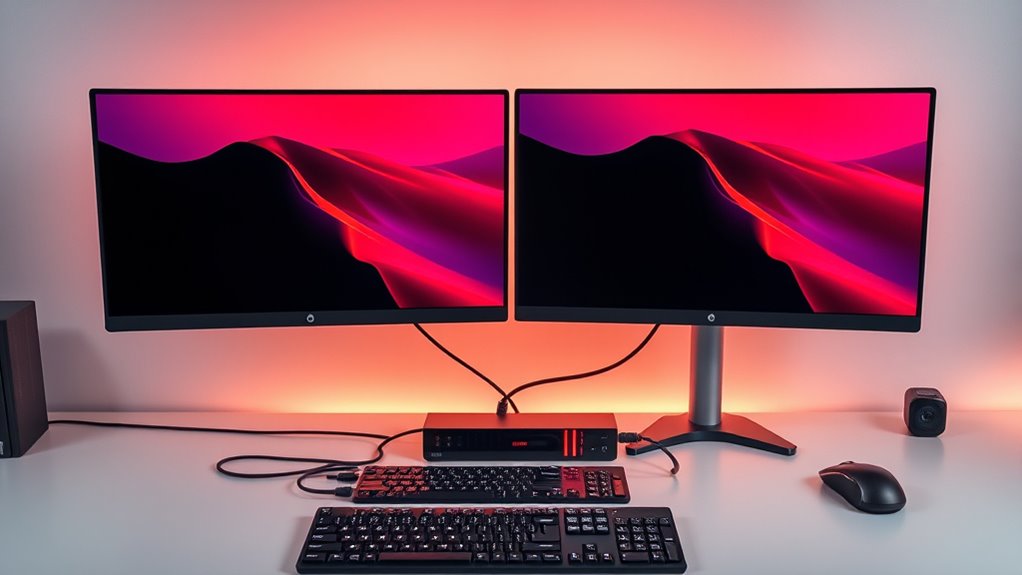

A dual-monitor KVM switch for 4K at 60Hz lets you share two displays, a keyboard, and a mouse between computers, but matching the switch to your video connections matters as much as the resolution claim. I name the UGREEN Triple-Monitor KVM Switch my best overall pick for buyers who want room to connect three displays, while the Cable Matters Dual 4K 60Hz USB-C KVM suits USB-C setups and the AV Access 12-in-1 USB-C KVM Dock adds laptop-docking functions. The tradeoffs are clear: HDMI-only models may be simpler, while mixed HDMI/DisplayPort and USB-C options can fit more setups but demand closer port and cable checks. A four-computer switch can reduce desk clutter for a multi-PC workspace, though it may be more than a two-computer desk needs. Read on for the full breakdown of connection fit, control options, and who should skip each type.

Get the latest gadgets delivered free with Prime
- Fast, free delivery on millions of items
- Prime Video, Amazon Music and more included
- Member-only deals all year
Complete the kit



Key Takeaways
- Display count changes the shortlist: the UGREEN Triple-Monitor model is the only listed pick explicitly built around three monitors, so it stands apart from the dual-screen options.
- USB-C can mean more than video switching: AV Access adds docking functions, while Cable Matters is a more focused USB-C KVM option; buyers should check laptop compatibility and charging needs before choosing either.
- Port flexibility comes with setup work: HDMI/DisplayPort models such as the Unitek and mixed HDMI/DisplayPort option can suit varied computers, but both source computers and displays must connect through compatible paths.
- Computer count is a practical differentiator: ATLAHET supports four computers, while most of the lineup switches between two; extra inputs help shared workstations but add little to a simple home setup.
- Resolution labels do not settle every compatibility question: a 4K 60Hz claim still needs to match the computer’s outputs, monitor inputs, cables, and the switch’s supported signal path.
| UGREEN Triple-Monitor KVM Switch for 2 Computers |  | Best for Three-Monitor Workstations | Computer connections: 2 computers | Video inputs per computer: 2 DisplayPort 1.4 and 1 HDMI 2.1 | Video output: Up to 8K at 60Hz | VIEW ON AMAZON | See Our Full Breakdown |
| AV Access 12-in-1 USB-C KVM Docking Station for 2 Laptops and 2 Monitors |  | Best Laptop Docking-KVM Combo | Laptop connections: 2 USB-C | Monitor outputs: 2 HDMI | USB ports: 8 total | VIEW ON AMAZON | See Our Full Breakdown |
| Cable Matters Dual 4K 60Hz USB-C KVM Switch for 2 Computers and 2 Monitors |  | Best for Dual 4K Laptop Setups | Computer connections: 2 USB-C laptops | Monitor connections: 2 HDMI or DisplayPort monitors | Maximum resolution: 4K at 60Hz | VIEW ON AMAZON | See Our Full Breakdown |
| CMSTEDCD Dual-Monitor 2-Port HDMI KVM Switch with 4-Port USB 3.0 Hub |  | Best for High-Refresh HDMI Displays | Computer ports: 2 | Monitor connections: 2 HDMI | Maximum resolution: Up to 8K at 60Hz | VIEW ON AMAZON | See Our Full Breakdown |
| GREATHTEK Dual-Monitor HDMI KVM Switch for 2 Computers, 8K@60Hz |  | Best for Adaptive EDID | Supported computers: 2 | Monitor connections: 2 HDMI monitors | Maximum resolution and refresh rate: Up to 8K at 60Hz | VIEW ON AMAZON | See Our Full Breakdown |
| Dual Monitor DisplayPort KVM Switch for Two Computers with USB 3.0 |  | Best for High-Refresh DisplayPort Setups | Computers supported: 2 | Monitors supported: 2 | Maximum video modes: 4K at 144 Hz; 8K at 60 Hz | VIEW ON AMAZON | See Our Full Breakdown |
| Dual-Monitor HDMI and DisplayPort KVM Switch for 2 Computers, 4K at 60Hz |  | Best for Mixed HDMI and DisplayPort Desktops | Computers supported: 2 | Monitors supported: 2 | Video connections: HDMI and DisplayPort | VIEW ON AMAZON | See Our Full Breakdown |
| ATLAHET 4-Port Dual-Monitor HDMI KVM Switch for 4 Computers | 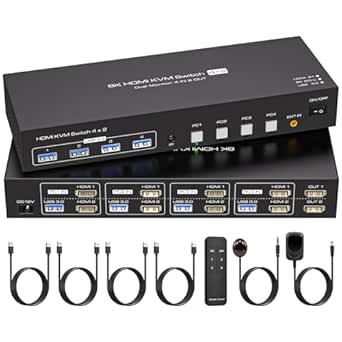 | Best for Four-Computer Setups | Computers supported: 4 | Monitors supported: 2 | Video connections: HDMI; two ports per computer | VIEW ON AMAZON | See Our Full Breakdown |
| UGREEN 8K HDMI KVM Switch for 2 Computers and 2 Monitors |  | Best HDMI Pick with Cables Included | Computers supported: 2 | Monitor outputs: 2 HDMI | Maximum resolution: 8K at 60 Hz | VIEW ON AMAZON | See Our Full Breakdown |
| Unitek 2-Port KVM Switch with Dual Monitor Support (HDMI/DP) and 3 USB 3.0 Ports | 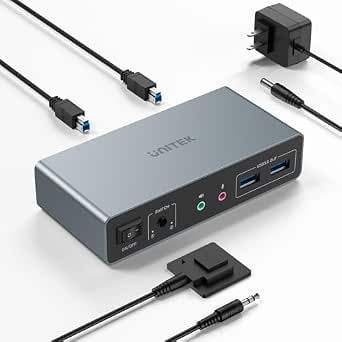 | Best for Straightforward Desktop Setups | Computers supported: 2 | Video connections: HDMI and DisplayPort | Monitor outputs: 2 | VIEW ON AMAZON | See Our Full Breakdown |
| UGREEN HDMI KVM Switch for 2 Computers and 2 Monitors, 4K@60Hz, with 4 USB 3.0 Ports and Desktop Controller |  | Best for Simple, Ready-to-Use HDMI Setups | Model: AK500 | Computers supported: 2 | Video inputs: 2x HDMI | VIEW ON AMAZON | See Our Full Breakdown |
| kvm switch 4k 60hz dual monitor | Switching methods | USB ports | Display modes | Maximum resolution |
|---|---|---|---|---|
| UGREEN Triple-Monitor KVM Swit | Push button and desktop controller | 4 USB 3.0 | Mirror and extend | — |
| AV Access 12-in-1 USB-C KVM Do | — | 8 total | — | — |
| Cable Matters Dual 4K 60Hz USB | Front button or RF remote | 4 USB 3.0, up to 5Gbps | — | 4K at 60Hz |
| CMSTEDCD Dual-Monitor 2-Port H | Panel button or wired controller | 4 USB 3.0, up to 5Gbps | Copy and extended; extended display needs two HDMI outputs per computer | Up to 8K at 60Hz |
| GREATHTEK Dual-Monitor HDMI KV | Panel button and wired desktop keypad | 3 USB 3.0, up to 5Gbps | Extended and mirrored | — |
| Dual Monitor DisplayPort KVM S | Device button or included desktop controller; no hotkey switching | — | Extended and mirrored | — |
| Dual-Monitor HDMI and DisplayP | Physical button or wired desktop remote | 4 × USB 3.0, up to 5 Gbps | — | 4K (3840 × 2160) at 60 Hz |
| ATLAHET 4-Port Dual-Monitor HD | Panel button or infrared remote | — | Duplicate and extended | — |
| UGREEN 8K HDMI KVM Switch for | Push button or desktop controller | — | Mirror and extend | 8K at 60 Hz |
| Unitek 2-Port KVM Switch with | Button or wired remote controller | 3 × USB 3.0 | — | 4K at 60 Hz |
| UGREEN HDMI KVM Switch for 2 C | Button and desktop controller | 4x USB 3.0: 3x USB-A and 1x USB-C | — | 4K@60Hz |
More Details on Our Top Picks
UGREEN Triple-Monitor KVM Switch for 2 Computers
For a workstation built around three shared monitors, this UGREEN is the most specialized pick here: it switches two computers and four USB peripherals, with either a panel button or desktop controller. Its included cables reduce the extra wiring hunt, while mirror and extended modes let you choose how each computer uses the displays. Compared with the Cable Matters Dual 4K 60Hz USB-C KVM, which targets two-monitor USB-C laptop setups, UGREEN gives you a third screen but demands three-display output and specific ports from both computers: two DisplayPort and one HDMI. The listed video ceiling is up to 8K at 60Hz, not a guarantee that every three-screen arrangement runs at that mode. I’d skip it if you need keyboard hotkeys or depend on converters and docks, which can create compatibility problems.
Pros:- Shares three monitors and four USB 3.0 peripherals between two computers.
- Includes both a push button and a desktop controller for switching.
- Supports mirror and extended display modes.
- Includes the listed DisplayPort, HDMI, and USB-A cables.
Cons:- Each computer needs two DisplayPort ports, one HDMI port, and triple-display support.
- Does not support keyboard hotkey switching.
- Converters or docking stations may cause compatibility issues.
Best for: Desktop users with two computers that each have two DisplayPort outputs, one HDMI output, and support for three displays.
Not ideal for: Laptop users relying on a single USB-C connection, or anyone who needs keyboard hotkeys or expects converters and docks to work reliably.
- Computer connections:2 computers
- Video inputs per computer:2 DisplayPort 1.4 and 1 HDMI 2.1
- Video output:Up to 8K at 60Hz
- USB ports:4 USB 3.0
- Display modes:Mirror and extend
- Switching methods:Push button and desktop controller
- Compatible systems:Windows and Linux
- Power:12 V DC adapter
- Computer display requirement:Each computer must support three displays and have 2 DisplayPort ports plus 1 HDMI port
Our verdict“Choose this UGREEN when three shared screens matter more than simple cabling or hotkey control.”
AV Access 12-in-1 USB-C KVM Docking Station for 2 Laptops and 2 Monitors
This AV Access pick suits a two-laptop desk where one USB-C connection per laptop and a broad set of dock ports matter as much as switching monitors. It combines two HDMI outputs with eight USB ports, Ethernet, audio, and an SD card reader, plus up to 60W charging per laptop. That makes it a more complete desk hub than the Cable Matters Dual 4K 60Hz USB-C KVM, which shares USB peripherals but does not charge laptops. The tradeoff is that this dock depends on USB-C DisplayPort Alt Mode and MST; Mac models are limited to mirrored displays, so it is a poor fit for a Mac user seeking two independent screens. Its 49-inch ultrawide limit is 3840 × 1080, and it is not compatible with 5K monitors. I’d choose it for supported Windows laptop setups, not for maximum display flexibility.
Pros:- Combines two HDMI monitor outputs with eight USB ports and additional desk connections.
- Provides up to 60W power delivery to each laptop.
- Adds 1G Ethernet, 3.5 mm audio, and an SD card connection.
- Switches between laptops with one button and lists a 2–3 second switching time.
Cons:- Requires laptop support for both USB-C DP Alt Mode and MST.
- Mac models support mirrored displays only.
- Does not support 5K monitors and limits 49-inch ultrawides to 3840 × 1080.
Best for: Owners of two USB-C laptops that support DP Alt Mode and MST who want shared monitors, charging, Ethernet, and card-reader access in one dock.
Not ideal for: Mac users who need two extended external displays, or anyone using a 5K monitor or a 49-inch ultrawide above 3840 × 1080.
- Laptop connections:2 USB-C
- Monitor outputs:2 HDMI
- USB ports:8 total
- Additional connectivity:USB 2.0, USB 3.0, USB-C, 1G Ethernet, 3.5 mm audio, and SD card
- Power delivery:Up to 60W per laptop
- Adapter:120W adapter; 20V DC input
- Switching time:2–3 seconds
- Laptop compatibility:USB-C DP Alt Mode and MST required; Mac models support mirrored displays only
- Resolution limits:Not compatible with 5K monitors; up to 3840 × 1080 on 49-inch ultrawides
Our verdict“Pick this dock if supported Windows laptops need charging and a full set of shared desk connections alongside two monitors.”
Cable Matters Dual 4K 60Hz USB-C KVM Switch for 2 Computers and 2 Monitors
Among these five, Cable Matters most directly matches a dual 4K at 60Hz laptop desk: it can extend two displays on compatible Windows and Linux computers while sharing four USB 3.0 peripherals. A front button and RF remote give it more convenient switching choices than models limited to a panel control or wired keypad. Unlike the AV Access 12-in-1 dock, however, it is a KVM rather than a charging-and-connectivity hub: it does not power laptops, and it offers no Ethernet or card reader. MacBooks mirror the displays rather than extending them independently, and desktop PCs, Chromebooks, and USB-C portable monitors are outside its stated support. USB-C DisplayPort Alt Mode is required; Thunderbolt 3, 4, and 5 are compatible. I’d favor it when display behavior and remote switching matter more than charging or broad dock features.
Pros:- Supports dual extended 4K at 60Hz displays on compatible Windows and Linux laptops.
- Shares four USB 3.0 peripherals with data transfer up to 5Gbps.
- Offers both front-button and RF remote switching.
- Supports Thunderbolt 3, 4, and 5 connections.
Cons:- MacBooks mirror displays rather than extending them independently.
- Does not charge laptops or monitors.
- Does not support desktop PCs, Chromebooks, USB-C portable monitors, EDID emulation, or variable refresh rate.
Best for: Windows or Linux laptop users with USB-C DisplayPort Alt Mode who need two extended 4K 60Hz monitors and shared USB accessories.
Not ideal for: MacBook owners who need independent extended displays, or users who need laptop charging, desktop-PC support, EDID emulation, or variable refresh rate.
- Computer connections:2 USB-C laptops
- Monitor connections:2 HDMI or DisplayPort monitors
- Maximum resolution:4K at 60Hz
- Display mode:Dual extended displays on compatible Windows and Linux laptops; mirrored displays on MacBooks
- USB ports:4 USB 3.0, up to 5Gbps
- Switching methods:Front button or RF remote
- Compatibility:USB-C DisplayPort Alt Mode; Thunderbolt 3, 4, and 5
- Power:Optional Micro-B power; does not charge laptops or monitors
Our verdict“Choose Cable Matters for two extended 4K screens and remote switching on compatible Windows or Linux laptops, provided charging is not needed.”
CMSTEDCD Dual-Monitor 2-Port HDMI KVM Switch with 4-Port USB 3.0 Hub
The CMSTEDCD stands apart from the straightforward 4K 60Hz focus of this roundup by listing support for 4K at 120Hz, as well as up to 8K at 60Hz. It switches two computers across two HDMI monitors and shares four USB 3.0 devices; the panel button or included wired controller handles selection. Its metal body and USB 3.0 hub make it a practical fit for a fixed desk, but the headline display modes only help if the connected computers and screens can deliver them. For extended desktop use, each computer needs two HDMI outputs. That makes it less convenient than Cable Matters for compatible USB-C laptops, since Cable Matters is designed around USB-C laptop connections, while this model requires separate HDMI outputs. There is no keyboard hotkey switching, and the included 12V adapter may be needed for high-power USB devices.
Pros:- Lists support for 4K at 120Hz and up to 8K at 60Hz.
- Shares two HDMI monitors and four USB 3.0 devices between two computers.
- Provides both panel-button and wired-controller switching.
- Metal construction and broad stated operating-system compatibility.
Cons:- Extended display requires two HDMI outputs on each computer.
- Does not support keyboard shortcut switching.
- High-power USB devices may require the included 12V power adapter.
Best for: Users with two computers that each provide two HDMI outputs and who want shared monitors with a listed 4K 120Hz mode.
Not ideal for: Laptop owners with only one HDMI output or those who want USB-C host connections, keyboard hotkeys, or a wireless controller.
- Computer ports:2
- Monitor connections:2 HDMI
- Maximum resolution:Up to 8K at 60Hz
- 4K refresh rate:Up to 120Hz
- USB ports:4 USB 3.0, up to 5Gbps
- Display modes:Copy and extended; extended display needs two HDMI outputs per computer
- Switching methods:Panel button or wired controller
- Power:12V DC
- Compatibility:Windows, Vista, XP, Mac OS, Linux, and Unix
Our verdict“Choose this CMSTEDCD if both computers have dual HDMI outputs and 4K 120Hz support matters more than USB-C convenience.”
GREATHTEK Dual-Monitor HDMI KVM Switch for 2 Computers, 8K@60Hz
GREATHTEK makes a strong case for desks where keeping display behavior consistent matters: its adaptive EDID is a point of difference from the CMSTEDCD, which does not list that feature. The unit shares two HDMI monitors and USB devices between two computers, with extended or mirrored modes and switching by panel button or wired keypad. It also lists up to 8K at 60Hz and 4K at 240Hz, though the actual mode depends on the connected computers, monitors, and cabling. The tradeoffs are tangible: there are only three USB 3.0 ports, the power adapter is not included, and each computer needs two independent video outputs for dual-monitor use. Like the CMSTEDCD, it does not offer hotkey switching; unlike the Cable Matters USB-C option, it is built around HDMI rather than USB-C laptop connections.
Pros:- Adaptive EDID emulation helps maintain display settings across switching.
- Supports extended and mirrored modes on two HDMI monitors.
- Lists up to 8K at 60Hz and 4K at 240Hz.
- Includes a wired desktop keypad and three USB 3.0 ports.
Cons:- A 5V power adapter is not included.
- Each computer needs two independent video outputs for dual-monitor use.
- Does not support keyboard hotkey switching and has only three USB ports.
Best for: Users with two computers that have dual video outputs who want HDMI dual-monitor switching and adaptive EDID.
Not ideal for: Buyers who need a USB-C host connection, more than three shared USB devices, keyboard hotkeys, or an included power adapter.
- Supported computers:2
- Monitor connections:2 HDMI monitors
- Maximum resolution and refresh rate:Up to 8K at 60Hz
- Other listed resolution mode:Up to 4K at 240Hz
- USB ports:3 USB 3.0, up to 5Gbps
- Display modes:Extended and mirrored
- Switching methods:Panel button and wired desktop keypad
- EDID:Adaptive EDID emulation
- Power:USB-C power cable included; power adapter not included
Our verdict“Pick GREATHTEK if adaptive EDID is a priority and your two computers already have dual video outputs and a suitable power adapter.”
Dual Monitor DisplayPort KVM Switch for Two Computers with USB 3.0
For a dual-monitor workstation built around DisplayPort, this model stands out for supporting 4K at 144 Hz, well beyond the 4K 60 Hz target. That extra refresh headroom can suit high-refresh monitors, while the two-computer, two-monitor setup also offers extended or mirrored display modes. Four shared USB 3.0 ports handle common peripherals, and the included desktop controller lets you switch without reaching for the unit. Compared with the HDMI-only ATLAHET, this is the more relevant fit for DisplayPort systems, though ATLAHET can connect four computers instead of two. The tradeoffs are practical: each computer needs two DisplayPort cables, which are not included, and hotkey switching is unavailable. Buyers planning to share a webcam or other demanding USB device should confirm compatibility first.
Pros:- Supports two monitors and two computers with extended or mirrored modes.
- 4K at 144 Hz support leaves room for high-refresh displays.
- Four shared USB 3.0 ports offer transfer speeds up to 5 Gbps.
- Includes a desktop controller and 12 V power adapter.
Cons:- Two DisplayPort cables per computer are required and not included.
- Switching is limited to the unit button or desktop controller; hotkeys are unsupported.
- Compatibility with high-performance USB devices such as webcams should be confirmed.
Best for: Desktop users with two DisplayPort-equipped computers, high-refresh dual monitors, and several USB peripherals to share.
Not ideal for: People who need HDMI connections, keyboard hotkey switching, or an out-of-box setup with all required video cables included.
- Computers supported:2
- Monitors supported:2
- Maximum video modes:4K at 144 Hz; 8K at 60 Hz
- Display connections:Two DisplayPort connections per computer
- Shared USB ports:4; USB 3.0 up to 5 Gbps
- Display modes:Extended and mirrored
- Switching methods:Device button or included desktop controller; no hotkey switching
- Power:Included 12 V DC adapter
Our verdict“Choose this model if your two-computer setup uses DisplayPort and benefits from refresh rates above 60 Hz, and skip it if you need HDMI or hotkey control.”
Dual-Monitor HDMI and DisplayPort KVM Switch for 2 Computers, 4K at 60Hz
This model’s main distinction is its HDMI-plus-DisplayPort input arrangement, making it a useful fit when each computer has the required mix of outputs and can drive two displays. At 4K 60 Hz, it matches the roundup’s core target without reaching the higher refresh rates offered by the DisplayPort switch above or the UGREEN 8K HDMI model. Four USB 3.0 ports provide room for shared accessories, and a wired remote makes switching accessible from the desk. The mixed video connections can simplify a setup built around one HDMI monitor and one DisplayPort monitor, but they also limit flexibility: each host needs both port types, and docking stations or adapter cables are not supported. There is no keyboard hotkey control, so switching depends on the physical button or remote.
Pros:- Shares two monitors between two computers at 4K 60 Hz.
- Mixed HDMI and DisplayPort connections suit workstations with one of each display type.
- Four USB 3.0 ports support peripheral sharing at up to 5 Gbps.
- Offers both a unit button and wired desktop remote.
Cons:- Each computer needs HDMI, DisplayPort, and USB-A connections.
- Docking stations and adapter cables are not supported.
- No keyboard hotkey switching.
Best for: Desktop users whose two computers each have HDMI and DisplayPort outputs and who want to share one HDMI monitor and one DisplayPort monitor.
Not ideal for: Laptop and dock users, or anyone whose computers lack either the required HDMI or DisplayPort output.
- Computers supported:2
- Monitors supported:2
- Video connections:HDMI and DisplayPort
- Maximum resolution:4K (3840 × 2160) at 60 Hz
- USB ports:4 × USB 3.0, up to 5 Gbps
- Switching methods:Physical button or wired desktop remote
- Operating systems:Windows, Linux, Chrome OS
- Power input:5 V
Our verdict“Pick this KVM when both desktops have native HDMI and DisplayPort outputs; choose a fully HDMI or DisplayPort model if that mixed-port requirement does not match your setup.”
ATLAHET 4-Port Dual-Monitor HDMI KVM Switch for 4 Computers
When the setup includes more than two computers, ATLAHET’s defining advantage is straightforward: it shares two HDMI monitors and four USB peripherals across four hosts. That makes it a better match than the two-computer UGREEN 8K HDMI switch for a desk with several desktops or test systems. Its HDMI-only design keeps the display path consistent, while EDID emulation helps preserve monitor settings as you change computers. Resolution support reaches 8K at 60 Hz or 4K at 120 Hz, giving it more headroom than a standard 4K 60 Hz KVM. In return, every computer needs two HDMI outputs, and the unit requires an external 12 V/1 A supply. Switching uses the panel button or infrared remote; keyboard hotkeys are not supported.
Pros:- Connects four computers to two shared HDMI monitors.
- Supports 8K at 60 Hz and 4K at 120 Hz.
- EDID emulation helps retain display settings when changing hosts.
- Includes panel-button and infrared-remote switching.
Cons:- Each computer needs two HDMI ports.
- Requires an external 12 V/1 A power supply.
- Does not support keyboard hotkey switching.
Best for: IT workstations, labs, and multi-system desks that need to share two HDMI displays among three or four computers.
Not ideal for: People with DisplayPort-only computers, fewer than two HDMI outputs per host, or a need for keyboard hotkey switching.
- Computers supported:4
- Monitors supported:2
- Video connections:HDMI; two ports per computer
- Maximum resolution and refresh rate:8K at 60 Hz; 4K at 120 Hz
- Shared USB ports:4 × USB 3.0, up to 5 Gbps
- Display modes:Duplicate and extended
- EDID emulation:Supported
- Switching methods:Panel button or infrared remote
- External power:12 V / 1 A
Our verdict“Choose ATLAHET when connecting four HDMI computers matters more than keeping the setup to two hosts or using keyboard shortcuts.”
UGREEN 8K HDMI KVM Switch for 2 Computers and 2 Monitors
UGREEN suits a two-computer HDMI desk where a more capable video ceiling and supplied cables are useful. It supports 8K at 60 Hz, mirror or extended display modes, and shares four USB connections, including one USB-C port. Unlike ATLAHET, it serves two computers rather than four, but the package includes four HDMI cables and two USB-A cables, reducing the separate cable hunt for a typical installation. A desktop controller adds a convenient switching point. Its main compromise is no EDID emulation, so monitor behavior or window placement may be less consistent when changing hosts than with the ATLAHET. Hotkey switching is also absent, and each computer still needs two HDMI outputs plus USB-A. This is a cable-ready option, not a shortcut around checking host ports.
Pros:- Supports two HDMI monitors with mirror and extended modes.
- Provides resolution support up to 8K at 60 Hz.
- Includes four HDMI cables, two USB-A cables, and a desktop controller.
- Four USB ports include three USB-A and one USB-C, with data speeds up to 5 Gbps.
Cons:- Does not support EDID emulation.
- Does not support keyboard hotkey switching.
- Each computer needs two HDMI connections and one USB-A connection.
Best for: Two-computer users with HDMI dual-display desktops who want supplied video and USB cables and need up to 8K 60 Hz support.
Not ideal for: Users who need EDID emulation, keyboard hotkeys, or connections for more than two computers.
- Computers supported:2
- Monitor outputs:2 HDMI
- Maximum resolution:8K at 60 Hz
- Shared USB ports:4: 3 USB-A and 1 USB-C
- USB data speed:Up to 5 Gbps
- Display modes:Mirror and extend
- Switching methods:Push button or desktop controller
- EDID and hotkeys:No EDID emulation; no keyboard hotkey switching
- Included cables:4 HDMI cables and 2 USB-A cables
Our verdict“Choose this UGREEN when you have two HDMI-equipped computers and value included cabling, but favor ATLAHET if you need four hosts or EDID emulation.”
Unitek 2-Port KVM Switch with Dual Monitor Support (HDMI/DP) and 3 USB 3.0 Ports
Unitek keeps the feature set focused on a common goal: sharing two 4K 60 Hz monitors and everyday peripherals between two desktop computers. Its HDMI/DisplayPort video support and three USB 3.0 ports cover keyboards, mice, and storage devices, while the included wired controller lets you place switching within easy reach. Compared with the mixed HDMI-and-DisplayPort KVM from Product 7, Unitek offers one fewer USB port but adds stated HDCP 2.2 compatibility and plug-and-play operation without driver installation. The important boundary is host type: this model is described for desktop hosts and is not compatible with laptops. Setup also depends on the correct USB-A-to-B connections for each computer. It is a simpler fit than the higher-refresh DisplayPort model, but offers no resolution headroom beyond 4K 60 Hz.
Pros:- Supports a two-monitor desktop setup at 4K 60 Hz.
- HDMI/DisplayPort video connections and HDCP 2.2 compatibility.
- Three USB 3.0 ports provide data speeds up to 5 Gbps.
- Includes a wired remote and plug-and-play operation without driver installation.
Cons:- Not compatible with laptops; intended for desktop hosts.
- Each host needs the required USB-A-to-B connection.
- Limited to 4K at 60 Hz, below the refresh-rate ceiling of the DisplayPort model.
Best for: Users with two desktop hosts who want dual 4K 60 Hz displays, three shared USB peripherals, and wired remote switching.
Not ideal for: Laptop owners, people who need more than three shared USB ports, or users seeking refresh rates above 60 Hz.
- Computers supported:2
- Video connections:HDMI and DisplayPort
- Monitor outputs:2
- Maximum resolution:4K at 60 Hz
- USB ports:3 × USB 3.0
- USB data speed:Up to 5 Gbps
- Switching methods:Button or wired remote controller
- Power supply:DC 5 V / 2 A adapter
- Compatibility:Windows, Mac, Linux, PS4; desktop hosts only
Our verdict“Choose Unitek for a straightforward dual-monitor desktop setup at 4K 60 Hz, but skip it if either host is a laptop or you need higher refresh rates.”
UGREEN HDMI KVM Switch for 2 Computers and 2 Monitors, 4K@60Hz, with 4 USB 3.0 Ports and Desktop Controller
I’d choose this UGREEN for a two-computer, two-monitor desk where 4K at 60Hz over HDMI and straightforward switching matter more than advanced control features. Its included desktop controller lets me change computers without reaching behind the switch, and the four USB 3.0 ports provide connections for shared peripherals. The package also includes HDMI and USB cables, which makes setup less piecemeal than options such as the Cable Matters Dual 4K 60Hz USB-C KVM, aimed at USB-C systems. The tradeoff is that this model lacks EDID emulation and keyboard hotkey switching, so it offers less control over display behavior and switching shortcuts. It also needs its power adapter for USB devices, and HDMI output cables must stay within the stated length limit. I’d favor it for a compatible HDMI setup, not a workstation that needs those extras.
Pros:- Supports two HDMI monitors at up to 4K@60Hz, with HDR and 3D support listed
- Desktop controller provides a convenient physical switching point
- Four USB 3.0 ports include three USB-A and one USB-C connection
- Includes HDMI and USB cables and requires no software or driver installation
Cons:- No EDID emulation or keyboard hotkey switching
- USB peripherals require the switch’s power adapter to be connected
- HDMI output cables must meet the stated length limit of 3 meters
Best for: People switching between two HDMI-equipped computers and two monitors who want a physical desktop controller, shared USB peripherals, and included setup cables.
Not ideal for: Users who depend on keyboard hotkeys, EDID emulation, long HDMI output runs, or a USB-C docking-style connection.
- Model:AK500
- Computers supported:2
- Video inputs:2x HDMI
- Video outputs:2x HDMI
- Maximum resolution:4K@60Hz
- USB ports:4x USB 3.0: 3x USB-A and 1x USB-C
- Switching methods:Button and desktop controller
- Supported systems:Windows, macOS, and Linux
- Included accessories:4x HDMI cables, 2x USB-A cables, power adapters, and desktop controller
Our verdict“Choose this UGREEN if you want a ready-to-connect HDMI dual-monitor KVM with a desktop controller; skip it if hotkeys, EDID handling, or longer cable runs are part of your setup.”
How We Picked
I ranked these switches around the needs implied by dual displays at 4K 60Hz: clear support for two-monitor workflows, usable computer switching, and a connection design that makes sense for the target setup. I also weighed the practical differences between HDMI, DisplayPort, and USB-C, plus added features such as USB hubs, desktop controllers, docking ports, and support for more than two computers. Products with a more specialized role can be a better fit than a general-purpose switch, but only for buyers whose devices match that role.
The order reflects fit, flexibility, and setup tradeoffs, not a claim that every option suits every desk. The UGREEN triple-monitor model leads for its broader display capacity; USB-C models follow for laptop-centric setups and expanded connectivity. Simpler dual-monitor switches remain relevant when a buyer wants a direct connection path, while four-computer and mixed-port designs rank for narrower needs. Product details provided do not establish every compatibility or power-delivery scenario, so I call out the checks buyers should make before purchase.
| kvm switch 4k 60hz dual monitor | Display modes |
|---|---|
| UGREEN Triple-Monitor KVM Swit | Mirror and extend |
| AV Access 12-in-1 USB-C KVM Do | — |
| Cable Matters Dual 4K 60Hz USB | — |
| CMSTEDCD Dual-Monitor 2-Port H | Copy and extended; extended display needs two HDMI outputs per computer |
| GREATHTEK Dual-Monitor HDMI KV | Extended and mirrored |
| Dual Monitor DisplayPort KVM S | Extended and mirrored |
| Dual-Monitor HDMI and DisplayP | — |
| ATLAHET 4-Port Dual-Monitor HD | Duplicate and extended |
| UGREEN 8K HDMI KVM Switch for | Mirror and extend |
| Unitek 2-Port KVM Switch with | — |
| UGREEN HDMI KVM Switch for 2 C | — |
Factors to Consider When Choosing Kvm Switch 4k 60hz Dual Monitor
Before choosing a switch, map your actual desk setup rather than shopping by resolution label alone. These four checks help avoid mismatched ports, missing cables, and features you will not use.
Match Every Computer and Monitor Port
Write down the video outputs on each computer and the inputs on both monitors before choosing HDMI, DisplayPort, or USB-C. A switch may advertise 4K at 60Hz, but that capability only helps if the full route—from computer output through switch and cable to monitor input—supports the same signal. Mixed-port switches can reduce adapter clutter when the computers differ, though adapters may add compatibility variables. Avoid assuming that a USB-C port carries video; some USB-C ports handle data or charging only. Check the computer manufacturer’s specifications and the switch’s connection diagram, then plan one cable path per display and computer. This small inventory is more useful than choosing by the highest resolution printed in a product name.
Confirm What 4K at 60Hz Means for Your Setup
For everyday desktop work, 4K at 60Hz can provide a sharp image and smooth pointer movement, but the exact supported mode can depend on the source, cable, and display. A resolution claim alone does not tell you whether a switch supports particular color formats, HDR, or higher refresh rates at lower resolutions. If your work depends on those features, verify them for the complete connection chain rather than inferring support from an 8K label. A switch advertised for 8K may offer headroom, but that does not automatically make it the better 4K choice if its ports do not match your gear. Choose around the displays and tasks you actually use, and treat unlisted signal features as unconfirmed.
Decide Whether USB-C Docking Is Worth the Added Complexity
A USB-C KVM dock can consolidate display, USB, and other laptop connections, which is appealing when a desk alternates between portable computers. The tradeoff is that USB-C capabilities vary: video output, data, and laptop charging are separate functions, and a port’s shape does not promise all three. Check whether the dock supplies the charging power your laptop needs and whether its video arrangement supports both monitors at the desired mode. A focused USB-C KVM may be easier to fit into a simple setup than a larger docking station. If you already own a separate dock, compare whether an all-in-one device actually removes equipment or simply adds another layer to troubleshoot.
Choose the Right Number of Computers and Displays
Most options here are designed for two computers, which suits a work-and-personal-PC desk. A four-computer model makes more sense in a shared station, lab, or multi-system workspace, but extra inputs can complicate cable routing and switching if you only use two machines. Display count needs the same scrutiny: a dual-monitor switch is not a substitute for a triple-monitor model when you need three independent screens. Check whether the listed monitor support describes separate extended displays rather than mirroring, and confirm your computer can drive the intended number of screens. Buying spare capacity can be sensible when an upgrade is planned, but unused ports should not outweigh a better match for your current setup.
Think Through USB Peripherals and Switching Controls
Keyboard and mouse sharing is the basic KVM task, but many desks also depend on webcams, storage, headsets, or other USB devices. A built-in USB hub can reduce the need for a separate peripheral switch, though its port count and data capabilities should match the devices you plan to share. Decide whether you prefer a button on the unit, a desktop controller, or another switching method, and check how far the control can sit from the switch. A desktop controller can keep the switching action within reach when the KVM is tucked behind displays. Do not assume every USB port is suitable for every device; check the manufacturer’s specifications for speed and supported device types.
Budget for Cables, Power, and Desk Layout
Dual-monitor KVM installations use many connections: each computer needs a path to both displays, alongside USB links and the shared peripherals. Check which cables are included and whether their length suits your desk before ordering; an absent or unsuitable cable can add cost and setup time. USB-C docks may need external power for their intended functions, while compact switches can still require careful cable access. If the KVM will sit under a desk or behind a monitor, check the location of its buttons and whether a wired controller is included. Paying for a larger feature set is most useful when it replaces separate gear or supports a real future need, not just because the specification list is longer.
Frequently Asked Questions
Will any switch labeled 4K at 60Hz work with my two 4K monitors?
Not automatically. Confirm that the switch supports two displays at 4K 60Hz at the same time, rather than a single display at that mode, and verify that your computer outputs and monitor inputs match its ports. The cables also need to support the signal path. Check the model’s documentation for any limits tied to simultaneous use, adapters, or specific video formats. If one computer uses HDMI and another uses DisplayPort or USB-C, choose a compatible mixed-port design or confirm that suitable adapters are supported.
Can a USB-C KVM switch charge my laptop while switching two monitors?
Only if the specific model provides USB-C power delivery and enough output for your laptop. USB-C describes the connector, not a guaranteed set of functions, so confirm charging wattage as well as video and data support. Also check whether power delivery works while both displays are connected at your desired resolution and refresh rate. The AV Access dock is the more docking-focused option in this lineup, while the Cable Matters pick is a more focused USB-C KVM choice. If you already use a laptop charger or dock, compare the full connection layout before replacing either.
Do I need an 8K KVM switch if my monitors are 4K 60Hz?
No; an 8K label is not a requirement for a 4K 60Hz desk. It may indicate headroom for future equipment, but it does not by itself confirm support for every feature you care about, such as dual-display operation, HDR, or higher refresh rates at another resolution. Match the switch’s detailed specifications to both monitors and every computer. If the 8K model’s ports or control layout fit your setup better, it may still be a reasonable choice. Otherwise, a clearly specified 4K dual-monitor switch can be the more direct fit.
Will a dual-monitor KVM let each computer use both screens as separate displays?
That depends on both the KVM and the computer’s graphics capabilities. Check that the switch supports two independent display outputs rather than duplicating one signal, then verify the computer can drive two external monitors in the chosen connection arrangement. Laptop limits can vary by model, operating mode, and USB-C implementation. A triple-monitor switch only helps if the computers can also output the extra display. Look for explicit support for extended desktops in the product documentation and your computer specifications before buying.
Should I choose a four-computer switch or a two-computer model?
Choose a four-computer design if you regularly share the same displays and peripherals across several machines, such as in a lab or multi-system workspace. For a work laptop and one desktop, a two-computer switch is usually a simpler match with fewer inputs to manage. More computer ports do not automatically add more displays, so check those capabilities separately. Also consider where the extra cables will run and whether the switching controls are practical for your desk. The ATLAHET serves the four-computer use case here; most of the other listed models focus on two systems.
Conclusion
For the broadest display capacity, I recommend the UGREEN Triple-Monitor KVM Switch as best overall, especially if your setup may grow beyond two screens. For USB-C laptop users seeking docking functions, the AV Access 12-in-1 is my best premium-style fit; the Cable Matters Dual 4K 60Hz USB-C KVM is a more focused alternative. Buyers seeking a straightforward two-computer HDMI setup can start with the UGREEN HDMI KVM with desktop controller, while multi-PC workspaces should look at the ATLAHET four-computer switch. For mixed HDMI and DisplayPort gear, compare the Unitek and other hybrid-port options against your exact inputs. My best value pick is the CMSTEDCD HDMI switch for buyers who want a basic dual-monitor connection with a USB hub; beginners should prioritize a clearly matching port layout and accessible controls over extra bandwidth claims. Whichever you choose, confirm simultaneous dual-screen support, cables, and computer compatibility before ordering.