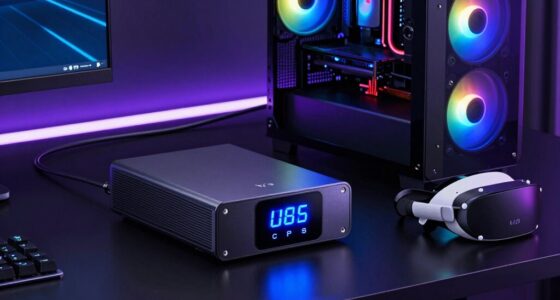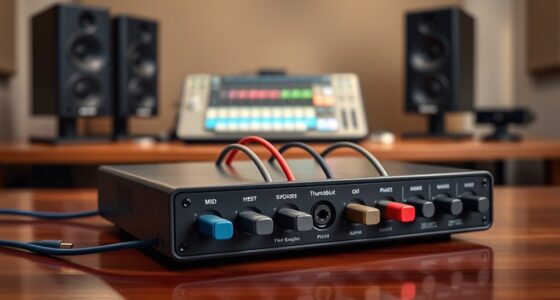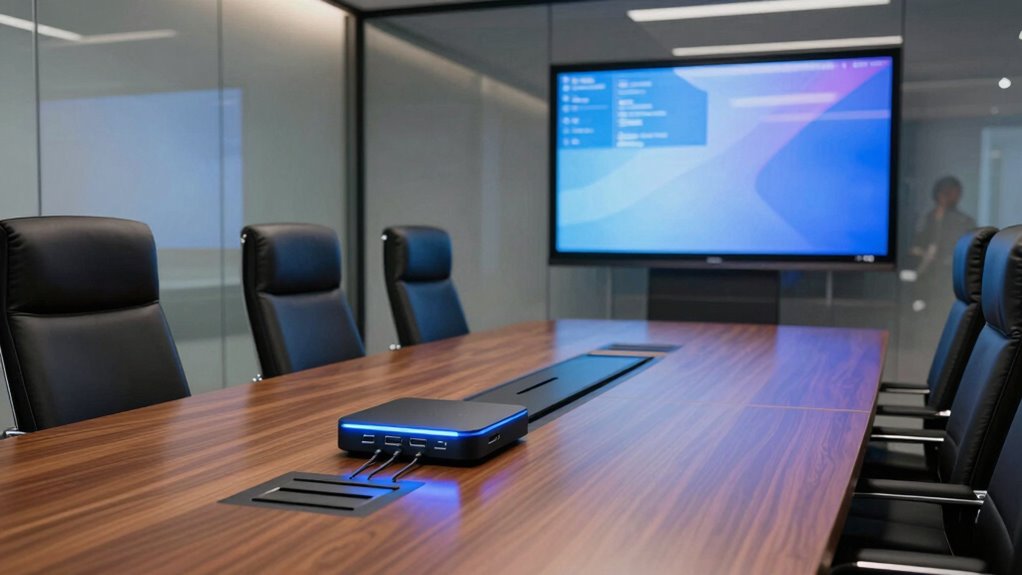
When selecting a conference room docking station, the goal is to create a seamless, clutter-free connectivity hub for multiple devices and displays. The best models combine power delivery, multiple video outputs, and reliable Ethernet connections to support professional meetings and presentations. The Conference Table Power Hub with HDMI, USB, Ethernet, and Outlets stands out as the overall top pick because of its comprehensive ports and ease of installation. For users needing high performance, the Plugable USB-C Triple Monitor Docking Station offers robust multi-display support and 100W charging, though it comes at a higher price. The main tradeoffs in this category often involve balancing port variety, power capacity, and price. Keep reading to see how each option stacks up and find the best fit for your conference room needs.

Get the latest gadgets delivered free with Prime
- Fast, free delivery on millions of items
- Prime Video, Amazon Music and more included
- Member-only deals all year
Complete the kit



Key Takeaways
- Multi-port versatility, including HDMI, USB, Ethernet, and power outlets, is essential for a functional conference room docking station.
- Power delivery capacity varies significantly; higher wattage supports more devices and larger displays without additional chargers.
- Dual or triple monitor support is critical for presentations and collaborative work, but it can add cost and complexity.
- Build quality and ease of installation influence long-term reliability, especially in shared meeting spaces.
- Price often correlates with feature set, but the most expensive options aren’t always the best fit for every room — consider your specific needs first.
| Conference Table Power Hub with HDMI, USB, Ethernet, and Outlets |  | Best Overall Conference Room Power Solution | Ports: 1 HDMI, 1 RJ45 Ethernet, 3 USB (including 1 USB-C PD 20W and 1 QC 3.0 USB-A), 2 AC outlets | Extension Cord Length: 6 ft | Dimensions: 265mm x 115mm x 75mm | VIEW ON AMAZON | See Our Full Breakdown |
| Plugable USB-C Wired Cube Mini Docking Station |  | Best Compact Travel Docking Station | Connectivity: USB-C, USB4, Thunderbolt 3/4 | Video Output: 1 x 4K HDMI | USB Ports: 2 x USB 2.0, 1 x USB 3.0 | VIEW ON AMAZON | See Our Full Breakdown |
| Kungfuking Conference Table Power Hub with HDMI, RJ45, USB-C, USB A, and AC Outlets |  | Best Heavy-Duty Conference Room Power Hub | Power Cord Length: 6 ft | Installation Hole Size: 252mm x 120mm | Product Size: 265mm x 130mm x 78mm | VIEW ON AMAZON | See Our Full Breakdown |
| Anker 8-in-1 USB-C Hub with Dual 4K HDMI Docking Station for Laptops |  | Best Dual 4K Display Dock for Laptops | Ports: 2 HDMI, 2 USB-A, Ethernet, microSD/SD card reader, USB-C PD-IN | Resolution: 4K@60Hz on one monitor, 4K@30Hz on dual monitors | Power Delivery: Up to 85W | VIEW ON AMAZON | See Our Full Breakdown |
| Plugable USB-C Triple Monitor Docking Station: 13-in-1 Laptop Dock with 100W Charging for Mac, Windows, ChromeOS |  | Best High-Performance Multi-Monitor Dock | Ports: 3 HDMI, 4 USB-A, USB-C, SD card reader, Gigabit Ethernet, audio in/out | Display Support: Up to 3 extended HDMI displays, 4K 30Hz primary | Power Delivery: 100W | VIEW ON AMAZON | See Our Full Breakdown |
| USB C Laptop Docking Station with 3 Monitors and 150W Power Delivery |  | Best for Extensive Multi-Monitor Professional Setups | Hardware Interface: 3.5mm Audio, DisplayPort, Ethernet, HDMI, USB 2.0 Type A, USB 3.0 Type A, USB 3.1 Type C | Additional Features: Fast Charging, Fast Data Transfer, Plug and Play, Portable, Powered | Compatible Devices: AirPods, MacBook Air, Microsoft Surface 3, iPad | VIEW ON AMAZON | See Our Full Breakdown |
| USB C Laptop Docking Station Dual Monitor HDMI USB C Hub Multiport Adapter |  | Best for High-Resolution Dual and Triple Monitor Use | Number of Ports: 14 | HDMI Ports: 2 (4K) | DisplayPort: 1 (4K) | VIEW ON AMAZON | See Our Full Breakdown |
| StarTech Conference Universal Laptop Dock Box, 4K HDMI, 60W PD, GbE, TAA |  | Best for Conference Room Video Sharing and Compatibility | Video Resolution: 4K UHD (3840×2160 30Hz) | USB Ports: 4x USB-A 3.0 | USB-C Power Delivery: up to 60W | VIEW ON AMAZON | See Our Full Breakdown |
| Anker Prime Docking Station, 14-in-1 Laptop Docking Station Dual Monitor |  | Best High-Power Dock for Dual 4K Displays | Connectivity: 14-in-1 | Total Power Output: 160W | USB-C Ports: 3 at 100W max each | VIEW ON AMAZON | See Our Full Breakdown |
| j5create USB-C Docking Station for Up to 3 Displays with 100W Power Delivery |  | Best Overall Conference Room Docking Station | Display Outputs: DisplayPort, 2 HDMI, VGA | USB Ports: 3 x USB-A 5Gbps, 1 x USB-C 5Gbps | Ethernet: Gigabit Ethernet | VIEW ON AMAZON | See Our Full Breakdown |
| StarTech.com 4K USB-C or USB-A Docking Station Module for Conference Table Connectivity Box – 4K HDMI – 60W USB-C Power Delivery, 4X USB, RJ45 |  | Best for High-Quality Video and Simplicity in Conference Rooms | Video Output: 4K HDMI | Power Delivery: 60W USB-C | USB Ports: 4 USB | VIEW ON AMAZON | See Our Full Breakdown |
| Anker Nano Laptop Docking Station, 13-in-1 Dock with Detachable 6-in-1 USB-C Hub |  | Best for Versatility and Portability in Conference Settings | Number of ports: 13-in-1 docking station, 6-in-1 detachable hub | Monitor support: Up to 3 monitors via HDMI and DisplayPort | Maximum resolution: 4K@60Hz, dual 2K@60Hz, triple 1080P@60Hz | VIEW ON AMAZON | See Our Full Breakdown |
| conference room docking station | Power Delivery | Compatibility |
|---|---|---|
| Conference Table Power Hub wit | — | — |
| Plugable USB-C Wired Cube Mini | — | — |
| Kungfuking Conference Table Po | — | — |
| Anker 8-in-1 USB-C Hub with Du | Up to 85W | USB-C, USB4, Thunderbolt, Windows 10/11, ChromeOS |
| Plugable USB-C Triple Monitor | 100W | Windows 10+, macOS 11+, ChromeOS |
| USB C Laptop Docking Station w | — | — |
| USB C Laptop Docking Station D | 100W | — |
| StarTech Conference Universal | — | Windows 7+, macOS v10.8+, Linux v4.15+, iPadOS, ChromeOS v55+ |
| Anker Prime Docking Station | — | Windows 10/11, ChromeOS, Thunderbolt |
| j5create USB-C Docking Station | 100W | Windows 10, macOS 10.11+ |
| StarTech.com 4K USB-C or USB-A | 60W USB-C | — |
| Anker Nano Laptop Docking Stat | Up to 100W | Most Windows laptops with USB C, some MacBook models |
More Details on Our Top Picks
Conference Table Power Hub with HDMI, USB, Ethernet, and Outlets
This power hub stands out for its combination of multiple connectivity options in a sleek, flush-mount design that integrates seamlessly into conference tables. Compared to larger multiport docks like the Plugable 13-in-1, it offers a more streamlined, surface-level installation, focusing on essential outlets and ports. Its all-metal construction ensures durability, while the inclusion of fast-charging USB ports adds practicality for device management. However, it’s limited to a specific power rating, and installation requires precise cut-outs, making it less flexible for surfaces with different specifications. This pick makes the most sense for organizations wanting a durable, plug-in solution with straightforward connectivity.
Pros:- Provides multiple connectivity options in a sleek, flush-mount design
- Supports fast charging for multiple devices
- Durable all-metal construction with dust protection features
Cons:- Limited to specific power ratings (125V/12A/1500W)
- Requires precise cut-out installation, which may not suit all surfaces
Best for: Small to medium conference rooms seeking a durable, all-in-one power and connectivity hub that blends into the table surface.
Not ideal for: Large venues or flexible conference spaces where installation flexibility or higher power ratings are needed, as it’s surface-mounted and limited in power capacity.
- Ports:1 HDMI, 1 RJ45 Ethernet, 3 USB (including 1 USB-C PD 20W and 1 QC 3.0 USB-A), 2 AC outlets
- Extension Cord Length:6 ft
- Dimensions:265mm x 115mm x 75mm
- Cut-out Size:251mm x 117mm
- Material:All-metal carbon steel
- Certification:ETL
Our verdict“This hub is ideal for conference rooms that prioritize a durable, organized, and surface-integrated power solution.”
Plugable USB-C Wired Cube Mini Docking Station
This mini dock excels for users who need a portable solution that can connect a single monitor and peripherals, making it perfect for on-the-go setups. Unlike the larger Anker 8-in-1 dock, it focuses on core connectivity—supporting a 4K HDMI output and gigabit Ethernet—without overwhelming portability. Its lightweight design weighs just 130 grams, ideal for frequent travelers. However, it’s limited to one HDMI connection and a few USB ports, which restricts multi-monitor setups or extensive peripheral use. Performance depends heavily on the host device’s capabilities, and it lacks additional USB-C ports. This device suits remote workers or mobile professionals needing a reliable, space-saving dock.
Pros:- Compact and lightweight, easy to carry
- Supports 4K HDMI output with crisp visuals
- Powered over host connection, no external power needed
Cons:- Limited to one HDMI output, not suitable for multi-monitor needs
- Performance depends on the host device’s capabilities
- No additional USB-C or USB ports beyond the specified three
Best for: Travelers or remote workers who need a simple, lightweight dock that supports a single 4K monitor and essential peripherals.
Not ideal for: Power users or conference rooms requiring multi-monitor setups or multiple USB-C ports, as it provides limited expansion.
- Connectivity:USB-C, USB4, Thunderbolt 3/4
- Video Output:1 x 4K HDMI
- USB Ports:2 x USB 2.0, 1 x USB 3.0
- Ethernet:Gigabit Ethernet
- Weight:130g
- Dimensions:2.3 x 2.5 x 1.4 inches
Our verdict“This dock is best suited for mobile professionals who prioritize portability and a simple connection to a single high-resolution display.”
Kungfuking Conference Table Power Hub with HDMI, RJ45, USB-C, USB A, and AC Outlets
This heavy-duty power hub is designed for demanding conference room environments, offering a robust metal construction and multiple connectivity options including HDMI, Ethernet, USB-C, and AC outlets. Unlike the more streamlined hubs, it emphasizes durability and safety, being UL listed, making it suitable for high-usage spaces. Its multiple outlets and ports help organize wires and provide fast charging, but installation may be complex due to its size and the need for precise measurements. It’s a good fit for larger conference tables that require a reliable, safe, and high-capacity power source, though it might not be suitable for smaller or more flexible setups.
Pros:- Multiple connectivity options including HDMI, RJ45, USB-C, and USB A
- Heavy-duty metal construction ensures durability
- UL listed for safety and reliable operation
Cons:- Installation may require precise measurements and planning
- Limited to specific table sizes and configurations
- No mention of surge protection features
Best for: Medium to large conference rooms needing a durable, UL-listed power hub capable of supporting numerous devices simultaneously.
Not ideal for: Small or flexible spaces where installation complexity and size could hinder setup or where lower power capacity suffices.
- Power Cord Length:6 ft
- Installation Hole Size:252mm x 120mm
- Product Size:265mm x 130mm x 78mm
- Material:Carbon steel
Our verdict“This hub is a strong choice for larger conference rooms that need a high-capacity, durable power and data solution with safety certification.”
Anker 8-in-1 USB-C Hub with Dual 4K HDMI Docking Station for Laptops
The Anker 8-in-1 dock offers a powerful combination of dual 4K HDMI outputs and a suite of essential ports, making it ideal for users who need high-resolution displays and versatile connectivity in a single device. Compared to the Plugable 13-in-1, it emphasizes display quality and power delivery, supporting 85W charging and dual 4K monitors at 60Hz. However, its macOS compatibility limits the display support to a single 4K monitor on some systems, and a 100W charger and specific cables are necessary for full functionality. It’s well-suited for professionals working with high-res visuals but less so for Linux users or those needing more USB ports or multi-monitor outputs beyond two.
Pros:- Supports dual 4K displays with high refresh rates
- Provides 85W charging for laptops
- Includes Ethernet and SD card reader for comprehensive connectivity
Cons:- Display support on macOS is limited to one monitor in some cases
- Requires specific, high-wattage charger and cables for full power
- Limited to certain OS environments, with potential driver needs
Best for: Laptop users requiring dual 4K displays and reliable charging, especially those working in creative or data-heavy environments.
Not ideal for: Users needing more than two monitors or Linux compatibility, as it’s primarily optimized for Windows and macOS with limited multi-display support.
- Ports:2 HDMI, 2 USB-A, Ethernet, microSD/SD card reader, USB-C PD-IN
- Resolution:4K@60Hz on one monitor, 4K@30Hz on dual monitors
- Power Delivery:Up to 85W
- Compatibility:USB-C, USB4, Thunderbolt, Windows 10/11, ChromeOS
Our verdict“This dock is best for professionals who prioritize high-resolution dual display support and strong charging capabilities for their laptops.”
Plugable USB-C Triple Monitor Docking Station: 13-in-1 Laptop Dock with 100W Charging for Mac, Windows, ChromeOS
This dock excels at supporting three extended displays, making it a top choice for multi-taskers and power users. Its 13-in-1 port array offers comprehensive connectivity, including triple HDMI outputs supporting 4K at 30Hz, along with Ethernet, SD card reader, and audio. Compared to the Anker dual-display dock, this model provides more monitor outputs, but the display resolution is slightly lower at 30Hz, which might not suit fast-paced visuals or gaming. Its 100W power delivery ensures laptops stay charged during intensive work. The setup can be complex due to driver requirements, especially on Mac, and HDCP content may not be supported. It fits well for users needing multiple extended screens with high power demands.
Pros:- Supports three extended HDMI displays with 4K resolution
- Delivers up to 100W charging for laptops
- Includes a wide array of ports like Ethernet, SD card reader, and audio
Cons:- Requires driver setup which can be complex for some users
- Display resolution limited to 30Hz for 4K, which may impact smoothness
- Does not support HDCP-protected content like streaming services
Best for: Power users or creative professionals who need three extended monitors with reliable charging and comprehensive port options.
Not ideal for: Casual users or those working primarily on single or dual monitors, as it offers more than they need and involves complex setup for multi-monitor configurations.
- Ports:3 HDMI, 4 USB-A, USB-C, SD card reader, Gigabit Ethernet, audio in/out
- Display Support:Up to 3 extended HDMI displays, 4K 30Hz primary
- Power Delivery:100W
- Compatibility:Windows 10+, macOS 11+, ChromeOS
Our verdict“This dock is tailored for professionals who need maximum display real estate and high power delivery, accepting some setup complexity.”
USB C Laptop Docking Station with 3 Monitors and 150W Power Delivery
This docking station stands out for supporting three high-resolution monitors simultaneously, making it ideal for professionals who need expansive screen real estate. Its 150W power delivery ensures multiple devices can be charged efficiently, which sets it apart from other multi-monitor options like the Anker Prime, though its complex port array can be overwhelming for casual users. Additionally, it offers versatile connectivity including HDMI, DisplayPort, Ethernet, and USB, but macOS users should note that only mirroring is supported, limiting flexibility compared to Windows systems. The high-resolution output and power capacity make this a robust choice for demanding workflows, yet the setup complexity might deter less tech-savvy users.Pros:- Supports three monitors with 4K@60Hz resolution for detailed visuals
- Offers 150W power delivery to charge multiple devices simultaneously
- Includes a wide range of connectivity options like HDMI, DisplayPort, and Ethernet
Cons:- macOS only supports screen mirroring, not extended desktop across multiple monitors
- Multi-monitor 4K at higher refresh rates is limited, with some setups at lower refresh rates
- Complex port configuration may be confusing for less experienced users
Best for: IT professionals and designers managing multi-screen setups with high power needs
Not ideal for: Casual users seeking simplicity, as the extensive port options require a more advanced setup
- Hardware Interface:3.5mm Audio, DisplayPort, Ethernet, HDMI, USB 2.0 Type A, USB 3.0 Type A, USB 3.1 Type C
- Additional Features:Fast Charging, Fast Data Transfer, Plug and Play, Portable, Powered
- Compatible Devices:AirPods, MacBook Air, Microsoft Surface 3, iPad
- Total Usb Ports:5
- Data Transfer Rate:10 gigabits_per_second
- Weight:0.91 kg
Our verdict“This pick fits well for users requiring high-performance multi-monitor setups with powerful charging capabilities, despite its setup complexity.”
USB C Laptop Docking Station Dual Monitor HDMI USB C Hub Multiport Adapter
Compared with the more comprehensive Thunderbolt-enabled options like the Anker Prime, this 14-in-1 dock excels at supporting dual or triple 4K monitors, making it a strong choice for productivity-focused users. Its 100W power delivery is sufficient for most laptops, but it falls short of the 160W offered by the Anker, which could be a limitation for power-hungry devices. The inclusion of SD card readers, multiple USB ports, and dual HDMI outputs enhances versatility, yet some users may find that not all USB-C devices support HDMI or DisplayPort functions, creating compatibility hurdles. For those prioritizing multiple high-res displays in a compact form, this dock offers a good balance of features and performance, though it requires driver installation on macOS and doesn’t support Linux.Pros:- Supports up to three HDMI monitors at 4K resolution for increased workspace
- Provides 100W power delivery to keep laptops charged during extended work sessions
- Includes SD card reader, Ethernet, and multiple USB ports for comprehensive connectivity
Cons:- Some USB-C devices may not support HDMI or DisplayPort functions, limiting compatibility
- Power delivery capped at 100W, which might be insufficient for some high-power laptops
- Requires driver installation for macOS, adding setup complexity
Best for: Users needing reliable dual or triple 4K monitor support with extensive connectivity in a portable form
Not ideal for: Linux users or those requiring higher wattage charging—it’s not compatible or limited in power delivery
- Number of Ports:14
- HDMI Ports:2 (4K)
- DisplayPort:1 (4K)
- Power Delivery:100W
- Ethernet:1Gbps
- USB C Ports:2 (10Gbps)
- USB A Ports:4 (10Gbps and 480Mbps)
Our verdict“Ideal for professionals needing multiple high-res displays and a broad range of ports in a portable package, despite some compatibility and power limitations.”
StarTech Conference Universal Laptop Dock Box, 4K HDMI, 60W PD, GbE, TAA
This conference table connectivity box is tailored for boardrooms and shared spaces, supporting 4K video output at 30Hz, which is adequate for presentations but less ideal for fast-paced content. Its universal compatibility across USB-C, USB-A, and Thunderbolt 3 devices makes it a versatile choice, especially compared to the more feature-rich docks like the Anker Prime, which focus on high-resolution multi-monitor setups. The inclusion of Ethernet, audio, and multiple USB ports enhances its utility for video conferencing and device sharing, but the 30Hz refresh rate at 4K may be limiting for detailed visual tasks. Its simple, plug-and-play design makes it easy to install in conference tables, though it requires an external power source for USB-C charging.Pros:- Supports 4K UHD resolution, suitable for high-quality display sharing
- Universal compatibility with USB-C, USB-A, and Thunderbolt 3 laptops
- Multiple ports for USB devices, Ethernet, and audio enhance conference functionality
Cons:- Limited to 30Hz at 4K, not suitable for high-refresh-rate needs like gaming or fast video editing
- No built-in battery or portable design, fixed installation required
- Requires external power for USB-C PD, adding setup steps
Best for: Conference rooms or collaboration spaces needing reliable 4K display sharing and universal device compatibility
Not ideal for: Users requiring high refresh rates for fast content or high-power charging—it’s limited in both areas
- Video Resolution:4K UHD (3840×2160 30Hz)
- USB Ports:4x USB-A 3.0
- USB-C Power Delivery:up to 60W
- Ethernet:Gigabit Ethernet
- Audio:Supports up to 7.1 CH via USB-C or HDMI
- Compatibility:Windows 7+, macOS v10.8+, Linux v4.15+, iPadOS, ChromeOS v55+
Our verdict“A solid choice for conference settings prioritizing universal connectivity and 4K video sharing, despite refresh rate and portability limitations.”
Anker Prime Docking Station, 14-in-1 Laptop Docking Station Dual Monitor
This dock offers a balanced mix of high power output and dual 4K display support, making it well-suited for demanding multitasking environments. Its 160W total power delivery surpasses most competitors, including the Plugable Triple HDMI Dock, which maxes out at 100W, making the Anker a better choice for power-intensive laptops. It supports multiple data transfer ports and is compatible with Windows, ChromeOS, and Thunderbolt, providing a versatile platform for various systems. However, it doesn’t support ultra-wide monitors like 5120×1440, which could limit its appeal for users with wider displays, and its limited compatibility with macOS for extended desktop mode might be a drawback for Mac users.Pros:- Supports dual 4K monitors at 60Hz for sharp, detailed visuals
- High maximum power output of 160W for charging multiple devices
- Versatile ports supporting fast data transfer and broad system compatibility
Cons:- Does not support ultrawide monitors like 5120×1440 for wider workspace needs
- Limited macOS compatibility for desktop extension
- No built-in battery or portable design
Best for: Power users and creatives working with dual 4K monitors who need high wattage charging
Not ideal for: Linux users or those who require ultrawide or non-standard monitor resolutions
- Connectivity:14-in-1
- Total Power Output:160W
- USB-C Ports:3 at 100W max each
- Display Support:Dual 4K at 60Hz
- Compatibility:Windows 10/11, ChromeOS, Thunderbolt
- Limited Resolution Support:No ultrawide 5120×1440
Our verdict“This dock is ideal for power-hungry professionals needing dual 4K displays and high charging capacity, with some limitations for Mac users and ultrawide monitors.”
j5create USB-C Docking Station for Up to 3 Displays with 100W Power Delivery
This docking station stands out for its ability to support up to three monitors, making it ideal for expansive conference setups where multiple displays are needed. Unlike the StarTech.com model, which offers a single HDMI output, this J5Create station provides a variety of display options including DisplayPort, HDMI, and VGA, enabling greater flexibility for diverse projector and monitor arrangements. Its strong 100W power delivery ensures laptops and peripherals stay charged during meetings, surpassing the 60W offering of the StarTech module. However, it requires driver installation for full functionality, which can complicate quick setups, and is limited to Windows 10 and macOS 10.11+, whereas the StarTech supports both USB-C and USB-A connections. The sleek design with heat management and cable storage adds to its usability, but compatibility considerations may require checking your laptop’s USB-C port features.
Pros:- Supports up to three monitors for expanded workspace
- Multiple connectivity options including USB, Ethernet, and SD card slots
- Powerful 100W charging for laptops and peripherals
- Sleek, heat-eliminating design with cable storage
Cons:- Requires driver installation for optimal operation
- Compatibility limited to Windows 10 and macOS 10.11+
- Dependent on USB-C port features like Display Alt-mode
Best for: IT managers or conference managers who need a versatile, multi-monitor setup with high power delivery for frequent, technology-heavy meetings.
Not ideal for: Users with older laptops lacking full USB-C DisplayPort Alt-mode or Power Delivery support, as this could limit functionality and require additional adapters.
- Display Outputs:DisplayPort, 2 HDMI, VGA
- USB Ports:3 x USB-A 5Gbps, 1 x USB-C 5Gbps
- Ethernet:Gigabit Ethernet
- Card Slots:SD/microSD
- Audio:Combo audio jack
- Power Delivery:100W
- Compatibility:Windows 10, macOS 10.11+
Our verdict“This model makes the most sense for tech-enabled conference rooms needing multi-display support and high charging power, despite some setup complexity.”
StarTech.com 4K USB-C or USB-A Docking Station Module for Conference Table Connectivity Box – 4K HDMI – 60W USB-C Power Delivery, 4X USB, RJ45
Compared with the j5create model, the StarTech.com module offers a straightforward, dedicated conference room connection point with a focus on high-quality 4K video output and reliable Ethernet connectivity. Its 4K HDMI port supports crisp visuals during presentations, and the 60W USB-C Power Delivery provides enough charge for most laptops, though less than the 100W of the j5create, which could be limiting for power-hungry devices. Unlike the Anker Nano, which is more portable but less dedicated to conference settings, this module is designed for quick, stable connections in professional environments. However, it requires installation as part of a modular system, making it less flexible for quick, spontaneous setups, and it lacks wireless connectivity options, which might be a drawback for more modern, cable-free conference rooms.
Pros:- Supports 4K HDMI output for sharp visuals
- Provides 60W power delivery for USB-C laptops
- Multiple USB ports for peripherals
- Ethernet port ensures stable network connectivity
Cons:- Requires installation as part of a modular system
- Limited to professional, fixed conference settings
- No wireless connectivity options
Best for: IT professionals or conference coordinators who prioritize reliable high-resolution video and wired network connections in fixed installations.
Not ideal for: Teams that require wireless or plug-and-play solutions, or those with laptops that do not support USB-C Power Delivery, as it might limit charging options.
- Video Output:4K HDMI
- Power Delivery:60W USB-C
- USB Ports:4 USB
- Network:RJ45 Ethernet
Our verdict“This docking station module is ideal for conference rooms where high-quality video, wired network, and stable connections are priorities, despite less flexibility for spontaneous setups.”
Anker Nano Laptop Docking Station, 13-in-1 Dock with Detachable 6-in-1 USB-C Hub
This docking station offers a flexible, high-capacity solution with its detachable design, making it suitable for both fixed conference rooms and mobile professionals. Supporting up to three monitors at high resolutions like 4K and dual 2K, it surpasses simpler docks by providing extensive port options, including multiple HDMI and DisplayPort outputs. Its 100W power delivery means laptops can be charged rapidly, matching the j5create’s capacity but with the added benefit of portability thanks to the detachable hub. Compared to the StarTech module, it provides more versatile display options and user control, although it requires a connection to activate ports and may be complex for users unfamiliar with multiple peripherals. Its limited macOS support for multiple displays may also restrict some users.
Pros:- Detachable design offers portability and convenience
- Supports triple monitors with high resolutions
- Up to 100W power delivery for fast charging
- Extensive port selection for peripherals and displays
Cons:- Requires connection to a laptop to activate ports
- Limited full macOS multi-display support
- Complex for users unfamiliar with multiple ports
Best for: Traveling professionals or teams needing a portable dock that can serve both mobile and fixed conference environments with extensive port options.
Not ideal for: Users with desktops or fixed setups that don’t benefit from portability, or macOS users who require full multi-monitor support beyond mirrored displays.
- Number of ports:13-in-1 docking station, 6-in-1 detachable hub
- Monitor support:Up to 3 monitors via HDMI and DisplayPort
- Maximum resolution:4K@60Hz, dual 2K@60Hz, triple 1080P@60Hz
- Power delivery:Up to 100W
- Included accessories:USB C cable, 140W power adapter
- Compatibility:Most Windows laptops with USB C, some MacBook models
Our verdict“This dock is well-suited for mobile professionals who need a portable, versatile solution with high-resolution support and extensive connectivity options, despite setup complexity.”

How We Picked
The products in this roundup were selected based on their ability to meet common conference room needs: reliable multi-device connectivity, robust power delivery, and ease of use. We prioritized models that offer multiple video outputs, Ethernet ports, and sufficient power for a range of professional laptops and peripherals. Durability and build quality also played key roles, as conference room equipment must withstand frequent use. The ranking reflects a balance between feature set, value, and user flexibility, with a focus on how well each dock supports different device ecosystems and meeting environments.| conference room docking station | Compatibility |
|---|---|
| Conference Table Power Hub wit | — |
| Plugable USB-C Wired Cube Mini | — |
| Kungfuking Conference Table Po | — |
| Anker 8-in-1 USB-C Hub with Du | USB-C, USB4, Thunderbolt, Windows 10/11, ChromeOS |
| Plugable USB-C Triple Monitor | Windows 10+, macOS 11+, ChromeOS |
| USB C Laptop Docking Station w | — |
| USB C Laptop Docking Station D | — |
| StarTech Conference Universal | Windows 7+, macOS v10.8+, Linux v4.15+, iPadOS, ChromeOS v55+ |
| Anker Prime Docking Station | Windows 10/11, ChromeOS, Thunderbolt |
| j5create USB-C Docking Station | Windows 10, macOS 10.11+ |
| StarTech.com 4K USB-C or USB-A | — |
| Anker Nano Laptop Docking Stat | Most Windows laptops with USB C, some MacBook models |
Factors to Consider When Choosing Conference Room Docking Station
Choosing the right conference room docking station involves balancing several key factors beyond basic port availability. Consider the number of displays you need supported simultaneously, as multi-monitor setups improve collaboration but can increase cost and complexity. Power delivery is another critical aspect—higher wattage ensures your laptops and peripherals stay charged without additional chargers, but it may come with a higher price tag. Compatibility with your existing devices, such as USB-C or USB-A ports, also influences your choice. Lastly, the ease of installation and build quality can impact long-term durability, especially in busy meeting spaces. Keep these factors in mind to select a docking station that truly supports your conference needs.Number and Types of Ports
Assess the number of USB, HDMI, DisplayPort, Ethernet, and audio ports your conference space requires. A model with multiple HDMI outputs supports several displays for presentations or collaboration, while USB ports handle peripherals like wireless keyboards or cameras. Avoid models with too few ports if you expect to connect multiple devices simultaneously, but be cautious of overly complex setups that may be difficult to manage or install.Power Delivery Capabilities
Look for docks offering at least 60W of power delivery, which is sufficient for most laptops, with higher wattages preferred for larger or more power-hungry devices. Higher wattage models reduce the need for external chargers, keeping your setup cleaner. However, they often come at a premium, so balance your power needs with your budget.Display Support
Determine whether your conference room requires dual or triple displays and ensure the docking station can support these configurations at 4K resolution if needed. Some docks support only one monitor, which may suffice for simple presentations but limit collaborative workflows. Consider the graphics capabilities of your devices as well, to avoid compatibility issues.Compatibility and Connectivity
Make sure the dock supports your devices’ connection standards—USB-C, USB-A, Thunderbolt, or a mix. Compatibility issues can cause delays or require adapters, so choosing a model aligned with your existing hardware simplifies setup. Also, check the supported operating systems for seamless integration.Ease of Installation and Build Quality
A well-designed dock should be straightforward to install, ideally with mounting options or cable management features to keep the space tidy. In a busy conference room, durability is key—look for sturdy construction materials and reliable port connectors to withstand frequent use without failure.Frequently Asked Questions
Can I connect multiple monitors to a conference room docking station?
Yes, most modern docking stations support multiple monitors, with some offering dual or even triple display options. The key is to verify that the dock can handle your desired resolution and refresh rate, especially if you plan to display high-definition content or use multiple large screens. Also, ensure your laptop’s graphics card can support the number of displays supported by the dock.What is the ideal power delivery wattage for a conference room docking station?
The ideal wattage depends on your laptops and peripherals. For most laptops, 60W provides sufficient power for charging during use, but premium or larger devices may require 90W or more for optimal charging. Higher wattage docks eliminate the need for separate chargers, simplifying your setup and reducing cable clutter.Are Ethernet ports necessary on a conference room dock?
Ethernet ports are highly recommended for stable, wired internet connections, especially in conference settings where Wi-Fi may be unreliable or congested. A wired connection ensures smooth video streaming, large file transfers, and reliable online meetings, making Ethernet a valuable feature on a docking station.Should I prioritize build quality or port selection when choosing a dock?
Both are important, but long-term durability often depends on build quality, especially in a shared environment. A sturdy, well-designed dock with quality connectors will last longer and provide consistent performance. However, ensure it also offers the port variety you need, balancing robustness with functionality.Is it better to choose a dock with USB-C or USB-A ports?
USB-C ports are increasingly common and support faster data transfer, power delivery, and video output, making them ideal for modern laptops and devices. USB-A ports remain important for legacy peripherals. A dock with both types offers broad compatibility, but investing in USB-C-centric docks prepares your setup for future devices.Conclusion
The best overall choice for most users is the Conference Table Power Hub with HDMI, USB, Ethernet, and Outlets due to its comprehensive port selection and reliable build. For those seeking high-performance multi-monitor setups, the Plugable USB-C Triple Monitor Docking Station is a strong contender, though at a higher price point. Budget-conscious buyers or smaller conference rooms may find the StarTech.com 4K USB-C or USB-A Docking Station Module offers good value without sacrificing essential features. Beginners should prioritize ease of installation with simple, all-in-one solutions, while advanced users requiring multiple displays and high power delivery should consider premium options like the Anker Prime Docking Station. Ultimately, your choice depends on your specific device ecosystem, display needs, and budget constraints.
Fall Picks
fall essentials
As an affiliate, we earn on qualifying purchases.