External monitors can flicker due to issues like incorrect refresh rate settings, damaged or poor-quality cables, or outdated drivers. Sometimes, the resolution might not match the monitor’s specifications, causing instability. Ensuring your cables are intact and of good quality, updating your graphics drivers, and setting the correct refresh rate often fixes the problem. If these solutions don’t work, there are other common causes to explore for a stable display. Keep going to discover more solutions.

Get the latest gadgets delivered free with Prime
- Fast, free delivery on millions of items
- Prime Video, Amazon Music and more included
- Member-only deals all year
Key Takeaways
- Incompatible or incorrect refresh rates can cause flickering or screen tearing on external monitors.
- Poor-quality or damaged cables may disrupt stable video signals, leading to flickering.
- Outdated graphics drivers or hardware incompatibility can result in display instability.
- Mismatched resolution settings with the monitor’s recommended resolution may cause flickering.
- Loose connections or faulty cables often contribute to inconsistent display performance.
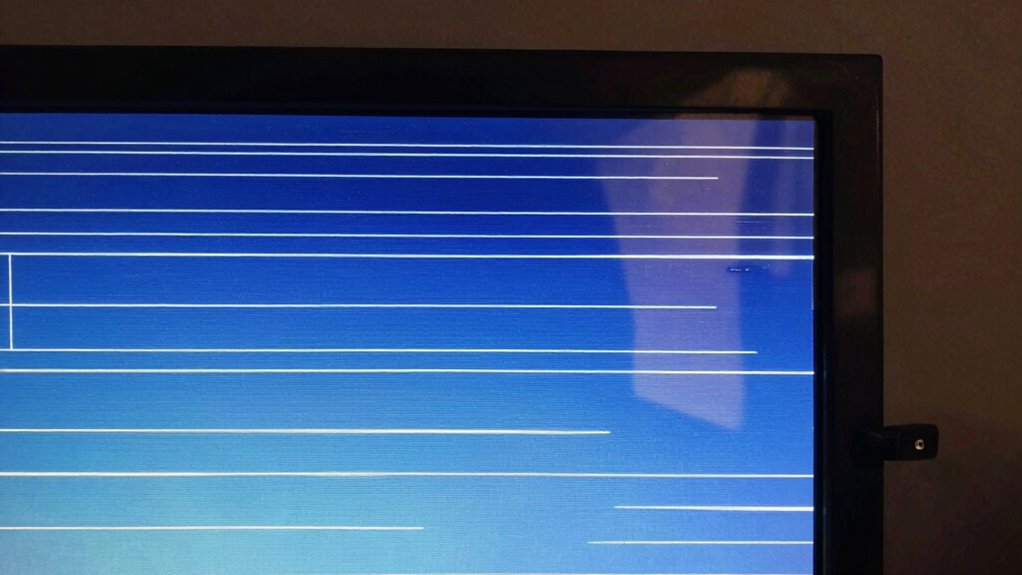
External monitor flickering can be a frustrating issue that disrupts your workflow and causes eye strain. When your screen flickers unexpectedly, it’s easy to feel annoyed, but understanding the root causes can help you fix the problem quickly. One common reason for flickering is the refresh rate of your monitor. The refresh rate, measured in Hertz (Hz), determines how many times per second your screen updates. If the refresh rate isn’t set correctly or is incompatible with your graphics card, flickering can occur. For example, if your monitor’s refresh rate is set too low, or if it doesn’t match the specifications recommended by the manufacturer, you might notice flickering or screen tearing. Adjusting the refresh rate in your display settings often resolves this issue. It’s worth checking your monitor’s manual or specifications to determine the ideal refresh rate and then setting it accordingly to guarantee smooth, flicker-free visuals. Ensuring your monitor has a high refresh rate can significantly improve visual stability and reduce flickering. Cable quality is another essential factor that can contribute to flickering. The cable connecting your monitor to your computer carries the video signal, and if it’s damaged, low-quality, or not properly connected, it can result in inconsistent data transfer. This inconsistency manifests as flickering or screen blinking. Using a high-quality, certified cable—such as DisplayPort or HDMI—can considerably reduce signal interference and improve stability. Make sure your cable is securely plugged in at both ends, and consider replacing it if you notice any visible damage or if flickering persists despite other adjustments. Sometimes, even a slight change in cable positioning can influence the stability of the display. Ensuring proper cable connections and choosing the right cable type can make a notable difference in preventing flickering. Additionally, other factors like outdated graphics drivers, incompatible hardware, or resolution mismatches can cause your external monitor to flicker. Updating your graphics driver regularly guarantees compatibility with your monitor and can fix bugs that might cause flickering. Regularly monitoring hardware compatibility is also recommended to prevent flickering caused by incompatible components. Proper cable quality and compatibility are crucial for stable display performance, as poor-quality or incompatible cables can amplify flickering issues. Ensuring the Cable quality is sufficient and compatible is crucial for stable display performance. Also, setting your display resolution to the recommended setting for your monitor helps maintain stability and prevents flickering caused by resolution mismatch. If you’ve checked these settings and the flickering continues, testing with another cable or monitor can help isolate the issue. In many cases, addressing the refresh rate and cable quality will resolve flickering problems, helping you enjoy a stable, clear display free of distractions and eye strain.
Products Worth Considering

LG UltraGear 34GX90SA-W 34-inch WQHD Curved OLED Gaming Monitor

Samsung 27 Odyssey OLED G5 (G50SF) QHD Gaming Monitor

Samsung 49-Inch Odyssey G93SC QD-OLED Curved Gaming Monitor
As an affiliate, we earn on qualifying purchases.
Frequently Asked Questions
Can Flickering Be Caused by Software Issues?
Yes, flickering can be caused by software issues. Driver conflicts often lead to display problems, so updating your graphics driver might resolve flickering. Additionally, incorrect graphics settings can cause instability, so adjusting your display resolution or refresh rate can help. Sometimes, software bugs or outdated drivers cause conflicts that result in flickering, so regularly updating your graphics drivers and checking your settings can prevent or fix this issue effectively.
Does Monitor Age Affect Flickering Frequency?
Yes, monitor age can affect flickering frequency. As your monitor ages, components like the power supply may become less stable, causing flickering issues. Over time, monitor calibration can also drift, leading to inconsistent display performance. Regularly checking and updating calibration settings, and ensuring a stable power supply, can help reduce flickering. If flickering persists, consider replacing an older monitor for better stability and image quality.
How Does Ambient Lighting Influence Monitor Flicker?
You might notice flickering when ambient light causes screen reflections, making flicker seem more noticeable. Bright ambient lighting can interfere with how your eyes perceive the display’s refresh rate, creating a strobing effect. To reduce flicker, adjust your environment by dimming lights or positioning your monitor to minimize reflections. This way, less ambient light impacts your view, making flickering less apparent and your display easier on your eyes.
Are Certain Monitor Brands More Prone to Flickering?
Some monitor brands are more prone to flickering due to variations in monitor brand reliability and manufacturing quality. Cheaper or less reputable brands often use lower-quality components, leading to inconsistent performance and flickering issues. Higher-end brands with better manufacturing quality tend to provide more stable displays, reducing flicker. When choosing a monitor, prioritize reputable brands known for reliability to minimize flickering and guarantee a smoother viewing experience.
Can External Devices Cause Monitor Flickering?
Imagine you’re in the middle of a quest, and suddenly your monitor flickers—yes, external devices can cause that. You might face hardware compatibility issues or power supply problems, which disrupt the monitor’s signal. When you connect devices like printers or external GPUs, make certain they’re compatible and powered properly. Faulty or incompatible hardware can interfere, leading to flickering. Keep your connections secure, and check power sources to maintain a steady display.
Conclusion
Don’t let flickering monitors frustrate you; it’s often a simple fix. While it might seem like a hardware issue, many times it’s just a setting or connection problem. Remember, troubleshooting can save you time and money rather than rushing to replace your monitor. By staying patient and methodical, you’ll often find a quick solution. Ultimately, understanding the cause empowers you to keep your workspace smooth and distraction-free—so don’t give up, your perfect display is within reach.