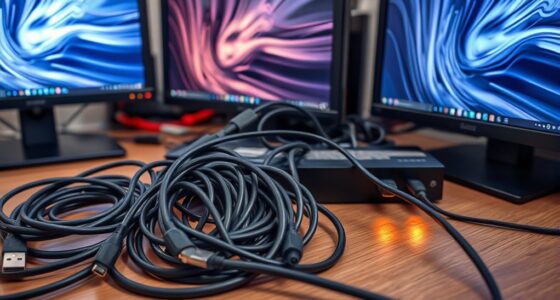
To reduce lag in your cloud gaming setup, connect your device directly to the router with an Ethernet cable for a stable connection. Place your router centrally, away from interference, and upgrade to a modern Wi-Fi standard if using wireless. Limit active devices and prioritize gaming traffic via QoS settings. Keep your hardware updated, close background apps, and lower in-game graphics to ease network and device load. Want to learn more tips for smoother gameplay? Keep going.

Get the latest gadgets delivered free — and shop member deals
- Fast, free delivery on millions of items
- Access to Prime Big Deal Days deals on October 6–7
- Prime Video, Amazon Music and more included
Key Takeaways
- Use a wired Ethernet connection to ensure stable, low-latency internet access for cloud gaming.
- Optimize Wi-Fi by placing the router centrally and reducing interference from other electronics.
- Select cloud gaming servers geographically closer to your location to minimize latency.
- Close unnecessary background applications and downloads to free system resources and reduce network strain.
- Upgrade to a high-refresh-rate monitor and keep hardware drivers updated for smoother visuals and responsiveness.

Cloud gaming offers the convenience of streaming high-quality games without bulky hardware, but lag can ruin the experience. To minimize this, you need to focus on network optimization. A stable, fast internet connection is vital for smooth gameplay. Start by connecting your device directly to your router with an Ethernet cable instead of relying on Wi-Fi. Wired connections reduce latency and packet loss, which are common causes of lag. If Ethernet isn’t an option, ensure your Wi-Fi network is optimized by placing your router in a central location, away from obstructions and electronic interference. Upgrading your router to a modern model that supports the latest Wi-Fi standards can also make a noticeable difference. Additionally, limit the number of devices using your network during gaming sessions to prevent bandwidth sharing that can cause lag. You might also consider prioritizing gaming traffic through Quality of Service (QoS) settings on your router, which allocates more bandwidth to your gaming device, reducing latency and improving responsiveness. Furthermore, a reliable internet connection with low latency is essential for consistent cloud gaming performance. Hardware improvements play an important role as well. Your gaming device, whether a PC, console, or streaming box, needs to perform efficiently to handle the data received from the cloud. Make sure your hardware is up to date, with sufficient processing power and memory. Running background applications or downloads can also hog resources, leading to increased lag. To further improve performance, regularly check your network stability and ensure your connection remains consistent during gameplay. Close unnecessary programs to free up system resources before starting your game. For smoother visuals and lower input delay, consider increasing your device’s frame rate settings if possible, and keep your graphics drivers current to guarantee peak performance. A dedicated gaming monitor with a high refresh rate can further improve your experience by reducing input lag. Beyond hardware and network tweaks, adjusting in-game settings can help reduce lag. Lowering the graphics quality and resolution reduces the strain on your device and network, leading to a more stable connection. Also, check the server location of your cloud gaming service; choosing a server closer to your geographic location decreases latency. Some services let you select servers, so take advantage of this feature. Being aware of your internet speed and understanding how it impacts network performance can help you diagnose potential issues and ensure your setup is optimized for lag reduction.
As an affiliate, we earn on qualifying purchases.
Frequently Asked Questions
What Is the Ideal Internet Speed for Cloud Gaming?
For smooth cloud gaming, you need at least 15 Mbps for HD and 25 Mbps for 4K. To optimize bandwidth, prioritize gaming traffic through data prioritization techniques, reducing latency and lag. Make certain your internet connection is stable and avoid other bandwidth-heavy activities. Consistent speeds help prevent interruptions, making your gaming experience seamless. Investing in a reliable, high-speed connection with proper bandwidth management is key to enjoying lag-free cloud gaming.
How Does Server Location Affect Latency?
Server location directly impacts your latency because server proximity determines how quickly your data travels. When the server is closer, data routing happens faster, reducing lag and improving your gaming experience. Conversely, if the server is far away, increased data travel time causes higher latency and lag spikes. To minimize lag, choose a server location near you, ensuring efficient data routing and a smoother, more responsive cloud gaming session.
Can Hardware Upgrades Improve Cloud Gaming Performance?
Yes, hardware upgrades can improve your cloud gaming performance, but only if your device’s hardware compatibility aligns with the upgrade considerations. Upgrading components like your internet router, graphics card, or processor can reduce lag and enhance streaming quality. However, make sure that your device supports these upgrades. Focus on high-speed internet and a stable connection first, then consider hardware improvements to get the best gaming experience.
What Role Do Network Cables Play in Reducing Lag?
Imagine you’re streaming your favorite game smoothly, but a lag suddenly hits. Network cables, especially Ethernet, play a vital role in reducing lag by providing stable, low-latency connections. High-quality cables guarantee Ethernet stability, which minimizes interference and packet loss. Using good cable quality can considerably improve your cloud gaming experience, preventing those frustrating delays. So, invest in solid cables to keep your connection fast and reliable.
How Do Background Applications Impact Latency?
Background processes can considerably impact latency because they consume system resources, slowing down your device’s performance. When these processes run in the background, they compete for CPU, memory, and bandwidth, leading to increased lag during gaming. To improve system optimization, close unnecessary applications before gaming sessions. This helps guarantee more resources are dedicated to your game, reducing latency and providing a smoother cloud gaming experience.
Conclusion
By optimizing your setup and minimizing lag, you’ll open a smoother, more immersive gaming experience—like a hero finally mastering their quest. Remember, even Apollo’s chariot needed the right reins to stay on course. So, tweak your internet, choose the right server, and upgrade your hardware where needed. With these steps, you’ll be riding the digital waves with the finesse of a seasoned adventurer, leaving lag behind and gaming triumphs within reach.
Fall Picks
fall essentials
As an affiliate, we earn on qualifying purchases.