

To fix weak Wi-Fi in large homes, start by placing your router high, centrally, and away from walls or electronics. Upgrade to a router supporting Wi-Fi 6 or add mesh Wi-Fi systems for seamless coverage. Use range extenders carefully, and regularly update your router’s firmware to maintain performance. Assess your network for interference from neighboring devices and adjust placement accordingly. Implementing these tips will dramatically improve your connection, and if you keep exploring, you’ll discover even more ways to boost your Wi-Fi.

Get the latest gadgets delivered free with Prime
- Fast, free delivery on millions of items
- Prime Video, Amazon Music and more included
- Member-only deals all year
Key Takeaways
- Use mesh Wi-Fi systems or multiple extenders to ensure seamless coverage throughout the large home.
- Optimize router placement: position it centrally, elevated, and away from obstructions for better signal distribution.
- Reduce interference by minimizing obstacles and electronic devices near the router and network equipment.
- Upgrade to a Wi-Fi 6 router to handle multiple devices and improve overall network performance.
- Regularly assess coverage areas and adjust device placement or add additional access points as needed.
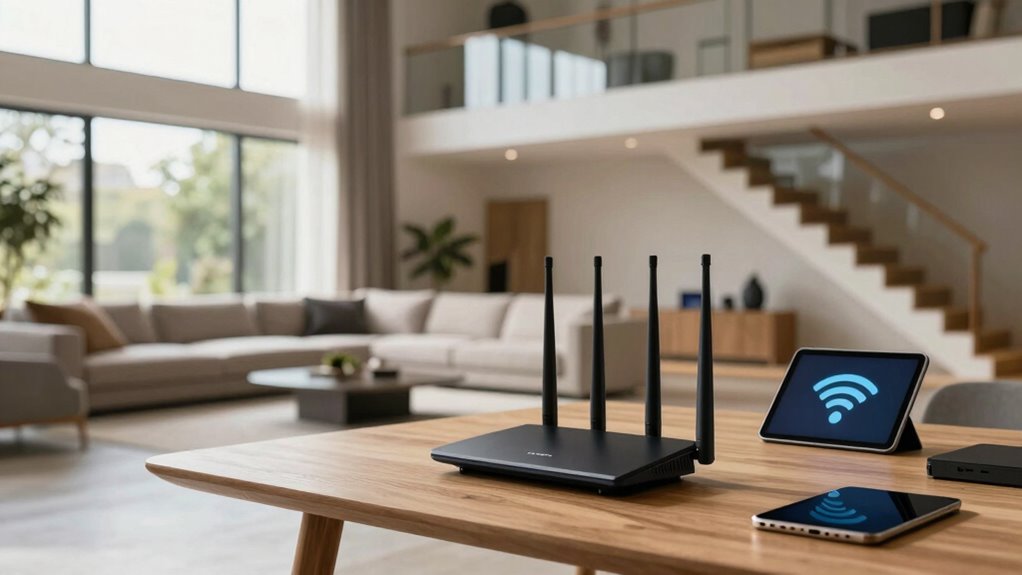
Is your Wi-Fi signal struggling to reach every corner of your large home? If so, you’re not alone. Larger spaces often suffer from weak signals, dead zones, and sluggish Internet speeds, making it frustrating to stream, work, or browse seamlessly. The good news is that fixing these issues is entirely possible with some targeted strategies. To start, consider your wireless security. Protecting your network from intruders is vital, especially if you’re expanding your coverage with additional devices or access points. A secure network prevents unauthorized users from hogging bandwidth, which can further slow down your Internet speed. Confirm your Wi-Fi password is strong and update it regularly, and activate WPA3 encryption if your router supports it. This security step keeps your network safe and guarantees that your bandwidth remains dedicated to your household.
Next, evaluate your current Internet speed. Sometimes, the problem isn’t just the physical placement of your router but the overall bandwidth provided by your Internet Service Provider (ISP). Run a speed test to see if you’re getting the advertised speeds, and compare that with what you actually experience. If your speed is consistently lower, contact your ISP to troubleshoot or upgrade your plan. But even with a good plan, your router might be limiting performance. Upgrading to a modern, high-performance router equipped with multiple antennas and beamforming technology can greatly enhance your coverage and speed. Look for routers that support the latest Wi-Fi standards, such as Wi-Fi 6, which are designed to handle multiple devices and deliver faster, more reliable connections.
Test your internet speed regularly and upgrade your router if performance issues persist.
Another effective way to boost your Wi-Fi coverage is by adding range extenders or mesh Wi-Fi systems. Range extenders amplify your existing signal, but they can sometimes create additional latency or reduce overall speed if not properly configured. Mesh systems, however, create a unified network with multiple access points that communicate seamlessly, providing consistent coverage throughout your large home. Place these devices strategically—near the edge of your current coverage area or in dead zones—to maximize their effectiveness. Additionally, understanding wireless security is essential to maintaining optimal network performance and safety. You might also consider network topology to better understand how your devices are interconnected and optimize your setup for better coverage. Improving your overall network design can also help reduce interference and improve connectivity throughout your space. Incorporating knowledge about interference sources, such as neighboring Wi-Fi networks or electronic devices, can further help in optimizing your network. Regularly assessing your network’s coverage area can help identify weak spots and guide your placement of additional devices.
Finally, optimize the placement of your router. Keep it off the floor, away from thick walls, large metal objects, or other electronics that can interfere with the signal. High, central locations tend to provide the best coverage. Regularly updating your router’s firmware also helps improve performance and security, preventing vulnerabilities that could be exploited and impacting your network stability.
As an affiliate, we earn on qualifying purchases.
Frequently Asked Questions
Can I Use a Wi-Fi Extender With Multiple Devices Simultaneously?
Yes, you can use a Wi-Fi extender with multiple devices simultaneously. Most modern extenders are designed to boost your Wi-Fi signal and support device compatibility, allowing several devices to connect at once. To guarantee smooth performance, choose an extender that matches your router’s specifications and check its capacity for handling multiple connections. This setup can improve your internet experience across your large home and multiple devices.
How Often Should I Update My Router’s Firmware?
You should update your router’s firmware every 3 to 6 months. Think of it as giving your device a health check-up—regular updates patch security flaws, like router security risks, and improve performance. When you delay firmware updates, your router becomes more vulnerable to cyber threats. Staying current keeps your network secure and running smoothly, especially when multiple devices depend on a stable connection.
Is a Mesh Network Better Than a Traditional Router?
A mesh network is better than a traditional router if you need wider signal range and seamless coverage across your large home. Mesh systems are designed for router compatibility with multiple units working together, reducing dead zones. They automatically optimize signal strength and coverage, making it easier to connect devices without losing speed or stability. Overall, a mesh network offers a more reliable and scalable solution than a single traditional router for large spaces.
What Is the Ideal Placement for a Wi-Fi Router in a Large Home?
Think of your Wi-Fi as a lighthouse—its light must reach every corner of your home. You should place your router centrally, elevated, and away from thick walls or metal objects to optimize signal. Proper router placement is key to signal optimization, ensuring strong, consistent coverage. Keep it open and high, avoiding clutter, so your Wi-Fi can shine brightly across all rooms, eliminating dead zones and boosting your connection’s reliability.
How Do I Troubleshoot Wi-Fi Interference From Neighbors?
To troubleshoot Wi-Fi interference from neighbors, start by checking for wireless interference caused by nearby networks. Use a Wi-Fi analyzer to identify overlapping signals and crowded channels. Switch your router to a less congested channel, ideally on the 5GHz band if supported. Also, position your router away from other electronics that cause signal overlap. These steps can reduce wireless interference and improve your Wi-Fi performance.
Conclusion
To boost your Wi-Fi coverage in a large home, try placing your router centrally, using range extenders, or upgrading to a mesh network. Did you know that 53% of people experience Wi-Fi issues at home? By implementing these simple tips, you can enjoy faster, more reliable internet throughout your house. Don’t let weak Wi-Fi hold you back—take action today and stay connected wherever you are!
Fall Picks
fall essentials
As an affiliate, we earn on qualifying purchases.