To fix audio delay on your TV or sound system, start by checking your wireless connections and reconnecting devices if needed, as interference can cause lag. Properly position speakers at ear level and make sure they are close enough to the TV. Use the audio delay or lip sync settings in your TV or sound system menus to manually adjust sync. Updating firmware and switching to wired connections can also improve stability. If issues persist, exploring these tips further will help you achieve better sound quality.

Get the latest gadgets delivered free with Prime
- Fast, free delivery on millions of items
- Prime Video, Amazon Music and more included
- Member-only deals all year
Key Takeaways
- Use the TV’s “lip sync” or “audio delay” settings to manually adjust and sync audio with video.
- Ensure all devices firmware is updated to improve compatibility and fix known delay issues.
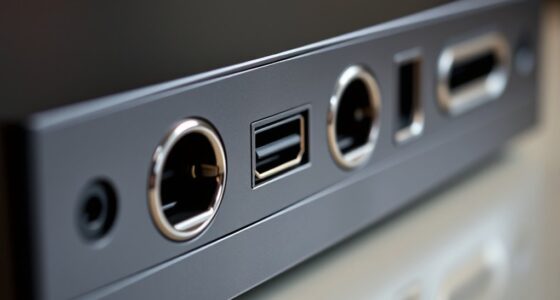
- Connect external sound systems via wired HDMI or optical cables for more stable audio synchronization.
- Position speakers at ear level and directly in front of the TV to reduce delay and echo.
- Minimize wireless interference by moving devices closer and avoiding obstacles between the TV and audio sources.
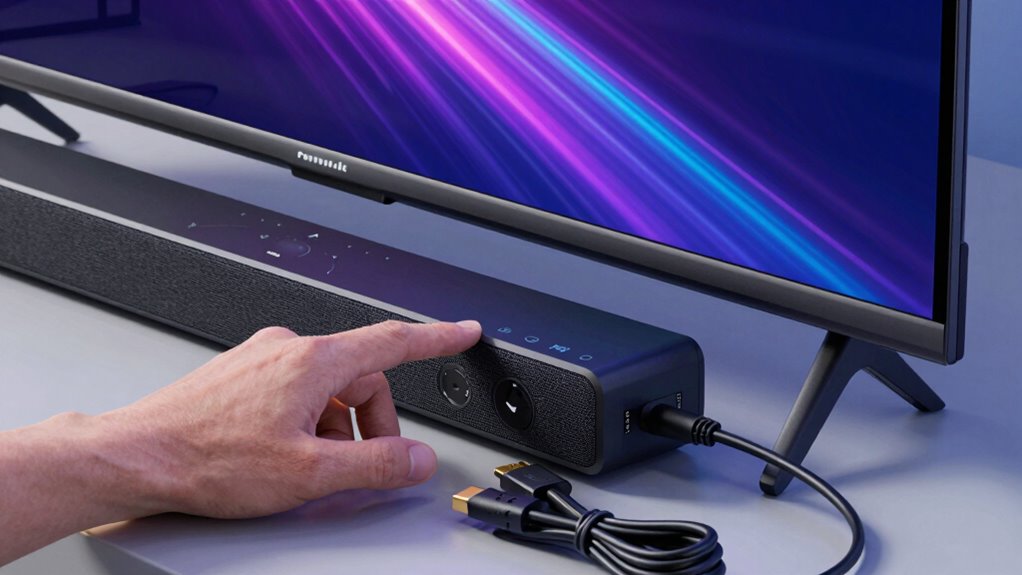
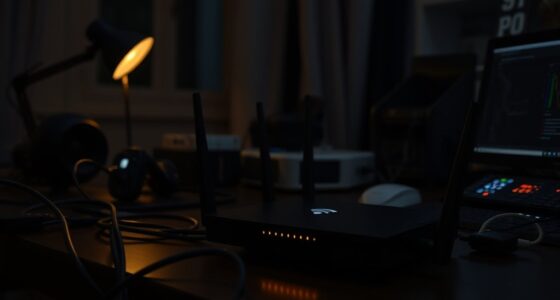
Have you ever watched a movie or played a game only to notice that the audio is out of sync with the video? It’s a frustrating experience that can ruin your entertainment. Luckily, fixing audio delay isn’t always complicated. One of the common causes is issues with wireless connectivity. Wireless connections, especially when using Bluetooth or Wi-Fi, can introduce latency. If your sound system relies on wireless connectivity, try reconnecting your devices. Turn off and on the wireless features, or reset the connection entirely. Sometimes, simply moving your device closer to the source can improve signal strength and reduce lag. Keep in mind that wireless signals are susceptible to interference, so avoiding other electronics or thick walls between your TV and speakers can make a difference.
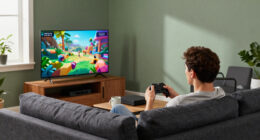
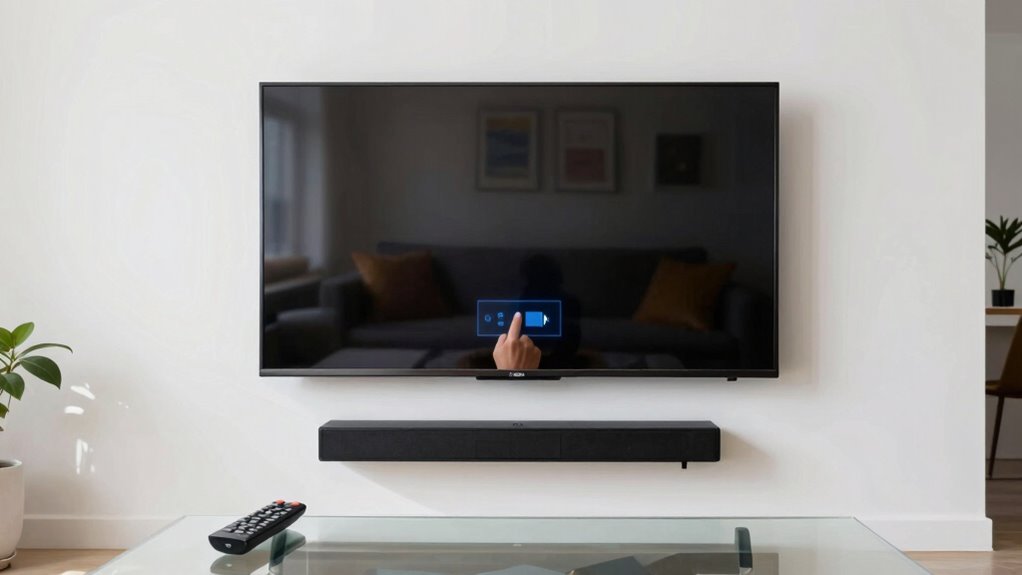
Another vital aspect to consider is speaker placement. Poor placement can cause audio delay or echo effects, making the sound seem out of sync. Position your speakers or soundbar directly in front of or slightly below your TV for ideal audio timing. Avoid placing speakers behind furniture or too far to the sides, as this can increase the distance sound needs to travel, causing delay. If you’re using external speakers, ensure they are at ear level when seated. Proper placement ensures that sound reaches you at the right moment, reducing perceived delay. Additionally, speaker positioning plays a crucial role, as even small changes can significantly improve synchronization. Being mindful of audio signal transmission can also help identify potential sources of lag before making adjustments. Moreover, understanding how wireless interference impacts audio latency can help you troubleshoot more effectively.
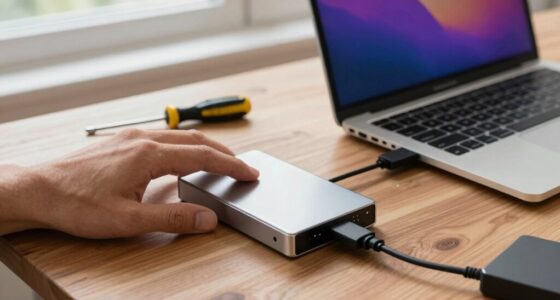
Adjusting your TV’s audio settings is also a straightforward fix. Many TVs have a “lip sync” or “audio delay” feature that allows you to manually sync the audio with the video. Explore your TV’s audio menu, and look for these options. Increasing or decreasing the delay value can help line up the sound perfectly with the picture. Be patient as you tweak the settings — small adjustments often make a big difference. If you’re using an external sound system, check if it has its own audio delay controls, and adjust accordingly. Additionally, firmware updates** can improve device compatibility and synchronization, so keeping your devices’ software current is an important step. Updating your device’s firmware can also address compatibility issues, which are often a source of audio delay. Manufacturers often release updates that improve synchronization. Check your device’s settings or visit the manufacturer’s website for the latest updates. Finally, consider using wired connections instead of wireless ones if persistent lag continues. Wired HDMI or optical cables tend to provide more stable audio synchronization, especially for high-definition content**. By paying attention to wireless connectivity, speaker placement, and your device settings, you can markedly reduce or eliminate audio delay, restoring perfect sync between sound and picture.
As an affiliate, we earn on qualifying purchases.
Frequently Asked Questions
Can External Devices Cause Audio Delay Issues?
Yes, external devices can cause audio delay issues in your home theater setup. When you connect devices like gaming consoles, streaming boxes, or soundbars, they may have different audio configurations or processing times, leading to sync problems. To fix this, check your device settings and make certain of compatibility. Updating firmware or adjusting audio output options can help sync the audio with the video, improving your overall viewing experience.
Does Audio Delay Vary Between Different TV Brands?
Absolutely, audio delay varies between TV brands due to differences in brand compatibility and audio processing. You might notice some brands handle synchronization better, while others introduce more delay, especially with certain external devices. This variation keeps you guessing, prompting you to explore settings or upgrades. It’s a game of technology and compatibility, where understanding each brand’s unique processing can make all the difference in achieving perfect sync.
How Does HDMI Cable Quality Affect Audio Sync?
Higher-quality HDMI cables improve audio sync because they’re less prone to interference and offer better signal stability. Poor-quality cables can cause HDMI interference, leading to audio delay issues. Additionally, durable cables maintain their connection quality over time, preventing signal dropouts that can disrupt audio sync. Investing in a good HDMI cable guarantees a clearer, more synchronized audio experience, reducing delay and improving overall multimedia performance.
Can Updating Firmware Fix Audio Delay Problems?
Yes, updating firmware can fix audio delay problems. Firmware updates often include improvements to audio synchronization, addressing bugs that cause delays. When you install the latest firmware, you guarantee your TV or sound system operates smoothly with better audio sync. It’s a simple step that can resolve many audio delay issues, so make certain to check for updates regularly and keep your device’s firmware current for peak performance.
Is Audio Delay More Common With Bluetooth Speakers?
Yes, audio delay is more common with Bluetooth speakers because wireless interference can disrupt the connection, causing lag. Additionally, Bluetooth compatibility issues between your device and the speaker can worsen delay problems. You might notice a sync issue when watching videos or gaming. To reduce this, make certain your Bluetooth devices are compatible, keep them close, and minimize wireless interference from other electronics for better audio synchronization.
Conclusion
Remember, patience is key when fixing audio delay issues. Just like a craftsman fine-tunes their work, take the time to explore your TV and sound system settings. Sometimes, small adjustments can restore harmony between sound and picture, creating a seamless viewing experience. Don’t rush the process—think of it as polishing a gem. With a little perseverance, you’ll have your audio perfectly synced, proving that the best things in life often require a bit of careful tuning.
Halloween Picks
halloween
As an affiliate, we earn on qualifying purchases.