Your TV might not support 4K/120Hz because you’re using the wrong HDMI port, a non-High Speed or uncertified cable, or your settings aren’t optimized. Make sure you connect to an HDMI 2.1 port, use a certified Ultra HD High Speed cable, and enable the correct input options like HDMI Enhanced Mode or VRR. Check that your source device supports 4K/120Hz, and adjust your TV settings accordingly. If you keep these details in mind, you’ll be closer to achieving smooth, high-refresh-rate playback.
Key Takeaways
- Ensure the TV’s HDMI port supports HDMI 2.1 and is labeled for 4K/120Hz, not just HDMI 2.0 or lower.
- Use certified Ultra High Speed HDMI cables rated for 48Gbps to handle 4K/120Hz signals effectively.
- Verify your source device (console or PC) outputs at 4K/120Hz and is connected to the correct HDMI 2.1 port.
- Enable HDMI Enhanced Mode, Game Mode, and update firmware on both TV and device for full 4K/120Hz support.
- Keep cable lengths short (preferably under 3 meters) and route cables properly to prevent signal degradation.

UGREEN 8K HDMI 2.1 Cable 48Gbps 6.6FT, Certified Ultra High Speed HDMI Cord Aluminum, 4K@240Hz 120Hz 10K 8K@60Hz, HDCP 2.2&2.3, eARC HDR 10 Dolby Compatible with PS5/Blu-ray/Roku TV/Switch 2/Mac mini
Real 8K HDMI certified cable: The HDMI cables pass HDMI 2.1 Certified. The HDMI Cable delivers 10K 8K@60Hz…
As an affiliate, we earn on qualifying purchases.
As an affiliate, we earn on qualifying purchases.
Understanding HDMI Port Standards and Capabilities
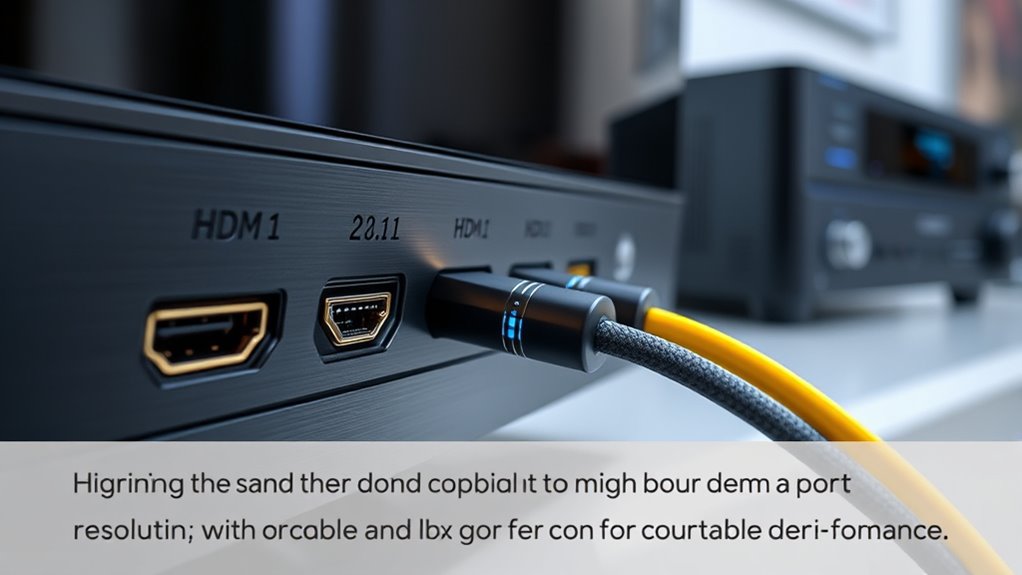
To enjoy 4K at 120Hz, your TV’s HDMI ports must support the HDMI 2.1 standard, which provides the necessary bandwidth of 32.08Gbps or higher. HDMI 2.0 ports max out at 18Gbps, making them inadequate for true 4K/120Hz. Many TVs have only one or two HDMI 2.1 ports, often labeled as “gaming” or “4K/120Hz” ports. Using an HDMI 2.0 port limits you to 4K/60Hz or lower. Some TVs advertise 4K/120Hz but support it only on specific HDMI inputs. It’s essential to verify which ports are HDMI 2.1 capable. Also, confirm your TV’s firmware is up to date, as support for higher refresh rates can sometimes require a software update.

4K 120Hz HDMI Switch, 8K 60Hz HDMI 2.1 Bi-Directional 2-in-1/1-in-2 Switcher Splitter, Aluminum HDMI Selector 48Gbps High Resolution Switch Capable for Gaming, PS5, Xbox, HDR10, Dolby Vision
[8K@60Hz & 4K@120Hz Performance]: HDMI 2.1 Certified, supports HDR10+, Dolby Vision, and Dynamic HDR for vibrant colors and…
As an affiliate, we earn on qualifying purchases.
As an affiliate, we earn on qualifying purchases.
Identifying HDMI Ports on Your TV and Their Functions

First, check how your TV labels its HDMI ports—some are marked “HDMI 2.1” or “Gaming” to indicate higher bandwidth support. Keep in mind that not all ports with these labels can handle 4K/120Hz, so verifying their specifications is key. Knowing the difference helps guarantee you’re using the right port for ideal 4K/120Hz performance. Additionally, understanding HDMI technology can help you troubleshoot compatibility issues and ensure optimal streaming quality. Recognizing horsepower of electric dirt bikes, such as the 10 to 20 horsepower range, can also provide insight into the performance capabilities of your devices, especially if you’re seeking high-quality visuals and fast refresh rates. Recognizing angel numbers, such as 2020 or 1234, can also provide spiritual guidance related to your viewing experience, especially if you’re seeking clarity on technical issues. To maximize your setup, it’s helpful to also check the TV manual for specific port capabilities and firmware updates that might improve performance.
HDMI Port Labels
Understanding your TV’s HDMI port labels is vital for revealing its full potential, especially when trying to achieve 4K/120Hz gameplay or streaming. Manufacturers often label HDMI ports with terms like “HDMI 2.1,” “Gaming,” or “4K/120Hz” to indicate their capabilities. These labels help you identify which ports support higher bandwidth and advanced features. Look for ports labeled explicitly as HDMI 2.1 or with symbols denoting high speed. Some TVs assign specific ports for gaming or premium content, so connecting your device to these ports is essential. Keep in mind: not all labeled ports support 4K/120Hz, so verify the specifications in your user manual or product details. Proper identification guarantees you’re utilizing the right port for peak performance. Additionally, consulting subtopic 2: Espresso Machines for Home Brewing can help you understand the importance of choosing equipment that meets high-performance standards, similar to selecting the right HDMI port for optimal video quality.
Differentiating Port Capabilities
Identifying the capabilities of your TV’s HDMI ports is essential for maximizing performance, especially when aiming for 4K/120Hz gameplay or streaming. Many TVs label ports with terms like “Gaming” or “4K/120Hz,” but these labels aren’t always accurate indicators of function. To guarantee you’re using the right port, check your TV’s manual or look for ports labeled as HDMI 2.1. Here’s a quick comparison:
| HDMI Port Type | Features |
|---|---|
| HDMI 2.1 | Supports 4K/120Hz, 8K, and higher bandwidth (32Gbps+) |
| HDMI 2.0 | Maxes out at 18Gbps, limited to 4K/60Hz or lower |
| HDMI 1.4 | Supports 1080p, 4K at 30Hz, not suitable for 4K/120Hz |
| HDMI ARC | For audio return, not for high-bandwidth video |
| HDMI eARC | Supports higher bandwidth audio, not video |
Use the correct port and cable to access full 4K/120Hz potential. Additionally, be aware that some HDMI standards evolve, so verifying your TV’s specifications ensures optimal performance. Recognizing HDMI port labels helps prevent connecting to incompatible ports that can limit your display capabilities. Being aware of port capabilities can save you time and frustration when setting up your system. Familiarizing yourself with HDMI version differences can further improve your setup and ensure you get the most out of your devices.
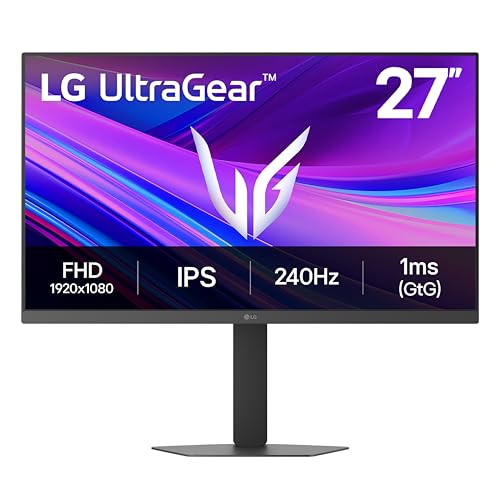
LG 27G440A-B 27-Inch Ultragear Full HD (1920 x 1080) IPS Gaming Monitor, 240Hz, 1ms, G-SYNC Compatible, FreeSync Premium, HDMI 2.1, DisplayPort, Tilt/Height/Swivel/Pivot Adjustable Stand, Black
Vivid Color, Fast Response, Total Control – The 27" UltraGear FHD IPS gaming monitor delivers vivid HDR10 color,…
As an affiliate, we earn on qualifying purchases.
As an affiliate, we earn on qualifying purchases.
Choosing the Right HDMI Cable for 4K/120Hz Performance

To get the full benefit of 4K/120Hz gaming or streaming, you need the right HDMI cable that can handle the high bandwidth demands. Not all cables are created equal; using the wrong one can result in flickering, no signal, or limited refresh rates. To guarantee top performance, choose an Ultra High Speed HDMI cable certified for 48Gbps bandwidth. This guarantees support for 4K/120Hz, HDR, and 8K content. Keep these tips in mind:
- Use certified Ultra High Speed HDMI cables, not older or uncertified ones
- Keep cable length under 3 meters for better signal integrity
- Avoid cheap, generic cables that lack certification
- Check for official HDMI 2.1 certification to confirm compatibility
- Regular maintenance of your HDMI cables and ports can prevent connectivity issues and ensure optimal performance test your setup regularly.
- Ensuring proper cable compatibility can help prevent common connectivity problems and maximize your viewing experience. Additionally, understanding bandwidth requirements is essential to select cables that can truly support high-resolution and high-refresh-rate signals.
- Incorporating home organization strategies around your entertainment setup can make cable management easier and more efficient, reducing clutter and improving maintenance.
![Silkland Certified HDMI 2.1 Cable, [4K@240Hz 144Hz 120Hz, 8K@60Hz] 1440P Ultra High Speed HDMI Cable 48Gbps (Upgrade Braided), HDR10+, eARC, HDCP 2.3, Compatible for Xbox/PS5/PS4/Roku TV-6.6ft](https://m.media-amazon.com/images/I/41Ns4mhmH+L._SL500_.jpg)
Silkland Certified HDMI 2.1 Cable, [4K@240Hz 144Hz 120Hz, 8K@60Hz] 1440P Ultra High Speed HDMI Cable 48Gbps (Upgrade Braided), HDR10+, eARC, HDCP 2.3, Compatible for Xbox/PS5/PS4/Roku TV-6.6ft
【HDMI 2.1 Certification】Only 1% of HDMI cables on the market have passed HDMI 2.1 certification. Scan with the…
As an affiliate, we earn on qualifying purchases.
As an affiliate, we earn on qualifying purchases.
Confirming Your TV’s Display Panel and Refresh Rate Limits

Even with the right HDMI cable, your TV’s ability to display 4K/120Hz depends on its panel and refresh rate capabilities. Not all 4K TVs are built to handle 120Hz natively; many are limited to 60Hz, regardless of specifications. Check your TV’s specifications or user manual to confirm its maximum refresh rate. Look for terms like “Native Refresh Rate” or “Panel Refresh Rate”—these indicate true capabilities. Be cautious of marketing terms like “Motion Rate” or “Clear Motion Rate,” which don’t guarantee a true 120Hz panel. Premium or gaming-focused models usually support 120Hz, but budget TVs often do not. Confirm your TV’s actual display limits before trying to enable 4K/120Hz to avoid disappointment or misconfiguration. Additionally, verifying your TV’s refresh rate capabilities helps ensure compatibility with high-frame-rate content.
Ensuring Your Console or Source Device Supports 4K/120Hz
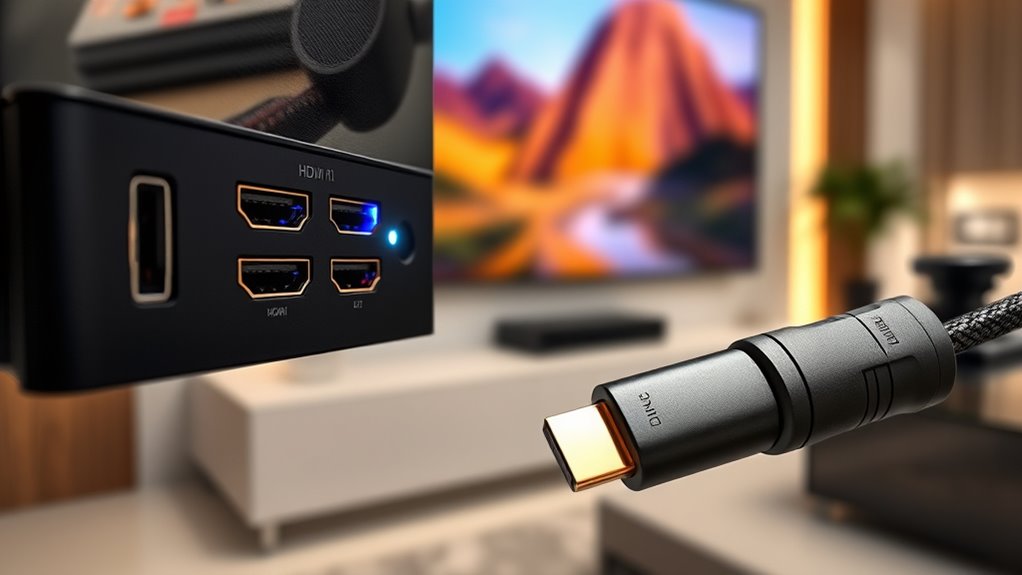
For your console or source device to display games and content at 4K/120Hz, it must support that output natively. Check if your device’s hardware and firmware can handle 4K/120Hz. For example, the latest consoles like the PS5 and Xbox Series X support 4K/120Hz, but only if your system settings are configured correctly.
Verify your device:
Verify your device supports HDMI 2.1 and 4K/120Hz for optimal gaming performance.
- Supports HDMI 2.1 output, necessary for high bandwidth
- Has firmware updates that enable 4K/120Hz capabilities
- Is set to output at 4K/120Hz in system settings
- Uses a compatible, certified Ultra High Speed HDMI cable
If your device doesn’t support 4K/120Hz, upgrading hardware is your only option. Confirming this support prevents frustration and ensures you get the most out of your setup.
Configuring Your TV Settings for Optimal 4K/120Hz Output
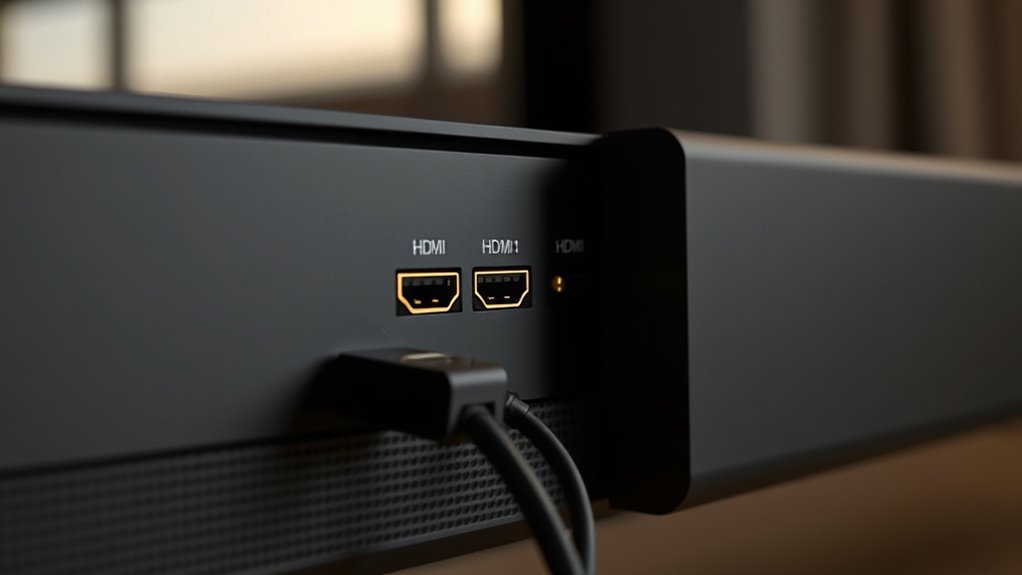
Once you’ve confirmed your device supports 4K/120Hz output and has the right hardware, the next step is to adjust your TV settings to enable and optimize this feature. Begin by browsing to your TV’s menu and look for settings related to HDMI input or signal processing. Enable HDMI Enhanced Mode or HDMI Ultra HD Deep Color on the specific port connected to your device. If your TV offers a Game or PC mode, activate it to reduce input lag and improve responsiveness. Check for firmware updates, as they can open full 4K/120Hz support. Make sure HDR and VRR settings are enabled if available, and verify that your source device is configured to output at 4K/120Hz. Properly adjusting these settings guarantees you get the best possible performance. Understanding HDMI specifications can help ensure compatibility and optimal configuration, preventing issues such as flickering or no picture.
Recognizing Common Signal and Compatibility Issues
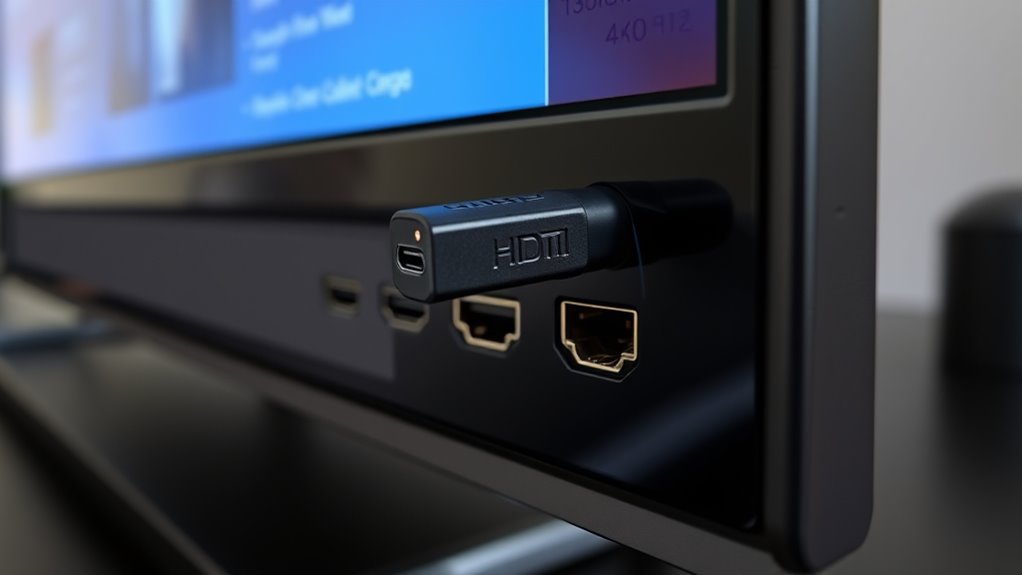
If your 4K/120Hz isn’t functioning, the first thing to verify is whether you’ve plugged into the correct HDMI port, as many TVs only support full 4K/120Hz on specific inputs. Faulty or uncertified cables can also cause signal issues, flickering, or no picture at all, so using an Ultra High Speed HDMI cable is essential. Additionally, confirm your source device supports 4K/120Hz, since older consoles or hardware might not be compatible with this high refresh rate. Checking your TV’s specifications for supported anime movies can also help ensure compatibility with high-quality video formats. Moreover, reviewing your TV’s supported video formats can prevent issues related to incompatible content or settings. Ensuring your TV’s firmware is up to date can also resolve potential compatibility issues that may affect high refresh rate performance. Regularly updating your firmware can also improve overall device stability and performance. Additionally, understanding the AI detection methods used by your TV can help troubleshoot unusual behavior or false signals related to high-performance content.
Incorrect HDMI Port Selection
Choosing the correct HDMI port on your TV is essential for achieving 4K/120Hz performance. Many TVs have multiple HDMI ports, but only specific ones support HDMI 2.1 for high bandwidth. If you connect your device to an HDMI 2.0 port, you’ll be limited to 4K/60Hz or lower. To avoid this, check which ports are labeled as “gaming” or “4K/120Hz,” and use those. Remember, not all ports support the same features, so selecting the wrong one can prevent 4K/120Hz signals from passing through.
- Use HDMI 2.1 ports labeled for gaming or 4K/120Hz.
- Confirm the port supports full bandwidth (32Gbps or higher).
- Avoid connecting to HDMI 2.0 ports for 4K/120Hz.
- Check your TV’s manual for port-specific capabilities.
Faulty or Non-Certified Cables
Using an uncertified or faulty HDMI cable can cause a range of signal issues that prevent your setup from achieving 4K/120Hz performance. Non-certified cables often don’t support the high bandwidth needed for smooth, reliable 4K/120Hz transmission. Older or damaged cables may result in flickering, no signal, or handshake failures that stop the refresh rate from reaching its full potential. Even a good-quality cable can cause problems if it’s too long or not rated for Ultra High Speed HDMI standards. To guarantee proper performance, always use certified HDMI 2.1 cables designed for 48Gbps bandwidth. Replacing your cable with a verified, high-quality option can often resolve signal disruptions and help you achieve the desired 4K/120Hz output. Additionally, ensuring your cables meet the standards for high-quality audio and video transmission can prevent compatibility issues and optimize your viewing experience. Using the correct HDMI cable specifications is essential to support the higher data rates required for modern gaming and entertainment setups.
Source Device Limitations
Many source devices simply don’t support 4K/120Hz output, which can prevent you from achieving the desired high refresh rate on your TV. If your device isn’t compatible, no amount of cable upgrading or port selection will help. To troubleshoot, check if your source device supports 4K/120Hz:
- PlayStation 5 and Xbox Series X/S support 4K/120Hz, but only with compatible TVs and settings.
- Older consoles like PS4 or Xbox One don’t support 4K/120Hz output.
- PC GPUs (NVIDIA RTX 30/40, AMD RX 6000/7000) require HDMI 2.1 or DisplayPort 1.4 for high refresh rates.
- Streaming devices such as Apple TV 4K (2022) support 4K/120Hz only for select content.
Ensure your device’s settings are configured for 4K/120Hz, and verify compatibility before troubleshooting further.
Troubleshooting Flickering, No Signal, or Picture Problems

Flickering, no signal, or picture problems often stem from issues with your HDMI connection, source device, or settings. First, verify your HDMI cable is Ultra High Speed certified and properly plugged into HDMI 2.1 ports. Check that your source device is configured for 4K/120Hz output and that your TV settings have HDMI Enhanced Mode enabled. Sometimes, the problem lies in incompatible ports or outdated firmware. Use the table below to troubleshoot common issues:
| Issue | Solution |
|---|---|
| Flickering or unstable image | Replace with certified HDMI 2.1 cable |
| No signal at all | Confirm port and input settings are correct |
| Lower resolution/refresh rate | Verify source and TV settings support 4K/120Hz |
| Game mode unavailable | Update TV firmware or check input compatibility |
Address these points to resolve picture and signal problems efficiently.
Updating Firmware and Software for Enhanced Compatibility

Updating your TV’s firmware and software is essential to *unblock* full 4K/120Hz support and resolving compatibility issues. Manufacturers often release updates that improve HDMI compatibility, enable new features, and fix bugs affecting high refresh rate performance. To *ensure* your TV is current, check the manufacturer’s website or settings menu for firmware updates. Keep in mind:
- Firmware updates often unlocksupport for HDMI 2.1 features.
- Software patches can improve stability with Ultra High Speed HDMI cables.
- Updating may resolve issues related to signal handshake or flickering.
- Some updates enable or enhance gaming modes and VRR support.
Staying current ensures your TV can properly recognize devices and settings needed for 4K/120Hz. Regular updates help avoid unnecessary troubleshooting and optimize your viewing experience.
Tips for Maintaining Signal Integrity Over Longer Cables

To keep your signal strong over longer cables, start by using the shortest cable possible for your setup. Always choose certified Ultra High Speed HDMI cables to guarantee reliable bandwidth and avoid handshake issues. Properly routing and securing your cables also helps prevent interference that can degrade your signal quality.
Use Shorter Cables
Longer HDMI cables can weaken your signal and cause issues like flickering or no image at all, especially when transmitting high-bandwidth data for 4K/120Hz. To guarantee excellent performance, keep your cables as short as possible. Shorter cables reduce signal loss and help maintain the bandwidth needed for smooth, high-quality video. When choosing cables, consider the following:
- Use cables under 3 meters for maximum reliability
- Avoid cheap, uncertified cables that may not meet standards
- Opt for cables with good shielding to prevent interference
- Test different lengths if you encounter flickering or no signal
Opt for Certified Cables
Choosing certified HDMI cables is essential for maintaining signal integrity, especially over longer distances. Uncertified or cheap cables may fail to support the necessary bandwidth for 4K/120Hz, leading to flickering, no signal, or degraded image quality. Certified Ultra High Speed HDMI cables are tested to handle up to 48Gbps, ensuring reliable transmission of high-bandwidth signals. When selecting a cable, look for official certification labels and avoid generic or unbranded options. Longer cables can introduce signal loss, so opting for certified cables with good shielding helps preserve quality. If you need to run cables over extended distances, consider active or fiber optic HDMI cables designed for high bandwidth and minimal signal degradation. Investing in certified cables guarantees you get the best performance and reduces troubleshooting headaches.
Maintain Proper Cable Routing
Proper cable routing plays a vital role in maintaining signal quality, especially when using extended HDMI cables for 4K/120Hz setups. Poor routing can cause interference, signal degradation, or flickering. To guarantee ideal performance, keep your cables organized and away from sources of electromagnetic interference like power cords, routers, or fluorescent lights. Avoid sharp bends or kinks, which can weaken the signal. Use cable clips or conduits to secure cables neatly along walls or furniture, preventing strain. Keep cables elevated or away from metal surfaces to reduce interference. Finally, choose shorter cables when possible, as longer runs increase the risk of signal loss. Proper routing preserves bandwidth and keeps your 4K/120Hz signal stable and clear.
Frequently Asked Questions
Can I Get 4k/120hz Using HDMI 2.0 Ports?
No, you can’t get 4K/120Hz using HDMI 2.0 ports. HDMI 2.0 maxes out at 18Gbps, which isn’t enough for true 4K/120Hz. To achieve that, you need HDMI 2.1 ports that support higher bandwidth. Even if your port is HDMI 2.0, using an Ultra High Speed HDMI cable won’t enable 4K/120Hz. Make sure your TV has HDMI 2.1 ports, and your source device supports 4K/120Hz for it to work properly.
Do All 4K TVS Support True 120HZ Refresh Rates?
Not all 4K TVs support true 120Hz refresh rates. You’ll find that many models, especially budget or mid-range ones, are limited to 60Hz or use software interpolation to simulate higher rates. True 120Hz panels are usually in premium or gaming-focused TVs, offering native high refresh rates and smooth motion. Always check the specifications, because marketing terms like “Motion Rate” don’t guarantee real 120Hz support.
Are Older HDMI Cables Capable of Handling 4k/120hz Signals?
Older HDMI cables generally can’t handle 4K/120Hz signals due to limited bandwidth. Standard HDMI cables, like High Speed ones, often max out at 18Gbps, which isn’t enough for the full 32.08Gbps needed for 4K/120Hz. To guarantee smooth, high-quality playback, you should upgrade to Ultra High Speed HDMI cables that support at least 48Gbps. This helps prevent flickering, handshake issues, and signal loss at higher refresh rates.
How Do I Know if My TV Panel Supports 120HZ?
You can check if your TV panel supports 120Hz by consulting the manufacturer’s specifications in the user manual or on their website. Look for terms like “native 120Hz” or “120Hz panel.” If it’s not clearly listed, you can also access your TV’s picture or display settings menu—some models show the native refresh rate there. Remember, many TVs marketed as 120Hz use software interpolation, not true 120Hz panels.
Does Enabling Game Mode Affect 4k/120hz Performance?
Enabling Game Mode can improve your 4K/120Hz performance by reducing input lag and disabling unnecessary processing, which helps achieve smoother gameplay. However, it doesn’t automatically enable 4K/120Hz; you still need compatible HDMI ports, cables, and correct source settings. Make sure your TV supports 120Hz natively and that you’ve enabled the appropriate input settings, like HDMI Enhanced Mode, for ideal 4K/120Hz output during gaming.
Conclusion
Ultimately, achieving flawless 4K/120 performance depends on aligning all the pieces just right. Sometimes, the tiniest details—like a cable or setting—can make a big difference. Patience and careful checks often reveal what’s missing or misaligned. Remember, the journey to perfect picture quality is as much about understanding your setup as it is about enjoying the stunning visuals when everything clicks into place. Keep exploring—you’re closer than you think.