Set up your wireless noise-cancelling headphones by charging them, pairing them with a phone or computer, and checking their fit, sound, microphone, and listening modes. This guide is for first-time users and anyone setting up a new pair. Allow about 10-20 minutes; you will need a Bluetooth device and the headphones’ charging cable.
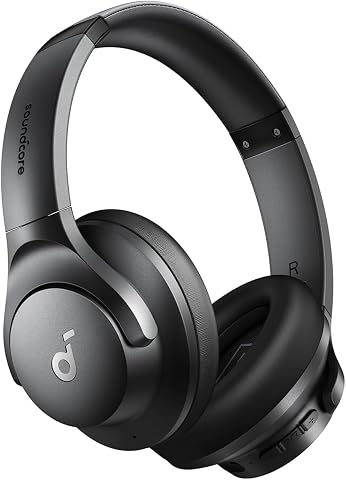
Soundcore by Anker Q20i Hybrid Active Noise Cancelling Headphones, Black
- ✔ Fit: Over-ear
- ✔ Noise control: Hybrid ANC; ANC, Normal, and Transparency modes
- ✔ Microphones: Four

Soundcore by Anker Q20i Hybrid Active Noise Cancelling Headphones, White
- ✔ Type: Wireless over-ear headphones
- ✔ Noise control: Hybrid ANC and Transparency mode
- ✔ Microphones: Four

Hybrid Active Noise Cancelling Bluetooth Over-Ear Headphones
- ✔ Type: Wireless over-ear headphones
- ✔ Noise control: Hybrid ANC; claims up to 95% ambient-noise reduction
- ✔ Battery: Claims up to 120 hours in standard mode
Difficulty: Beginner | Time: 10-20 minutes
What You’ll Need
Tools & Materials:
- Wireless noise-cancelling headphones
- Phone, tablet, or computer with Bluetooth
- Headphone charging cable and a suitable power source
- Headphone companion app, if the manufacturer provides one
Knowledge:
- Basic ability to open Bluetooth settings on your device
- Ability to play audio and adjust volume
Find the headphone model name and the manufacturer’s quick-start instructions. Button names and pairing steps vary by model. If the headphones have a removable protective film over the charging contacts or earcup controls, check the instructions before removing anything. Do not force a cable into a port.
Soundcore by Anker Q20i Hybrid Active Noise Cancelling Headphones, Black
The black Soundcore Q20i is the most rounded wireless noise-cancelling choice in this group. Its hybrid ANC uses four microphones, and the listening modes let us switch to Transparency when we need to hear what is around us. That flexibility matters more for everyday use than a single headline noise-reduction percentage: we can adapt the headphones to a commute, desk work, or a brief conversation without treating ANC as complete isolation.Battery details are unusually useful here. Soundcore states up to 40 hours with ANC on and up to 60 hours in normal mode, making the distinction between noise-cancelling and non-ANC listening clear. A five-minute charge is stated to provide four hours of playback, and Bluetooth multipoint can keep two devices connected. Compared with the Bluetooth 6.0 alternative, the Q20i gives us more defined listening controls and ANC-on endurance, even though its normal-mode battery claim is much lower.App EQ and BassUp offer more ways to shape sound than the other model’s described bass-focused tuning. Still, ANC reduces noise rather than eliminating it, and Hi-Res support requires a wired AUX connection. This pick is best for buyers who value a well-rounded wireless feature set; those who care most about the white finish can get the same stated core Q20i features in the second pick.
Pros:
- Hybrid ANC and Transparency mode support different listening situations
- Up to 40 hours stated with ANC on and 60 hours in normal mode
- Five-minute charge stated to provide four hours of playback
- App EQ and two-device Bluetooth multipoint add everyday flexibility
Cons:
- ANC reduces external noise but does not eliminate it
- Hi-Res audio support requires wired AUX listening
Best for: Everyday listeners who want app-based EQ, transparency, multipoint, and a clearly stated ANC-on battery figure.
Not ideal for: Buyers seeking complete silence, or listeners who want Hi-Res audio and ANC to work together over a wireless connection.
Bottom line: We recommend the black Q20i as the most complete, clearly specified wireless noise-cancelling option in this comparison.
“We recommend the black Q20i as the most complete, clearly specified wireless noise-cancelling option in this comparison.”
Soundcore by Anker Q20i Hybrid Active Noise Cancelling Headphones, White
If we want a light-colored finish, the white Q20i keeps the same central strengths as our overall pick: hybrid ANC, four microphones, Transparency mode, app EQ, and connections to two devices. That makes it a straightforward alternative to the black version rather than a different tier of noise cancellation. Buyers should select it for its appearance or availability, not expect stronger noise reduction or longer ANC listening.Its stated up to 40 hours with ANC enabled and five-minute quick charge match the practical headline figures provided for the black model. The app lists EQ presets and custom EQ as well as ANC settings and additional listening tools. Compared with the third pick, this gives us a clearer, broader account of how we can adjust the listening experience, while multipoint offers a convenient way to move between two connected devices.There is a specific catch for wired listening: Hi-Res audio is available over the included AUX cable, but ANC is unavailable in AUX mode. BassUp is described as a wireless feature. That separation limits the appeal for someone hoping to combine wired high-resolution listening with noise cancellation. For wireless ANC use, however, it remains a capable alternative to the black Q20i; the two have no stated performance difference in this lineup.
Pros:
- Hybrid ANC and Transparency mode
- Up to 40 hours of stated battery life with ANC enabled
- Multipoint connects two devices and can switch between them
- App includes custom EQ and listening controls
Cons:
- ANC is unavailable in AUX mode
- Hi-Res audio is wired, while BassUp is available wirelessly
- No stated performance advantage over the black Q20i
Best for: Listeners who want the Q20i’s stated wireless ANC and app features in a white finish.
Not ideal for: Anyone choosing primarily for stronger ANC than the black Q20i, or for wired Hi-Res playback with ANC active.
Bottom line: We would choose the white Q20i for its finish, since its stated noise-cancelling feature set closely matches the black model.
“We would choose the white Q20i for its finish, since its stated noise-cancelling feature set closely matches the black model.”
Hybrid Active Noise Cancelling Bluetooth Over-Ear Headphones
This Bluetooth 6.0 model makes the biggest endurance claim in our roundup: up to 120 hours in standard mode. It also lists hybrid ANC, memory foam ear cups, an adjustable headband, and a built-in microphone designed for calls. That combination could interest listeners who want long stretches between charges and a cushioned over-ear fit. But its headline runtime is specifically for standard mode, and the supplied details do not state how long it lasts with ANC enabled.That missing distinction matters when comparing it with the Q20i, which gives separate stated figures for ANC and normal listening. The Q20i is therefore easier to judge for the use named in this guide: wireless listening with noise cancelling active. This model’s claim of reducing up to 95% of ambient noise is also not independently verified in the supplied information. We should not assume that percentage guarantees a quieter real-world experience than the Q20i’s described hybrid ANC.Its five-minute charge is said to provide up to four hours of playback, matching the quick-charge claim of both Q20i options. The tradeoff is less detail about app controls, transparency, or multipoint, along with uncertainty around its standout battery and noise-reduction claims. Compared with the Soundcore picks, this is a more speculative choice: consider it if the stated runtime is a priority, but favor the Q20i if clear mode information and defined wireless features matter more.
Pros:
- Claims up to 120 hours of playtime in standard mode
- Hybrid active noise cancellation
- Memory foam ear cups and adjustable headband
- Quick-charge claim of up to four hours from five minutes
Cons:
- Battery and noise-reduction figures are not independently verified in the supplied details
- No ANC-on battery estimate is provided
- The supplied feature list does not specify app EQ, transparency, or multipoint
Best for: Buyers drawn to a very long stated standard-mode runtime who are comfortable treating product figures as unverified claims.
Not ideal for: Listeners who need a clearly stated ANC-on battery estimate or want documented app EQ, transparency, and multipoint features.
Bottom line: We would consider this model for its claimed standard-mode endurance, while preferring the Q20i for a more clearly specified ANC-focused feature set.
“We would consider this model for its claimed standard-mode endurance, while preferring the Q20i for a more clearly specified ANC-focused feature set.”
As an Amazon Associate we earn from qualifying purchases.
Before You Start
Charge the headphones before setup, especially if they have been stored for a while. Keep them near your phone or computer and turn off Bluetooth on other nearby devices that may connect to them first. If you use hearing aids or have sound sensitivity, start at a low volume and test noise cancellation in a safe, quiet place. Noise cancellation can reduce awareness of traffic, alarms, and nearby people, so do not rely on it while driving, cycling, or crossing streets.
Step-by-Step Instructions
Step 1: Charge the headphones
Connect the supplied cable to the headphone charging port and a suitable USB power source. Check the manual for the location of the port and the meaning of its indicator light. Leave the headphones connected until the light or companion app shows a useful charge level. If the battery is low, charge them before pairing so setup is not interrupted.
Tip:Use the supplied cable when available. If you use a different USB power adapter, follow the manufacturer’s charging guidance.
Check: The indicator or app shows that charging has started, and the battery level is high enough for setup.
Step 2: Adjust the fit
Put on the headphones with the left and right markings on the matching ears. Extend or shorten the headband until the earcups sit evenly and the cushions surround your ears. Move hair, glasses arms, or clothing away from the cushion edges where practical; gaps can weaken the seal and affect noise cancellation and bass. For earbuds, use the size of tip that seals comfortably without pressure.
Tip:A secure seal should feel comfortable. Do not tighten the headband or push ear tips in farther to compensate for a poor fit; try another adjustment or tip size.
Check: The headphones stay in place when you turn your head, and the cushions or ear tips make an even, comfortable seal.
Step 3: Enter Bluetooth pairing mode
Turn on the headphones. Hold the Bluetooth or power button for the time shown in the instructions, or use the manufacturer’s pairing gesture. Watch for a blinking light, spoken prompt, or other signal that means pairing mode is active. Some headphones enter pairing mode automatically the first time they turn on; others need a separate button press.
Tip:A steady indicator may mean the headphones are already connected. If your model does not appear in the device list, check its instructions and repeat the pairing-mode action.
Check: The headphones give their pairing signal and remain on while you open Bluetooth settings.
Step 4: Pair with your phone or computer
Open Bluetooth settings on the device you want to use. Turn Bluetooth on, wait for available devices to appear, and select the headphone name that matches the model. Accept a pairing prompt if one appears. If the device asks for a code, consult the headphone instructions rather than guessing. Wait for the status to show that the headphones are connected.
Tip:Some headphones can remember several devices but play from only one or two at a time. If you see duplicate names, select the entry identified for audio in the instructions.
Check: Your device lists the headphones as connected, and the headphones stop signaling that they are waiting to pair.
Step 5: Install the companion app and check settings
If the manufacturer offers an app for your model, install it from your device’s official app store and follow its setup prompts. Confirm that the app recognizes the headphones. Check for controls for firmware updates, noise control, equalizer, and multipoint connections. Read any update prompts and keep the headphones charged and close to the device during an update; do not switch them off while it is in progress.
Tip:An app is optional unless a feature you need depends on it. Use the manufacturer’s instructions for update steps specific to your model.
Check: The app, if used, displays the correct headphone model and reports that setup is complete.
Step 6: Test playback at a low volume
Start a familiar song, podcast, or other audio at a low volume. Raise the volume gradually until speech or music is clear without discomfort. Check that sound comes from both sides and that playback pauses or resumes as expected when you use the headphone controls. Adjust volume on the headphones or connected device according to your preference.
Tip:For a fair sound check, pause other audio apps and disconnect other Bluetooth audio devices that could take over playback.
Check: Audio plays steadily through both sides, and the controls respond without crackling or abrupt volume changes.
Step 7: Choose and compare listening modes
Use the headphone button, touch control, or app to select noise cancellation. Play low-level audio and notice how steady background sounds change. Then compare the available transparency or ambient mode, which lets more outside sound through, and the normal or off setting. Select the mode that suits your location and task.
Tip:Noise cancellation usually works best on steady low-frequency sounds, such as a fan or engine. It may not remove voices, sudden noises, or all sound. Use transparency mode when you need to hear announcements or people around you.
Check: You can switch modes and hear a clear change in how much surrounding sound reaches your ears.
Step 8: Check the microphone and daily controls
Make a brief test recording or call in a quiet place. Confirm that the other person or recording can hear you, then try the mute, call answer, and playback controls your model supports. If you use the headphones with a computer, select them as both the output and microphone device in the meeting or sound settings. Return audio to the headphones after changing those selections.
Tip:Some computers use a lower-quality hands-free Bluetooth mode during calls. This can change music sound while the microphone is active.
Check: Your test voice is audible, and the controls you expect to use work in the relevant app.
Step 9: Disconnect and reconnect once
Turn the headphones off, wait a few seconds, then turn them on again. Check that they reconnect to your intended phone or computer. Play a few seconds of audio, then pause it. If you plan to use more than one device, read the instructions for multipoint pairing and test switching between devices before relying on it.
Tip:When the headphones connect to the wrong device, disconnect them from that device or temporarily turn its Bluetooth off, then connect from the device you want.
Check: The headphones reconnect to the intended device and resume normal playback after restart.
Common Mistakes to Avoid
- Leaving another paired device connected and available. — Disconnect other devices during first setup. If the headphones switch away from your phone or computer, check which device currently has the active connection.
Troubleshooting
Problem: Calls sound poor or the microphone is not detected.
Solution: Select the headphones as the call app’s microphone and speaker, check mute status, and make another test call. If audio quality changes during calls on a computer, check its Bluetooth headset settings and the app’s selected audio devices.
What Success Looks Like
Setup is complete when the headphones have enough charge, fit comfortably, connect to the intended device, and play clear audio through both sides. You can switch between noise cancellation and any available transparency mode, and the microphone and controls you need work in a brief test. You also know how to reconnect the headphones and choose the audio output on your device.
Next Steps
Store the headphones in their case or a clean, dry place and charge them when the battery runs low. Wipe cushions or ear tips as the manufacturer directs; keep moisture away from charging ports and controls. Check the app occasionally for battery status or an update prompt, following the model’s update instructions. Repeat the fit and microphone checks after changing ear tips, cushions, or connected devices. If pairing still fails after removing the old device entry and following the manufacturer’s reset procedure, contact the manufacturer with the model name and device type.
Frequently Asked Questions
Can I use wireless noise-cancelling headphones without the companion app?
Usually, yes. Bluetooth pairing and basic playback generally work through your phone or computer settings. An app may provide extra controls, battery details, or updates, depending on the model.
Will noise cancellation remove every sound?
No. It often reduces steady low-frequency background noise more than speech, sudden sounds, or high-pitched noise. Fit and headphone design affect what you hear.
Can I connect the headphones to my phone and computer at the same time?
Only if the model supports multipoint connections. Check its instructions, pair both devices as directed, and test how audio switching works before using it for calls or meetings.
Why does music sound different when I join a call?
Some Bluetooth devices switch to a hands-free audio mode so the microphone can work. The sound may become less detailed during a call. Check the computer’s audio settings and the call app’s selected microphone and speaker.
Is it safe to wear noise-cancelling headphones outdoors?
Use a mode that lets you hear nearby traffic and announcements, and keep playback low. Do not wear them while driving, cycling, or crossing a street if they reduce your awareness of hazards.