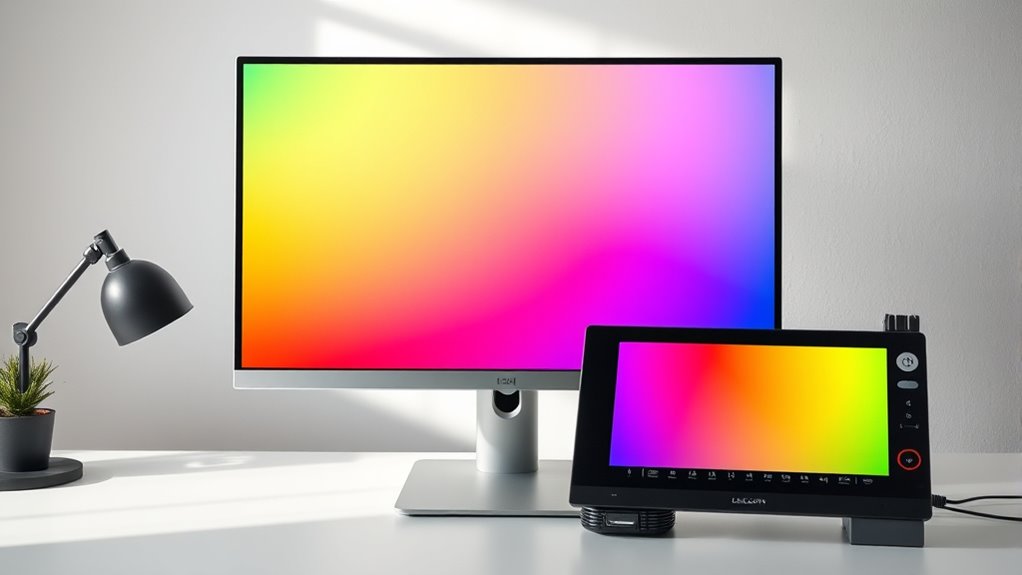

To make color calibration simple for your everyday monitor, start by choosing an easy-to-use calibration device like SpyderX or i1Display Pro and install the compatible software. Follow the guided steps to measure and adjust your screen’s colors, then save and apply the ICC profile. Regular re-profiling keeps your display accurate over time. Keep your setup consistent, and you’ll enjoy true-to-life colors—learn more to master the full process.
Key Takeaways
- Use user-friendly calibration software like DisplayCAL or Calman for simple ICC profile creation.
- Select an affordable hardware device such as SpyderX or X-Rite i1Display Pro for accurate measurements.
- Follow step-by-step instructions within the software to calibrate your monitor easily.
- Regularly reprofile your monitor to maintain color accuracy over time.
- Save and embed ICC profiles to ensure consistent, true-to-life colors across applications.

Datacolor SpyderExpress
QUICK & EASY COLOR CALIBRATOR: Whether you're editing photos, designing graphics, or producing content, SpyderExpress helps you view…
As an affiliate, we earn on qualifying purchases.
As an affiliate, we earn on qualifying purchases.
Understanding Why Color Calibration Matters for Daily Use
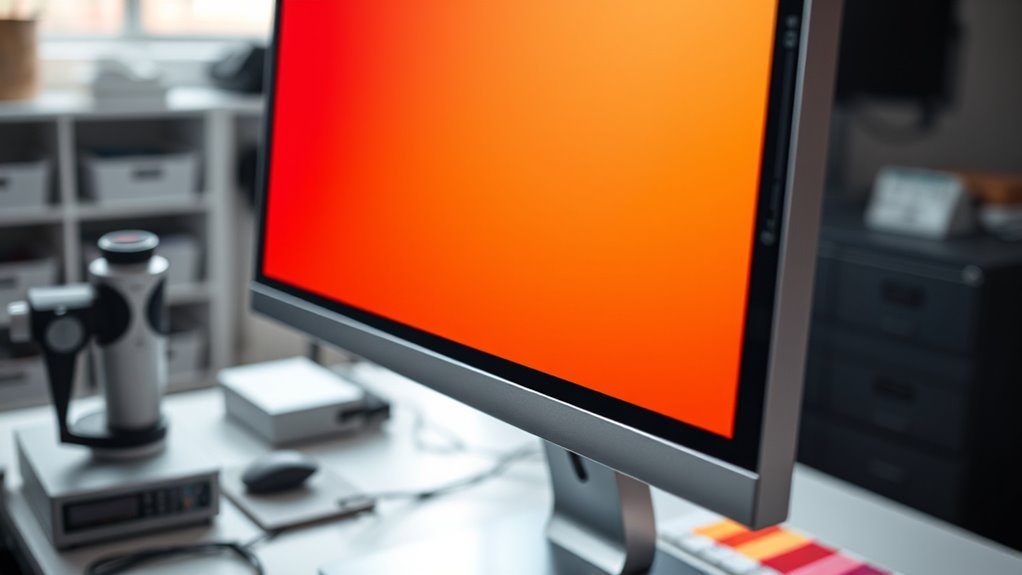
Color calibration matters for daily use because it guarantees your monitor displays colors accurately and consistently. When your display is properly calibrated, you see true colors, which is essential if you’re editing photos, designing graphics, or watching videos. Without calibration, colors can look dull, oversaturated, or off, leading to mistakes in your work or a less immersive viewing experience. Calibration corrects color deviations caused by manufacturing variability and aging, ensuring your monitor stays reliable over time. Even for everyday tasks like browsing or streaming, proper calibration provides a more natural, true-to-life picture. Modern calibration tools make the process straightforward, so you don’t need to be a tech expert. Regular calibration helps maintain color fidelity, giving you confidence in what you see on screen. Additionally, understanding monitor dynamics can help you optimize your setup for the best visual experience, especially considering factors like display aging that can affect color accuracy over time. Being aware of contrast ratio and how it influences image depth can further improve your viewing quality. Knowing how resources and tools can assist in calibration can further enhance your display’s performance. Moreover, understanding color calibration can help you achieve consistent results across multiple devices, ensuring your workflow remains precise.

Calibrite Display 123 Monitor Calibration Colorimeter for Photo Editing and Color Accurate Viewing, Easy 1 2 3 Software Workflow, USB C Connection, and Before and After Check, Supports 2 Displays
SPECIFICATIONS: Monitor calibration colorimeter with Easy 1 2 3 software workflow, USB C connection, compact body approx. 34mm…
As an affiliate, we earn on qualifying purchases.
As an affiliate, we earn on qualifying purchases.
The Tools You Need: Software and Hardware Options
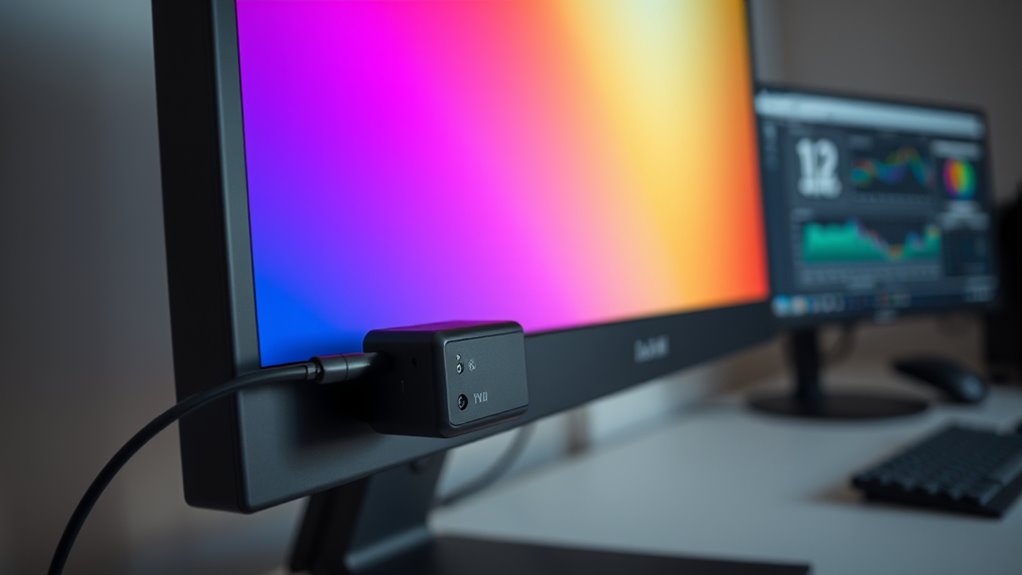
To effectively calibrate your monitor, you’ll need the right combination of software and hardware tools. Selecting the right options depends on your budget, skill level, and accuracy needs. For software, popular choices include DisplayCAL, which is open-source and versatile; X-Rite i1Profiler, offering professional calibration features; and Calman, suitable for high-precision tasks. Hardware tools are equally important: colorimeters like the SpyderX or X-Rite i1Display Pro provide fast, accurate measurements, while spectrophotometers deliver even higher precision for demanding tasks. Many calibration programs support multiple measurement devices, ensuring flexibility. Your goal is to get consistent, accurate color profiles, so choose tools that match your experience level and calibration goals for the best results. Additionally, understanding color accuracy is crucial for achieving reliable calibration outcomes. Considering the AI-driven advancements in calibration technology can also help you select more effective tools and methods. Incorporating display calibration standards ensures your monitor settings align with industry benchmarks for color fidelity.

ASUS ProArt CaliContrO MCA02 3-in-1 Colorimeter – Professional Color Calibrator, Hardware/Software Monitor Calibration Up to 10000nits, Display OSD Control, Dial, Adobe Software Compatible
3-in-1 multiple function with Colorimeter, Display OSD control and ASUS Dial features
As an affiliate, we earn on qualifying purchases.
As an affiliate, we earn on qualifying purchases.
How to Perform a Simple Calibration Step-by-Step
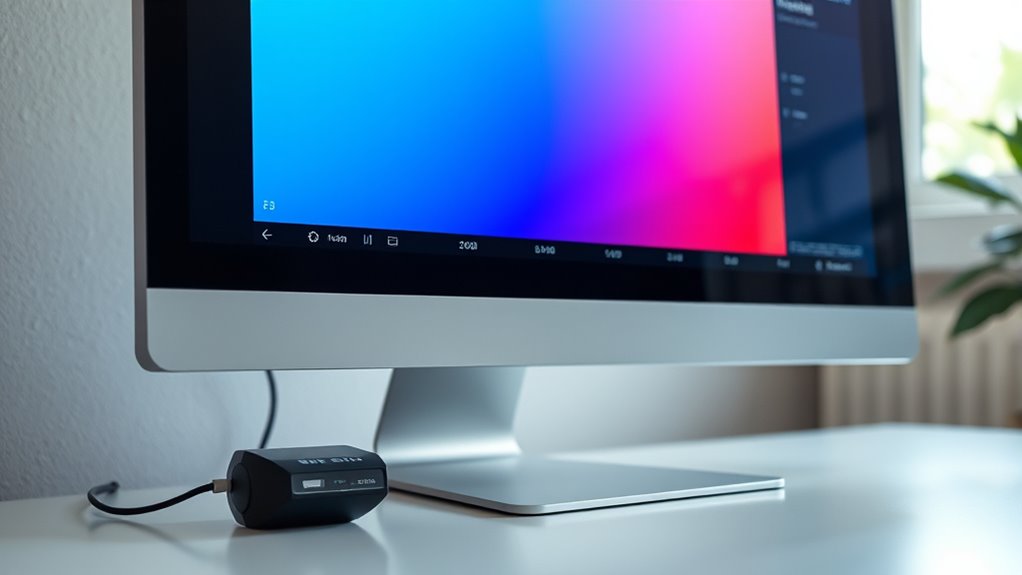
Performing a simple monitor calibration is straightforward and can greatly improve your display’s color accuracy. First, choose a compatible calibration device and install the software. Launch the program and select the basic calibration mode for easy, automated setup. Place the measurement device on your screen as instructed, ensuring it remains steady. Follow the on-screen prompts to adjust your monitor’s brightness, contrast, or RGB settings if needed, or let the software automatically handle these adjustments. Once the measurement is complete, save the ICC profile generated by the software. Apply this profile through your operating system’s display settings so that your monitor displays colors accurately across applications. This quick process helps guarantee consistent, true-to-life colors without requiring advanced technical knowledge. Additionally, understanding how color calibration impacts your visual workspace can enhance your overall experience. Regular calibration can also help prevent color inconsistencies over time, ensuring your display remains accurate. Developing a consistent calibration routine can improve your creative practice by maintaining reliable color fidelity in your work. Incorporating monitor adjustment techniques as part of your routine can further optimize your display performance. Moreover, utilizing proper calibration methods supports visual accuracy, which is crucial for tasks demanding precise color matching.

Calibrite Photo Kit w/Display Pro HL Monitor Calibration Colorimeter w/ColorChecker Passport Photo 2, Capture to Edit Color Workflow for RAW, Custom Camera Profiles, White Balance, Accurate Displays
SPECIFICATIONS: Photo workflow kit includes Display Pro HL high luminance monitor calibration colorimeter plus ColorChecker Passport Photo 2,…
As an affiliate, we earn on qualifying purchases.
As an affiliate, we earn on qualifying purchases.
Making the Most of ICC Profiles for Consistent Colors
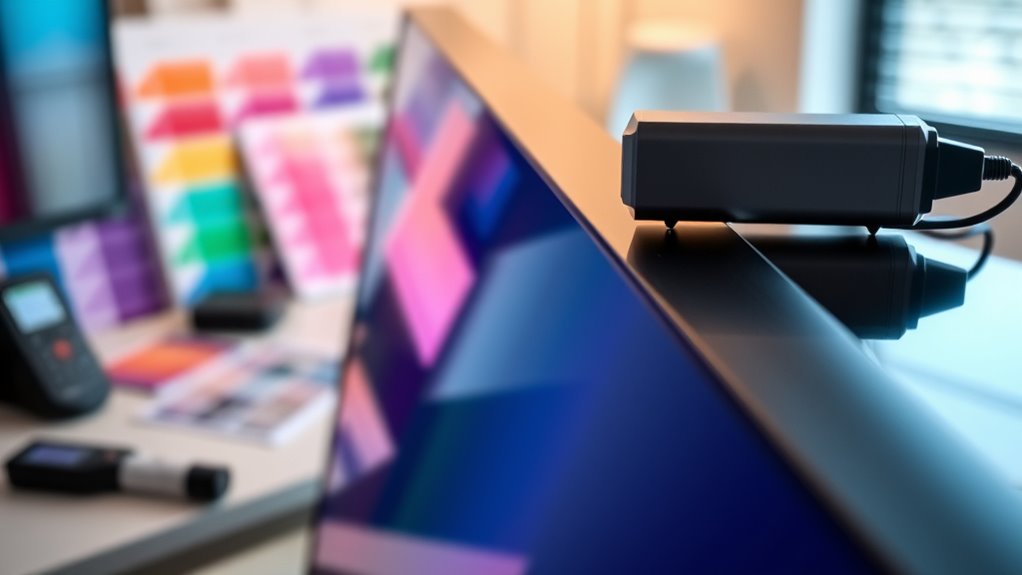
Leveraging ICC profiles effectively guarantees your monitor displays colors consistently across different applications and workflows. To maximize their benefits, always make certain your profile is up-to-date, especially after hardware changes or environmental shifts. Regularly re-profile your monitor to account for color drift over time. Use software that supports soft-proofing to preview how images will look on other devices or printers, reducing surprises in final outputs. Keep your calibration hardware calibrated and clean for accurate measurements. Additionally, embed ICC profiles directly into your images and document settings, so your color intent remains intact across platforms. Remember, profile management isn’t a set-it-and-forget-it task—maintaining awareness and consistency ensures your colors stay accurate and predictable. Understanding hardware calibration is essential to maintaining accurate color reproduction over time.
Overcoming Common Challenges in Monitor Calibration
Calibrating your monitor can present several challenges, especially for users unfamiliar with the process. One common issue is compatibility; not all calibration tools work seamlessly with every device or operating system. Environmental lighting can also skew measurements, so it’s best to calibrate in consistent, neutral lighting conditions. Adjusting display controls manually might seem intimidating, but automated calibration software simplifies this step. Overexposure or glare on the screen can impact accuracy, so ensure your workspace is well-lit but free of reflections. Hardware limitations, such as using basic colorimeters, may reduce precision. Regular re-profiling is essential to maintain color accuracy over time. By understanding these challenges and taking steps to mitigate them, you’ll achieve more reliable, consistent calibration results.
Frequently Asked Questions
Can I Calibrate My Monitor Without Any Special Hardware?
Yes, you can calibrate your monitor without special hardware using software solutions that rely on your device’s built-in sensors or camera. Some free tools, like DisplayCAL or online calibration websites, guide you through basic adjustments. Keep in mind, though, that these methods are less accurate than hardware calibration devices. For better results, consider investing in affordable colorimeters or spectrophotometers when you’re ready to improve color accuracy.
How Often Should I Re-Calibrate My Monitor for Best Results?
You should re-calibrate your monitor at least once a month for peak color accuracy. Even if you’re worried about the time commitment, regular calibration keeps colors consistent and prevents drift caused by aging or environmental changes. If you work professionally with images or video, consider calibrating weekly. Don’t wait until colors look off—staying on top of calibration ensures your display remains reliable for every project.
Are Free Calibration Tools as Accurate as Paid Ones?
Free calibration tools can be quite accurate, especially for general use like photo viewing or basic editing. They often use open-source software like DisplayCAL, which provides professional-level results when paired with good measurement hardware. However, paid tools usually offer more advanced features, better automation, and higher precision, making them ideal for professional work. If you’re a casual user, free options might be sufficient, but professionals benefit from paid solutions.
Will Calibration Improve My Monitor’s Color Accuracy for Gaming?
Yes, calibration can improve your monitor’s color accuracy for gaming by ensuring colors are consistent and vibrant. When you calibrate, you adjust settings or use software to correct color deviations, making visuals more realistic and immersive. This can enhance your gaming experience, especially in titles with rich graphics or color-sensitive elements. Regular calibration keeps colors accurate over time, so your monitor performs at its best during every gaming session.
Is Calibration Necessary for All Types of Monitors, Including Laptops?
Calibration is beneficial for all monitors, including laptops, because it guarantees accurate and consistent colors. Even built-in displays can drift over time due to hardware aging or environmental factors. By calibrating your laptop, you improve color fidelity for tasks like photo editing, design, or simply viewing content more accurately. Modern tools make calibration easier, so you don’t need to be an expert. Regular calibration keeps your display performing at its best.
Conclusion
Now that you know how to calibrate your monitor, you hold the key to colors as vivid as a painter’s palette. Think of ICC profiles as your trusty map guiding every hue and shade, ensuring consistency from day to night. With a little practice, you’ll turn your everyday display into a window of true-to-life colors, making your digital experience as smooth as a well-tuned instrument. Immerse yourself and let your screen shine with confidence!