
To build a two-monitor setup that truly helps, start by choosing adjustable arm mounts to position screens at eye level and at an arm’s length away to reduce neck and eye strain. Calibrate each monitor for accurate color and brightness, and organize cables for a tidy space. Use software to manage window layouts effectively, and incorporate ergonomic accessories like wrist rests. Proper setup promotes comfort and productivity—keep exploring for more tips on creating the ideal workspace.
Key Takeaways
- Use adjustable monitor arms to set monitors at eye level and optimize angles for comfort.
- Calibrate each monitor for consistent color, brightness, and contrast to reduce eye strain.
- Organize cables with clips or sleeves to maintain a tidy, safe workspace.
- Assign applications to specific screens and utilize software for efficient window management.
- Regularly review and adjust monitor positions and ergonomic accessories for sustained comfort.
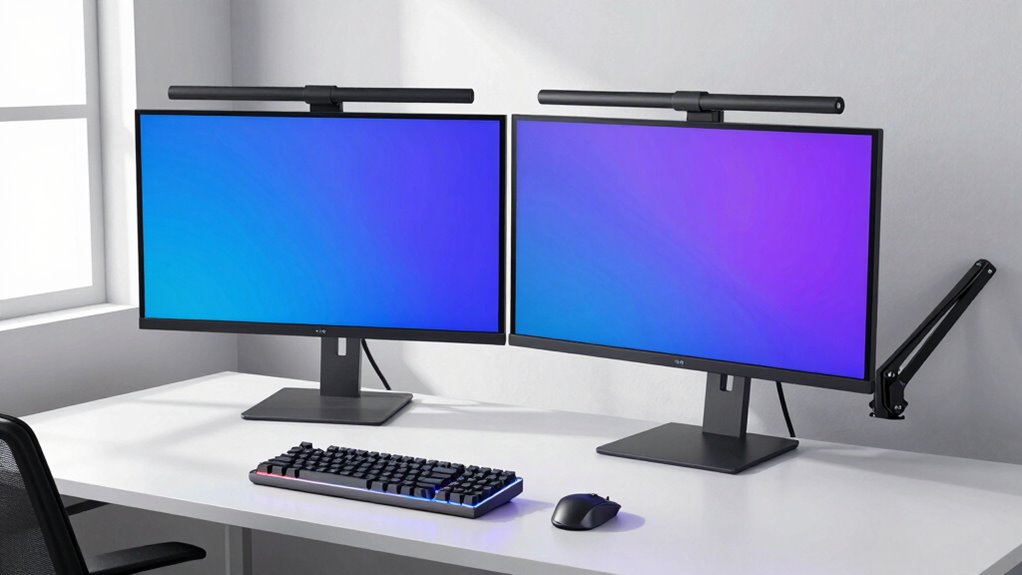
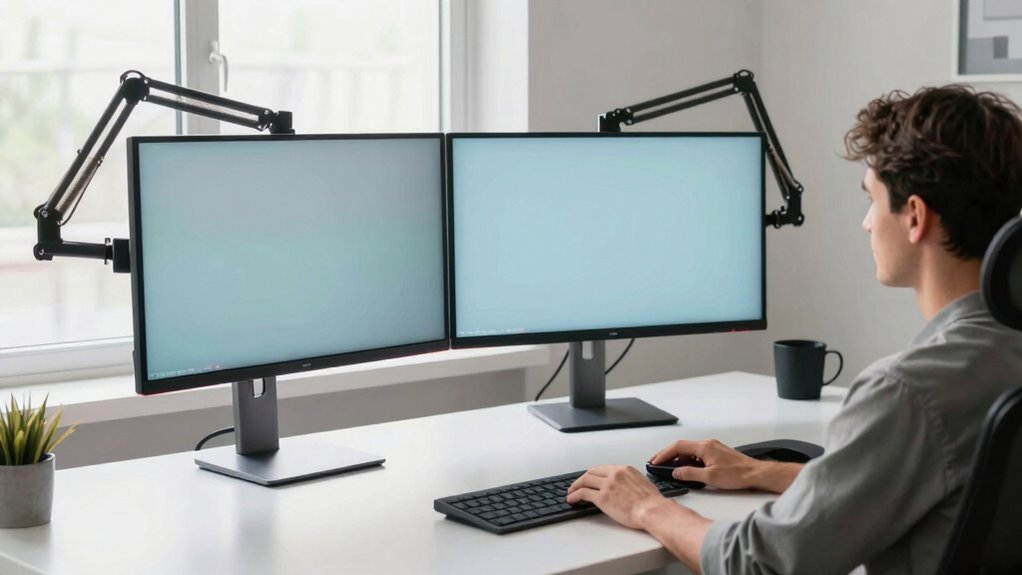
Setting up a two-monitor workspace can substantially boost your productivity and streamline your workflow. To get the most out of this setup, focus on creating a comfortable, efficient environment. Start by choosing the right ergonomic accessories, such as adjustable monitor arms, keyboard stands, and anti-fatigue mats. These accessories help you maintain proper posture, reducing strain on your neck, back, and wrists. Proper positioning is essential; your monitors should be at eye level, about an arm’s length away, with the top of the screens slightly below your eye line. This setup minimizes neck strain and encourages good posture during long work sessions.
Optimize your workspace with ergonomic accessories and monitor positioning for greater comfort and productivity.
Once you’ve positioned your monitors, it’s imperative to calibrate them correctly. Monitor calibration ensures consistent color accuracy, brightness, and contrast, which is especially important if your work involves design, photo editing, or any task that relies on color precision. Use built-in calibration tools or external calibration devices to fine-tune your screens. Proper calibration prevents eye fatigue and makes it easier to distinguish details across both displays, creating a seamless visual experience. Additionally, Monitor calibration can contribute to a more accurate and comfortable viewing experience over extended periods. Regularly reviewing your calibration settings can help maintain optimal display quality as your monitors age or ambient lighting conditions change. Understanding color accuracy and how it impacts your work can help you make better adjustments and improve your overall visual experience. Incorporating display settings adjustments tailored to your specific environment can further optimize your viewing comfort and productivity. Recognizing the importance of visual ergonomics can help prevent long-term strain and discomfort.
Connecting your monitors is straightforward, but pay attention to cable management. Use cable clips or sleeves to keep cords tidy and prevent accidental tugs that could misalign your monitors. Good cable management not only enhances the aesthetics but also minimizes clutter, making your workspace safer and more organized. If your monitors have different sizes or resolutions, adjust display settings accordingly, ensuring that scaling and resolution are optimized for each screen. This step helps avoid mismatched text sizes or awkward transitions between screens, which can be distracting or reduce productivity.
Software plays a critical role in maximizing your dual-monitor setup. Take advantage of your operating system’s features, such as extending your desktop across both screens or setting up specific workspaces for different tasks. Many systems allow you to assign specific applications to certain monitors, which can help you stay organized. Installing additional software, like display management tools, can provide even more control, allowing you to quickly switch between configurations or create custom layouts. This level of customization can significantly enhance your workflow efficiency and reduce the time spent adjusting window arrangements.
Finally, make sure your workspace remains ergonomic over time. Regularly review your setup, adjusting monitor angles and heights as needed. Incorporate ergonomic accessories like wrist rests or footrests if necessary, and always keep your workspace well-lit to reduce eye strain. Proper ergonomic setup is crucial for long-term comfort and health, especially during extended work periods. By paying attention to calibration, ergonomics, and organization, you’ll create a two-monitor setup that genuinely enhances your productivity and comfort, making your workday smoother and more efficient.
As an affiliate, we earn on qualifying purchases.
Frequently Asked Questions
What Is the Ideal Monitor Size for Productivity?
The ideal monitor size for productivity is usually between 24 and 27 inches, offering a good balance between screen real estate and desk space. You should consider monitor placement for ergonomic comfort, ensuring screens are at eye level. Opt for high screen resolution, like 1080p or 1440p, to keep visuals sharp and reduce eye strain. This size and setup help you work efficiently without feeling overwhelmed or cramped.
How Do I Manage Cable Clutter Effectively?
To manage cable clutter effectively, start with cable management solutions like clips, sleeves, or Velcro straps to organize your cords. Use a cable tray or raceway under your desk for clutter reduction, keeping cables out of sight. Label cords for easy identification, and route them neatly along your monitor stands or desk edges. This approach keeps your workspace tidy, improves aesthetics, and makes it easier to troubleshoot or rearrange your setup quickly.
Can I Use Different Monitor Brands Together?
Yes, you can use different monitor brands together, but consider brand compatibility and display synchronization. Make sure both monitors support similar resolutions, refresh rates, and color profiles for a seamless experience. Check if they work well with your graphics card and if their settings can be synchronized. While mixing brands is possible, matching specifications helps avoid display issues and creates a more cohesive, productive workspace.
What Are the Best Ergonomic Adjustments for Dual Monitors?
Adjusting your dual monitors is like tuning a musical instrument—you need harmony for comfort. Start with ergonomic chair positioning so your feet rest flat and your back is supported. Align your monitor heights to eye level, ensuring your neck stays neutral. Keep monitors roughly the same distance apart and at a slight angle, reducing strain. These ergonomic tweaks make long work sessions more comfortable and boost your productivity.
How Do I Calibrate Color Accuracy Across Both Screens?
To calibrate color accuracy across both screens, start with color calibration tools like a colorimeter or software calibration. Adjust each monitor’s settings for brightness, contrast, and color temperature to match. Use monitor synchronization features or calibration software to guarantee consistent color profiles. Regularly recheck calibration, especially if lighting conditions change, to maintain uniformity. This process ensures your dual monitors display accurate, consistent colors, boosting your workflow.
Conclusion
Remember, two heads—or screens—are better than one. Setting up a dual-monitor workspace can boost your productivity and make multitasking smoother. Just follow the steps, optimize your positioning, and customize your settings. Don’t forget, Rome wasn’t built in a day, so be patient as you fine-tune your setup. With a little effort, you’ll turn your workspace into a powerhouse of efficiency, proving that two monitors truly can be a game-changer.