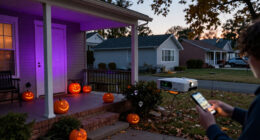
To set up your smart doorbell, start by connecting it to your Wi-Fi network using the dedicated app on your smartphone. Mount the unit about 48 inches off the ground, ensuring it’s free of obstructions and faces the desired area. Follow prompts to enable features like motion alerts and update the firmware for stability. Keep the camera lens clean and check the Wi-Fi signal strength. For detailed tips on optimizing performance, there’s more to discover as you continue.

Get the latest gadgets delivered free with Prime
- Fast, free delivery on millions of items
- Prime Video, Amazon Music and more included
- Member-only deals all year
Key Takeaways
- Connect the doorbell to Wi-Fi by downloading the app and entering your network details.
- Mount the doorbell at about 48 inches high, ensuring a clear view and minimal obstructions.
- Configure app settings for motion alerts, video quality, and firmware updates for optimal performance.
- Test the live video feed and recording features in various lighting conditions for reliability.
- Maintain a strong, stable Wi-Fi connection and keep the lens clean for clear footage.

Setting up a smart doorbell is a straightforward process that enhances your home security and convenience. The first step involves connecting your device to your Wi-Fi network, which relies on wireless connectivity. Make sure your smartphone is nearby and connected to the same Wi-Fi network you plan to use with your doorbell. Most smart doorbells come with a dedicated app, so download it from your app store and follow the initial setup instructions. When prompted, turn on your doorbell and select your Wi-Fi network. Enter your Wi-Fi password to establish a reliable connection, guaranteeing your device stays connected even when you’re away.
Once connected to your Wi-Fi, focus on the video resolution. Your smart doorbell’s video quality plays a critical role in identifying visitors, so check the specifications to understand its capabilities. Higher video resolution, like 1080p or above, provides clearer images and better detail, which is essential for security. Before mounting the doorbell, test its video feed through the app to see how it performs in different lighting conditions. If the resolution isn’t satisfactory, consider adjusting the camera settings if available or choosing a doorbell model with a higher resolution for sharper images.
Mounting the device correctly is key to optimizing both wireless connectivity and video quality. Place the smart doorbell at the right height, typically around 48 inches from the ground, so it captures faces clearly. Avoid positioning it too close to metal surfaces or electronic devices that could interfere with the wireless signal. Keep the camera lens clean and free of obstructions to guarantee the highest video resolution and clear footage. Additionally, understanding the caffeine content of different beverages can help you choose the best times for coffee or hot chocolate to suit your daily routine without disrupting your sleep schedule.
Once installed, configure the app’s settings to maximize your smart doorbell’s features. Enable motion detection alerts to be notified of activity at your door, and customize the sensitivity to avoid false alarms. Make sure your device’s firmware is up to date, as updates often improve connectivity stability and video quality. Test the live feed and recorded videos regularly to verify that the wireless connection remains stable and that the video resolution meets your expectations. A secure, strong Wi-Fi signal is essential for seamless operation, so consider upgrading your router if you experience buffering or poor image quality.
As an affiliate, we earn on qualifying purchases.
Frequently Asked Questions
How Do I Troubleshoot Wi-Fi Connectivity Issues?
To troubleshoot Wi-Fi connectivity issues, first check your Wi-Fi signal strength near the doorbell. If it’s weak, consider improving your router placement—move it closer or higher up for better coverage. Restart your router and doorbell device to refresh the connection. Make sure your network isn’t overloaded with devices. Updating your device firmware can also resolve bugs, ensuring a smoother connection and proper functioning of your smart doorbell.
Can I Integrate the Doorbell With Existing Smart Home Devices?
Did you know over 80% of smart homeowners integrate multiple devices? You can definitely connect your doorbell with existing smart home devices. Check your doorbell’s compatibility list to guarantee it works with your smart home ecosystem, like Alexa, Google Assistant, or Apple HomeKit. Using compatible devices, you can automate alerts, open doors, or view footage seamlessly. Integration enhances security and convenience, making your smart home truly intelligent and effortless to manage.
What Are the Best Practices for Securing My Doorbell’s Data?
To secure your doorbell’s data, prioritize privacy concerns by using strong encryption methods like WPA3 for your Wi-Fi network. Change default passwords and enable two-factor authentication where possible. Regularly update your doorbell’s firmware to patch security vulnerabilities. Be mindful of data sharing settings, and consider using a separate network for your smart devices. These steps help protect your privacy and prevent unauthorized access to your smart doorbell.
How Do I Update the Doorbell’s Firmware?
Imagine you’re dialing up a rotary phone—updating your smart doorbell’s firmware is just as easy. To do it, open the app, navigate to device settings, and look for firmware update options. Make sure your device is connected to Wi-Fi and compatible with the latest firmware version. Follow prompts to complete the update, ensuring your device remains secure and functions smoothly with the newest features and improved device compatibility.
What Should I Do if the Doorbell Is Not Detecting Motion?
If your smart doorbell isn’t detecting motion, first check the motion detection settings and make sure they’re enabled and properly configured. Next, perform sensor calibration by adjusting the camera angle or sensitivity levels to improve detection accuracy. Make sure the sensor isn’t obstructed by dirt, debris, or objects. Testing the detection after adjustments helps confirm it’s working correctly. Regularly updating firmware can also enhance motion detection features.
Conclusion
Now that your smart doorbell is set up, it’s like you’ve planted a vigilant eye at your doorstep—a guardian that watches and welcomes. Every chime is a heartbeat, every notification a whisper from your home’s soul. With this device, you’re not just securing your space; you’re opening a window to connection and peace of mind. Embrace this symbol of modern safety, knowing your home is protected by technology as steadfast as your own watchful presence.
Halloween Picks
halloween
As an affiliate, we earn on qualifying purchases.