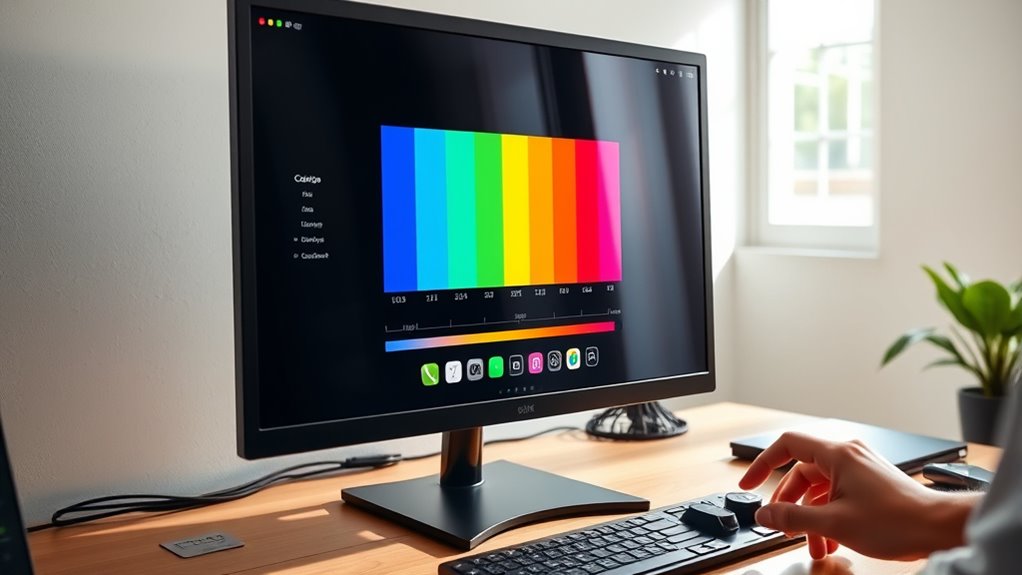

To calibrate your monitor at home, start by dimming ambient lights and warming up your display for at least 30 minutes. Use a quality hardware calibration device like a colorimeter or spectrophotometer, along with calibration software, to measure and modify your monitor’s brightness, contrast, gamma, and white point. Regular calibration helps keep colors accurate over time and improves your viewing experience. If you keep going, you’ll discover simple steps to guarantee professional-level results.

Get the latest gadgets delivered free with Prime
- Fast, free delivery on millions of items
- Prime Video, Amazon Music and more included
- Member-only deals all year
Key Takeaways
- Use a hardware calibration device like a colorimeter for accurate color adjustments.
- Perform calibration in a neutral, well-lit environment after the monitor has warmed up for 30 minutes.
- Follow calibration software instructions to adjust gamma, white point, and luminance settings precisely.
- Calibrate regularly, at least once a month, to maintain consistent color accuracy over time.
- Save and apply calibration profiles to ensure your display remains consistent across applications.
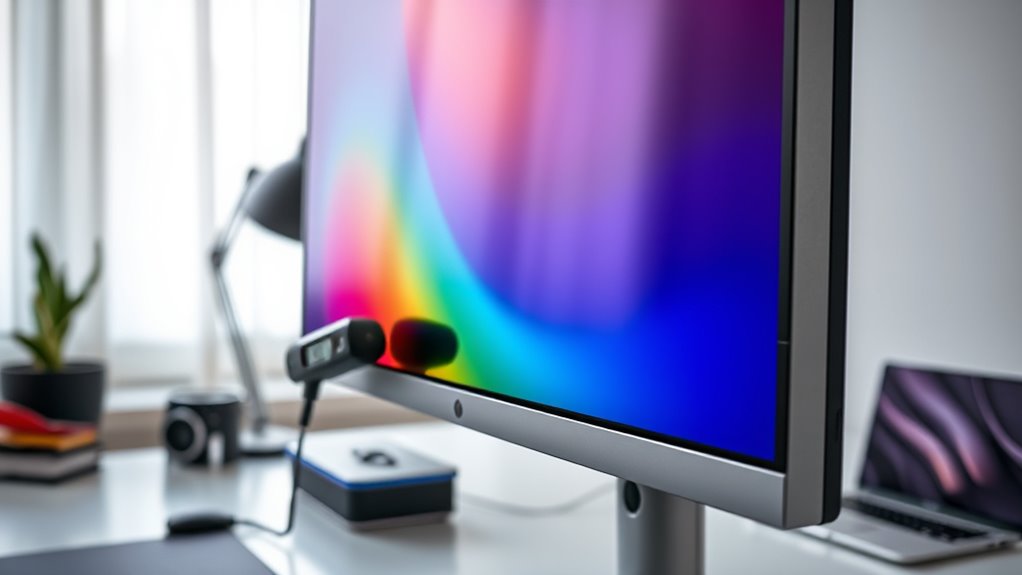
Calibrating your monitor guarantees that the colors, brightness, and contrast are accurate, which is vital whether you’re editing photos, designing graphics, or simply enjoying visual content. When your display isn’t calibrated properly, colors can appear washed out, overly vibrant, or dull, leading to misinterpretations of your work or an unsatisfactory viewing experience. To achieve the best possible color accuracy, you need to perform hardware calibration, a process that adjusts your monitor’s internal settings to match a known standard. Unlike software adjustments, hardware calibration involves using a specialized device called a colorimeter or spectrophotometer, which measures the display’s output directly. This device communicates with calibration software, guiding you through precise adjustments to your monitor’s gamma, white point, and luminance. Regular calibration helps prevent color shifts and ensures consistent output over time.
By investing in hardware calibration tools, you guarantee that your monitor consistently produces true-to-life colors. This is especially important for professionals who depend on accurate color reproduction, such as photographers, graphic designers, and videographers. Calibration hardware works by sending signals to your monitor, fine-tuning its internal settings to eliminate color shifts and inconsistencies. Once calibrated, your display will match industry standards, making your work reliable across different devices and platforms. Many calibration devices come with user-friendly software that simplifies the process, guiding you step-by-step to achieve ideal results.
It’s best to calibrate your monitor regularly—at least once a month—since displays can drift over time due to aging components or ambient lighting conditions. Consistent calibration helps maintain color accuracy and prevents headaches caused by viewing mismatched hues or contrast issues. Keep in mind that calibration isn’t a one-and-done task; it’s an ongoing process to ensure your display remains precise. Remember to perform calibration in a neutral-lit environment, avoiding direct sunlight or bright lights that can skew measurements. Also, make sure your monitor has been on for at least 30 minutes, allowing it to warm up and stabilize before calibration.
As an affiliate, we earn on qualifying purchases.
Frequently Asked Questions
How Often Should I Recalibrate My Monitor?
You should recalibrate your monitor every 4 to 6 weeks to maintain ideal visual consistency. Regular calibration ensures colors stay accurate, which is especially important for photo editing or design work. If you notice colors look off or your screen’s brightness seems inconsistent, it’s time to recalibrate sooner. Consistent calibration helps you achieve reliable results and prevents color drift, keeping your display visually accurate and consistent over time.
Can I Calibrate a Laptop Monitor Effectively?
Absolutely, you can calibrate a laptop monitor effectively. While it might seem challenging due to hardware variability, using the right calibration software guarantees precision. Just check your laptop’s hardware compatibility before starting, and choose software compatible with your device. Keep in mind, calibration improves display accuracy, whether on a high-end or budget laptop, making your colors and details more true-to-life.
What Tools Are Best for Monitor Calibration?
You should use a reliable colorimeter, like the X-Rite i1Display Pro or Datacolor SpyderX, for accurate calibration. Pair it with user-friendly calibration software such as CalMAN or SpyderX Elite to fine-tune your monitor’s color settings. These tools guarantee your display shows true-to-life colors, making them ideal for photography, video editing, or any task where color precision matters most.
Does Calibration Improve Color Accuracy for Gaming?
Yes, calibration improves color accuracy, which directly enhances your gaming experience. With a properly calibrated monitor, you’ll enjoy better color consistency, making visuals more vibrant and precise. This can give you a competitive edge by accurately displaying in-game details. Regular calibration guarantees your monitor maintains peak performance, so your gaming performance stays excellent, and you get the most immersive, visually stunning experience every time you play.
Can Calibration Fix Display Brightness Issues?
Think of your monitor’s brightness as the lights in a room – if they’re flickering or uneven, calibration can help. Yes, calibration can fix display brightness issues by fine-tuning brightness adjustment, leading to better display consistency. You’ll notice more uniform lighting across the screen, reducing eye strain and improving your viewing experience. Regular calibration guarantees your display remains true to life and prevents brightness problems from lingering or worsening over time.
Conclusion
By calibrating your monitor at home, you’re not just improving your display; you’re trusting your eyes to see the world accurately. Think of it like tuning a musical instrument—small adjustments can make a big difference. Some say perfect calibration is impossible, but that’s a myth. When you take control of your screen’s color, you’re embracing precision and reality, proving that even in the digital world, a little effort can lead to a clearer, more authentic view of everything around you.
Fall Picks
fall essentials
As an affiliate, we earn on qualifying purchases.