To build a better workflow across devices, choose platforms like Kindle, Evernote, or Notion that sync highlights and annotations automatically. Use consistent color-coding and add notes or questions to engage actively. Organize your content with folders or tags for quick access. Regularly review and update your highlights, and develop a habit of summarizing key points. Keep exploring these strategies to streamline your process and make your overall approach more efficient.

Get the latest gadgets delivered free with Prime
- Fast, free delivery on millions of items
- Prime Video, Amazon Music and more included
- Member-only deals all year
Key Takeaways
- Use cross-platform apps like Kindle, Evernote, or Notion to sync highlights and annotations seamlessly across devices.
- Maintain consistent highlighting and annotation practices to ensure uniformity and easy retrieval.
- Organize materials with folders or tags for quick access and streamlined review across devices.
- Regularly review and reorganize highlights to reinforce learning and keep workflows efficient.
- Develop habits of summarizing and reflecting on readings to deepen comprehension and retention.
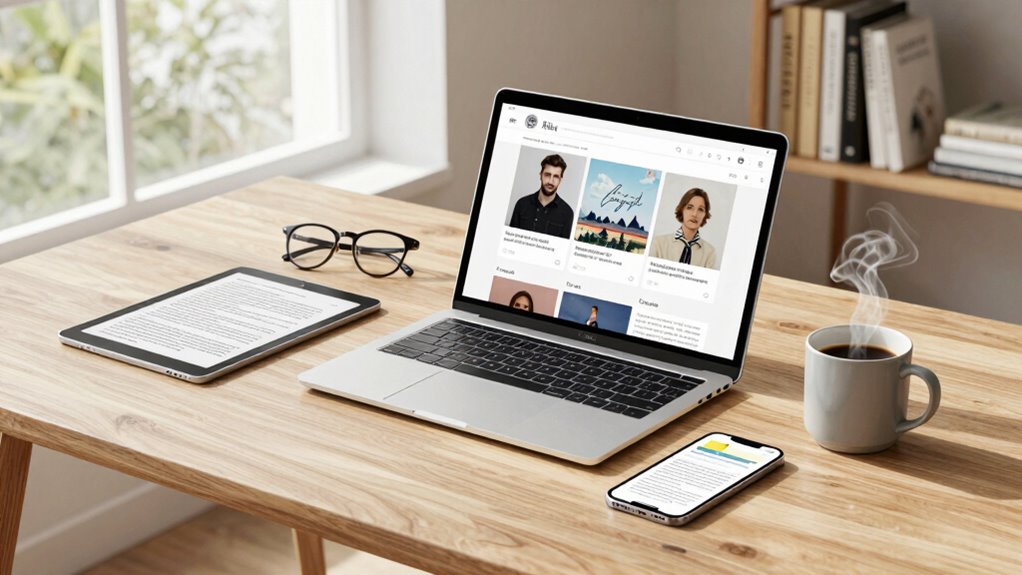
Are you tired of feeling overwhelmed by your reading list? Building a better reading workflow across devices can help you stay organized, focused, and efficient. The key is to leverage the right tools and techniques so your reading becomes more intentional and less chaotic. One of the most effective ways to do this is by mastering highlighting techniques. When you read, don’t just passively absorb information—actively engage with the material by highlighting key points, concepts, and quotes. This helps you quickly locate important information later and reinforces your understanding. Use a consistent method for highlighting, such as color-coding for different themes or types of information. For example, you might highlight definitions in yellow, main ideas in blue, and examples in green. This visual organization makes reviewing much faster and more effective.
Highlight key points with consistent color-coding to boost focus and quick review.
Alongside highlighting techniques, incorporating annotation tools into your workflow is crucial. Annotation tools allow you to add notes, comments, or questions directly onto your digital texts, creating a personalized interaction with the material. When you’re reading on different devices—like a tablet, e-reader, or laptop—these tools enable you to keep all your insights in one place, regardless of the platform. For instance, many e-reading apps let you highlight passages and attach notes without disrupting your reading flow. This way, you can jot down a quick thought or clarification on the spot, which saves time and prevents you from forgetting your insights. By integrating annotation tools, you turn passive reading into an active learning process, deepening your comprehension.
To build a seamless workflow across devices, choose a reading platform that syncs effortlessly. Apps like Kindle, Evernote, or Notion are excellent options because they maintain your highlights and annotations across all your devices. Whenever you switch from your phone to your tablet or computer, your notes follow you automatically. This eliminates the frustration of losing your progress or having to redo highlights and annotations. Additionally, organizing your reading materials into folders or tags helps you quickly locate specific topics later on. Set aside dedicated time to review and reorganize your highlights regularly. Doing so reinforces your learning and keeps your reading workflow streamlined.
Finally, develop a habit of summarizing your readings after each session. Use your highlights and annotations to craft quick summaries or reflections, which you can save in your note app or digital journal. This practice turns passive reading into active retention, making your overall workflow more effective. By combining thoughtful highlighting techniques, efficient annotation tools, and syncing across devices, you’ll transform your reading routine into a powerful, organized process that supports both comprehension and retention.
Products Worth Considering

Amazon Kindle Paperwhite Signature Edition (12th Generation, 2024), 32 GB, Metallic Black

Amazon Kindle Paperwhite (12th Generation, 2024), 16 GB, 7-inch Display, Jade

Amazon Kindle Scribe Colorsoft 64GB (1st Generation)
As an affiliate, we earn on qualifying purchases.
Frequently Asked Questions
How Do I Sync Highlights and Notes Across Devices?
You can sync highlights and notes across devices by using apps that support highlight syncing and note sharing, like Kindle, Evernote, or OneNote. Make sure you’re logged into the same account on all devices. When you save your highlights and notes, they automatically sync, keeping everything up-to-date. Enable sync options in your app settings, and you’ll easily access your highlighted content and shared notes wherever you go.
What Apps Are Best for Cross-Device Reading?
You should try apps like Kindle, which offers excellent annotation tools and syncs seamlessly across devices, helping you improve your reading speed and keep notes consistent. Pocket is great for saving articles and highlights, while Instapaper provides clean reading views and annotation features. These apps enhance your cross-device reading experience by allowing you to easily access your annotations and quickly pick up where you left off, boosting your overall reading efficiency.
How Can I Manage Notifications During Reading?
Want to keep your reading sacred from the chaos of notifications? Turn on Do Not Disturb mode, silence those pesky alerts, and prioritize distraction reduction. Use app-specific notification settings to block interruptions during your reading sessions. By doing so, you enhance your focus, creating a distraction-free zone that lets you immerse fully in your material. Remember, your reading time deserves respect—treat it like a VIP, not a notification magnet.
What Is the Best Way to Organize Saved Articles?
To organize your saved articles effectively, focus on bookmark management and clear article categorization. Use folders or tags within your bookmarking tool to separate articles by topics, priority, or projects. Regularly review and delete outdated saves to keep your collection manageable. This system helps you quickly locate articles when needed, maintains your workflow, and guarantees your reading list stays organized across all your devices.
How Do I Ensure Readability in Different Lighting Conditions?
Coincidences often remind you how unpredictable lighting can be, so you adjust screen brightness to match your environment, ensuring ideal readability. By setting your device’s auto-brightness or manually tweaking it, you reduce eye strain and improve eye comfort. Additionally, enabling dark mode or using reading modes can make reading easier across different lighting conditions, helping you stay comfortable and focused, whether indoors or outdoors.
Conclusion
By streamlining your reading workflow across devices, you’re paving the way for a smoother, more productive experience. Embrace the tools and habits that keep your reading seamless, and soon you’ll find yourself swimming effortlessly through your content, no matter where you are. Remember, a well-oiled system isn’t built in a day, but once in place, it’s like riding a bike—once you get the hang of it, you’ll wonder how you ever did without it.