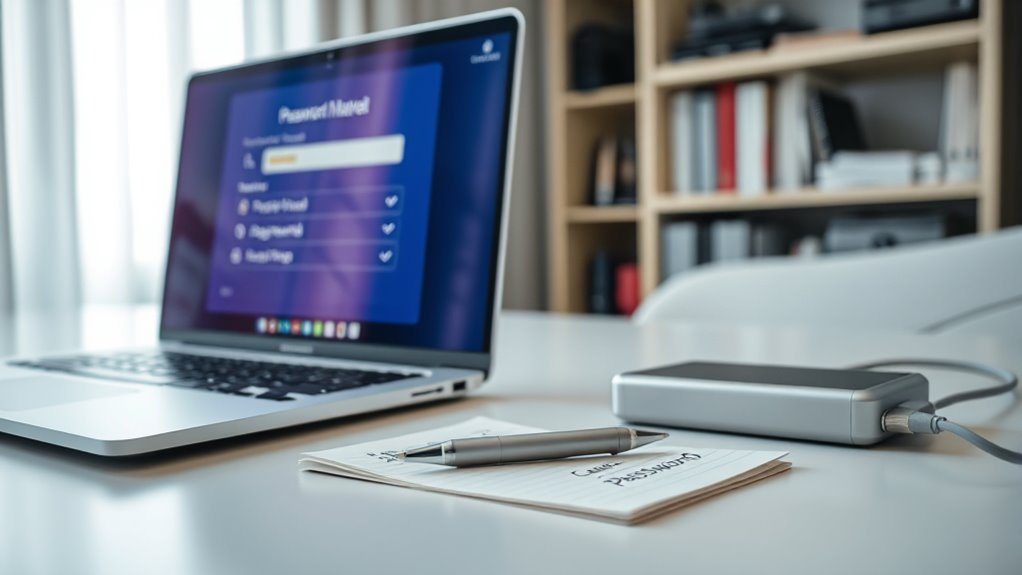

To back up your passwords safely, use a trusted password manager that encrypts your data with strong standards like AES-256. Export your passwords into an encrypted file and store it securely offline, such as on an external drive or USB stick, keeping it protected with a strong password. For added safety, maintain multiple backups in different locations and consider encrypted cloud storage. If you want to learn more about keeping your passwords secure, keep going for detailed tips.

Get the latest gadgets delivered free with Prime
- Fast, free delivery on millions of items
- Prime Video, Amazon Music and more included
- Member-only deals all year
Key Takeaways
- Use a reputable password manager with AES-256 encryption to securely store and generate passwords.
- Export password data as encrypted files and store them offline on external drives or USB sticks.
- Create multiple backups in different physical locations and consider encrypted cloud storage for added security.
- Encrypt backup files with strong passwords and avoid storing unencrypted backups in insecure locations.
- Regularly test backup restoration processes to ensure data integrity and quick recovery when needed.

Have you ever thought about what would happen if you lost access to your passwords? It’s a scenario that can cause serious trouble, especially if you don’t have a secure backup. That’s why backing up your passwords is essential. One of the best ways to manage this is by using a reliable password manager. These tools store your passwords securely and can generate strong, unique passwords for each of your accounts. When you choose a password manager, look for one that employs robust encryption methods—like AES-256 encryption—to protect your data. This means that even if someone intercepts your stored information, they won’t be able to decipher it without the decryption key, which only you hold. Encryption methods are the backbone of password security; they scramble your passwords into unreadable code, ensuring that only authorized access is possible.
To back up your passwords safely, start by exporting your password database from your password manager. Most reputable managers allow you to do this in an encrypted file, which you should store securely. Avoid saving this backup on cloud services or unencrypted drives, as these can be vulnerable to hacking. Instead, consider using an external hard drive or a USB stick that you keep in a safe place. For added security, encrypt the backup file itself with a strong password before storing it. This way, even if someone gains access to your backup, they won’t be able to read your passwords without the encryption key. Additionally, understanding encryption standards is crucial to ensuring your backup remains secure from unauthorized access.
Another smart step is to create multiple backups in different locations. For example, you might keep one encrypted backup on a physical device at home and another in a secure, cloud-based service that offers end-to-end encryption. Just make sure the cloud provider complies with strong encryption standards and has a solid privacy policy. Regularly updating and testing your backups ensures you’re not caught off guard if you ever need to restore your passwords.
encrypted USB flash drive for password backup
As an affiliate, we earn on qualifying purchases.
As an affiliate, we earn on qualifying purchases.
Frequently Asked Questions
What Are the Best Tools for Securely Backing up Passwords?
You should use trusted password managers with strong security features for password manager security, like LastPass or Dashlane. For offline backup methods, consider securely saving your master password on a physical device, like an encrypted USB drive, or writing it down and storing it in a safe place. Combining these tools guarantees your passwords stay protected even if online systems are compromised, giving you peace of mind.
How Often Should I Update My Password Backup?
You should update your password backup at least every three to six months to guarantee your data stays current and secure. Following backup schedule best practices, set reminders to review and refresh your passwords regularly. If you notice any security breaches or password leaks, update your backups immediately. Consistent password update frequency helps prevent unauthorized access and keeps your accounts protected, making your overall security strategy more effective.
Can Cloud Storage Be a Safe Option for Password Backups?
They say “trust but verify,” and that’s true for cloud storage as well. Cloud security can be safe for password backups if you choose reputable providers that use strong data encryption. Always enable two-factor authentication and regularly review your security settings. While no system is completely foolproof, with proper precautions, cloud storage can be a convenient and secure option for backing up your passwords.
What Are Common Mistakes to Avoid When Backing up Passwords?
You should avoid common mistakes like neglecting password encryption, which leaves your backups vulnerable. Never rely on a single backup method; practice backup redundancy by storing copies in different secure locations. Also, don’t share your passwords or store them in plain text files. Always double-check your backups for accuracy, update them regularly, and confirm your storage solutions have strong security measures to protect your sensitive information.
How Do I Recover Passwords if I Lose My Backup?
If you lose your backup, don’t panic—try password recovery methods like reset links, security questions, or two-factor authentication. Verify your backup regularly to guarantee it’s current and accessible. Think of your backup as a safety net; without it, you rely on recovery options. Keep your contact info updated, use secure recovery methods, and remember that a reliable backup process helps you bounce back quickly and confidently.
Conclusion
Don’t let the fear of losing your passwords hold you back. Imagine waking up to find your account access gone after a device failure or theft — chaos, frustration, and hours lost. Backing up your passwords guarantees you’re prepared for any mishap. It’s a simple step that gives you peace of mind, knowing your digital life is safe and accessible whenever you need it. Take action today, so you’re never caught unprepared tomorrow.
Fall Picks
fall essentials
As an affiliate, we earn on qualifying purchases.