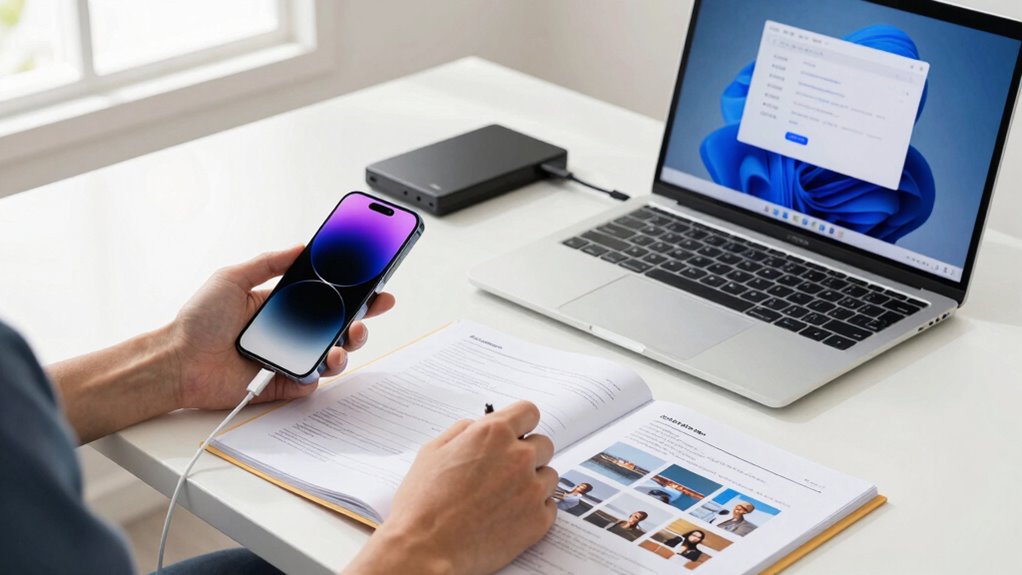

Before switching to a new phone, back up your data using built-in options like Google Drive or iCloud to securely store contacts, photos, and app info. During setup, use transfer apps or cables to move everything seamlessly, then verify that your apps, contacts, and media are intact. Double-check your transfer before resetting the old device to protect your important stuff. Keep going to discover more tips on ensuring a smooth switch.
Key Takeaways
- Backup your data securely using cloud services like Google Drive or iCloud before starting the transfer.
- Use official transfer apps or cables during setup to ensure all apps, settings, and data move seamlessly.
- Connect both devices to Wi-Fi and power to prevent interruptions during the transfer process.
- Verify that contacts, photos, messages, and apps are correctly transferred and functioning on the new device.
- Reset your old device only after confirming successful transfer and data safety, then wipe it for resale or gifting.
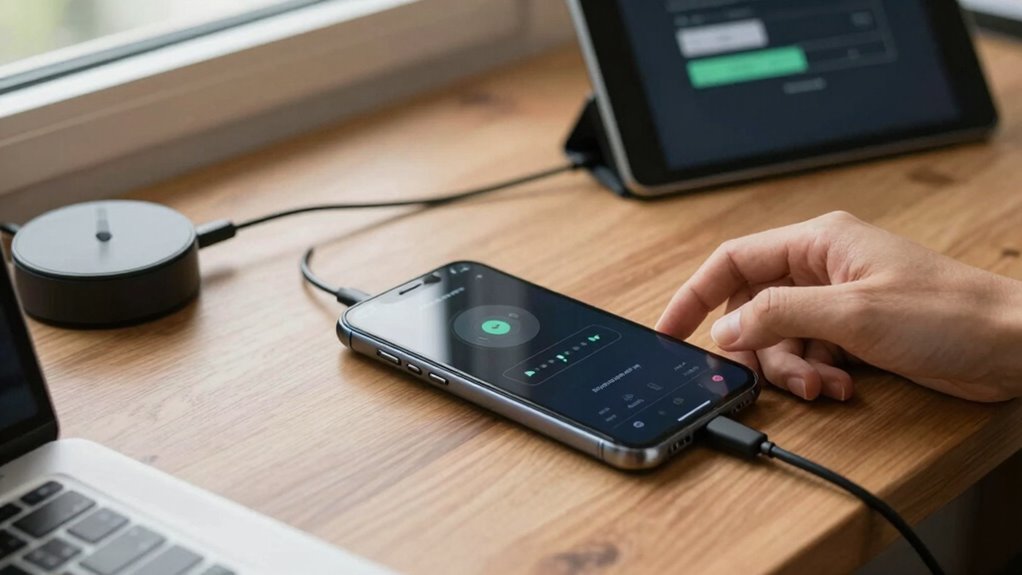
Upgrading to a new phone can be exciting, but it’s also easy to worry about losing your important data in the process. Thankfully, you have reliable tools like cloud backup and app transfer to make this transition smooth. Start by backing up your current device to the cloud. Most smartphones offer built-in cloud backup options—Google Drive for Android or iCloud for iPhone—that securely store your contacts, photos, messages, and app data. This step ensures that if anything goes wrong during the transfer, your essential information is safely stored and easily recoverable.
Use cloud backup and app transfer tools for a smooth, worry-free phone upgrade.
Once your data is backed up to the cloud, you can focus on transferring your apps and settings. Many devices now support seamless app transfer, which can be initiated during the setup process of your new phone. For instance, iPhones often prompt you to restore from an iCloud backup, while Android devices might use Google’s backup service. These services not only move your apps but also bring over your preferences, login information, and even your home screen layout, saving you time and effort.
If your new phone doesn’t automatically prompt for data transfer, you can use dedicated transfer apps or cable connections for a more manual approach. For Android phones, tools like Google’s Data Transfer Tool or manufacturer-specific apps (like Samsung Smart Switch) work well. For iPhones, using Quick Start or iCloud restore is simple and effective. When using these methods, ensure both devices are connected to Wi-Fi and plugged into power, so the process isn’t interrupted. This way, all your apps, contacts, photos, and settings move over without missing a beat.
Another crucial step is double-checking that all your data has been transferred successfully before wiping your old device. Open your new phone, verify your apps are functioning correctly, your contacts are present, and your photos are accessible. If you notice anything missing, you can always revisit your cloud backup or redo the transfer process. Remember, taking a little extra time now prevents hassle later.
Additionally, understanding the importance of contrast ratio and how it impacts your viewing experience can help you choose a better device or setup, especially if you plan to use your new phone for media consumption or gaming. Finally, once you’re confident everything’s in place, you can reset your old device to clear personal data and prepare it for sale or gifting. Keep in mind, regular backups are a good habit, so continue to use cloud backup services periodically to keep your data safe in case of future device upgrades or mishaps. By following these steps—using cloud backup, performing app transfer, and double-checking—you’ll ensure a smooth transition to your new phone without losing any of your important stuff.
Android Google Drive backup and restore
As an affiliate, we earn on qualifying purchases.
As an affiliate, we earn on qualifying purchases.
Frequently Asked Questions
How Do I Transfer App Data Securely Between Devices?
To transfer app data securely, you should use the built-in data migration tools on your devices, which often include encrypted transfer options. Make certain your apps support app encryption during transfer, and back up your data to a trusted cloud service first. When you restore on your new device, choose the secure transfer method to ensure your app data remains protected throughout the process.
Can I Keep My Call History on My New Phone?
You can definitely keep your call history on your new phone. When you use data transfer methods like cloud backups or device-specific transfer tools, your call history backup often comes along. Just make sure you select the right options during the transfer process. Coincidentally, many people forget that enabling automatic backups regularly preserves this data. Keep your call history intact by double-checking that your chosen method includes call logs in the transfer.
What Should I Do if My Backup Fails?
If your backup fails, first verify your data encryption settings aren’t causing issues; sometimes, encryption can interfere with backups. Next, check your internet connection and try cloud synchronization again, as a stable connection is essential. You might also want to restart your device or update your backup app. If problems persist, consider using alternative backup methods or contacting support, so your important data stays safe during the shift.
How Do I Transfer Settings and Preferences?
You can transfer settings and preferences by using your phone’s built-in transfer tools, like Android’s Smart Switch or iPhone’s Quick Start. Make sure device compatibility to avoid issues, and choose a fast transfer method, such as Wi-Fi or cable, to improve transfer speed. Before starting, back up your data to prevent loss, and follow the prompts carefully to migrate your preferences seamlessly to your new device.
Is There a Way to Transfer Data Without Internet?
Think of transferring data as a secret handshake between phones. Yes, you can do an offline transfer with Bluetooth sharing, which doesn’t require internet. Turn on Bluetooth on both devices, pair them, and select the files you want to share. This method allows you to move photos, contacts, and more without any online connection. It’s quick, secure, and keeps your data close to home.
Conclusion
Moving to a new phone doesn’t have to mean losing your important data. By backing up your information and using transfer tools, you guarantee everything stays with you. Some worry about how complex the process is, but it’s simpler than you think—most devices guide you step-by-step. With a little preparation, you can switch phones seamlessly and start fresh without losing any valuable memories or essential info. Just take your time, and you’ll be all set!