
To fix smart home delays, start by ensuring your devices have the latest firmware and apps. Check your Wi-Fi signal strength and optimize coverage with extenders or mesh systems if needed. Reboot your router and devices regularly to clear cache issues and reduce lag. Manage your network’s bandwidth by limiting unnecessary devices and using QoS settings to prioritize smart gadgets. For more tips, you’ll discover how to keep your system running smoothly.
Key Takeaways
- Restart your router and smart devices to clear cache and improve communication speed.
- Prioritize essential devices using QoS settings for better responsiveness.
- Update firmware and apps regularly to fix bugs causing delays.
- Optimize Wi-Fi coverage with extenders or mesh networks to reduce dead zones.
- Minimize interference from other wireless devices and limit network congestion during peak times.
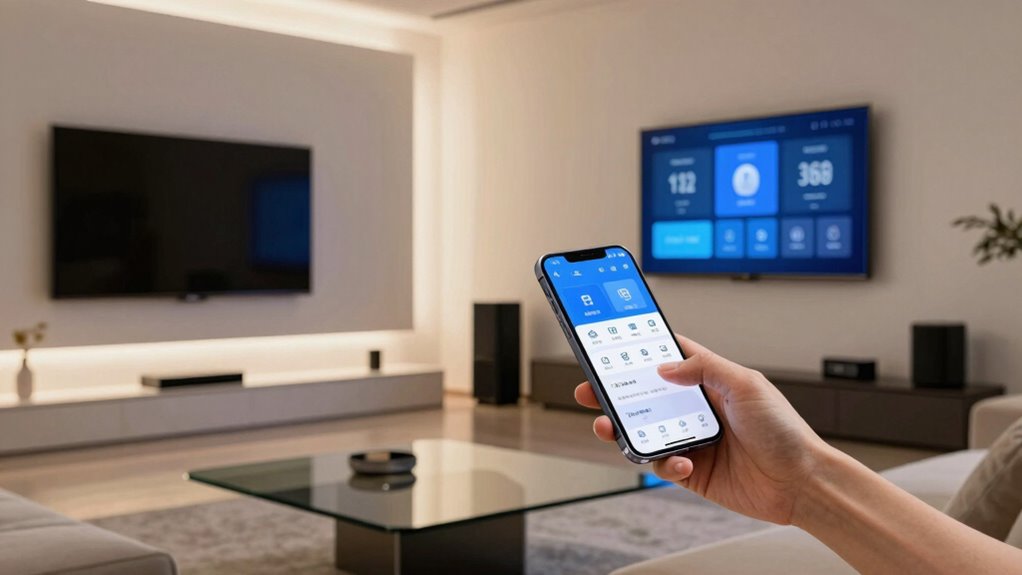
Smart home delay issues can be frustrating, especially when your devices don’t respond as quickly as you’d like. You expect your smart lights, thermostats, or voice assistants to react instantly, but delays can disrupt your routine and diminish the convenience of your setup. The good news is, many of these problems are fixable once you understand the underlying causes, starting with voice command troubleshooting. When your voice commands aren’t processed promptly, it’s often due to issues with your voice assistant’s recognition or network connection. Confirming your microphone isn’t obstructed, speaking clearly, and re-training the voice model can make a notable difference. Additionally, checking if your voice assistant’s app is up to date and resetting it can resolve minor glitches that cause delays.
Troubleshoot voice recognition issues by speaking clearly, updating the app, and retraining your voice model for quicker responses.
Another common culprit behind smart home lag is network bandwidth management. Your Wi-Fi network is the backbone of your smart home ecosystem, and if it’s overloaded or poorly optimized, device responses will slow down or become unresponsive. To troubleshoot this, start by running a speed test to determine if your internet connection is functioning properly. If your bandwidth is limited or shared with many devices, your smart home devices might struggle to get the data they need quickly. Consider prioritizing your smart devices on your network, either through Quality of Service (QoS) settings on your router or by creating a dedicated guest network for other devices. This helps ensure your smart home gadgets receive the bandwidth they require for quick responses.
You should also examine your Wi-Fi coverage. Dead zones or weak signals can cause delays, especially if your smart devices are far from your router. Using a Wi-Fi extender or mesh network can improve coverage and reduce latency. Sometimes, simply restarting your router or updating its firmware can optimize performance. Keep in mind that multiple devices competing for bandwidth can cause congestion, so disconnect unnecessary devices or limit their activity during times when you need your smart home to function smoothly. Additionally, understanding the importance of color accuracy in your network setup can help optimize device responsiveness, especially when streaming high-quality video or audio. Proper network configuration, including channel selection and device placement, also plays a significant role in reducing delays and ensuring your smart home operates seamlessly. Moreover, paying attention to interference sources, such as other wireless devices or appliances, can further improve responsiveness.
Lastly, the timing of your firmware updates and device reboots can influence responsiveness. Regularly updating your smart devices and hubs can fix bugs that cause delays. Rebooting your router and smart gadgets periodically can clear temporary cache issues and improve communication speed. In addition, maintaining awareness of network congestion can help you proactively prevent lag issues. By paying attention to voice command troubleshooting and managing your network bandwidth effectively, you can notably reduce delays. The goal is to create a seamless experience where your smart home responds promptly, making your daily routines more effortless and enjoyable.
Wi-Fi mesh extender for smart home
As an affiliate, we earn on qualifying purchases.
As an affiliate, we earn on qualifying purchases.
Frequently Asked Questions
Can Wi-Fi Interference Cause Smart Home Delays?
Yes, Wi-Fi interference can cause smart home delays. Wireless congestion from multiple devices or neighboring networks creates signal interference, weakening your connection. This disruption delays the communication between your smart devices and their control hub. To reduce delays, you should minimize wireless congestion by limiting device usage, switch to a less crowded Wi-Fi channel, or consider upgrading your router for better signal stability.
Do Smart Home Hubs Need Regular Updates?
No, your smart home hubs don’t need updates—said no tech enthusiast ever. Regular updates improve smart hub compatibility, ensuring your devices work seamlessly, and optimize energy consumption, saving you money. Skipping updates might seem easy, but it’s like ignoring the check engine light on your car—eventually, things break. Keep your hub current, and your smart home will run smoother, faster, and more efficiently—no magic required.
How Does Device Placement Affect Response Time?
Your device placement greatly impacts response time. Keep devices within the same device zoning area, avoiding obstacles that block signals. Position your smart home hub centrally to reduce latency. Use signal boosting tools like range extenders or mesh networks to strengthen connectivity, especially for distant devices. Proper placement guarantees quicker responses, minimizes delay, and enhances overall smart home performance, making everyday control seamless and efficient.
Can Firmware Bugs Lead to Delays?
Firmware bugs can indeed cause delays in your smart home system. Firmware glitches disrupt device communication, leading to lag, while power fluctuations may cause devices to reboot or malfunction, increasing response times. You need to regularly update firmware, stabilize power supplies, and troubleshoot glitches promptly. By addressing these issues, you guarantee smoother, faster responses, preventing delays caused by software errors or inconsistent power, and keeping your smart home running seamlessly.
Is Internet Speed a Factor in Smart Device Performance?
Yes, your internet speed affects your smart device performance. Slow or unstable connections cause delays, especially if devices rely heavily on cloud processing. Wireless security protocols can also impact speed by adding encryption overhead, while firmware compatibility issues might cause devices to lag or disconnect. To improve performance, guarantee your internet connection is fast and stable, update firmware regularly for compatibility, and optimize your wireless security settings.
Conclusion
By troubleshooting your smart home delays, you’re clearing the cobwebs from a once-smooth machine, restoring harmony to your connected world. Remember, patience and a little tech-savvy can turn frustrating lags into seamless commands. Think of your smart home as a symphony—each device playing in tune. With these tips, you’ll keep the rhythm steady, ensuring your smart home works like clockwork, and you’ll be dancing to a perfectly synchronized beat every time.