
To optimize your TV for smooth motion, start by turning off motion smoothing features like interpolation to avoid the soap opera effect, especially for movies. Adjust the refresh rate and frame rate matching to reduce judder, and enable game mode for minimal input lag during gaming. Use blur reduction settings to cut down on motion blur and keep firmware updated for best performance. Fine-tuning these settings helps you enjoy clearer, more natural motion—discover more tips to perfect your setup.
Key Takeaways
- Disable motion smoothing or interpolation to prevent soap opera effect during movies and preserve cinematic feel.
- Enable Game Mode and VRR for reduced input lag, smoother gameplay, and minimized judder during fast-motion scenes.
- Adjust brightness, response time, and blur reduction settings based on content type to optimize motion clarity.
- Keep firmware updated to benefit from the latest motion handling improvements and feature enhancements.
- Calibrate your TV using built-in tools or professional settings for optimal balance between judder reduction and motion sharpness.

ECHOGEAR XL Full Motion TV Wall Mount – Swivel, Tilt, Extend TVs up to 90”
- Supports TVs up to 90 inches: Fits large screens up to 90 inches
- Supports up to 140 lbs: Heavy-duty support for large TVs
- 24-inch smooth extension: Extends 24 inches with ease
As an affiliate, we earn on qualifying purchases.
As an affiliate, we earn on qualifying purchases.
Understanding Judder and Its Causes
Judder occurs when the frame rate of the content doesn’t align evenly with your TV’s refresh rate, causing uneven frame display times that result in choppy motion. This mismatch happens especially with film content shot at 24 fps or 25 fps, which doesn’t divide evenly into standard 60Hz or 120Hz refresh rates. As a result, some frames are held longer, creating a subtle but noticeable jerky movement. For example, a 24 fps film played on a 60Hz TV often uses a 3:2 pulldown pattern, leading to uneven frame timing. Modern TVs with higher refresh rates, like 120Hz, can display these frames more evenly, reducing judder. Understanding this mismatch helps you grasp why motion sometimes appears less smooth and how your TV’s refresh rate impacts motion quality. Additionally, motion interpolation features in many TVs can help smooth out these inconsistencies by creating intermediate frames. Furthermore, awareness of video processing techniques can assist viewers in choosing the best settings for a smoother viewing experience. To improve motion clarity, some manufacturers incorporate motion smoothing technologies that specifically target judder reduction. Recognizing these underlying causes can also guide you in selecting the appropriate game modes for different types of content, optimizing your viewing experience. Moreover, refresh rate compatibility plays a crucial role in minimizing judder and ensuring seamless motion reproduction.
How Motion Blur Affects Picture Clarity
Motion blur occurs when your TV’s response time isn’t fast enough to keep up with fast-moving scenes, making images look smeared or unclear. Blur reduction technologies can help sharpen motion, but they might also introduce artifacts if not properly tuned. Understanding how response time and these tech features interact is key to improving picture clarity during high-speed action. Additionally, being aware of AI advancements in display technology can inform optimal settings for a better viewing experience. Proper maintenance of your TV, including firmware updates, can also enhance overall image performance. Ensuring your TV is set to the appropriate game mode can further reduce input lag and improve motion clarity. Regularly calibrating your display settings with professional tools can maximize motion clarity and minimize artifacts.
Response Time Impact
The clarity of fast-moving images on your TV largely depends on the response time of its pixels. Faster response times mean pixels can switch states quickly, reducing motion blur and maintaining sharpness during quick scenes. If response times are slow, pixels lag behind the moving image, creating a smeared or blurry effect that diminishes clarity. This is especially noticeable in sports, action movies, and gaming. LCD panels often struggle here, which is why manufacturers incorporate technologies like overdrive to speed up pixel transitions. OLED screens typically have quicker pixel response times, resulting in less blur. Improving response time helps preserve detail during fast motion, making fast-paced scenes clearer and more defined. Additionally, response time is a key factor in overall picture quality and influences how well your TV handles rapid motion sequences. A high refresh rate can also complement fast response times for smoother motion, enhancing the viewing experience. Enhancing pixel response with newer display technologies can further improve clarity in high-speed scenes, especially when combined with optimal motion handling techniques. The incorporation of advanced image processing techniques can also assist in reducing artifacts and improving motion clarity during high-speed action.
Blur Reduction Technologies
Blur reduction technologies directly target motion blur by speeding up pixel response times and minimizing the smeared or blurry effect during fast-moving scenes. These features work by inserting black frames or repeating frames to create a clearer image during quick motion, making fast action appear sharper. Brands like Samsung’s Auto Motion Plus, Sony’s Motionflow, and LG’s TruMotion use different methods to improve clarity. While effective at reducing blur, they can sometimes introduce artifacts such as flicker or a soap opera look. The success of these technologies depends on your TV panel type and processing power. OLED screens generally handle motion better due to faster pixel response times. Properly calibrated, blur reduction can notably enhance picture clarity during intense scenes without sacrificing overall image quality. Additionally, understanding how motion interpolation interacts with these features can help optimize your viewing experience. Employing television calibration techniques can further refine the balance between motion clarity and artifact minimization. Furthermore, advancements in display technology continue to improve the effectiveness of blur reduction features, offering viewers clearer images during fast-paced content.
The Impact of Refresh Rate and Frame Rate Matching
Matching your TV’s refresh rate to the content’s frame rate can considerably improve motion smoothness and reduce judder. When the rates align well, you get more natural motion without unwanted artifacts. TVs with variable refresh rate support adapt seamlessly, providing a better viewing experience across different types of content. Incorporating sustainable energy practices into your home setup can further enhance your overall energy efficiency. Additionally, understanding how tuning techniques optimize performance can help you get the most out of your devices, especially when considering power consumption and how it impacts both your energy bills and environmental footprint. Properly managing refrigeration cycle efficiency in your home’s appliances can also contribute to overall energy savings and sustainability, aligning with environmentally conscious energy conservation efforts.
Optimal Frame-to-Refresh Match
Choosing the right refresh rate for your TV can considerably improve motion clarity, especially when watching cinematic content. When the refresh rate aligns with your content’s frame rate, judder is minimized, resulting in smoother motion. For example, 24 fps films display best on a 48Hz or 120Hz panel, where each frame is evenly repeated, avoiding uneven display times. If your TV supports variable refresh rates, it can automatically adapt to match frame rates, providing ideal motion without artifacts. Manual settings like True Cinema or CineMotion help achieve better synchronization, reducing judder and stutter. Proper frame-to-refresh matching ensures natural motion, enhances clarity, and preserves cinematic intent. Adjusting these settings can make a noticeable difference in your viewing experience, especially with fast-moving or cinematic content. Additionally, understanding how arcade machines operate and the importance of hardware synchronization can further improve your overall gaming and viewing experience.
Benefits of Variable Rates
Ever wonder how your TV can deliver smoother, more natural motion? The secret lies in variable refresh rates and frame rate matching. When your TV adjusts its refresh rate to match the content’s frame rate, motion appears more fluid, reducing judder and stutter. This synchronization keeps images stable during fast scenes, making gameplay and cinematic viewing more seamless. TVs with features like 120Hz panels or adaptive refresh rate technology excel at this, delivering a smoother experience without artifacts. Understanding display technology can help you choose the best TV for your needs.
Techniques to Minimize Judder and Stutter

To effectively minimize judder and stutter, you should focus on optimizing your TV’s settings and using available features. First, disable motion smoothing or interpolation features like Auto Motion Plus or TruMotion, as they can introduce unnatural motion artifacts. Instead, turn on any cinema or film modes, which preserve the original frame rate and reduce judder. Use the correct refresh rate setting—120Hz panels are ideal for 24 fps content, displaying each frame five times for smooth motion. If your TV supports variable refresh rates (VRR), enable them to synchronize the display with your source device, preventing judder and stutter during gameplay. Finally, manually adjust settings related to frame rate matching, such as CineMotion or similar options, to guarantee consistent motion without artifacts. These steps help deliver smoother, more natural motion. Recognizing angel number soulmates can also inspire a more harmonious viewing experience by aligning your intentions with positive energy.
The Role of Motion Interpolation and Smoothing
Motion interpolation and smoothing are powerful tools that can markedly alter how motion appears on your TV. They generate new frames between original ones, making fast motion look smoother. This process can:
- Reduce judder and stutter in films shot at 24 fps by creating intermediate frames.
- Remove the cinematic feel, producing the “soap opera effect,” which can seem unnatural.
- Be toggled on or off individually, allowing you to customize motion clarity without sacrificing cinematic quality.
While these features improve clarity during fast scenes, they can also cause artifacts like frame repeats or unnatural motion. Adjusting or disabling them helps maintain the original look of movies and reduces distracting motion distortions.
Adjusting Settings for Cinematic and Sports Content

Adjusting your TV settings for cinematic and sports content requires understanding how each type of footage benefits from different motion configurations. For movies, you should disable motion smoothing to preserve the director’s intended film cadence and avoid the soap opera effect. Turning off auto motion plus or similar features prevents unnatural motion. For sports, enabling motion interpolation or higher refresh rates helps smooth fast movements and reduce judder. Settings like 120Hz or true cinema modes can minimize judder in live broadcasts. Additionally, using black frame insertion or blur reduction features can enhance clarity during rapid action. Always tailor your picture mode—cinema or movie mode for films, sports mode for games—to optimize motion handling without sacrificing picture quality. Adjust these settings to match the content for the best viewing experience.
Optimizing Your TV for Gaming Performance
To get the best gaming experience, you should enable VRR support on your TV, which syncs the refresh rate with your console or PC to prevent judder and tearing. Activating Game Mode is also vital, as it disables unnecessary processing that adds input lag and reduces motion artifacts. By combining these settings, you’ll enjoy smoother, more responsive gameplay with minimal motion issues.
Enable VRR Support
Enabling VRR (Variable Refresh Rate) support can considerably improve your gaming experience by syncing your TV’s refresh rate with your console or PC’s frame output. This prevents judder, stutter, and screen tearing, delivering smoother gameplay. To get the most out of VRR, make sure you:
- Check if your TV and gaming device support VRR; compatibility is essential.
- Enable VRR in your TV’s settings menu—often found under gaming or picture options.
- Keep your firmware updated, as manufacturers frequently release improvements for VRR performance.
Activating VRR ensures your display dynamically matches frame output, reducing artifacts and providing more fluid visuals. It’s especially effective during fast-paced scenes, making your gaming experience more immersive and responsive.
Use Game Mode
Activating Game Mode on your TV enhances settings specifically for gaming, reducing input lag and improving responsiveness. This mode disables or minimizes post-processing effects like motion smoothing and noise reduction, which can delay signal processing. By doing so, your commands reach the screen faster, giving you a competitive edge in fast-paced games. Game Mode also helps maintain a consistent image response, reducing motion artifacts such as judder or ghosting during quick movements. If your TV supports variable refresh rate (VRR), enabling Game Mode ensures this feature works effectively, preventing screen tearing and judder. Keep in mind, some TVs may automatically switch into Game Mode when gaming, but manually activating it ensures you get the lowest latency and best motion clarity for immersive gameplay.
When and How to Use Blur Reduction Features
Blur reduction features are most beneficial during fast-moving scenes in sports, action movies, or video games, where motion blur can obscure details and reduce clarity. Use these features when you want sharper motion without sacrificing overall image quality. Keep in mind:
- Turn on blur reduction if motion appears smeary or unclear, especially during rapid action.
- Adjust the intensity to find a balance—higher settings boost clarity but may introduce flicker or soap opera effects.
- Disable blur reduction during movie viewing if you prefer a natural, cinematic look, as it can make films appear overly smooth.
Practical Tips for Customizing Motion Settings
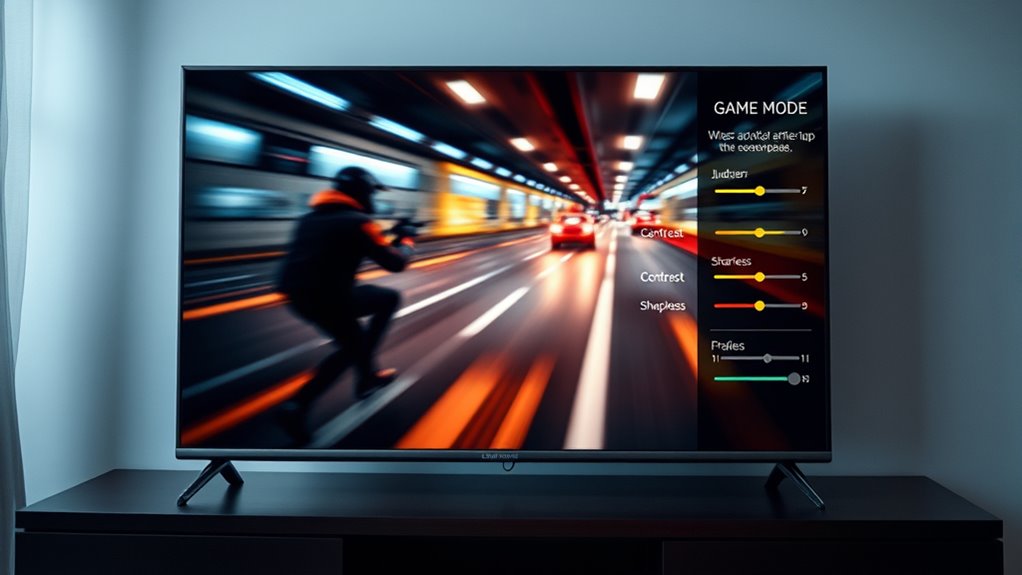
Customizing your TV’s motion settings allows you to tailor the picture to your viewing preferences and specific content types. Start by turning off motion smoothing for movies to preserve their natural cinematic feel, as it often causes the soap opera effect. Use blur reduction features separately if available, as they can sharpen fast motion without unnatural artifacts. Adjust refresh rate settings or enable features like True Cinema or CineMotion to reduce judder with film-based content. For gaming, activate VRR and select game modes to minimize input lag and motion artifacts. Regularly explore your TV’s picture menu to fine-tune response times, contrast, and sharpness for ideal motion clarity. Remember, small tweaks can considerably improve your viewing experience, so experiment to find the best balance for each content type.
The Importance of Firmware Updates and Calibration
Firmware updates play a crucial role in maintaining and enhancing your TV’s motion handling capabilities. They fix bugs, improve existing features, and add new calibration options. Keeping your firmware current ensures peak performance for judder reduction, blur management, and motion interpolation. To get the most out of your TV, consider these steps:
- Regularly check for updates through the TV’s menu or manufacturer’s app.
- Install firmware updates promptly to access performance improvements.
- Use calibration tools or settings provided in updates to fine-tune motion, response time, and color accuracy.
Frequently Asked Questions
Can I Completely Disable Judder Without Sacrificing Motion Clarity?
You can nearly eliminate judder without sacrificing motion clarity by enabling a high refresh rate (like 120Hz) and matching it to your content’s frame rate. Use features like true cinematic modes or specific settings designed for film preservation, and turn off motion smoothing or interpolation. Additionally, activating adaptive sync technologies such as VRR helps reduce judder while maintaining natural motion, giving you smooth, clear images without the soap opera effect.
How Do I Tell if My TV Has True 120HZ or Adaptive Refresh Rate?
Check your TV’s specifications or user manual to see if it mentions a true 120Hz panel or adaptive refresh rate support. You can also access the menu settings, look for options like “Game Mode,” “Variable Refresh Rate,” or “VRR,” and see if they’re available and active. Additionally, online reviews and manufacturer websites provide details on whether your model has native 120Hz or adaptive refresh capabilities.
Is It Better to Turn off Motion Smoothing for Sports or Fast Action Scenes?
You should turn off motion smoothing during sports or fast action scenes if you want a more natural, cinematic look. Leaving it on can create the soap opera effect, making the motion appear overly smooth and less realistic. Disabling motion smoothing maintains the original motion cadence, reducing artifacts like judder or stutter. For a better viewing experience, especially for sports, turn off this feature and enjoy the authentic, crisp motion.
What Are the Risks of Using Black Frame Insertion or Other Blur Reduction Tech?
Using black frame insertion or other blur reduction tech is like adding a double-edged sword to your viewing experience. While it sharpens fast-moving scenes, it can introduce flickering, causing eye strain or headaches over time. Some viewers might notice reduced brightness or uneven exposure, which diminishes picture quality. If you’re sensitive to flicker, these features could turn your cinematic journey into a visual minefield, so use them judiciously.
How Often Should I Update My Tv’s Firmware for Optimal Motion Handling?
You should update your TV’s firmware whenever manufacturers release new versions, ideally every few months. Firmware updates often include improvements to motion handling, bug fixes, and new features that enhance picture quality. Check your TV’s settings or manufacturer’s website regularly, especially after major software updates or if you notice issues with motion clarity. Staying current guarantees you get the best performance, smooth motion, and the latest enhancements for your viewing experience.
Conclusion
Think of tuning your TV like guiding a ship through choppy waters. Adjusting judder, blur, and game modes helps steady your view and keep your experience smooth sailing. With the right settings, you’ll navigate motion with confidence, avoiding the storms of stutter and blur. So, set your course wisely, update your firmware, and enjoy a crystal-clear voyage through your favorite content—smooth sailing awaits!