

To switch from a password manager to passkeys without getting locked out, guarantee your devices and accounts support passkey standards and update your software first. Back up existing credentials securely and enable cloud sync features like iCloud or Google Password Manager. Test passkey logins on all your devices before removing passwords, and keep recovery options handy. Following these steps helps you make a smooth transition and stay protected—more tips await if you keep exploring.
Key Takeaways
- Ensure your password manager is up-to-date and supports passkey storage and sync features.
- Backup all existing passwords and credentials before transitioning to passkeys.
- Verify device compatibility and update firmware or OS to support passkey standards.
- Enable multi-factor authentication and recovery options during setup to prevent lockouts.
- Test passkey logins on all devices and accounts beforehand to confirm smooth access.

Cloakey Portable Web Browser – Anonymous Portable Privacy USB Drive with Browser with Password Manager
Secure, Private Browsing Anywhere You Go – Protect your personal data with a portable privacy browser that keeps…
As an affiliate, we earn on qualifying purchases.
As an affiliate, we earn on qualifying purchases.
Understanding the Shift to Passkeys
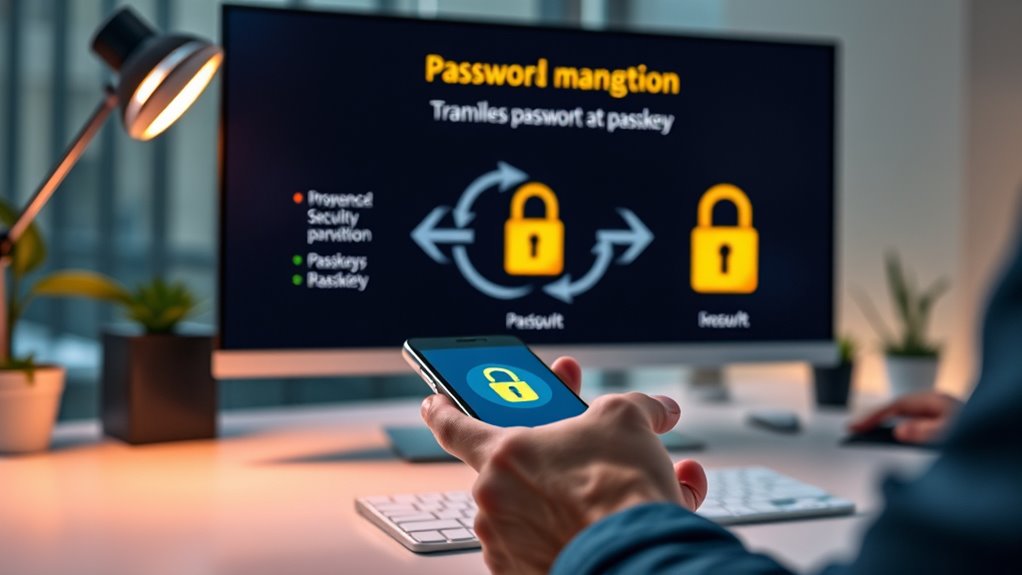
The shift to passkeys is gaining momentum as organizations and users seek more secure and user-friendly authentication methods. Passkeys rely on public-key cryptography, where your device stores a private key that never leaves it, and a public key on the server. Authentication happens through biometrics like fingerprints or facial recognition, or a device PIN, eliminating the need for passwords. They’re bound to specific websites or services, making phishing attempts less effective. Major platforms support passkeys, ensuring cross-platform compatibility. Because private keys stay on your device and no shared secrets are transmitted, security improves considerably. This transition aims to reduce human error, password reuse, and vulnerabilities, providing a more seamless, safer login experience across your devices and online services. Additionally, the use of high-security methods like passkeys aligns with the latest advancements in authentication technology, such as the first home theatre projector. Implementing passkeys is part of a broader movement towards secure authentication that enhances overall digital safety.
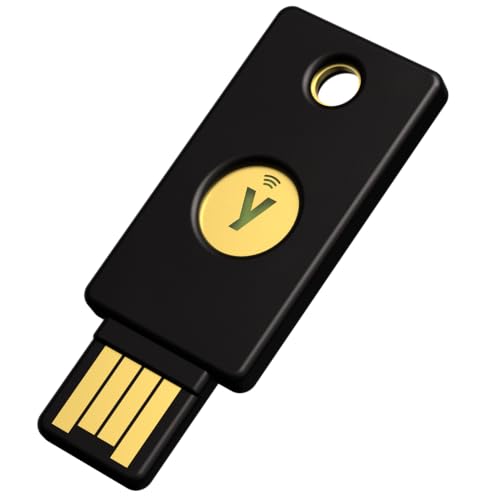
Yubico – YubiKey 5 NFC – Multi-Factor authentication (MFA) Security Key and passkey, Connect via USB-A or NFC, FIDO Certified – Protect Your Online Accounts
POWERFUL SECURITY KEY: The YubiKey 5 NFC is the most versatile physical passkey, protecting your digital life from…
As an affiliate, we earn on qualifying purchases.
As an affiliate, we earn on qualifying purchases.
Assessing Your Current Password Management Setup
Before shifting to passkeys, it’s vital to evaluate your current password management setup. First, check if your password manager securely stores passwords and passkeys and if it’s up-to-date. Second, confirm whether your passwords are strong, unique, and regularly changed. Third, identify which accounts are protected by multi-factor authentication (MFA) and verify their status. Fourth, make sure you have backup options like cloud sync or emergency access methods. Additionally, review the characteristics of a healthy password to ensure your existing passwords align with best practices. This assessment helps you understand your security baseline, identify vulnerabilities, and prepare for a smooth transition. Understanding password security fundamentals helps you recognize potential weak points and enhances your overall protection. Incorporating creative problem-solving into your security approach can help you adapt to new authentication methods more effectively. Regularly updating and backing up your passwords now simplifies future access and recovery. Moreover, considering the reliability of your password storage can prevent disruptions during the transition. You might also evaluate the security features of your current password manager to ensure it meets modern standards and supports passkey integration.

Yubico – YubiKey 5C NFC – Multi-Factor authentication (MFA) Security Key and passkey, Connect via USB-C or NFC, FIDO Certified – Protect Your Online Accounts
POWERFUL SECURITY KEY: The YubiKey 5C NFC is the most versatile physical passkey, protecting your digital life from…
As an affiliate, we earn on qualifying purchases.
As an affiliate, we earn on qualifying purchases.
Evaluating Compatibility of Your Devices and Services
Evaluating whether your devices and services support passkeys is essential for a smooth shift. You need to confirm compatibility across your ecosystem before replacing passwords. Check if your devices run the latest OS versions—iOS, Android, Windows, or macOS—as they support passkey standards. Next, verify if your favorite services, browsers, and apps are compatible with WebAuthn or FIDO2 protocols. Here’s a quick overview:
| Devices Support | Services Compatibility |
|---|---|
| Windows 11+ | Major browsers support |
| macOS Ventura+ | Popular websites support |
| Android 13+ | Cloud-based sync support |
| iOS 16+ | Password managers support |
| Linux (beta) | Industry standards adopted |
This helps identify gaps and plan your shift effectively. Additionally, being aware of time zone differences can be useful when managing account security across different regions. Ensuring your device security features are up to date can also facilitate a seamless transition to passkeys. Moreover, understanding the security zone info related to your devices can help you make informed decisions about your security setup. Checking device compatibility on a hardware support basis ensures a smoother transition. Incorporating latest firmware updates can further improve device support for passkeys and related security features.

Old World Internet Address & Password Logbook (removable cover band for security)
As an affiliate, we earn on qualifying purchases.
As an affiliate, we earn on qualifying purchases.
Preparing Your Password Manager for Transition
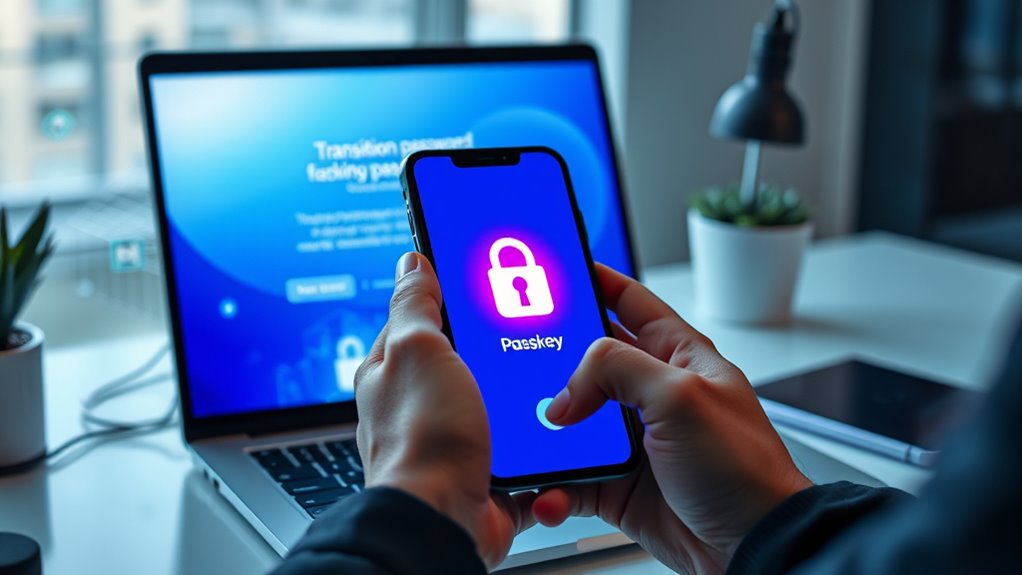
To facilitate a smooth shift from passwords to passkeys, you need to prepare your password manager to handle both types of credentials seamlessly. Start by updating your password manager to the latest version, ensuring it supports passkey storage and synchronization. Next, organize your current passwords and passkeys by reviewing stored credentials for accuracy and completeness. Then, enable cloud backup features like iCloud Keychain or Google Password Manager to secure your passkeys across devices. Additionally, verifying that your password manager supports multi-factor authentication can further enhance your security during the transition. Incorporating enhanced security features can further strengthen your transition process. Being aware of soaring safety procedures and regulations can also help ensure your overall security during the switch. For example, some providers are adopting sustainable practices to reduce environmental impact. Finally, familiarize yourself with your password manager’s passkey import and management tools, ensuring you understand how to manage credentials effectively during the switch.
Enabling Passkey Support on Supported Accounts
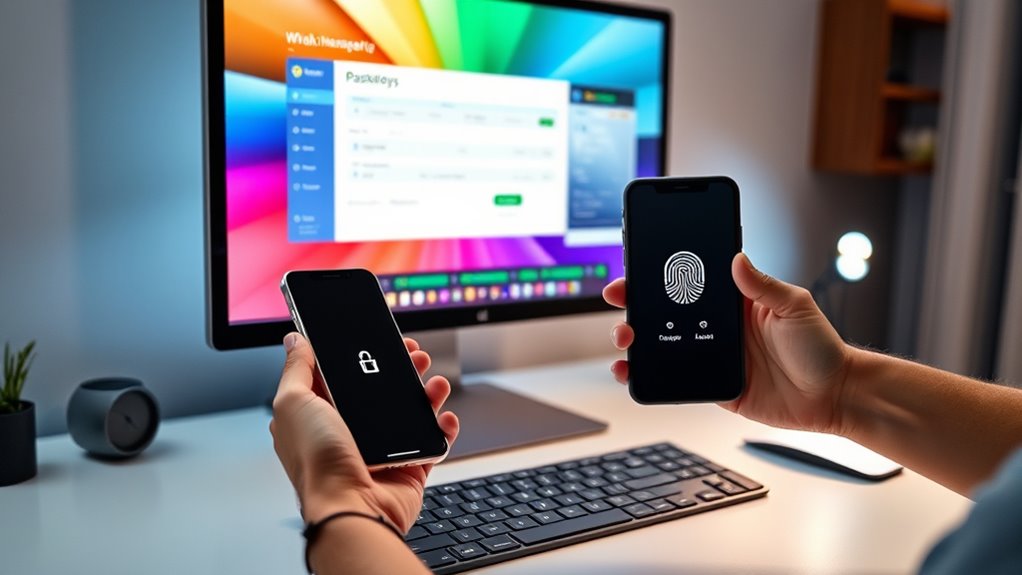
Enabling passkey support on your supported accounts is a straightforward process that enhances your security by replacing passwords with cryptographic authentication. First, check if the service offers passkey support in its security or login settings. If available, select the option to enable or set up a passkey. You’ll likely be prompted to verify your identity using biometrics, a device PIN, or other authentication methods. Follow the on-screen instructions to register your device and link the passkey to your account. Some services may ask you to create a backup or recovery method, like linking to your cloud account. Once set up, test the passkey login on your device to ensure smooth access. This simple step considerably boosts your account’s security posture, especially when using vetted security practices and multi-factor authentication. Incorporating personalized security preferences can further tailor your protection and improve overall safety. Additionally, ensuring your device firmware and security software are up to date can help prevent potential vulnerabilities that could compromise your passkey system. Engaging with the latest advancements in passkey technology can also provide insights into improving your overall security strategy.
Safeguarding Access During the Transition Period

To avoid losing access during the switch to passkeys, you should keep your existing passwords safely stored in your password manager until you’re confident in your new setup. Make certain to enable backup and recovery options, like cloud synchronization or emergency codes, to prevent lockouts. Testing passkey logins on secondary devices can also help guarantee a smooth transition without sacrificing security. Additionally, understanding secure storage methods can help ensure your credentials remain protected throughout the process. Incorporating cost‑of‑ownership math and reliable backup strategies can further minimize the risk of access issues during this transition.
Maintain Password Access Safely
During the shift from passwords to passkeys, safeguarding your existing access is crucial. You need a plan to prevent lockouts and guarantee smooth transition. First, keep your passwords stored securely in a password manager until passkeys are fully functional across all your services. Second, leverage backup and recovery options like cloud syncs (iCloud, Google Password Manager) to restore access if needed. Third, enable multi-factor authentication on your accounts to add safety during the switch. Fourth, test passkey logins on secondary devices before removing password access to confirm everything works. By following these steps, you reduce the risk of losing access during the transition, ensuring a secure move from passwords to passkeys without disruptions.
Enable Backup and Recovery
Because the shift to passkeys can take time and varies across services, it’s vital to set up reliable backup and recovery options. These safeguard your access during the transition, preventing lockouts if devices are lost or passkeys become inaccessible. Use cloud-based backups like iCloud Keychain or Google Password Manager, which securely store and sync your passkeys. Enable multi-factor authentication on your accounts for added protection. Regularly test recovery methods to verify they work smoothly. Keep emergency codes or recovery options secure and accessible. To help you stay organized, here’s a quick overview:
| Backup Method | Recovery Option |
|---|---|
| Cloud Backup | Sync passkeys across devices |
| Recovery Codes | Use for emergency access |
| Device Backup | Save device-specific recovery data |
| MFA Setup | Verify identity during recovery |
Setting Up and Syncing Passkeys Across Devices

To guarantee smooth setup and syncing of your passkeys, start by checking device compatibility with your chosen platform and security standards. Next, enable secure cloud backups, like iCloud or Google Password Manager, to keep your passkeys safe and accessible across devices. Finally, follow the specific instructions for your devices to link and sync your passkeys securely.
Device Compatibility Checks
Ensuring your passkeys work seamlessly across all your devices requires careful compatibility checks and setup. First, verify that your devices support passkey technology by checking your operating system version—latest iOS, Android, Windows, or macOS. Second, confirm that your device supports biometric authentication methods like fingerprint or facial recognition, essential for secure access. Third, verify your preferred password manager is compatible with passkeys and offers synchronization features across platforms. Fourth, update your devices and apps to the latest versions to avoid compatibility issues. By tackling these steps, you’ll ensure smooth setup and syncing, reducing the risk of lockouts and making your transition to passkeys effortless.
Secure Cloud Backup Setup
Setting up secure cloud backups for your passkeys is essential to keep your authentication data safe and synchronized across all your devices. Start by choosing a trusted cloud service like iCloud, Google Password Manager, or Microsoft Sync, depending on your ecosystem. Enable the backup feature within your password manager or device settings to guarantee your passkeys are securely stored and can be retrieved if needed. Make sure to use strong, multi-factor authentication on your cloud accounts to prevent unauthorized access. Regularly verify that your backups are up to date, especially after device updates or new passkey setups. Keep recovery options like emergency codes or recovery contacts current. Proper cloud backup setup ensures seamless access and minimizes lockout risks during device loss, damage, or upgrades.
Testing Passkey Functionality Before Fully Switching
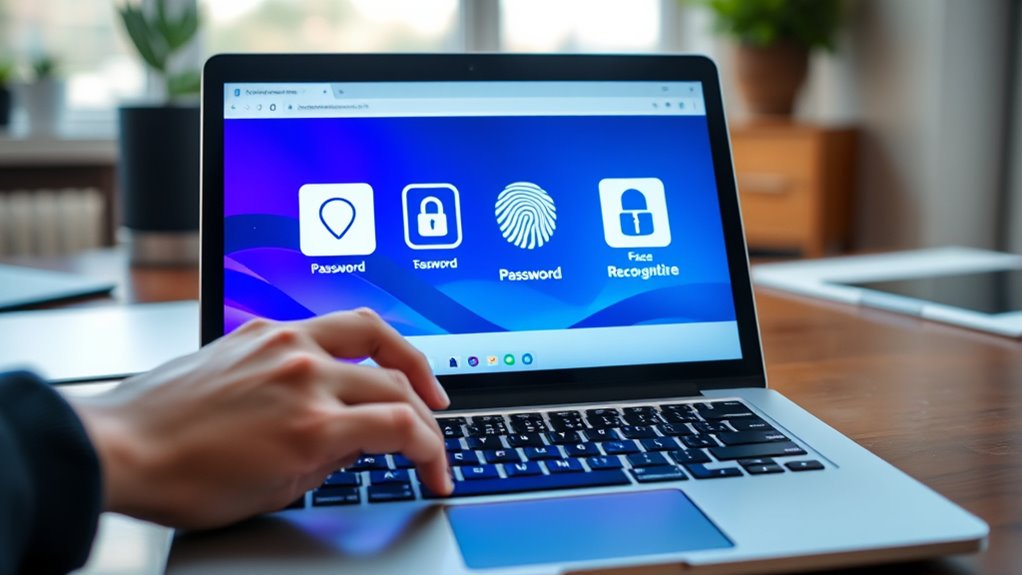
Before fully switching to passkeys, testing their functionality across your devices and services is vital. This guarantees you won’t face unexpected lockouts. To do this effectively:
- Verify passkey login on each device you plan to use regularly.
- Test access to all major services supporting passkeys, like email and banking.
- Confirm biometric or PIN authentication works smoothly during these tests.
- Make sure fallback options, such as backup codes or recovery methods, function correctly.
Implementing Backup and Recovery Measures

Implementing backup and recovery measures is essential to prevent losing access to your accounts if your passkeys become unavailable or compromised. You need reliable methods to restore access without panic or data loss. Use cloud-based backup options like iCloud Keychain or Google Password Manager, which securely store and sync your passkeys across devices. Additionally, keep recovery codes or emergency access methods provided by services in a safe place. Regularly test your backup setup to ensure it works smoothly.
| Backup Method | Emotional Benefit |
|---|---|
| Cloud Backup | Confidence in seamless access |
| Recovery Codes | Peace of mind during emergencies |
| Device Storage | Security knowing your keys are safe |
Educating Yourself on Best Practices for Passkey Security

Understanding how to protect your passkeys begins with educating yourself on best security practices. You should know how to keep your private keys safe and avoid common pitfalls. Here are four key ideas:
- Use reputable password managers that support passkey storage and synchronization.
- Enable biometric authentication, like fingerprint or facial recognition, for added security.
- Keep your devices and apps updated to ensure compatibility with the latest standards.
- Regularly review your account security settings and backup options.
Frequently Asked Questions
How Do I Prevent Losing Access if Passkeys or Devices Are Lost?
To prevent losing access if passkeys or devices are lost, keep backup copies of recovery codes or emergency access methods provided by services. Use your password manager’s backup features, like iCloud or Google Backup, to store passkeys safely. Enable multi-factor authentication for added security, and test passkey recovery on secondary devices. Regularly update your devices and apps to guarantee compatibility and access continuity, avoiding lockouts.
Can I Revert to Passwords if Passkeys Don’T Work?
If passkeys don’t work, you can always fall back on your trusty passwords. Keep your password manager handy with your stored passwords, and don’t forget to double-check that recovery options are set up. By maintaining these backups, you guarantee smooth sailing if technical issues arise. Just remember, staying prepared with both passkeys and passwords gives you peace of mind and easy access, no matter what.
What Are Common Issues Faced During Passkey Adoption?
You might encounter issues like limited website support, requiring you to fallback on passwords. Device or app incompatibility can prevent passkey use, causing frustration. Sometimes, backups or recovery options aren’t set up properly, risking lockouts if your device is lost or damaged. Additionally, users may struggle with understanding passkey functions or managing multiple devices. To avoid problems, keep passwords handy, enable recovery features, and test passkeys across devices before fully switching.
How Secure Are Passkeys Compared to Traditional Passwords?
Passkeys are more secure than traditional passwords because they use public-key cryptography, making them resistant to phishing, credential stuffing, and brute-force attacks. Your private key stays on your device, never transmitted or stored on servers, reducing theft risks. They’re domain-specific, preventing reuse on malicious sites, and often include biometric or PIN verification, adding extra security layers. Overall, passkeys markedly strengthen your online protection.
Will My Existing Password Data Automatically Transfer to Passkeys?
Your existing password data won’t automatically transfer to passkeys. Imagine your password vault as a treasure chest; you’ll need to manually add or generate passkeys for each account. Use your password manager’s tools to import or create passkeys, then test them on your devices. Keep your passwords handy until you’re confident your passkeys work smoothly, ensuring a seamless shift without losing access or facing lockouts.
Conclusion
Switching to passkeys isn’t just a step forward—it’s a leap into the future of security that’ll make your old passwords look ancient and fragile. Once you embrace passkeys, you’ll unseal a level of protection so powerful, hackers will be scratching their heads in disbelief. Say goodbye to lockouts and forgotten passwords forever—this is the revolution your digital life desperately needs. Get ready to never look back, because with passkeys, security reaches new heights you never imagined!