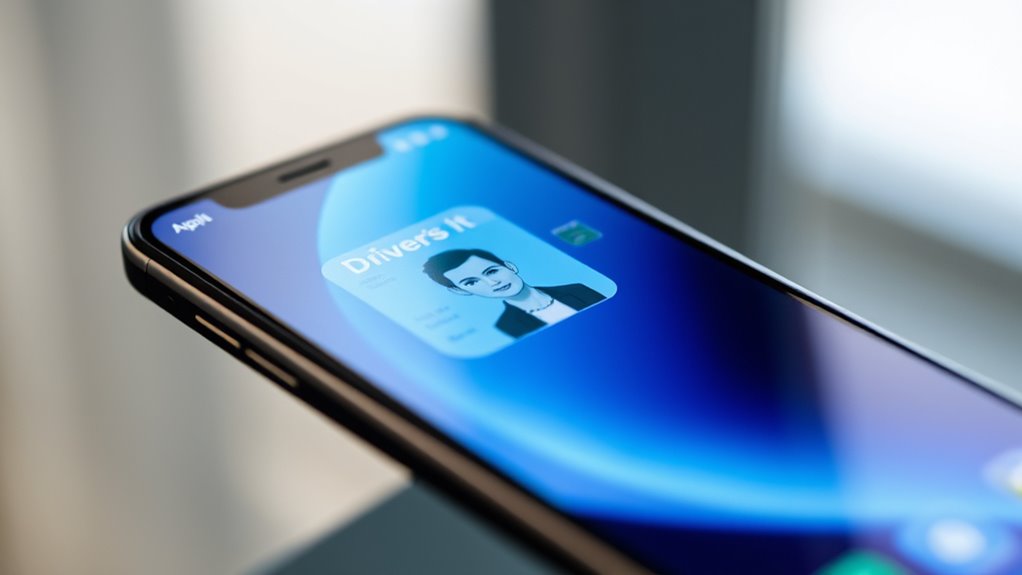

To add your driver’s license to Apple Wallet, start by checking that your device is compatible and updated. Open the Wallet app, tap the plus (+) sign, and select “Driver’s License or State ID.” Follow prompts to choose your state, scan your physical license, and verify your identity with Face ID or a selfie. Wait for state approval, then your digital license will be ready for use. Continue exploring for detailed steps and tips on smooth setup.
Key Takeaways
- Ensure your device supports digital IDs, is updated, and Bluetooth and location services are enabled.
- Open the Wallet app, tap the plus (+) icon, then select “Driver’s License or State ID.”
- Follow prompts to choose your state, scan the physical license, and verify your identity using Face ID or selfies.
- Wait for state approval, which may take varying time; monitor the status in the Wallet app.
- Once activated, access your digital license quickly by double-clicking the side button for contactless verification.

ADPROTECH Lightning Headphones Earphones Magnetic Earbuds in-Ear MFi Certified with Microphone Controller for Sports Workout Compatible with iPhone 14/13/12/11/Pro Max/Xr/Xs Max/X Black&Red
- In-line Mic and Controls: Play, pause, volume, mic, Siri
- MFi Certified for iOS: Seamless Lightning connectivity
- Magnetic and Sport Fit: Easy storage and secure fit
As an affiliate, we earn on qualifying purchases.
As an affiliate, we earn on qualifying purchases.
Compatibility and Requirements
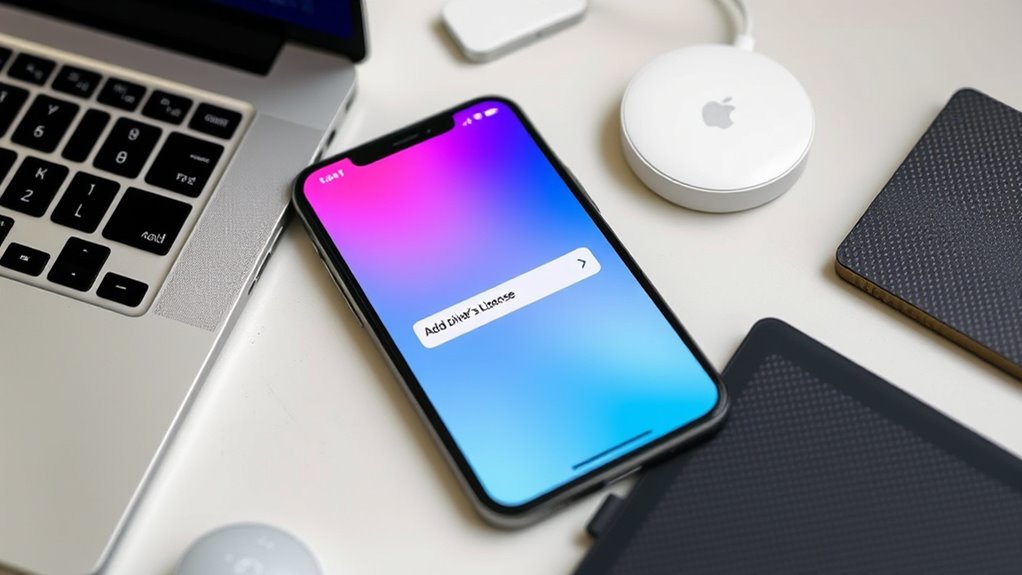
To add your driver’s license to Apple Wallet, your device must meet specific compatibility and requirements. You need an iPhone 8 or later or an Apple Watch Series 4 or newer running the latest iOS or watchOS versions. Face ID or Touch ID must be enabled for verification, and Bluetooth has to be turned on to facilitate secure communication. You must also be signed in with your Apple ID to access and sync your digital ID. Confirm the Apple Wallet app is installed and updated on your device. Additionally, some states require you to have your physical driver’s license present during setup for scanning, although a Real ID isn’t always necessary depending on your location. Meeting these requirements guarantees a smooth setup process. Cookies are also used to enhance the functionality and security of the process, and understanding privacy policies can help you manage your data preferences effectively.
Accessing the Apple Wallet App
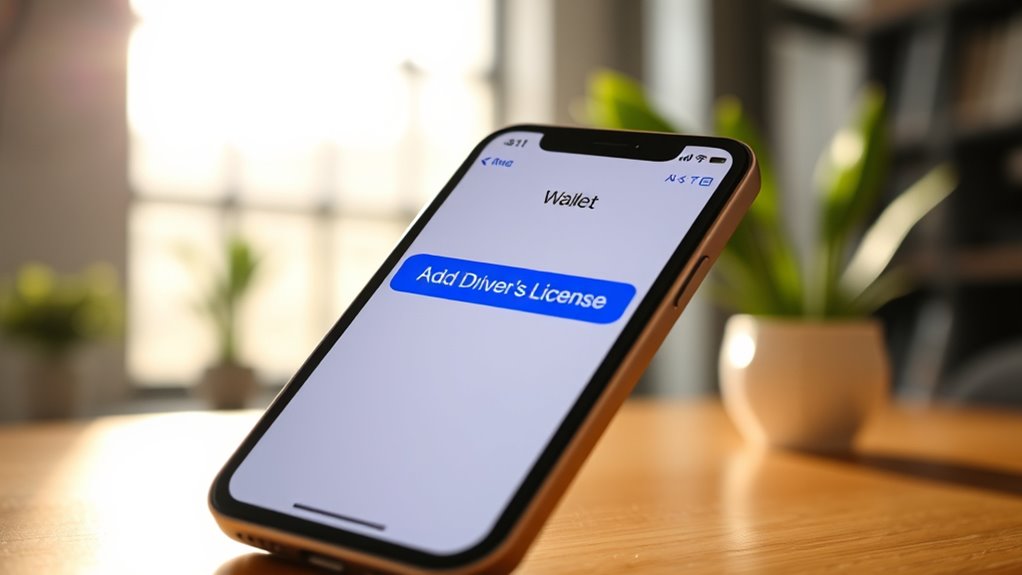
Wondering how to access your driver’s license in Apple Wallet? First, reveal your iPhone using Face ID, Touch ID, or your passcode. Locate the Wallet app on your Home Screen or in your App Library. Tap the app icon to open it. If you’ve already added your driver’s license, it will appear on the main screen or in the “Cards” tab. If not, tap the plus (+) button at the top-right corner to begin adding new cards. From there, select “Driver’s License or State ID” and follow the prompts. Make sure your device is updated to the latest iOS version for compatibility. Password security features and user profile management help protect your digital ID. Accessing your digital ID is quick and secure once you’ve opened the Wallet app and located your card. Understanding the process of adding digital IDs can enhance your experience with mobile wallets. To ensure smooth functionality, verify that your device meets the compatibility requirements outlined by Apple for digital ID support. Additionally, keeping your device’s software up to date can prevent potential issues with digital wallet integration. Regularly reviewing your privacy settings ensures you maintain control over your personal information while using digital IDs.
Initiating the Digital Driver’s License Addition

To start adding your driver’s license to Apple Wallet, open the app on your iPhone. Tap the plus (+) button in the top corner, then select the “Driver’s License or State ID” option. From there, choose your state and follow the prompts to begin the setup process. Make sure your device supports digital identity verification for a smooth setup experience.
Access Apple Wallet App
Accessing the Apple Wallet app is your first step toward adding your digital driver’s license. To do this, locate the Wallet icon on your iPhone’s home screen or app library. Tap it to open the app. Make sure your device is unlocked and you’re signed in with your Apple ID. Confirm that Bluetooth is enabled and that Face ID or Touch ID is set up for security. If you haven’t updated your device recently, do so now to guarantee compatibility with digital ID features. Once inside the Wallet app, you’re ready to proceed with the process. The app provides a straightforward interface, making it easy to add new items, including your driver’s license, once you begin the setup. Having the Wallet app open marks the start of your digital license journey. Additionally, ensure your device supports the necessary digital ID features for a smooth setup process.
Select Add New Item
After opening the Wallet app and confirming your device is ready, tap the plus (+) button located at the top-right corner of the screen. This action begins the process of adding a new item. You’ll see a list of options; scroll until you find “Driver’s License or State ID” and select it. This step is enthusiastic because it’s your gateway to a digital ID. Here’s what you might feel:
| Emotion | Description |
|---|---|
| Anticipation | Eager to streamline your ID process |
| Confidence | Trusting the technology will work |
| Curiosity | Wondering how your license will look |
| Satisfaction | Ready to complete the setup |
Tap your choice to move forward and follow on-screen instructions. Additionally, ensure your device supports Vetted security features to keep your digital ID safe during this process. Incorporating space-saving techniques in your device management can help keep your digital wallet organized and clutter-free. Being aware of digital security best practices can further protect your personal information during this process and support your overall Bedroom organization strategy. Moreover, understanding home decor principles can inspire you to create a harmonious environment that complements your digital organization efforts.
Choose Driver’s License Option
Once you’ve reached the step to add your driver’s license, tap on the “Driver’s License or State ID” option from the list of available items. This choice tells your device you’re adding a digital version of your license. After selecting it, you’ll see a list of participating states; choose your state from the options. If your state supports digital IDs, the setup process will guide you through scanning your physical license’s front and back. Confirm your identity with facial recognition or a selfie as prompted. Make sure your device’s location and Bluetooth are enabled, and your Apple Wallet app is up to date. Additionally, understanding the offensive security tactics involved in ethical hacking can help you better appreciate the security measures behind digital ID verification. Once completed, your digital driver’s license will be submitted for state approval, and you’ll be ready to use it digitally once approved. Halloween is a good time to familiarize yourself with how digital IDs work, especially if you’re planning to attend themed events or parties. Be aware that verifying your identity with official documentation is an essential part of the process. Additionally, understanding the security benefits of digital IDs can help you feel more confident about using your license digitally. Recognizing the importance of angel number soulmate signs can also help you stay open to love opportunities during this time.
Scanning and Verifying Your Physical License
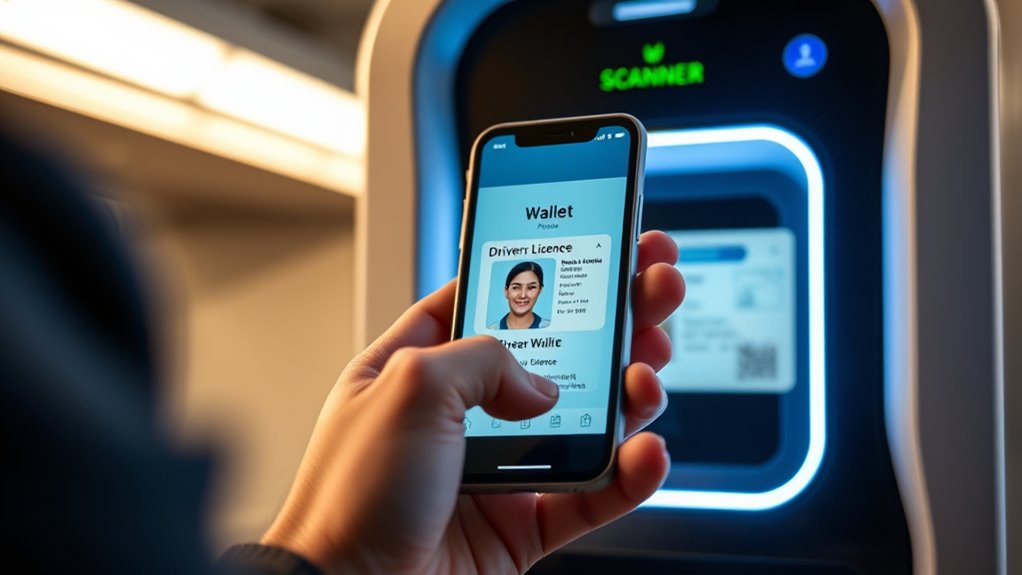
To successfully add your driver’s license to Apple Wallet, you need to start by scanning your physical license accurately. Open the Wallet app and follow the prompts to scan the front of your license. Make sure you position your license within the on-screen guidelines, keeping it steady and well-lit. After the front scan, you’ll be asked to turn your license over and scan the back. Ensure the entire barcode and relevant details are captured clearly—rescan if necessary to avoid errors like “no barcode detected.” Once scanned, the device will verify the information and prompt you for identity confirmation through Face ID or Touch ID. Precise scanning and verification guarantee your digital license is set up correctly for seamless use. Additionally, maintaining the integrity of your personal data during scanning is essential to ensure the security and accuracy of your digital license. As with other data privacy concerns, careful handling of your information during this process helps protect your rights and prevents unauthorized access. Implementing proper security measures like using a secure network can further safeguard your personal information. To further enhance security, ensure your device’s software is up to date before starting the process, as this can help prevent malfunctions during the verification. Moreover, verifying that your device’s software version is current can improve compatibility with the digital license feature.
Completing State Approval and Activation

Once you’ve submitted your verification details, you’ll need to wait for your state to approve your digital license. During this time, the approval process checks your identity and confirms your information is accurate. After approval, you’ll see the activation status change, letting you know your digital driver’s license is ready to use. This process may also involve interpretation of identity verification symbols, ensuring that your personal information aligns with your official records.
Submit Verification Details
After you’ve scanned your physical driver’s license and completed the identity verification steps, your digital ID must go through the state’s approval process before it becomes active. During this stage, your submitted information is reviewed by the state agency to confirm its accuracy and validity. You might receive notifications or status updates indicating that your application is under review. Make certain your contact details are current in case the state needs additional information. This approval process can take some time, depending on your state’s procedures. Once approved, you’ll receive confirmation that your digital driver’s license is active and ready for use. Until then, avoid attempting to use the ID at checkpoints or venues, as it won’t be recognized until fully activated.
Await State Approval
How do you know when your digital driver’s license is ready to use? Usually, you’ll see a status update in your Wallet app indicating that your license is approved and active. Once the state has reviewed your submission and verified your identity, they’ll approve your digital ID. This process varies by state but generally takes a few days. During this time, you might receive notifications or emails confirming approval. Keep an eye on your device for updates.
- Check the Wallet app for an “Active” status
- Look for a confirmation message from your state DMV
- Ensure your device has the latest iOS update
- Be patient, as approval times differ across states
Confirm Activation Status
When your state DMV completes the review of your digital driver’s license application, you’ll see a clear indication of its activation status within the Wallet app. If approved, the license appears as an active, ready-to-use card. You might receive a notification confirming activation or see the card’s status change from “Pending” to “Active.” If it’s not yet active, check for any pending verification steps or messages from the DMV. Confirm your device has the latest software updates and that your location and Bluetooth settings are enabled. If the license still isn’t showing as active after a reasonable wait, contact your state DMV or support hotline for assistance. Confirming activation means you’re ready to use your digital ID at participating locations.
Using Your Digital Driver’s License in Daily Life
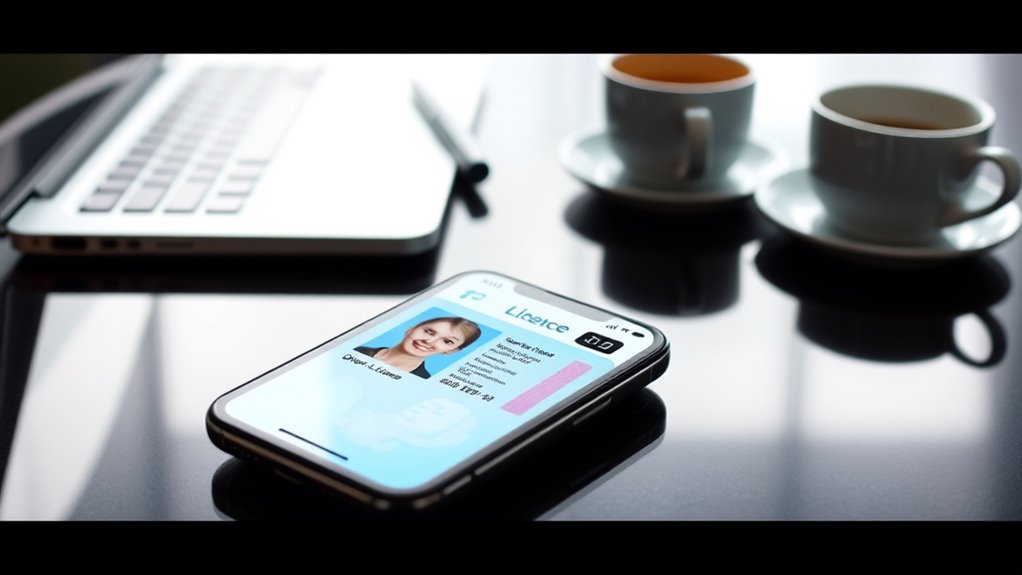
Your digital driver’s license can seamlessly integrate into your daily routines, making identity verification more convenient and contactless. Whether you’re at a TSA checkpoint, entering a venue, or verifying your age online, your digital ID streamlines the process. Simply double-click your iPhone or Apple Watch to present your license quickly. Hold your device near the scanner or reader to transmit your info securely, then review and confirm before sharing. You can also use your digital license within supported apps and websites by tapping “Verify Identity” and following prompts. This contactless approach saves time and reduces physical contact. Keep in mind, your digital ID is only accepted at participating locations, so always carry your physical license as backup. Staying updated ensures smooth and secure usage every day.
- Present your ID with a quick double-click on your device
- Use your phone or watch at TSA and event scanners
- Verify your identity online with a tap
- Keep your physical license handy for non-supported places
Troubleshooting Common Issues

Encountering issues with adding or using your digital driver’s license can be frustrating, but many common problems have straightforward solutions. If you see an error like “no barcode detected,” try rescanning your physical license, ensuring good lighting and steady hands. Missing the option to add your ID may mean your device needs an iOS or watchOS update—check for the latest version. Make sure location services and Bluetooth are enabled, as these are essential for scanning and verification. If your device isn’t accepting your state’s digital ID, verify that your state supports digital licenses and that you meet all requirements. For persistent issues, contact your state’s DMV support or customer service hotline. Often, a simple restart or reattempt fixes most problems quickly.
Frequently Asked Questions
Can I Add My Driver’s License to Multiple Apple Devices?
Yes, you can add your driver’s license to multiple Apple devices, like your iPhone and Apple Watch, if they meet the compatibility requirements. To do this, confirm each device is signed into the same Apple ID, has the latest software updates, and is set up with Apple Wallet. Follow the setup process on each device, scanning your license and completing verification, so your digital ID is accessible across your authorized devices.
Is My Digital License Accepted at All TSA Checkpoints?
Think of your digital license as a special pass in a secret club. Currently, TSA checkpoints in some states accept it, but not all. You double-check with your state’s digital ID program to see if your airport’s security uses this new pass. Remember, it’s like a VIP ticket—accepted where supported, but always carry your physical ID as a backup until widespread acceptance becomes the norm.
How Long Does State Approval Take After Submission?
State approval times vary, but it typically takes a few days to a couple of weeks after you submit your digital license for review. You should receive a notification once your digital ID is approved and active in Apple Wallet. Keep in mind, processing times depend on your state’s DMV workload and procedures. If it takes longer, contact your state DMV or check for updates via their support channels.
Can I Use My Digital ID Without Internet Access?
Nearly 80% of digital ID users find convenience in offline use, but you can’t fully depend on your digital license without internet access. When you’re offline, you can still present your digital ID at supported venues, like TSA checkpoints, but some features, like verification or updates, require an internet connection. So, it’s best to keep your device connected when possible to ensure smooth usage and updates.
What Should I Do if My License Scan Is Repeatedly Failing?
If your license scan keeps failing, first make certain your device’s camera is clean and well-lit. Rescan both the front and back of your license carefully, holding it steady. Check that your device’s software is up to date and Bluetooth is enabled. If issues persist, restart your device and try again. If problems continue, contact your state’s DMV support for further assistance or to verify if there are any known issues with the system.
Conclusion
Adding your driver’s license to Apple Wallet makes your life easier, your access more secure, and your daily routines more seamless. It’s about convenience, security, and simplicity—every step, every scan, every approval working together. Once you’ve completed the process, you’ll enjoy a faster check-in, a safer identity, and greater peace of mind. Embrace the digital age, enhance your everyday, and open the future—because your driver’s license should work for you, wherever you go.