To schedule Do Not Disturb across your devices, start by checking if your operating systems support sync features. Enable Do Not Disturb on one device and activate sync settings so it applies across all your devices like your phone, tablet, and laptop. You can customize schedules for different routines and set exceptions for urgent contacts. This process makes managing notifications easier and guarantees consistent quiet periods—stay tuned to find out more details.
Key Takeaways
- Enable Do Not Disturb synchronization in device settings to apply settings across all devices automatically.
- Use built-in operating system features (like Apple Focus or Android Bedtime) for scheduled DND across multiple devices.
- Set custom DND schedules on each device, ensuring they align for consistent quiet periods.
- Utilize third-party apps or device management tools that support cross-device DND scheduling.
- Verify device compatibility and synchronization options to ensure seamless, unified DND management.
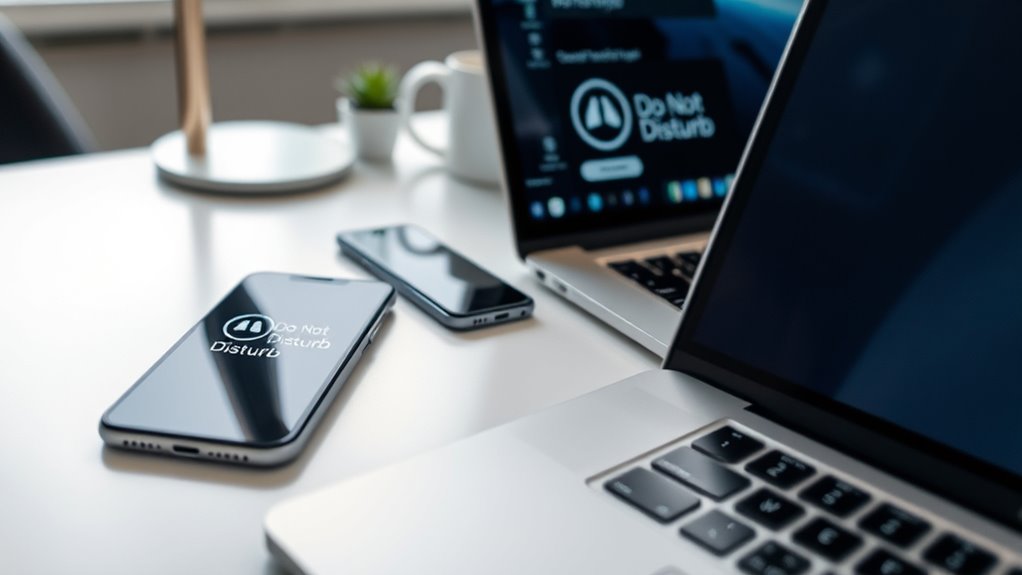
If you want to maintain focus or enjoy uninterrupted sleep, scheduling Do Not Disturb across all your devices is essential. When you activate this feature, it helps you control when notifications pop up, ensuring you’re not constantly interrupted. Proper notification management is crucial because it allows you to decide which alerts are important enough to break your concentration or disturb your rest. By scheduling Do Not Disturb, you set specific times for your devices to silence notifications automatically, so you don’t have to remember to turn it on or off manually every day. This is especially helpful if you use multiple devices—smartphones, tablets, laptops—since it prevents notifications from slipping through the cracks on any of them.
Scheduling Do Not Disturb across all devices keeps notifications silent and your focus sharp.
Device synchronization plays a vital role here. When your devices are linked, enabling Do Not Disturb on one device can automatically apply the setting across all your other devices. This synchronization ensures that you don’t have to manage each device separately, saving you time and reducing the chances of human error. For example, if you set your phone to Do Not Disturb during your sleep hours, your tablet and computer will follow suit if they’re properly synchronized. This seamless coordination makes it easier to stick to your schedule and maintain a consistent environment for focus or rest. The key is to check your device settings and ensure that your operating system or app settings support cross-device notification management.
Scheduling Do Not Disturb isn’t just about silencing notifications; it’s about creating a smarter, more efficient way to manage your digital life. You can customize the schedule based on your routine—like during work hours, meetings, or sleep—and even set exceptions for urgent contacts or specific apps. This flexibility means you stay connected when necessary but aren’t constantly bombarded with less important alerts. Also, modern devices often offer quick toggle options or automation features that make enabling scheduled Do Not Disturb effortless. When all your devices are synchronized, activating the schedule becomes a simple, unified action that applies everywhere simultaneously, removing the hassle of managing each device individually.
Ultimately, scheduling Do Not Disturb across all your devices streamlines your notification management, helps maintain focus, and ensures peaceful sleep. Proper device synchronization makes this process seamless, so you can enjoy uninterrupted moments without constantly fiddling with settings. It’s a strategic way to take control of your digital environment, making your devices work for you rather than against you. When you implement a scheduled Do Not Disturb routine, you’re investing in better focus, clearer boundaries, and improved rest—all with minimal effort.
cross-device Do Not Disturb scheduling app
As an affiliate, we earn on qualifying purchases.
As an affiliate, we earn on qualifying purchases.
Frequently Asked Questions
Can I Customize DND Settings for Individual Apps?
Yes, you can customize DND settings for individual apps. You’ll find app-specific controls within your device’s Do Not Disturb settings, allowing you to set notification exceptions for certain apps. This way, you can mute notifications from most apps but still receive alerts from important ones. Adjust these settings to tailor your DND experience, ensuring you stay focused while still getting alerts from apps you trust.
Does Scheduling DND Affect Notification Alerts?
Think of scheduling DND as your personal gatekeeper, much like a lighthouse guiding ships safely past treacherous waters. When you set a schedule, notification alerts are suppressed during those times, giving you peace and focus. This affects notification management by applying app-specific controls, so you don’t miss important alerts outside your scheduled DND. It’s a balance between serenity and staying informed, tailored to your needs.
Can I Override Scheduled DND Temporarily?
Yes, you can override scheduled DND temporarily. You might want to use custom DND shortcuts or quick settings to turn off DND instantly. If you’re experiencing trouble, troubleshooting DND issues often involves checking your scheduled settings across devices. Simply swipe to access quick toggles, then disable DND for immediate notifications. Remember, customizing shortcuts can make overriding DND faster and easier whenever you need to stay connected temporarily.
Is DND Synchronization Seamless Across All Device Types?
Did you know 78% of users prefer seamless cross-platform compatibility? When it comes to DND synchronization, it’s usually quite smooth across devices, guaranteeing consistent notification management. You’ll find that most systems sync DND settings efficiently, so your focus stays on important tasks without interruptions. However, some device types may have slight delays, so double-check your settings to make certain DND is active across all your gadgets.
How Do I Set Different DND Schedules for Work and Personal Use?
You can set different DND schedules for work and personal use by customizing app-specific settings. First, open your device’s DND or Focus mode settings, then create separate schedules for each scenario. Within these settings, customize notifications for specific apps so you receive alerts only when needed. This way, you control your notifications precisely, ensuring that your custom notification preferences suit both your work and personal life seamlessly.
Conclusion
By scheduling Do Not Disturb across your devices, you create an unbreakable barrier against distractions, giving you the power to reclaim your focus. Imagine having a peace so profound it outshines the chaos of the busiest day—your devices working in harmony to protect your peace. Don’t wait for the perfect moment; set your DND schedule now and experience the calmness that’s as mighty as a thunderstorm, yet as gentle as a whisper.