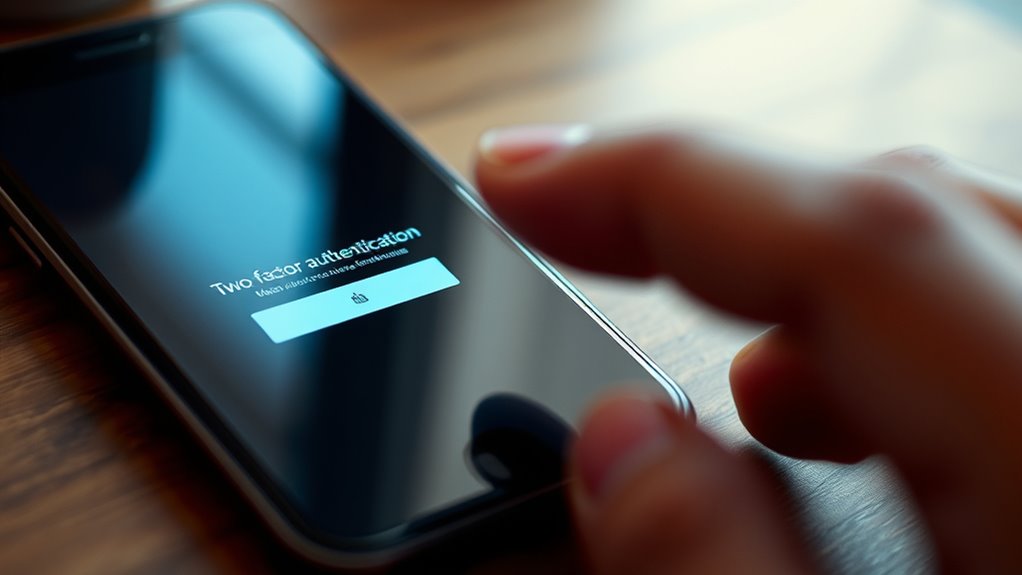

If your two-factor code isn’t arriving, start by checking your notification and app permissions to make sure alerts are enabled. Verify your device’s time is correct, as inaccurate clocks can prevent codes from working. Switch between Wi-Fi and cellular data to improve message delivery, and restart your device to fix minor glitches. If you still don’t get the code, review your app and system settings or contact support. Keep exploring to find more solutions.
Key Takeaways
- Check app notification permissions, background activity, and ensure Do Not Disturb mode is off.
- Update the authentication app, clear cache, and restart your device to fix glitches.
- Verify your internet or cellular connection and confirm your phone number is correct and active.
- Ensure device date and time are accurate and synchronized automatically for proper code generation.
- Contact support if issues persist or if there’s a widespread problem affecting two-factor authentication.

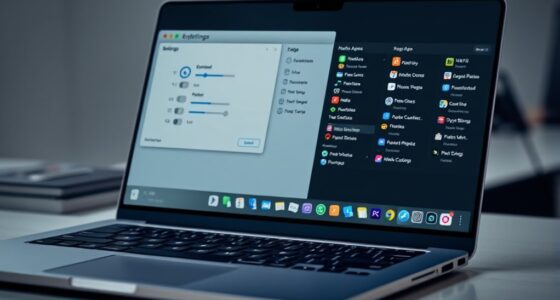
Have you been waiting for your two-factor authentication code but it never arrives? This can be frustrating, especially when you’re eager to access your account. The first thing to check is your device’s security settings. Sometimes, notifications from authentication apps can be blocked or disabled, preventing the code from reaching you promptly. Go into your device’s security or notification settings and ensure that app notifications are enabled for your authentication app. If notifications are turned off, you’ll never receive that essential message, and you’ll be left waiting.
Next, verify that your authentication app has the correct permissions. Many smartphones have settings that restrict app notifications or background activity. Open your device’s app settings, locate the authentication app, and make sure it’s allowed to send notifications. Sometimes, updates or changes in system policies can accidentally disable these permissions, so it’s worth double-checking. Also, ensure that your device’s Do Not Disturb mode isn’t active, as that can block notifications, including your two-factor codes.
If your security settings are all correct, but you still don’t get the code, consider the app notifications themselves. Sometimes, an app can glitch or experience delays, especially if it hasn’t been updated in a while. Check the app store for updates and install the latest version. Updating can fix bugs that interfere with notification delivery. Clearing the app cache or restarting your device can also resolve temporary glitches that might be blocking incoming messages.
Another common issue is network problems. Two-factor authentication codes are typically sent via SMS or app notifications that rely on an internet or cellular connection. Make sure your device has a stable network connection. Switch to Wi-Fi if cellular data seems weak, or vice versa. If the message is sent via SMS, verify that your phone number is correctly linked to your account, and that your carrier isn’t experiencing outages. Sometimes, SMS delivery delays can be on the provider’s end, so patience might be necessary.
If you’re using an authenticator app that generates codes offline, ensure the app’s clock is synchronized correctly. Many apps rely on accurate time settings; if your device’s clock is off, the generated codes might be invalid, causing delays or failures. Check your device’s date and time settings and enable automatic synchronization if possible. Additionally, filtering of notifications by your device’s settings can sometimes prevent timely delivery, so review those configurations.
Finally, if none of these solutions work, contact your account’s support team. They might have insights into whether there’s a broader issue with their two-factor system or if your account settings need adjustment. Remember, maintaining your security settings properly and ensuring app notifications are active are essential steps to receive your two-factor codes without delay. Taking these precautions can save you time and frustration, getting you back into your account faster.
authentication app notification settings
As an affiliate, we earn on qualifying purchases.
As an affiliate, we earn on qualifying purchases.
Frequently Asked Questions
Can I Use Backup Codes Instead of the Two-Factor Code?
Yes, you can use backup codes as an alternative verification method instead of the two-factor code. Backup codes are designed for situations where your usual codes don’t arrive, giving you a secure way to access your account. Just locate your backup codes, enter one when prompted, and you’ll be able to sign in. Make sure to keep these codes safe, as they’re your fallback option for account access.
How Do I Reset My Two-Factor Authentication Settings?
Imagine opening a door with a worn key—you need to reset your two-factor authentication settings to regain access. To do this, start your account recovery process through your provider’s support page. You can disable and then re-enable 2FA, or set up new authentication apps. This refreshes your security, ensuring you get new codes and regain control, like finding a new key to open your trusted account door.
Is Two-Factor Authentication Available for All Accounts?
Most accounts now support two-factor authentication to enhance your account security and user authentication. While many popular services like email, social media, and banking platforms offer this feature, not all accounts do. Check each service’s security settings to see if two-factor authentication is available. Enabling it adds an extra layer of protection, making it harder for unauthorized users to access your account.
What Should I Do if My Phone Is Lost?
Think of your phone as your digital key. If it’s lost, start with phone recovery options offered by your device’s manufacturer. Contact your account providers to update your account verification methods, such as using backup codes or alternative contacts. Secure your accounts by changing passwords and enabling new two-factor authentication on a new device. Acting quickly helps safeguard your information and ensures you regain access smoothly.
How Do I Prevent Two-Factor Code Delays in the Future?
To prevent two-factor code delays, follow security best practices like keeping your contact info up to date and enabling backup methods. Troubleshoot connectivity issues by making certain your phone has a strong signal and is synced correctly with your provider. Regularly update your apps and operating system, and consider using authentication apps or backup codes for added reliability. These steps help guarantee smooth access and reduce delays when receiving your codes.

Yubico – YubiKey 5C NFC – Multi-Factor authentication (MFA) Security Key and passkey, Connect via USB-C or NFC, FIDO Certified – Protect Your Online Accounts
POWERFUL SECURITY KEY: The YubiKey 5C NFC is the most versatile physical passkey, protecting your digital life from…
As an affiliate, we earn on qualifying purchases.
As an affiliate, we earn on qualifying purchases.
Conclusion
If your two-factor code still isn’t arriving, don’t get discouraged. Double-check your phone number and carrier signal, and try resending the code. Sometimes, patience is key—like the saying goes, “Good things come to those who wait.” Keep troubleshooting, and you’ll likely resolve the issue. Remember, persistence often pays off, and soon you’ll be back to securing your account with ease.

Eujgoov Digital Notebook Smart Writing Set for iOS for Android Smartphones Real Time Synchronization 5.0 Wireless Smart Pen Applicable Scene
Voice Creating Support: Enables creating through simple verbal expressions and voice input, generating your envisioned images in approximately…
As an affiliate, we earn on qualifying purchases.
As an affiliate, we earn on qualifying purchases.

Naroote Portable Cell Phone Signal Booster, 5-Pack Adhesive Boosters for Elevators, Cars, Remote Locations
【Easy to Install】The portable cell phone booster features an adhesive backing, allowing for quick and easy attachment to…
As an affiliate, we earn on qualifying purchases.
As an affiliate, we earn on qualifying purchases.