
Home printer nightmares often happen when AirPrint, IPP, or driverless printing face connection issues, security bumps, or compatibility hurdles. Sometimes, devices can’t discover your printer, or the network setup causes slowdowns and errors. But don’t worry—understanding how these wireless options work and how to troubleshoot common problems can make your printing smoother. Keep exploring further steps, and you’ll find ways to fix these issues and print with confidence.
Key Takeaways
- Wireless printing can face connection issues due to network interference, device discovery failures, or outdated firmware.
- AirPrint simplifies printing by auto-detecting compatible printers, but compatibility and security settings can cause setup nightmares.
- IPP offers broad device compatibility and security features, reducing driver-related problems and improving remote printing reliability.
- Troubleshooting common problems involves checking network settings, ensuring devices are on the same Wi-Fi, and updating printer firmware.
- Proper network security, static IP assignment, and firmware updates are essential to prevent “nightmares” in home wireless printing environments.

Canon PIXMA TS6520 Wireless Color Inkjet Printer Duplex Printing, White – Home Printer with Copier/Scanner, 1.42” OLED Display, Intuitive Control Panel, Compact Design
Affordable Versatility – A budget-friendly all-in-one printer perfect for both home users and hybrid workers, offering exceptional value
As an affiliate, we earn on qualifying purchases.
As an affiliate, we earn on qualifying purchases.
Understanding AirPrint and Its Role in Seamless Printing

Understanding AirPrint is essential for appreciating how Apple devices can print effortlessly without additional software. When you use an iPhone, iPad, or Mac, AirPrint automatically detects compatible printers on your Wi-Fi network. This means you don’t need to install drivers or connect cables; everything happens seamlessly in the background. AirPrint uses the Bonjour protocol to discover printers instantly, making the setup process straightforward. It supports secure wireless connections with encryption standards like WPA2 and WPA3, ensuring your data stays protected. The protocol employs Apple Raster for efficient print data transmission, delivering high-quality output. By integrating these features directly into Apple’s operating systems, AirPrint simplifies printing, allowing you to print documents, photos, and web pages from your device with just a tap. Understanding the esoteric meanings behind technological symbols like AirPrint can deepen your appreciation for their role in modern spiritual harmony.

Rongta Portable 80mm POS Printer, Mobile Thermal Receipts Printer, USB&Bluetooth Connection, Compatible with Android Phone, Do Not Square/Ipad/Computer/Android Tablet(RPP300)
Please download "RTPrinter System" app in google play/App Store, connect the app to the phone. BLUETOOTH+USB. Please contact…
As an affiliate, we earn on qualifying purchases.
As an affiliate, we earn on qualifying purchases.
The Evolution of Driverless Printing Technologies

The development of driverless printing technologies has revolutionized how you approach printing by removing the need for traditional drivers and complex setups. Instead, these systems rely on network protocols like AirPrint, IPP, and Wi-Fi Direct to enable seamless, automatic detection and communication between devices and printers. Over time, these technologies have evolved from simple, proprietary solutions into interoperable standards that support diverse devices and environments. The focus shifted toward enhancing security, speed, and reliability, making wireless printing easier and more dependable. Today, driverless printing integrates AI, cloud connectivity, and smarter management features, paving the way for more flexible and efficient workflows. This evolution continues to shape how homes and businesses handle printing with minimal hassle and maximum convenience, aided by standardized protocols that promote compatibility across various platforms. Additionally, ongoing innovations in network security ensure that wireless printing remains safe for personal and corporate use. As these standards advance, interoperability between different devices and operating systems continues to improve, further simplifying user experiences. Moreover, advancements in device detection and configuration reduce setup time and user errors, enhancing overall efficiency.

KNAON AirPrint Thermal Label Printer, Wireless Wi-Fi Shipping Label Printer 4×6 for iPhone, iPad, Mac,Compatible with Android&Windows, Included Label Holder – Ideal for Small Business, Amazon, Shopify
AirPrint Compatibility: KNAON Y486AP Printer offers seamless wireless printing with full AirPrint support. Simply connect the printer to…
As an affiliate, we earn on qualifying purchases.
As an affiliate, we earn on qualifying purchases.
Common Challenges With Wireless Printing at Home

Wireless printing at home can seem straightforward, but many users encounter issues like inconsistent connections, printer discovery failures, and slow print speeds that disrupt their workflow. These problems often stem from Wi-Fi interference, signal range limitations, or network congestion, making it hard for devices to communicate reliably. Printer discovery failures happen when your device can’t detect the printer on the network, forcing you to troubleshoot or restart devices. Slow print speeds occur with large files or poor network bandwidth, leading to frustration. Additionally, security settings or firmware issues can block connections or cause compatibility problems. All these challenges can turn what should be a simple task into a frustrating experience, especially when urgent documents or photos are involved. Furthermore, automation in business continues to reshape how devices communicate, which can influence wireless printing reliability. Factors like network management and device interoperability are increasingly critical to ensuring smooth operation. Improving wireless network security and updating printer firmware can also help mitigate many of these issues. Incorporating network optimization techniques can further enhance wireless printing stability and performance. Moreover, optimizing your home network setup can significantly reduce interference and improve overall connection stability.

Canon PIXMA TR4720 All-in-One Wireless Printer Home use, with Auto Document Feeder, Mobile Printing and Built-in Fax, White
PRINT, COPY, SCAN, FAX: The PIXMA TR4720 is a true 4-in-1 printer that is compact, versatile and easy-to-use
As an affiliate, we earn on qualifying purchases.
As an affiliate, we earn on qualifying purchases.
How IPP Enhances Printer Compatibility and Connectivity

IPP improves printer compatibility by supporting a wide range of devices and models, making setup easier for you. It also guarantees a stable connection over your network, so you can print without interruptions. Plus, it offers strong security features to keep your data safe during wireless printing. Additionally, understanding textile art techniques can inspire innovative ways to incorporate technology into creative projects.
Broad Printer Compatibility
By using Internet Printing Protocol (IPP), printers become more compatible and easier to connect with a wide range of devices. IPP standardizes communication, allowing devices from different manufacturers to work together seamlessly. This broad compatibility means you can print from various operating systems like Windows, macOS, Linux, and mobile platforms without needing special drivers. IPP also supports multiple connection types, including wired and wireless networks, making setup flexible. Additionally, IPP-enabled printers can integrate with cloud services and remote access solutions, expanding your printing options. Security considerations are increasingly important as IPP supports remote printing over the internet, highlighting the need for secure configurations.
- Supports diverse device types and operating systems
- Enables easy integration with cloud-based workflows
- Facilitates seamless printer discovery and setup
- Allows remote printing over the internet
- Reduces driver dependency and compatibility issues
Seamless Network Connectivity
Seamless network connectivity guarantees your printers work smoothly across various devices and platforms without hassle. IPP (Internet Printing Protocol) enhances this by providing a universal standard that simplifies printer discovery and communication. When you connect your devices to the same network, IPP automatically detects compatible printers, eliminating the need for manual setup or driver installations. This means you can print directly from your laptop, tablet, or smartphone without switching apps or configuring settings. IPP also supports dynamic IP address management, ensuring your printer remains accessible even if its network address changes. Compatibility is further improved by IPP’s support for multiple device types and operating systems. Additionally, the protocol’s ability to facilitate secure printing helps protect sensitive documents during transmission. Incorporating standardized protocols like IPP ensures your printing experience becomes more reliable, responsive, and consistent, making it easier to stay productive without interruptions caused by connectivity issues. Using network protocols like IPP can reduce the need for troubleshooting, saving time and avoiding frustration. Furthermore, adopting these protocols can help streamline the integration of printers into existing network infrastructure, minimizing setup time and enhancing overall efficiency.
Enhanced Security Features
Enhanced security features play a crucial role in safeguarding your printer connections and ensuring reliable communication across devices. IPP incorporates robust security measures that protect your data and prevent unauthorized access. It supports encryption protocols like TLS, safeguarding print jobs from interception. IPP also enables user authentication, ensuring only authorized users can access printers. Additionally, it offers access controls, limiting permissions based on user roles. These features help prevent malicious activities and data breaches. By integrating security directly into the printing protocol, IPP enhances compatibility with modern networks and devices, maintaining a secure environment while providing seamless connectivity. Incorporating security measures and understanding their importance helps users stay informed and proactive about protecting their networks. Overall, these security enhancements give you peace of mind, knowing your printing process is protected without sacrificing ease of use. Implementing security measures helps prevent potential vulnerabilities and strengthens your network defenses.
Troubleshooting AirPrint Connection Issues

Troubleshooting AirPrint connection issues can be frustrating, but many problems stem from simple network or configuration glitches. First, verify your iPhone, iPad, or Mac is connected to the same Wi-Fi network as your AirPrint-compatible printer. Restart your device and the printer to refresh connections. Confirm that the printer is powered on, connected to Wi-Fi, and not showing any errors. Check your router settings to make sure Bonjour discovery is enabled, as this protocol helps devices find printers automatically. If issues persist, reset your network settings on your device or restart your router. Make certain your printer firmware is up to date. Finally, temporarily disable any VPNs or firewalls that could block communication between your device and the printer.
The Impact of Wi-Fi Security on Printer Access

Wi-Fi security settings considerably influence your ability to access and print from AirPrint-compatible printers. If your network uses strict security protocols, you might face connectivity issues or be unable to discover printers automatically. Proper configuration guarantees seamless communication between your device and the printer without compromising security. Additionally, implementing security measures such as continuous monitoring and prompt updates can help defend against potential cyber threats that may target your network or connected devices. To optimize access, consider these factors:
Wi-Fi security settings impact AirPrint access; proper setup ensures seamless, secure printer discovery and communication.
- Ensure your Wi-Fi network uses WPA2 or WPA3 encryption for secure, reliable connections
- Avoid overly restrictive guest network settings that block printer discovery
- Enable Bonjour/mDNS services on your router for automatic printer detection
- Keep firmware updated to support the latest security protocols and AirPrint features
- Disable network isolation features that prevent device-to-device communication
Implementing a secure network configuration can further enhance protection while maintaining printer accessibility. Regularly reviewing your network security settings helps prevent unauthorized access and ensures ongoing safe connectivity. For added assurance, consult your router’s documentation to understand how network segmentation can improve both security and device discoverability.
Maintaining a balance between security and accessibility is key for smooth AirPrint integration.
Comparing Bluetooth and Wi-Fi Printing Solutions

While Bluetooth printers offer the convenience of wireless connectivity, Wi-Fi printing solutions like AirPrint deliver much faster and more reliable performance. Bluetooth’s limited bandwidth makes it prone to disconnections and slow data transfer, especially with larger files or high-resolution images. In contrast, Wi-Fi leverages higher bandwidth, enabling quick transmission of complex documents and photos without interruptions. Wi-Fi connections remain stable across multiple rooms and devices, reducing the frustration of constant reconnections common with Bluetooth. Additionally, Wi-Fi allows multiple users to print simultaneously without bottlenecks, improving efficiency. If you need seamless, high-speed printing from your Apple device, Wi-Fi solutions like AirPrint outperform Bluetooth considerably, making them the preferred choice for home and office environments seeking reliability and speed.
Future Trends in Wireless and Cloud Printing

Future wireless and cloud printing will be driven by AI innovations that make devices smarter and more intuitive. As security concerns grow, advancements in cloud security will guarantee your data stays protected during remote printing. These trends will make printing more seamless, secure, and adaptable to your evolving needs.
AI-Driven Printing Innovations
AI-driven printing innovations are transforming how wireless and cloud printing systems operate by making them smarter, more secure, and highly responsive. You’ll see printers that can anticipate your needs, optimize print quality, and improve security without manual intervention. These advancements enable seamless integration with smart home systems and enterprise workflows. Expect AI to enhance troubleshooting, predict maintenance needs, and adapt to your usage patterns automatically. This means less downtime and more reliable printing experiences.
- Smarter print job management with AI optimization
- Enhanced security through AI-based threat detection
- Automatic troubleshooting and issue resolution
- Personalized print settings based on user habits
- Real-time monitoring and predictive maintenance
Cloud Security Advancements
As wireless and cloud printing technologies become more advanced, guaranteeing security across these platforms takes on greater importance. You’ll see new encryption standards, like TLS 1.3, providing stronger data protection during transmission. Multi-factor authentication and biometric verification are increasingly integrated into cloud print services, adding layers of security against unauthorized access. Cloud providers are adopting AI-driven threat detection to identify suspicious activity in real-time, preventing potential breaches. Additionally, end-to-end encryption ensures your print data remains private from device to printer. Firmware updates are becoming more frequent and automated, patching vulnerabilities quickly. These advancements help safeguard sensitive documents and prevent malicious attacks, giving you confidence that your wireless and cloud printing remains secure amid growing technological complexity.
Tips for Setting Up a Reliable Home Printing Network

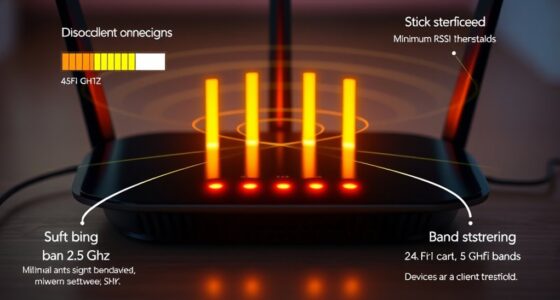
Setting up a reliable home printing network starts with choosing the right wireless setup. Ensure your Wi-Fi router supports modern standards like WPA3 or WPA2 for security and stability. Position your printer within good signal range to prevent connection drops. Use a dedicated network or VLAN for printing devices to reduce interference. Enable Bonjour services for seamless printer discovery. Keep your printer firmware updated to fix bugs and improve compatibility. Consider assigning static IP addresses to avoid IP conflicts and simplify troubleshooting. Regularly restart your router and printer to maintain smooth operation. Finally, limit network access to trusted devices to prevent unauthorized printing and enhance security.
Ensure your Wi-Fi supports WPA2/WPA3, place the printer centrally, and assign static IPs for a stable home printing network.
- Use a dual-band router (2.4 GHz and 5 GHz)
- Keep firmware updated regularly
- Assign static IP addresses to printers
- Place the printer centrally for better signal
- Enable network encryption (WPA2/WPA3)
Overcoming Privacy and Security Concerns in Wireless Printing

To keep your wireless printing secure, you need to protect your data as it travels across your network. Make sure your printer uses strong encryption and that access is restricted to trusted devices. Taking these steps helps prevent unauthorized users from intercepting or accessing your sensitive information.
Protecting Wireless Data
Concerned about the security of your wireless printing? Protecting your wireless data is essential to prevent unauthorized access and data breaches. First, verify your Wi-Fi network uses strong encryption like WPA3 or WPA2. Regularly update your printer firmware to patch vulnerabilities. Enable network firewalls to monitor and block suspicious activity. Use strong, unique passwords for printer and network access. Finally, disable any unnecessary remote printing features that could expose your data.
- Keep your Wi-Fi secured with WPA3 or WPA2 encryption
- Regularly update your printer’s firmware and software
- Use strong, unique passwords for all devices
- Enable firewalls to monitor network traffic
- Turn off unused remote printing options
Secure Printer Access
Ensuring that only authorized users access your wireless printers is vital to protect your privacy and prevent security breaches. To do this, enable strong Wi-Fi encryption like WPA3 or WPA2 on your network, making it harder for outsiders to connect. Use device authentication features, such as PIN codes or user login requirements, to restrict printer access. Regularly update your printer’s firmware to patch security vulnerabilities. Disable guest networks or limit access to trusted devices only. Consider setting up a separate VLAN or network segment for your printers, isolating them from sensitive data. Additionally, monitor network activity for suspicious activity and disable any unnecessary services or features that could expose your printer. These steps help secure your printing environment against unauthorized access and potential threats.
Frequently Asked Questions
Can Airprint Work With Non-Apple Devices Like Windows or Android?
No, AirPrint doesn’t work directly with non-Apple devices like Windows or Android. It’s designed specifically for Apple devices using its proprietary protocol. However, you can still print from Windows or Android by using compatible third-party apps, universal printing solutions, or network-based printing protocols like IPP. These options enable you to connect with AirPrint-compatible printers, but you’ll need additional software or setup steps to make it work.
Is It Possible to Print via Airprint Without Wi-Fi at Home?
You can’t use AirPrint without Wi-Fi at home because it relies on a wireless network to connect your Apple device directly to the AirPrint-compatible printer. The protocol uses your Wi-Fi connection to discover and communicate with the printer, so if your Wi-Fi is down or unavailable, AirPrint won’t work. For offline printing, you’d need alternative methods like USB or Bluetooth, which AirPrint doesn’t support.
How Secure Is Wireless Printing Against Unauthorized Access?
Wireless printing can be quite secure if you use encryption protocols like WPA2 or WPA3 on your Wi-Fi network. These protect your data from unauthorized access during transmission. Additionally, you should enable printer password protection and keep firmware updated to patch security vulnerabilities. Avoid printing over public or unsecured networks, and consider disabling Wi-Fi when you’re not using it for added safety. This way, you minimize risks of unauthorized access to your print jobs.
Do All Printers Automatically Support Airprint or Require Additional Setup?
Ever wonder if your printer supports AirPrint right out of the box? Not all printers do; many require you to check compatibility or enable AirPrint features manually. You might need to update your printer’s firmware or install specific drivers. While some newer models come with AirPrint built-in, older or less common printers often need additional setup. Always verify your printer’s specifications or consult the manufacturer to guarantee seamless wireless printing.
Will Future Updates Improve Compatibility With Older Printer Models?
Future updates are unlikely to improve compatibility with older printer models unless those printers receive firmware upgrades or hardware modifications. You’ll probably need to check with your printer manufacturer for firmware updates or consider upgrading to newer, AirPrint-compatible models. While some third-party solutions may offer limited support, most legacy printers won’t automatically gain new wireless printing features without manufacturer intervention or hardware replacements.
Conclusion
Mastering home printing can feel like taming a wild stallion, but with the right tools and know-how, you’ll master the ride. Embrace AirPrint, IPP, and driverless tech as your trusted steeds, guiding you smoothly through wireless chaos. Stay vigilant against connection hiccups and security pitfalls, turning your printer into a loyal companion rather than a stubborn beast. With patience and the right setup, your printing journey becomes a well-choreographed dance, not a nightmare.