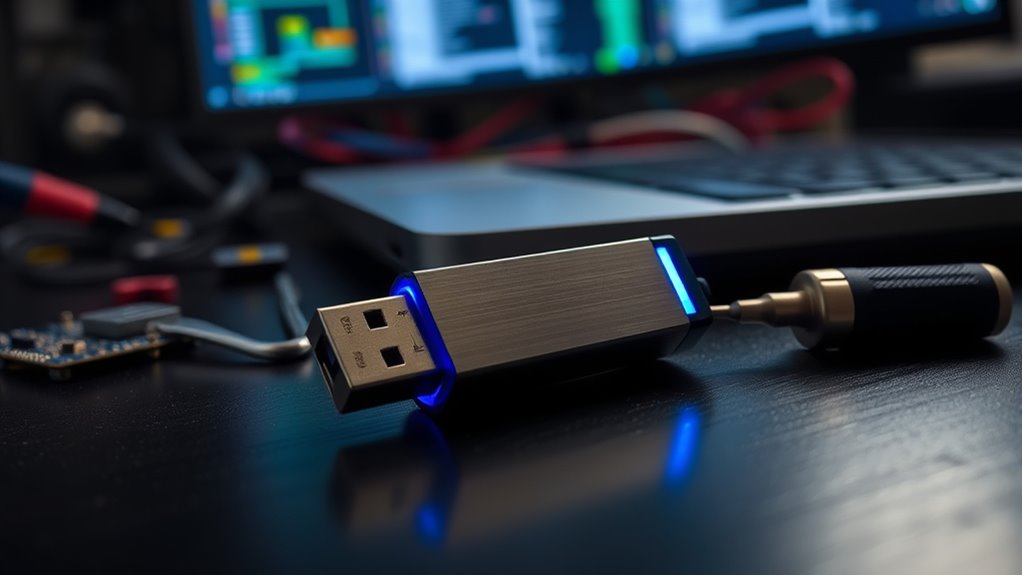

To make a bootable recovery drive, start by choosing a USB flash drive with at least 16GB of space and backing up any existing data. Use your operating system’s built-in recovery tools or dedicated software to create the drive, ensuring it’s properly formatted and compatible. Verify your BIOS or UEFI settings support booting from USB, and test the drive to confirm it boots into the recovery environment. Continue to explore how to create a reliable recovery setup.
Key Takeaways
- Use a USB flash drive with at least 16GB capacity and backup existing data before creating the recovery drive.
- Follow OS-specific tools or software prompts to create the bootable recovery media.
- Ensure BIOS/UEFI settings support booting from USB or DVD and verify hardware compatibility.
- Test the recovery drive by booting from it and confirming it loads the recovery environment successfully.
- Store the recovery drive securely and consider encrypting it to protect sensitive data.

Creating a bootable recovery drive is an vital step to guarantee you can troubleshoot and restore your computer when it encounters serious issues. This drive serves as a safety net, allowing you to access recovery tools and reinstall your operating system if your PC becomes unresponsive or infected with malware. Before you begin, it’s important to consider system security, ensuring that your recovery drive is protected from unauthorized access. Keep it in a secure location and, if possible, encrypt the drive to prevent sensitive data from falling into the wrong hands. Additionally, verifying hardware compatibility is essential; your computer must be able to recognize and boot from the recovery media without glitches. This involves confirming that your system’s BIOS or UEFI settings support booting from USB drives or DVDs, and that your hardware drivers are compatible with the recovery environment. Regularly updating your recovery media is also recommended to ensure compatibility with system updates and security patches.
To create the recovery drive, start by selecting a USB flash drive with sufficient storage capacity—usually at least 16GB. Make sure the drive is empty or that you have backed up its contents, as the process will erase all data. Using the built-in recovery media creation tool on Windows or the appropriate software for your OS, follow the prompts to copy necessary files onto the drive. During this process, pay close attention to any warnings about hardware compatibility, especially if you’re using a custom-built PC or an older machine. Some hardware components might require specific drivers during recovery, so having access to driver files beforehand can save time and prevent boot issues. Ensuring your recovery drive includes up-to-date drivers can significantly improve the success of the recovery process.
Once the creation process completes, test your recovery drive on the target machine by restarting and selecting the appropriate boot device in your BIOS or UEFI settings. If the system recognizes the drive and boots into the recovery environment smoothly, you’re all set. If not, double-check the boot order configuration and ensure your hardware is compatible with the recovery media. Remember, a well-prepared recovery drive not only helps you restore your system but also enhances your overall system security, as it enables you to recover from ransomware attacks or severe malware infections that might otherwise compromise your data.

SanDisk 16GB Ultra Flair USB 3.0 Flash Drive – SDCZ73-016G-G46, black
High-speed USB 3.0 performance of up to 130MB/s(1)
As an affiliate, we earn on qualifying purchases.
As an affiliate, we earn on qualifying purchases.
Frequently Asked Questions
Can I Create a Recovery Drive on a Mac?
You can’t create a recovery drive on a Mac using Windows recovery software, but Mac compatibility allows you to make a bootable recovery drive with macOS tools. You can use Disk Utility or Terminal to create a recovery partition or use third-party apps designed for Macs. This helps you troubleshoot issues or reinstall macOS if needed. Just guarantee your drive has enough space and follow the proper steps for a successful recovery drive.
Is an Internet Connection Required for Creating a Recovery Drive?
Yes, an internet connection is usually required for recovery drive creation, especially if you’re downloading necessary system files or updates. During the process, your device may need to verify your license or download specific tools, making the internet essential. confirm you have a stable connection to avoid interruptions, which helps the recovery drive creation go smoothly and successfully. Without internet, some steps might not complete properly.
What Are the Compatibility Requirements for the USB Drive?
You need a USB drive with at least 16GB of capacity for creating a recovery drive. Make certain to format the drive to FAT32 or NTFS, depending on your system’s requirements. The drive should be compatible with your computer’s USB ports, whether USB 2.0 or 3.0. Using a reliable, clean drive guarantees it will work smoothly when booting your system for recovery purposes.
Can I Customize the Recovery Tools Included?
Yes, you can customize the recovery tools included in your bootable recovery drive. Many recovery software options offer customization options, allowing you to add or remove specific tools based on your needs. This way, you can tailor your recovery drive to include essential diagnostics, backup utilities, or system repair tools. Just make certain the software you choose supports customization, and follow the instructions to modify the recovery environment to suit your preferences.
How Often Should I Update My Recovery Drive?
You should update your recovery drive whenever you notice significant changes to your system, such as major updates or new software installations. For maximum recovery frequency, consider updating at regular intervals, like every three to six months, to ensure your recovery options stay current. Regular updates help keep your recovery tools effective and reliable, minimizing potential issues during emergencies and ensuring you always have the latest system data and tools at your fingertips.

Hiren’s BootCD PE Recovery & Diagnostic Bootable USB Flash Drive
🧰 All-in-One Recovery Solution: Includes the latest Hiren’s BootCD PE preinstalled with powerful diagnostic and recovery utilities.
As an affiliate, we earn on qualifying purchases.
As an affiliate, we earn on qualifying purchases.
Conclusion
Creating a bootable recovery drive guarantees you’re prepared for any system failure. For example, imagine your PC suddenly crashes before a critical deadline. With a recovery drive, you can quickly troubleshoot and restore your system without losing important files. Keep yours updated and handy—it’s your safety net in emergencies. Having this tool ready means you won’t be left stranded, giving you peace of mind knowing help is just a boot away whenever you need it.

64GB – Bootable USB Drive 3.2 for Windows 11/10 / 8.1/7, Install/Recovery, No TPM Required, Included Network Drives (WiFi & LAN),Supported UEFI and Legacy, Data Recovery, Repair Tool
✅ Beginner watch video instruction ( image-7 ), tutorial for "how to boot from usb drive", Supported UEFI…
As an affiliate, we earn on qualifying purchases.
As an affiliate, we earn on qualifying purchases.
64GB – Bootable USB Drive 3.2 for Windows 11/10 / 8.1/7, Install/Recovery, No TPM Required, Included Network Drives (WiFi & LAN),Supported UEFI and Legacy, Data Recovery, Repair Tool
✅ Beginner watch video instruction ( image-7 ), tutorial for "how to boot from usb drive", Supported UEFI…
As an affiliate, we earn on qualifying purchases.
As an affiliate, we earn on qualifying purchases.