To create a local photo catalog, start by organizing your images into folders based on events or dates and assign clear, descriptive filenames. Add consistent metadata tagging like keywords, locations, and dates to make searching easier. Use reliable storage options such as external drives or NAS, and regularly back up your collection. Maintain your system with ongoing updates and verification. Keep exploring, and you’ll discover how to build a streamlined and secure photo management system that saves you time.
Key Takeaways
- Organize photos into clearly named folders based on date, event, or project for easy navigation.
- Use consistent metadata tagging, including keywords, location, and dates, to enhance searchability.
- Select reliable storage solutions like external drives or NAS, and create regular backups to prevent data loss.
- Incorporate metadata addition and organization into your workflow for ongoing catalog maintenance.
- Utilize photo management software to streamline tagging, backup, and retrieval processes within your local catalog.

Creating a local photo catalog can streamline how you organize and access your images. When you develop an efficient system, you’re able to find photos quickly instead of wasting time scrolling endlessly through folders. One of the foundational steps is understanding the importance of metadata organization. Metadata acts as the digital labels attached to each photo, containing details like date taken, location, camera settings, or keywords. By consistently tagging your images with relevant metadata, you enhance searchability, making it easier to locate specific photos later. For example, if you remember a trip to the Grand Canyon, but can’t recall the exact file name, a well-organized catalog with location tags helps you find that image instantly. Incorporating metadata into your workflow ensures your collection remains manageable, especially as it grows. Metadata standards can also help you maintain consistency across your catalog, further improving searchability and organization.
Alongside metadata, choosing the right storage solutions is essential. Your storage setup should prioritize both security and ease of access. External hard drives, network-attached storage (NAS), or dedicated SSDs provide reliable options for storing large image libraries. It’s wise to invest in storage solutions with sufficient capacity, so you don’t have to worry about running out of space. Additionally, consider redundancy—backing up your catalog regularly prevents data loss from hardware failures or accidental deletions. Cloud backups can supplement physical storage, offering an extra layer of security, but keep in mind that local catalogs are primarily designed for quick access and editing without relying on internet speeds. When setting up your storage, organize your files into logical folders, such as by year, event, or project, to complement your metadata tags. This hybrid approach of physical folder organization and digital metadata provides a complete system that keeps your images accessible and well-structured.
As you build your catalog, it’s crucial to establish a consistent naming convention for your files. Clear, descriptive filenames paired with metadata reduce confusion and help maintain order. Regularly updating your catalog with new images, tagging them appropriately, and verifying your storage integrity are ongoing tasks that keep your system efficient. Using user-friendly photo management software can automate parts of this process, like adding metadata or creating backups, saving you time and effort. Remember, the goal is to create a system that aligns with your workflow and makes retrieving images effortless. When you combine thoughtful metadata organization with reliable storage solutions, your local photo catalog becomes a powerful tool for managing your collection, ensuring that all your precious memories are just a few clicks away whenever you need them.

Seagate Portable 2TB External Hard Drive HDD — USB 3.0 for PC, Mac, PlayStation, & Xbox -1-Year Rescue Service (STGX2000400)
Easily store and access 2TB to content on the go with the Seagate Portable Drive, a USB external…
As an affiliate, we earn on qualifying purchases.
As an affiliate, we earn on qualifying purchases.
Frequently Asked Questions
How Do I Backup My Local Photo Catalog Safely?
To back up your local photo catalog safely, start by copying your catalog files to a secure cloud storage service. Use encryption methods like AES to protect your data during transfer and storage. Regularly update your backups and keep multiple copies in different locations. This way, if one backup fails or gets compromised, you still have a safe, accessible copy elsewhere, ensuring your photos stay protected and retrievable.
What File Formats Are Supported for Photo Imports?
You can import photos in several file formats like JPEG, PNG, TIFF, and RAW, ensuring compatibility with your catalog. When managing metadata, stick to widely supported formats to keep your data consistent. File format compatibility is key, so always verify that your photo editing or catalog software supports these formats. This way, you can seamlessly import, organize, and manage your photos without losing metadata or image quality.
Can I Share My Catalog With Others Securely?
Imagine your photo catalog as a treasure chest, shining with memories. You can share it securely by using built-in secure sharing options, like password protection or encrypted links. Access control lets you decide who sees what, keeping your precious images safe like a guarded vault. With these tools, you can confidently share your catalog, knowing your treasured moments stay private and protected from unwanted eyes.
How Do I Organize Photos by Location or Event?
To organize photos by location or event, start by using photo tagging to label each image with relevant details. Then, leverage map integration features in your catalog software to visualize where each photo was taken. This helps you easily sort and find images based on geographic location or specific events. Regularly update tags and map data to keep your organization system accurate and efficient, making your photo collection more accessible.
What Are Common Troubleshooting Steps for Catalog Errors?
Think of your catalog as a delicate web that needs careful tending. When you encounter catalog errors, start by checking metadata management to make certain all info is accurate and complete. Next, verify catalog synchronization to make sure your catalog and files stay in harmony. Restart your photo app, repair the catalog if needed, and update your software. These steps help keep your photo web strong and error-free.
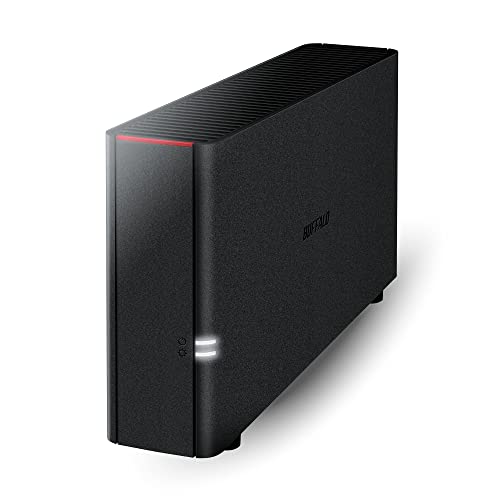
BUFFALO LinkStation 210 6TB 1-Bay NAS Network Attached Storage with HDD Hard Drives Included NAS Storage that Works as Home Cloud or Network Storage Device for Home
Value NAS with RAID for centralized storage and backup for all your devices. Check out the LS 700…
As an affiliate, we earn on qualifying purchases.
As an affiliate, we earn on qualifying purchases.
Conclusion
Your photo catalog is more than just a collection—it’s a mirror of your journey, each image a mirror reflecting memories and moments that shape you. Like a well-tended garden, it grows richer with care and attention, offering a sanctuary where your stories bloom. As you organize and preserve these images, remember you’re planting seeds for future reflections. Your catalog becomes a timeless tree, rooted in the past but reaching toward new horizons.

Music Software Bundle for Recording, Editing, Beat Making & Production – DAW, VST Audio Plugins, Sounds for Mac & Windows PC
No Demos, No Subscriptions, it's All Yours for Life. Music Creator has all the tools you need to…
As an affiliate, we earn on qualifying purchases.
As an affiliate, we earn on qualifying purchases.

ThePhotoStick® Omni 256GB + Protective Case | Secure Photo & Video Backup and Transfer | Digital File Organization | USB & Multiport Connection for Phones, Tablets and Computers | Water Resistant Case
Simple, secure content backup – ThePhotoStick Omni automatically finds and saves photos, videos, and other files, helping to…
As an affiliate, we earn on qualifying purchases.
As an affiliate, we earn on qualifying purchases.