
To keep your downloads folder clean and searchable, set up a clear folder hierarchy with broad categories and specific subfolders, using consistent, descriptive names. Use temporary folders for new files and categorize them quickly, then automate organization with tools like Hazel or Automator to move files based on type or date. Schedule regular cleanups to delete duplicates and outdated files, and sync your folders with cloud storage. Keep these habits steady to maintain an efficient, clutter-free space—stay tuned to learn more.
Key Takeaways
- Establish clear folder structure with descriptive names and consistent naming conventions for easy searchability.
- Regularly review and delete unnecessary or duplicate files during scheduled cleanups.
- Use temporary and categorization folders to sort files immediately upon download, then move them to appropriate locations.
- Automate organization with tools like Hazel or Automator to categorize, move, and delete files automatically.
- Sync your downloads folder with cloud storage to ensure backups and consistent access across devices.
file organization automation tools
As an affiliate, we earn on qualifying purchases.
As an affiliate, we earn on qualifying purchases.
Establish a Clear Folder Hierarchy
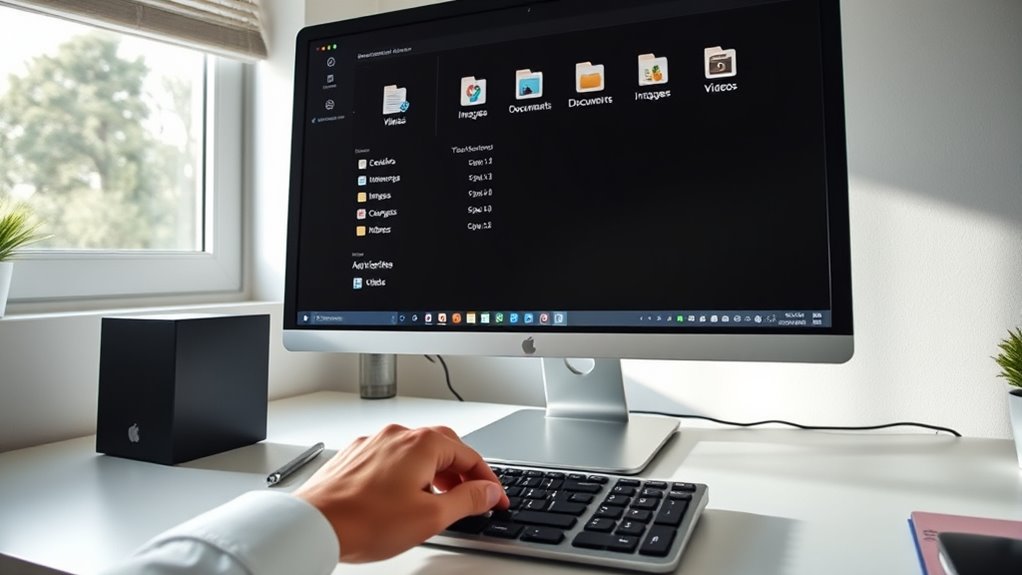
To keep your downloads folder organized, start by establishing a clear folder hierarchy that moves from broad categories to more specific subfolders. Begin with main folders like “Work,” “Personal,” or “Media,” which act as broad categories. Inside each, create subfolders based on projects, dates, or file types, such as “Invoices,” “Photos,” or “Reports.” Limit the depth to three levels to prevent complexity and make navigation easier. Group related files logically, avoiding duplicates and scattered files. Use broad root folders with specific child folders sorted by usage or file type. Assign folder locations between local storage for quick access and cloud storage for backup and sharing. Consistent naming conventions and regular maintenance help sustain an organized system over time. Incorporating a consistent naming convention for files and folders further enhances searchability and organization. Additionally, consider using tags or labels for quick identification of key files and categories. This structure helps you find files faster and keeps your downloads neat. Implementing a clear naming system can also facilitate easier file retrieval and reduce clutter.
Implement Consistent Naming Conventions
Using descriptive, clear names helps you find files quickly and accurately. Stick to standardized patterns, like including dates, project names, or file types, so your naming remains consistent. This approach reduces clutter and enhances organization, making your downloads easier to search through later. Incorporating file management best practices such as regular cleanups can further maintain your folder’s efficiency. Additionally, adopting AI-assisted tools can help automate naming conventions and streamline your sorting process. Consistent naming conventions also support effective backup and recovery strategies by ensuring files are easily identifiable and retrievable. Moreover, using standardized templates can ensure uniformity across different types of files, simplifying long-term management.
Descriptive and Clear Names
Have you ever struggled to find a specific file because its name was vague or uninformative? Using descriptive and clear names helps you locate files instantly. Be specific—include details like project name, date, or file type. Avoid generic labels like “Document” or “Image.” Instead, use consistent naming patterns that tell you what’s inside at a glance. For example, “2024-04-27_ClientProposal.pdf” is much clearer than “Proposal.pdf.” To make this easier, consider this table:
| File Type | Naming Convention | Example |
|---|---|---|
| Reports | Date_ProjectName_Summary | 2024-04-27_SalesReport_Q1.pdf |
| Photos | Event_Date_Location | Wedding_2024-04-15_Beach.jpg |
| Invoices | VendorName_Date | Acme_Inc_2024-04-20.pdf |
| Presentations | Topic_Date | Marketing_Plan_2024-04-10.pptx |
| Miscellaneous | Clear, specific description | BudgetReview_March.xlsx |
Using consistent naming conventions can also help in managing files related to Dog breeds, making it easier to organize and retrieve breed-specific information. Additionally, understanding the different electric dirt bike horsepower ratings can help you select the right model for your riding style. Implementing standardized naming patterns can significantly improve your overall file management efficiency. Clear names save time and reduce frustration, especially when combined with effective file organization. Incorporating proper file naming practices can also assist in creating a more searchable and accessible downloads folder.
Standardized Naming Patterns
Implementing standardized naming patterns is essential for maintaining a consistent and easily searchable downloads folder. You should create clear rules for naming files, incorporating key details like dates, project names, or file types. Use a uniform format, such as YYYY-MM-DD_ProjectName_FileType, to make sorting and locating files straightforward. Avoid vague names like “Document1” or “Misc,” which hinder searchability. If a file’s purpose changes, update its name to reflect its current content. Apply these naming conventions across all folders to establish reliable expectations. Consistent patterns help you quickly identify files without opening them, saving time and reducing frustration. Regularly review and refine your naming standards to keep your downloads folder organized and efficient over time. Additionally, understanding file organization best practices can further enhance your ability to maintain a tidy digital workspace. Moreover, adopting naming convention standards ensures long-term clarity and consistency, especially when collaborating with others. Incorporating mindfulness principles such as attentiveness can also help you stay attentive to maintaining your organizational system consistently. Being aware of digital clutter and actively managing it is key to preventing disorganization from taking over your downloads folder.
Use Temporary and Categorization Folders Effectively

To keep your downloads folder organized, it’s essential to create and use temporary and categorization folders effectively. Start by setting up temporary folders for items like receipts or images that need sorting. After downloading, move files immediately to their correct category to prevent clutter. Use dedicated folders for common types such as business, personal, or media files, which streamlines locating files later. Avoid long-term storage in vague folders like “Sort” or “To-Do.” Here’s a simple categorization example:
| Temporary Folder | Category Folder | Final Destination |
|---|---|---|
| Receipts | Business | Project Files |
| Images | Media | Personal Docs |
| Invoices | Personal | Backup Folder |
| Downloads Pending | Archives | Cloud Storage |
| Miscellaneous | Uncategorized |
Implementing file organization principles can greatly improve searchability and efficiency in managing your downloads.
Automate Cleanup and Organization Tasks
Automating cleanup and organization tasks can substantially reduce the time you spend managing your downloads folder. By setting up scripts or using automation tools like Hazel or Automator, you can automatically move files to their appropriate folders based on type, date, or project. For example, you can create rules to delete files older than a month or categorize images and documents as they download. Operating system features, like scheduled tasks or smart folders, help keep your folder tidy without manual effort. Regular automation ensures obsolete files are removed, duplicates are minimized, and new downloads are sorted correctly. Incorporating file management strategies inspired by deep-sky imaging workflows can further optimize your digital organization. Additionally, leveraging automation techniques can help adapt your organization system to evolving digital habits and file types. This proactive approach keeps your downloads folder streamlined, making it easier to locate important files quickly and reducing clutter that hampers productivity. Using sound healing science principles, you can even incorporate calming notification sounds or alerts to make the process more pleasant. To enhance your organization, consider integrating digital decluttering practices that promote a mindset of regular maintenance and mindfulness. Furthermore, integrating self-watering plant pot concepts, such as setting reminders for routine cleanup, can help maintain consistent organization habits over time.
Sync Local Folders With Cloud Storage
Syncing your local folders with cloud storage makes sure your files are always backed up and accessible from anywhere. This process keeps your downloads organized across devices, preventing data loss and ensuring easy retrieval. To optimize synchronization, match folder structures between your device and cloud service. Use reliable platforms like Dropbox, OneDrive, or Google Drive.
| Local Folder | Cloud Folder | Sync Status |
|---|---|---|
| Downloads/Temp | Cloud/Temp | Synced |
| Projects/Design | Cloud/Design | Up-to-date |
| Personal/Photos | Cloud/Photos | Sync in progress |
| Work/Reports | Cloud/Reports | Synced |
Regularly check sync status, resolve conflicts promptly, and avoid mixing personal and business files in shared folders. This keeps your files consistent and easy to locate.
Maintain Regular Review and Maintenance Routines
You need to set a routine for reviewing your downloads to stay organized. Scheduling weekly cleanups and reminders helps you keep files current and easy to find. Don’t forget to delete outdated files to prevent clutter and improve your system’s performance.
Schedule Weekly Cleanups
Scheduling weekly cleanups guarantees your downloads folder stays organized and clutter-free. Dedicate a specific time each week to review new files, delete unnecessary downloads, and move important ones to their appropriate folders. This routine prevents backlog, making it easier to find what you need quickly. During your cleanup, check for duplicate files or outdated versions and delete or archive them. Use this opportunity to update file names for clarity and consistency. Automate reminders or set calendar alerts to stay consistent. Regular maintenance also helps you identify patterns in your downloads, enabling you to refine your folder structure or naming conventions. By establishing a weekly routine, you minimize chaos and keep your downloads folder a reliable, searchable resource.
Set Reminders Consistently
Setting reminders is essential to guarantee you maintain regular review and maintenance routines for your downloads folder. Consistent alerts ensure you don’t forget to organize, delete, or move files promptly. You might set weekly or bi-weekly notifications using calendar apps or task management tools, aligning with your cleanup schedule. These reminders keep organization habits fresh, preventing clutter from piling up. By sticking to a routine, you’ll develop a habit of reviewing new downloads and categorizing or deleting outdated files. Automate reminder notifications to reduce mental load, and customize them based on your workflow. Regularly scheduled prompts help you stay proactive, making it easier to keep your downloads folder clean, searchable, and efficient over time.
Delete Outdated Files
Regularly deleting outdated files is essential for maintaining an organized and efficient downloads folder. You should review your downloads regularly—weekly or monthly—to identify files that are no longer needed. Delete duplicates, old versions, or files that have already been moved to their final location. If some files are temporarily stored, ensure they’re either moved or removed promptly. Set aside time to clear out obsolete documents, images, or downloads that serve no purpose anymore. Automate this process with cleanup tools or scripts to save time and reduce manual effort. Doing so prevents clutter from building up, keeps your folder streamlined, and makes important files easier to find. Regular pruning helps your system run smoothly and keeps your downloads folder truly searchable.
Frequently Asked Questions
How Can I Quickly Locate Files Within a Large Downloads Folder?
To quickly locate files in a large downloads folder, use descriptive, consistent naming conventions that include dates, project names, or file types. Take advantage of your operating system’s search tools, filtering by file type or date. Organize your files into categorized folders immediately after downloading, and set up automation or tagging systems to improve searchability. Regularly clean and update your folder structure to keep everything easily accessible.
What Tools Are Best for Automating Downloads Organization?
If you think manual sorting is a thrill, then automation tools might bore you, but for the rest of us, they’re lifesavers. Use Hazel or DEVONthink to automatically move, rename, or delete files based on rules you set. Set your downloads to a specific folder and let these apps do the heavy lifting—saving you time, decluttering your space, and making file retrieval as easy as clicking a button.
How Do I Handle Duplicate Files in My Downloads Directory?
You should regularly scan your downloads folder for duplicates using tools like Duplicate Cleaner or CCleaner. When you find duplicates, review them to make certain you’re not deleting important files, then delete or archive the extras. To prevent future duplicates, establish clear naming conventions, automate downloads to specific folders, and use software that detects duplicates automatically. This helps keep your folder clean, organized, and easy to search.
Can I Set Rules for Auto-Sorting Files Upon Download?
Yes, you can set rules for auto-sorting files when you download them. Use automation tools like Hazel or built-in OS features to create specific rules based on file types, names, or sources. For example, you can automatically move PDFs to your Documents folder or images to a Photos folder. These rules save time, keep your downloads organized, and guarantee files are sorted immediately after downloading without manual effort.
What Are Effective Strategies for Archiving Old Downloads?
To effectively archive old downloads, you should regularly review your downloads folder and identify files no longer needed for immediate access. Move these files into designated archive folders based on their category or project, ensuring consistent naming conventions. Automate this process with scripts or management tools when possible. Set reminders for periodic cleanup, and always delete obsolete files to keep your system organized, efficient, and easy to search.
Conclusion
By following these tips, you’ll keep your downloads folder tidy, searchable, and ready at a moment’s notice—no need to summon a tech wizard or dust off your old floppy disks. Just like a well-organized library, your files will be easy to find and manage. Remember, a little regular maintenance now saves a lot of digital chaos later. So, stay on top of it, and your downloads folder will stay as pristine as a 90s dial-up connection.