When you delete a file on an SSD, it doesn’t vanish instantly because the drive marks the data’s blocks as free rather than deleting them right away. The TRIM command speeds up the process by telling the SSD which data is no longer needed, allowing it to clean up in the background. Additionally, snapshots can keep deleted data accessible longer, and understanding these processes helps you see why file deletion isn’t immediate. Keep going to learn more about how this impacts your data and privacy.
Key Takeaways
- SSDs mark deleted data as free but do not erase it immediately, relying on garbage collection to clear space later.
- The TRIM command informs SSDs which data blocks are no longer in use, speeding up cleanup but preventing immediate deletion.
- Snapshots preserve previous file states, delaying TRIM commands and prolonging data retention on SSDs.
- Once TRIM executes, recovery of deleted files becomes very difficult or impossible due to internal data erasure.
- SSD design and TRIM support make immediate file deletion impractical, emphasizing the importance of snapshots and OS management.

SSK M.2 NVME SATA SSD Enclosure, Improved RTL9210B Chip USB 3.2 Gen 2 10Gbps to PCI-E NGFF Adapter, M-Key/B+M Key External SSD Enclosure Aluminum Support UASP Trim 2242/2260/2280
Applicable SSD: This M.2 SSD Enclosure is for NVMe PCIE & SATA M-Key / B+M connectors M.2 SSD….
As an affiliate, we earn on qualifying purchases.
As an affiliate, we earn on qualifying purchases.
How SSDS Handle File Deletion Differently From HDDS

Unlike traditional HDDs, SSDs handle file deletion differently because they don’t immediately erase the data. When you delete a file on an HDD, the system simply removes the file pointer, making the data invisible but still physically present until overwritten. In contrast, SSDs rely on a different process. Instead of instantly wiping data, they mark the corresponding blocks as free or unused. This means the data remains until the SSD’s internal garbage collection process clears it later. This approach helps improve performance and extend the lifespan of the drive by reducing unnecessary erase cycles. Because SSDs don’t overwrite data directly, the deletion process involves logical signals rather than physical removal, making the handling of deleted files more complex than on traditional hard drives. Additionally, the efficiency of this process depends heavily on the SSD’s garbage collection algorithms, which optimize data management for prolonged drive health. Furthermore, TRIM commands play a vital role in informing the SSD which data blocks are no longer in use, thereby facilitating faster cleanup. Properly supporting TRIM can significantly enhance the SSD’s ability to maintain optimal performance over time. Modern SSDs also incorporate wear leveling techniques to distribute write and erase cycles evenly across the memory cells, further extending their lifespan. Advanced SSD architectures also influence how effectively these processes are managed, impacting overall drive longevity.

Hard Drive Reader USB 3.0 & Type C to SATA IDE Adapter, Internal Data Transfer Recovery Converter Kit with 12V/2A Power for 2.5"/3.5" SATA/IDE HDD SSD Hard Disk Internal Blu-ray Drive, up to 20TB
Professional Technical Support: Dedicated to helping customers solve usage problems. Product instructions are detailed, covering the operation steps…
As an affiliate, we earn on qualifying purchases.
As an affiliate, we earn on qualifying purchases.
The Role of TRIM in Managing Deleted Data
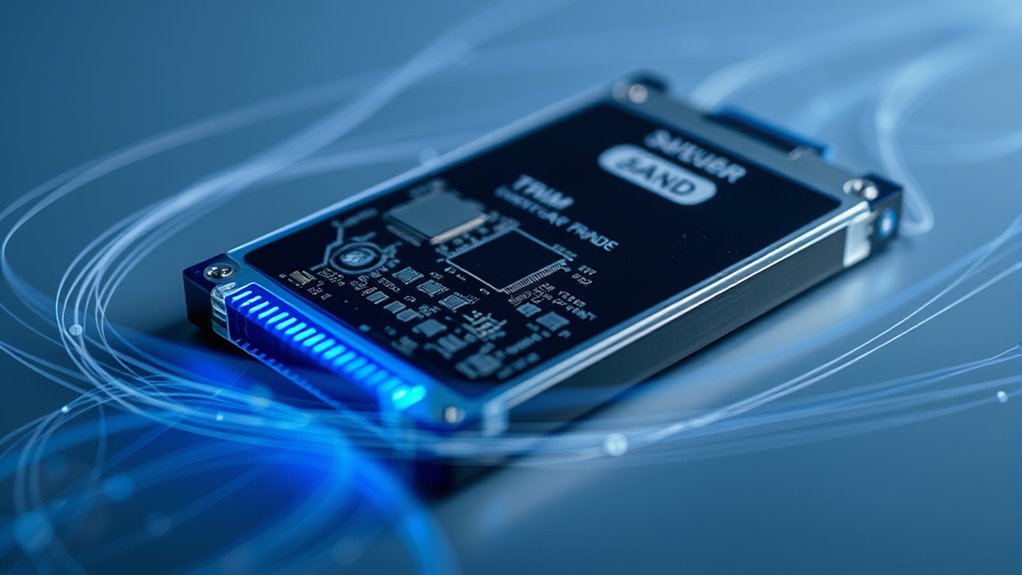
TRIM plays a vital role in speeding up garbage collection by clearly marking unused data blocks. This process helps your SSD manage deleted data more efficiently, reducing wear and tear. As a result, TRIM not only keeps your SSD running smoothly but also extends its lifespan. Additionally, understanding the importance of data management in maintaining optimal storage performance can further enhance your device’s longevity, especially when combined with proper maintenance practices.
Accelerates Garbage Collection
When you delete files from an SSD, the system sends a TRIM command to notify the drive which blocks are no longer in use. This helps the SSD prepare for future writes more efficiently. Here’s how TRIM accelerates garbage collection:
- Speeds up cleanup by marking unused blocks, so the drive can quickly identify what to erase. This process is essential for maintaining Home Improvement efficiency and performance.
- Reduces wear and tear by minimizing unnecessary erase cycles, prolonging your SSD’s life.
- Maintains high performance as garbage collection runs more smoothly without delays.
- Prevents slowdown over time by ensuring space is cleared promptly, keeping your SSD fast and responsive.
- Supports optimal operation by aligning with modern SSD technologies that rely on efficient data management techniques.
- Facilitates data management by enabling the SSD to better handle file deletion and storage allocation, which is essential for maintaining speed and longevity. Additionally, effective data management techniques can help optimize write amplification and further enhance SSD performance.
- Efficient TRIM implementation helps prevent performance degradation over time, ensuring the SSD remains reliable during extensive use.
Enhances SSD Longevity
Proper management of deleted data is essential for extending your SSD’s lifespan. When you delete files, the data isn’t erased immediately; instead, TRIM marks those blocks as free, allowing the SSD to clean them up later. This process prevents unnecessary write and erase cycles, which wear out the NAND memory over time. By efficiently freeing up space through TRIM, your SSD reduces write amplification, meaning it doesn’t have to perform extra work to overwrite old data. This not only speeds up performance but also minimizes physical wear. Regularly supported by modern operating systems, TRIM helps your SSD maintain prime health longer. Without it, the drive would need to perform more intensive erase cycles, accelerating degradation. In short, TRIM plays a vital role in maximizing your SSD’s durability. Understanding NAND memory is crucial for grasping how SSDs wear out and how features like TRIM help mitigate this process.

UNCHARTED: Legacy of Thieves Collection – PlayStation 5
Seek your fortune and leave your mark on the map in the UNCHARTED: Legacy of Thieves Collection.
As an affiliate, we earn on qualifying purchases.
As an affiliate, we earn on qualifying purchases.
How Garbage Collection Works With TRIM
Garbage collection is an internal process that helps SSDs manage storage space efficiently by consolidating valid data and erasing unused blocks. When TRIM marks blocks as free, garbage collection kicks in to clean up and prepare space for new data. Here’s how it impacts you: 1. It speeds up write operations, so your SSD stays fast. 2. It reduces wear on memory cells, extending your SSD’s lifespan. 3. It keeps storage organized by consolidating scattered data. 4. It minimizes performance drops during heavy use. Effective management of storage helps ensure your SSD operates smoothly over time, especially when combined with garbage collection algorithms designed to optimize performance. Regular maintenance, including understanding TRIM functionality, can further improve your drive’s longevity. Additionally, understanding how lifecycle management works can help you make better decisions for your SSD’s health over its lifespan.
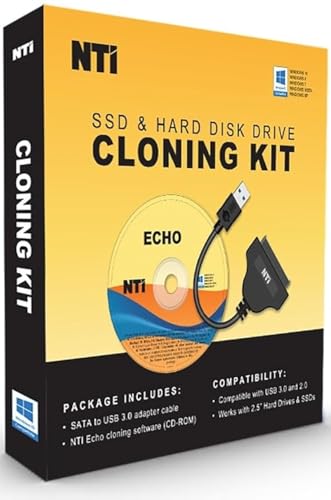
NTI Cloning Kit | NEW! Version 6 of NTI Cloning Software | Best for SSD and HDD Upgrades | Software via Download | SATA-to-USB Adapter Included for 2.5" SSD and HDD
[NEW in V6] Added Windows-mode Cloning, which is more reliable, and supports cloning of BitLocker disks, and RAID…
As an affiliate, we earn on qualifying purchases.
As an affiliate, we earn on qualifying purchases.
Impact of Operating System Support for TRIM

Operating system support for TRIM directly influences how effectively SSDs can maintain ideal performance and lifespan. When your OS properly issues TRIM commands, it informs the drive which data blocks are no longer needed, enabling faster garbage collection and reduced write amplification. Conversely, unsupported systems delay or omit TRIM, causing the SSD to perform unnecessary erase cycles, degrading performance over time. Compatibility varies across OS and file systems, impacting overall efficiency. Here’s a quick comparison:
| Operating System | TRIM Support Status |
|---|---|
| Windows 7+ | Fully supported on NTFS |
| macOS | Supported on Apple SSDs |
| Linux | Supported with ext4, btrfs |
| Older systems | Limited or no support |
Ensuring your OS supports TRIM helps your SSD stay fast and durable longer. Proper OS support for TRIM is essential for leveraging the full benefits of SSD technology and maintaining optimal drive health over time. Additionally, certain tuning tools can optimize SSD performance when used correctly.
Why Deleted Files Can Be Difficult to Recover

When you delete a file on an SSD, the system marks it for erasure rather than removing the data directly. The TRIM command then tells the drive to erase those blocks, making recovery difficult. As a result, the data often becomes hidden or overwritten before you can retrieve it. Additionally, the use of Leave No Trace principles in outdoor activities encourages responsible camping and environmental preservation. Proper maintenance and understanding of SSD behavior, including features like TRIM, can help prevent accidental data loss.
Files Marked for Erasure
Deleted files on SSDs can be difficult to recover because the TRIM command often marks the data blocks as ready for erasure, making the data inaccessible. When you delete a file, the OS sends a TRIM signal, flagging those blocks for cleanup. This process creates a sense of finality, but it also:
- Removes the data’s trace, making recovery impossible through standard methods.
- Prevents traditional forensic tools from finding remnants of your deleted files.
- Triggers automatic garbage collection, which consolidates valid data and erases marked blocks.
- Reduces chances of accidental recovery, leaving you with confidence that the data is gone.
This logical marking means your deleted files aren’t simply hidden—they’re practically erased, even if the physical data still exists momentarily. Additionally, the presence of solid-state drives accelerates this process due to their architecture, making data recovery even more challenging.
Data Hidden by TRIM
Once a file is deleted on an SSD, the TRIM command often marks its data blocks for erasure, making recovery much more complicated. When TRIM runs, it doesn’t immediately wipe data but signals the controller that certain blocks are no longer in use. The SSD then marks these blocks as ready for garbage collection, and over time, the data is erased or overwritten internally. This logical removal means the original data isn’t simply deleted; instead, it becomes hidden behind the controller’s management system. As a result, traditional data recovery tools struggle to retrieve the files, since the data no longer exists in accessible sectors. Even if some remnants remain, they are often overwritten or replaced during normal SSD operation, making data recovery increasingly unlikely after TRIM has been executed. Additionally, understanding the role of AI in cybersecurity highlights the importance of data integrity and recovery strategies in modern storage solutions. Moreover, secure deletion methods are designed to ensure data cannot be recovered after deletion, which can be problematic when accidental data loss occurs.
The Influence of Snapshots on File Deletion and TRIM
Snapshots can substantially influence how file deletions interact with TRIM on SSDs. When you create a snapshot, it preserves a point-in-time version of your data, which can prevent immediate TRIM commands from executing. This means deleted files might remain accessible through snapshots, delaying space recovery and prolonging data retention. As a result:
- You may believe files are gone, but snapshots keep copies alive, risking data leaks.
- TRIM commands get postponed until snapshots are deleted, slowing performance gains.
- Deleted data can remain buried within snapshots, complicating cleanup efforts.
- For forensic investigations, snapshots can hide or preserve deleted files longer than expected.
Understanding this influence helps you manage SSD space effectively and recognize how snapshots impact data lifecycle and security.
Practical Implications for Users and Forensic Investigations

Understanding how TRIM and snapshots affect your SSD’s performance and data security is crucial for both everyday users and forensic investigators. As a user, you should know that deleted files may not be recoverable if TRIM has been executed, especially when snapshots are involved. This impacts data recovery efforts and privacy. For forensic investigators, recognizing the role of snapshots and TRIM helps determine if data still exists or has been securely erased. Use the table below to see how these factors influence data persistence:
| Aspect | Implication |
|---|---|
| TRIM | Makes deleted data unrecoverable, complicating forensic recovery |
| Snapshots | Preserve previous file versions, delaying deletion |
| User Action | Regularly deleting snapshots can restore recoverability and security |
Being aware of these factors helps you manage data deletion more effectively and guides forensic analysis.
Frequently Asked Questions
Can TRIM Be Manually Disabled or Enabled on SSDS?
Yes, you can manually disable or enable TRIM on SSDs. You typically do this through your operating system’s command line tools or system settings. For example, on Windows, you use “fsutil behavior set DisableDeleteNotify 1” to disable TRIM and replace 1 with 0 to enable it. On Linux, you can control TRIM with specific mount options or tools like fstrim. Just be cautious, as disabling TRIM may reduce SSD performance over time.
How Long Does It Typically Take for TRIM to Erase Data?
TRIM doesn’t erase data immediately; instead, it marks blocks as ready for deletion, and the actual cleanup depends on the SSD’s garbage collection process. Typically, this can take anywhere from a few seconds to several hours, depending on the drive’s workload and idle time. If your SSD is idle, garbage collection might run in the background, quickly freeing up space. Active use can delay this process.
Do All SSDS Support TRIM Equally Across Brands and Models?
You might think all SSDs support TRIM equally, but that’s like expecting every car to have the same horsepower—it’s not true. Brands and models vary widely; some support TRIM fully and optimize performance, while others lag behind or offer limited support. High-end drives often excel, but budget or older SSDs might lack robust TRIM features, affecting how quickly and efficiently deleted files are cleaned up.
How Do Firmware Bugs Affect TRIM Functionality and Data Recovery?
Firmware bugs can disrupt TRIM functionality, causing deleted data to remain recoverable longer than expected or not be properly marked for erasure. This can lead to unreliable space management and potential data leaks. If you experience issues, updating your SSD’s firmware can restore proper TRIM operation. Without fixing such bugs, data recovery tools might still retrieve files that should’ve been securely erased, risking privacy and security.
What Are Best Practices for Ensuring Data Can Be Recovered After Deletion?
Imagine your data as delicate whispers fading into the shadows; to catch them before they vanish, you need to act swiftly. Always avoid using TRIM or deleting files directly if you want recovery. Instead, create a full disk image immediately after deletion, preserving the state of your data. Use professional recovery tools and avoid writing new data to the drive. This way, you give your lost files their best chance to be rediscovered.
Conclusion
Understanding why files don’t delete immediately on SSDs can save you from chaos. Remember, when you hit delete, you’re not erasing the data—you’re just hiding it, like hiding a secret under a rug. TRIM and snapshots are like magical illusions that keep your data safe and sound, making recovery impossible. So, treat your SSDs like vaults, not trash cans, or you might accidentally leave behind a trail even Sherlock couldn’t follow!