
If you’re experiencing persistent connectivity troubles like Wi-Fi dropping or slow mobile data that don’t improve with a restart, resetting network settings can help. This process restores network configurations to default, clears saved Wi-Fi passwords, Bluetooth pairings, and VPN settings, and can resolve glitches without erasing personal data. To reset, go into your device’s settings, find the reset option, and confirm. If you want to learn the detailed steps, keep exploring further.
Key Takeaways
- Reset network settings when persistent Wi-Fi, mobile data, or Bluetooth issues remain unresolved after simple troubleshooting.
- Resetting restores network configurations to default, often fixing glitches without affecting personal data.
- Before resetting, back up Wi-Fi passwords and Bluetooth pairings, as they will be erased.
- To perform a reset, access device settings, select “Reset Network Settings,” and confirm the action.
- After resetting, reconnect to Wi-Fi, re-pair Bluetooth devices, and test connectivity to ensure issues are resolved.

Have you ever experienced connectivity issues that just won’t resolve? It’s frustrating when your device won’t connect to Wi-Fi or mobile data seems sluggish. Sometimes, the problem isn’t with the network itself but with your device’s settings. That’s where resetting network settings can make a big difference. It’s a quick fix that can help troubleshoot Wi-Fi, mobile data, and Bluetooth problems by restoring your device’s network configurations to their default state. But before you plunge into this step, it’s essential to understand when and how to do it properly.
Experiencing persistent connectivity issues? Reset network settings to quickly troubleshoot Wi-Fi, mobile data, and Bluetooth problems.
You should consider resetting your network settings if you’re facing persistent connectivity issues that don’t improve after restarting your device or toggling airplane mode. For example, if your Wi-Fi keeps disconnecting, or your mobile data isn’t working even with a strong signal, resetting network settings might be the right move. It’s also helpful if you notice issues with Bluetooth connections or if your device can’t seem to connect to certain networks, despite entering the correct passwords. Keep in mind, though, that this process erases saved Wi-Fi passwords, Bluetooth pairings, and VPN settings, so you’ll need to re-enter some information afterward.
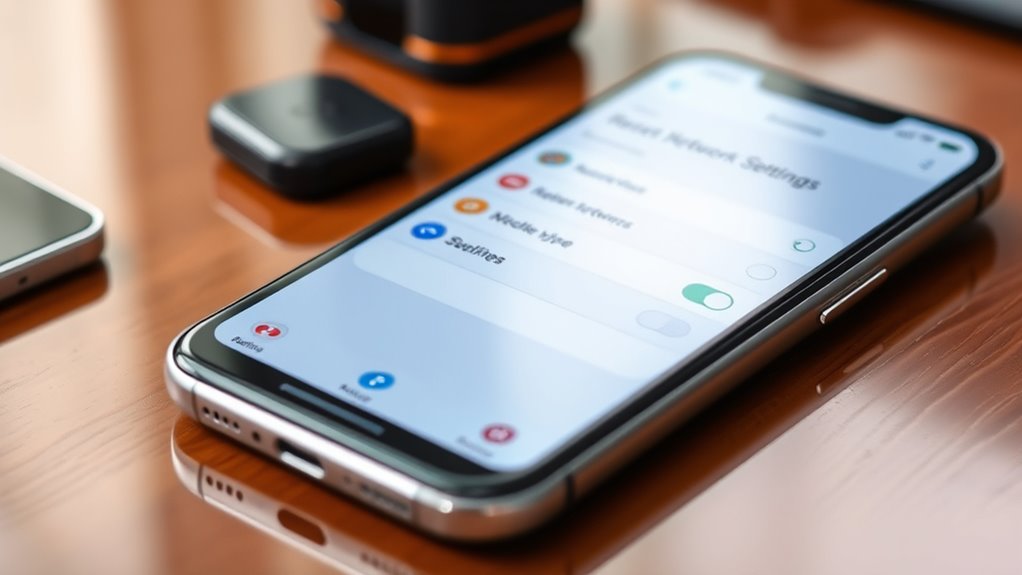
To begin, go to your device’s settings menu. On most smartphones, you’ll find an option labeled “Reset” or “Reset Network Settings” under the general management or network settings section. Tap on this option, then confirm your choice. You might be prompted to enter your device’s password or PIN for security reasons. Once confirmed, your device will restart and reset all network-related configurations. This process often takes just a few moments, but it can resolve a range of issues related to Wi-Fi troubleshooting and mobile data optimization.
After the reset, you’ll need to reconnect to your Wi-Fi networks and re-pair Bluetooth devices, as all saved connections will have been cleared. It’s a good idea to test your connection afterward—try browsing the internet, streaming videos, or using apps that rely on mobile data. If your connectivity issues persist, then the problem might be with your service provider or hardware, and further troubleshooting could be necessary. Additionally, understanding network configurations can help you better grasp how your device manages connections and why resets can be effective. However, in many cases, resetting network settings provides an immediate improvement, restoring your device’s ability to connect smoothly.

SpaceX Starlink Gen 3 Standard Kit: High-Speed, Low-Latency Internet, Ultra Portable WiFi Router - Elegant Design, starlink Travel Router WiFi 6, Satellite Connectivity
Portable Connectivity: This Starlink Kit provides a complete satellite internet setup for remote areas. Make sure to download...
As an affiliate, we earn on qualifying purchases.
Frequently Asked Questions
Will Resetting Network Settings Erase My Saved Wi-Fi Passwords?
Yes, resetting your network settings will erase your saved Wi-Fi passwords. This process helps improve network security by removing potentially problematic settings, but it also means you’ll need to re-enter your passwords afterward. Keep in mind that device compatibility might affect how smoothly your device reconnects to networks. To avoid losing important info, it’s best to note down your passwords before resetting your network settings.
Can I Reset Network Settings Without Losing My VPN Configurations?
Resetting your network settings is like hitting pause on a busy day; it can sometimes preserve VPN configurations if you choose wisely. You can often reset without losing VPN setups, but Wi-Fi password security might be affected if you haven’t saved your passwords beforehand. To keep everything intact, back up your VPN and Wi-Fi passwords first, then proceed cautiously, ensuring that your VPN preservation remains intact while safeguarding your Wi-Fi credentials.
How Long Does It Take to Reset Network Settings on My Device?
The network reset duration typically takes a few minutes, with a reset time estimate of around 2 to 5 minutes. During this process, your device will restart and restore network settings to default. You might see a progress indicator, but don’t worry—once it finishes, your network should be refreshed. Keep in mind, the exact reset time can vary slightly depending on your device and system updates.
Will Resetting Network Settings Fix All Internet Connectivity Issues?
Resetting your network settings can often fix internet issues, like clearing a cluttered desk to restore order. It’s a good step if you face connectivity problems, especially when network security or device compatibility causes glitches. However, it might not solve all issues—some could be hardware or provider-related. Think of it as a quick tune-up; if problems persist, you may need to dig deeper or seek professional help.
Are There Alternative Troubleshooting Steps Before Resetting Network Settings?
Before resetting network settings, try basic troubleshooting like restarting your device, checking Wi-Fi or mobile data is enabled, and ensuring airplane mode is off. You can also run advanced diagnostics through your device’s network troubleshooter or router settings. These steps often resolve common issues without drastic measures. If problems persist, resetting network settings becomes a more effective option, but always explore these alternatives first to save time and effort.

Starlink Gen-3 Standard Kit – High-Speed, Low-Latency Satellite Internet with Wi-Fi 6 Router & Power Supply – Reliable Internet for Homes, RVs & Remote Locations
Next-Gen Satellite Internet – Fast & Reliable: Get high-speed broadband anywhere — perfect for rural, off-grid, or mobile...
As an affiliate, we earn on qualifying purchases.
Conclusion
Just like a fresh start can breathe new life into a weary traveler, resetting your network settings offers a clean slate for smoother connections. When frustration mounts and troubleshooting feels endless, think of it as hitting the reset button on a ship’s compass—guiding you back on course. With this simple step, you regain control and restore harmony to your digital world, ready to navigate the internet’s vast seas once more.

SpaceX Starlink Mini Kit – 4th Gen Portable Satellite Internet Antenna with Integrated Wi-Fi Router, DC Power Input, and Free Roam Region Unlock – Ideal for RVs, Camping, and Remote Work
Ultra-Portable Design: Measuring just 11.75" x 10.2" and weighing under 2.5 lbs, the Starlink Mini is compact enough...
As an affiliate, we earn on qualifying purchases.

SpaceX Starlink Gen 3 Standard Kit: High-Speed, Low-Latency Internet (Latest Model) Ultra Portable Travel Router WiFi 6- Elegant Design, Residents Business Satelital Connectivity
Stream movies, make video calls, play online games and more With Starlink, users can engage in activities that...
As an affiliate, we earn on qualifying purchases.