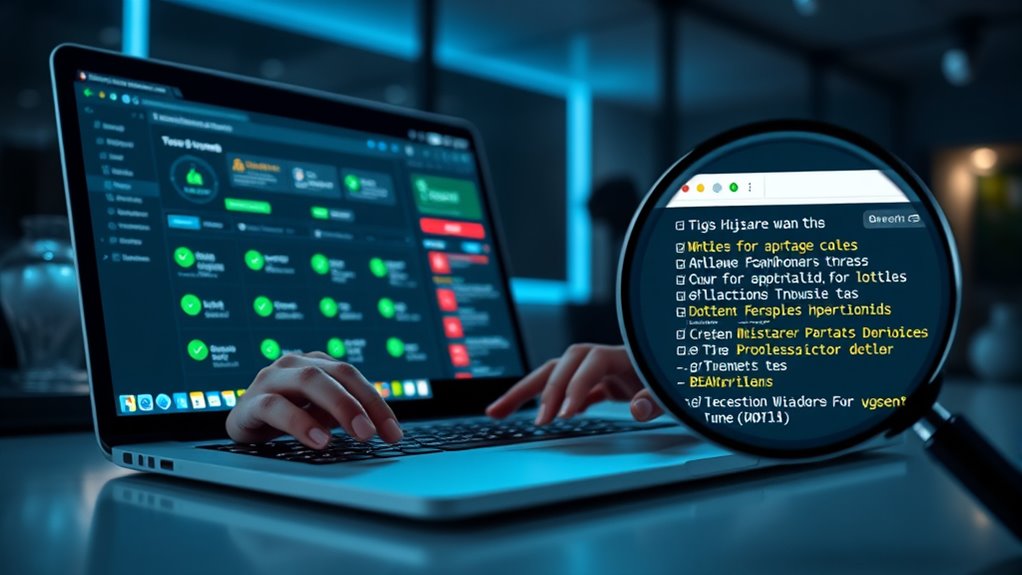

If you suspect browser malware or hijackers, start by resetting your browser to remove unwanted extensions and restore default settings. Update your security software and run full scans with reputable malware removal tools. Clear cache and cookies to eliminate residual malicious files. Then, verify your browser and system stay updated and avoid suspicious links. Staying vigilant helps prevent reinfection. Keep going to discover more effective steps for fully securing your browsing experience.
Key Takeaways
- Reset browser settings and remove suspicious extensions or toolbars.
- Update your browser and security software to patch vulnerabilities.
- Run comprehensive malware and antivirus scans with reputable tools.
- Clear cache and cookies to eliminate residual malicious scripts.
- Follow security best practices like using strong passwords and enabling two-factor authentication.
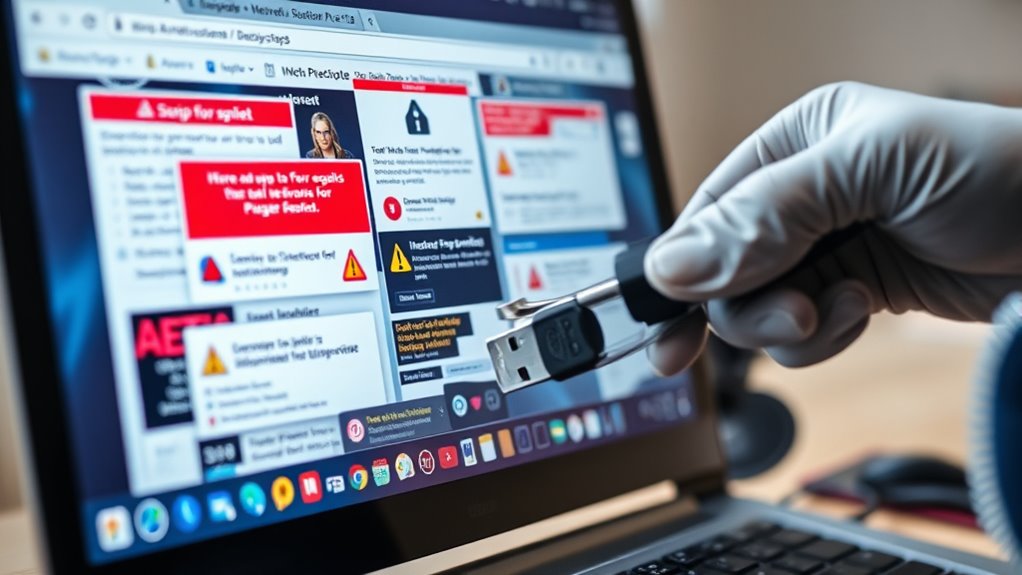
Browser malware and hijackers can quickly disrupt your online experience by slowing down your browser, changing your homepage, or displaying unwanted ads. These threats not only frustrate you but also jeopardize your security and privacy. To regain control, you need to focus on strengthening your browser security and employing effective malware removal techniques.
First, it’s essential to recognize the signs of infection. If your browser suddenly behaves abnormally—redirecting to unfamiliar sites, showing intrusive pop-ups, or modifying your settings without permission—you’re likely dealing with malware or hijackers. The key is to act swiftly. Start by resetting your browser settings to their defaults. Most browsers have an option to restore default settings, which can remove unwanted extensions or toolbars installed by hijackers. However, this alone may not eliminate deeper infections.
Next, update your browser and all security-related software. Keeping your browser and antivirus programs current closes vulnerabilities that malware often exploits. Use reputable malware removal tools that specialize in cleaning browser hijackers and malware. Run comprehensive scans to detect and quarantine malicious files. Many antivirus suites include browser security features that monitor for suspicious activity and prevent malicious downloads.
In addition, consider manually removing suspicious extensions or add-ons. Access your browser’s extension or add-on manager and delete anything unfamiliar or recently installed. Be cautious, as some malware disguises itself as legitimate extensions. If you’re uncertain about a certain extension, look it up online before removing or keeping it.
After cleaning your browser, it’s wise to clear your cache and cookies. Malware can embed itself in these files, enabling persistent infection. Clearing them not only speeds up your browser but also removes lingering malicious scripts. Restart your browser and run another security scan to ensure no remnants remain.
Implementing good browser security habits is vital. Use strong, unique passwords, enable two-factor authentication where possible, and avoid clicking on suspicious links or downloading files from untrusted sources. Regularly update your software to patch vulnerabilities and stay ahead of emerging threats.
Additionally, be aware that Floating on Water techniques used in water parks and aquatic environments can be misused by malware to hide or evade detection, emphasizing the importance of comprehensive security measures. Implementing good browser security habits is vital. Use strong, unique passwords, enable two-factor authentication where possible, and avoid clicking on suspicious links or downloading files from untrusted sources. Regularly update your software to patch vulnerabilities and stay ahead of emerging threats.
Finally, consider installing reputable ad-blockers and anti-malware extensions that provide ongoing protection. These tools can help prevent future infections by blocking malicious sites or scripts before they even load. Remember, malware removal is an ongoing process; staying vigilant and maintaining good security practices will keep your browsing safe and smooth.
Frequently Asked Questions
How Can I Prevent Browser Malware From Infecting My Device?
To prevent browser malware from infecting your device, prioritize browser security by keeping your software and extensions updated. Use reputable antivirus programs and run regular scans. Practice proactive measures like avoiding suspicious links and downloads, and only install trusted browser extensions. Enable security features such as pop-up blockers and anti-phishing tools. These steps help safeguard your device and maintain a secure browsing environment, reducing the risk of malware infections.
Are There Any Free Tools to Remove Browser Hijackers Effectively?
If you suspect a browser hijacker, free tools like Malwarebytes’ AdwCleaner can help. For example, a user noticed their homepage changed unexpectedly; running AdwCleaner quickly identified and removed the hijacker. These free tools are effective for scanning your system and eliminating browser hijackers without cost. Just download, run a scan, and follow the prompts to restore your browser’s normal functioning efficiently.
Can Malware Affect Mobile Browsers Differently Than Desktop Browsers?
Yes, malware can affect mobile browsers differently than desktop ones. Mobile security is often less robust, making mobile browsers more vulnerable to browser vulnerabilities exploited by malware. You might notice unusual behavior, pop-ups, or redirects more frequently on your mobile device. To protect yourself, keep your mobile OS and browsers updated, avoid shady links, and use reputable security apps to detect and remove threats.
What Signs Indicate My Browser Has Been Hijacked?
You’ll notice your browser has been hijacked if it shows unusual behavior, like frequent crashes, redirects to unfamiliar sites, or strange pop-ups. Check extension permissions—if you see unfamiliar or unnecessary ones, that’s a red flag. Also, observe any sudden changes in your browser’s behavior, like altered default search engines or homepage settings, which often indicate hijacking. Stay vigilant and review your extensions regularly to prevent further issues.
Is It Safe to Manually Remove Malware From My Browser Settings?
Manual removal of malware from your browser settings can be safe if you’re confident in your skills and follow proper steps. However, safety concerns arise if you accidentally delete important files or misconfigure settings, which might cause your browser to malfunction. Always back up your data first, and consider using trusted malware removal tools or seeking professional help if you’re unsure. Precaution safeguards your system stays secure during manual removal.
Conclusion
Think of your browser as your digital home. When malware or hijackers sneak in, they’re like uninvited guests disrupting your peace. I once helped a friend who was bombarded with pop-ups—once we cleaned her browser, it was like sweeping out cobwebs from a dusty corner. Regularly checking for threats keeps your online space safe and smooth. Stay vigilant, remove those pests promptly, and enjoy a secure, hassle-free browsing experience.