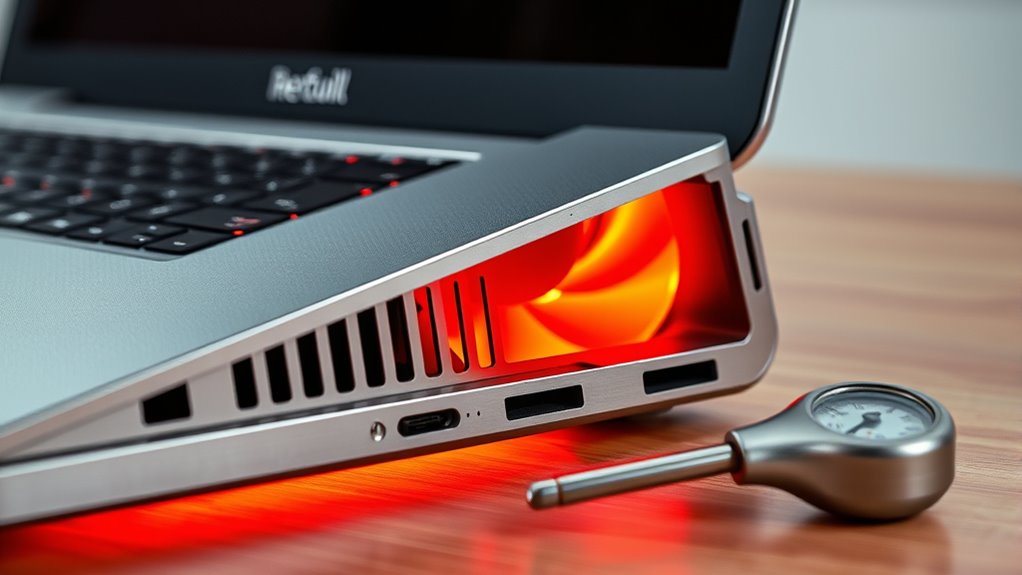

To fix an overheating laptop, start by cleaning dust from vents and fans to improve airflow. Reapply high-quality thermal paste to your CPU and GPU for better heat transfer. Use a cooling pad and make sure you’re operating the device on a hard, flat surface in a cool environment. Monitor system temperatures and manage background processes to reduce heat. For more effective cooling tips, you’ll find additional methods that keep your laptop running smoothly.
Key Takeaways
- Reapply high-quality thermal paste after cleaning old residue to improve heat transfer.
- Regularly clean dust from vents and fans with compressed air to optimize airflow.
- Use a cooling pad or elevate the laptop to enhance airflow and reduce internal temperatures.
- Monitor system temperatures and reduce background processes or adjust power settings to limit heat output.
- Operate the laptop in a cool, well-ventilated environment for better thermal management.

If your laptop is overheating, it can lead to performance issues and potential hardware damage. One of the most effective ways to address this is by improving how heat is managed inside your device. Over time, thermal paste—the substance that helps transfer heat from the CPU and GPU to the heatsinks—can dry out or become less effective. Replacing or reapplying thermal paste can markedly improve heat dissipation, lowering internal temperatures. Carefully cleaning off old, degraded thermal paste and applying a fresh, high-quality compound ensures better contact between the processor and heatsink, which facilitates more efficient heat transfer. This simple step can prevent your laptop from throttling performance or shutting down unexpectedly due to overheating. Additionally, understanding thermal management principles can help you better maintain your device’s temperature and performance.
In addition to managing internal components, airflow optimization plays an essential role. Laptops are designed with vents and fans to facilitate airflow, which carries heat away from critical parts. If these vents are blocked or clogged with dust, airflow becomes restricted, causing temperatures to rise. Regularly cleaning out dust from vents and fans with compressed air can restore proper airflow. You should also make sure your laptop is used on hard, flat surfaces rather than soft materials like blankets or cushions, which can obstruct vents and trap heat. Elevating the rear of your laptop slightly with a stand can improve airflow underneath, helping heat escape more effectively. These small adjustments can make a noticeable difference in keeping your system cool.
Furthermore, managing your environment contributes to thermal regulation. Operating your laptop in a cool, well-ventilated space reduces the workload on internal cooling systems. High ambient temperatures make it harder for internal fans to dissipate heat, so keeping your workspace cool can prevent overheating. You might also consider using cooling pads or external fans designed specifically for laptops, which provide additional airflow and help maintain ideal operating temperatures. These accessories are especially useful during intensive tasks such as gaming, video editing, or running multiple applications simultaneously.
Finally, software plays a part in controlling temperatures. Monitoring your CPU and GPU temperatures with diagnostic tools allows you to identify when your laptop runs hot. Adjusting power settings to limit maximum CPU usage or reducing background processes can help lower heat output. Keeping your drivers and BIOS up to date ensures your cooling system operates efficiently. Combining these hardware and software strategies with thermal paste reapplication and airflow optimization creates a thorough approach to fixing an overheating laptop. Implementing these steps helps extend your device’s lifespan, maintain peak performance, and prevent costly repairs down the line.
Frequently Asked Questions
Can Using a Laptop Cooling Pad Prevent Overheating?
Yes, using a laptop cooling pad can prevent overheating by providing better airflow and cooling solutions. As one of your essential laptop accessories, it elevates your device and helps dissipate heat more efficiently. You actively improve your laptop’s temperature management, reducing the risk of overheating. This simple cooling solution enhances performance and prolongs your device’s lifespan, making it a worthwhile investment for smoother, cooler operation.
Does Overclocking Contribute to Laptop Overheating?
Yes, overclocking increases the risk of overheating because it pushes your laptop’s components beyond their normal limits, generating more heat. To mitigate this, you should invest in effective cooling solutions like cooling pads or enhanced airflow. Remember, overclocking risks include thermal throttling and hardware damage, so always monitor temperatures closely and consider whether the performance boost is worth the added heat and potential risks.
How Often Should I Clean My Laptop’s Vents?
You should clean your laptop’s vents every three to six months, or sooner if you notice dust buildup. Imagine dust creeping into every crevice, slowly obstructing airflow and turning your device into an overheated mess. Regular cleaning keeps airflow unobstructed, preventing overheating and performance issues. Use compressed air to blow out dust, making sure your laptop stays cool and runs smoothly, no matter how intense your workload gets.
Is It Safe to Open My Laptop to Clean Fans?
Yes, it’s generally safe to open your laptop to clean fans if you’re careful and follow proper procedures. You should remove internal dust that accumulates, which can block airflow and cause overheating. While you’re inside, consider reapplying thermal paste to improve heat transfer between the CPU and heatsink. Be gentle, use the right tools, and consult your laptop’s manual to avoid damaging sensitive components.
Can Software Updates Improve My Laptop’s Temperature Management?
Think of software updates as a tune-up for your laptop’s engine. They often include improvements in temperature regulation strategies, which can help prevent overheating. By installing the latest software updates, you access benefits like optimized performance and better fan control, reducing heat buildup. Regular updates keep your device running smoothly and cools down the risk of overheating, ensuring your laptop stays healthy and efficient for the long haul.
Conclusion
Now that you’ve tackled the tricks to tame your laptop’s temperature, you’re all set to stop sweating your system’s success. With a few simple steps—such as cleaning vents, using cooling pads, and keeping it in the cool—you’re confident to conquer consistent crashes. Remember, regular maintenance makes a remarkable difference, preventing problems before they start. So, stay vigilant, keep it cool, and enjoy a smooth, stress-free computing experience every time you power up!