

If your smart-home devices go offline, it’s key to identify if it’s a Thread or Wi-Fi issue. Thread devices run on a low-power mesh network and usually recover on their own or with a reset. Wi-Fi devices rely on your router and can be affected by interference, overload, or bad placement. Troubleshooting those signs helps you pinpoint the problem; keep going to learn how to fix your network and keep devices online.
Key Takeaways
- Check if the device is connected via Thread or Wi-Fi to identify the specific network causing issues.
- Verify the border router for Thread devices and the main router for Wi-Fi devices are functioning properly.
- Look for signs like unresponsiveness or delays to determine if connectivity problems are related to Thread mesh or Wi-Fi congestion.
- Restart or re-add unresponsive devices, ensuring firmware is up-to-date for both Thread and Wi-Fi networks.
- Improve network reliability by optimizing router placement, updating firmware, and minimizing interference sources for both network types.
Understanding the Basics of Thread and Wi-Fi Networks

To understand why your smart home devices might go offline, it’s important to know the differences between Thread and Wi-Fi networks. Thread is a low-power, mesh protocol built specifically for smart devices, offering reliable connections even in crowded environments. It automatically self-heals, routing around failed nodes, which reduces single points of failure. Operating on the 2.4 GHz band, Thread minimizes interference from Wi-Fi congestion. Unlike Wi-Fi, it requires a border router—usually part of a smart hub or speaker—to connect to the internet. Devices must be Thread-certified to join. In contrast, Wi-Fi is more common but prone to congestion, interference, and range issues. Understanding these differences helps you troubleshoot effectively when devices go offline. Additionally, self-watering plant pots demonstrate how interconnected systems work efficiently through specialized protocols, highlighting the importance of choosing the right connectivity method for your smart devices. Knowing about cybersecurity vulnerabilities in smart devices can also help you protect your connected home from potential threats. Being aware of network congestion can help you optimize your setup and reduce disconnects. Moreover, understanding the industry standards ensures compatibility and reliable performance across your smart home ecosystem.
Common Signs of Connectivity Problems in Smart Devices
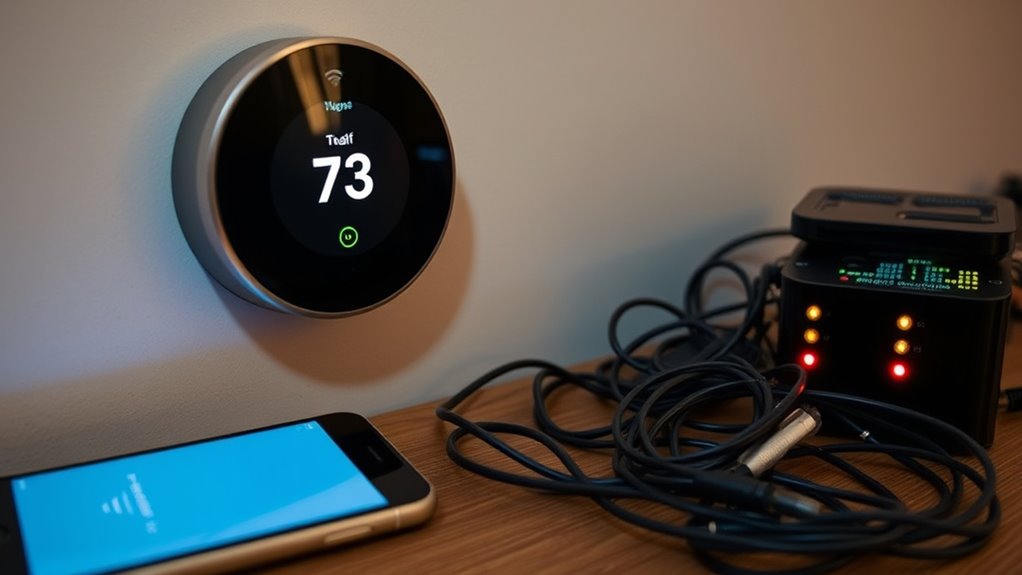
Many times, connectivity problems in your smart devices show up through noticeable signs such as unresponsive or delayed responses, indicating they are offline or struggling to communicate with the network. You might notice that your smart lights don’t turn on immediately or your thermostat doesn’t adjust when you command it. Sometimes, devices freeze or fail to respond altogether. You may also see error messages or notifications about connectivity issues within your app. Inconsistent behavior, like devices randomly going offline or dropping from your control panel, is another clear sign. Additionally, if multiple devices experience these symptoms simultaneously, it suggests a broader network problem rather than individual device faults. Recognizing these signs early helps you diagnose and address connectivity issues before they worsen. As automation technologies become more widespread, ensuring reliable network connections is crucial for maintaining smart device functionality. Understanding wireless signal interference can help you troubleshoot and improve your network stability effectively.
Troubleshooting Thread Network Challenges

When your Thread network isn’t performing reliably, pinpointing the root cause can be challenging. Start by checking the border router, as it connects your Thread devices to the internet; verify it’s powered and functioning correctly. Next, confirm that all devices are Thread-certified and compatible with your network. Look for any physical obstructions or interference, especially from other 2.4 GHz devices, which can disrupt signals. If some nodes are unresponsive, try restarting them or removing and re-adding them to the network. Remember, Thread networks self-heal, so moving or replacing failed nodes can restore connectivity. Keep firmware updated on your border router and devices to fix bugs and improve stability. Monitoring network traffic can also identify congestion that hampers performance. Ensuring proper device placement can significantly reduce interference and improve overall network reliability. Additionally, leveraging AI-powered network diagnostics can help identify subtle issues affecting connectivity.
Diagnosing Wi-Fi Connection Issues

Wi-Fi connection issues are among the most common reasons smart home devices go offline, especially in environments with many competing signals or physical obstacles. To diagnose the problem, start by checking your router’s placement—avoid walls and metal objects. Next, verify if your network is overloaded: too many connected devices can cause congestion. Finally, ensure your firmware is up to date, as outdated software can lead to compatibility issues. Being aware of narcissistic traits can help in understanding potential manipulation or control issues within your network environment. Here’s a quick checklist:
- Move your router to a central, open location.
- Disconnect unused devices to reduce congestion.
- Update your router and device firmware regularly.
Strategies to Improve Overall Smart Home Network Reliability

Enhancing your smart home network’s reliability involves implementing targeted strategies that reduce interference, improve coverage, and maximize device performance. Start by upgrading to a modern router or mesh Wi-Fi system, which can better handle multiple devices and eliminate dead zones. Creating a separate SSID for your smart devices minimizes interference from bandwidth-heavy activities like streaming or gaming. Assign static IP addresses to critical devices to prevent conflicts and ensure consistent connectivity. Limit the number of connected devices by disconnecting unused gadgets, reducing network congestion. Consider adding Wi-Fi extenders or mesh nodes to expand coverage and eliminate dead zones. Regularly update firmware on your devices and hub to fix bugs and enhance compatibility. Additionally, selecting appropriate hardware compatible with your smart home ecosystem can further boost reliability. Incorporating AI-driven network management tools can optimize traffic flow and troubleshoot issues proactively. Proper device placement—such as positioning your router and hub centrally, away from interference sources—can significantly improve signal strength and overall network stability. Ensuring that your devices are compatible with latest network standards can also contribute to improved performance and security. Implementing a backup power supply for your network equipment can help maintain connectivity during power outages, further enhancing reliability.
Frequently Asked Questions
How Can I Tell if My Device Is Thread or Wi-Fi Compatible?
To determine if your device is Thread or Wi-Fi compatible, check its specifications or packaging for protocol details. If it mentions Thread certification, it connects via the Thread network. If it supports Wi-Fi, look for Wi-Fi standards like 802.11ac or 2.4 GHz/5 GHz compatibility. You can also consult the manufacturer’s website or user manual. Many devices now specify supported protocols to help you identify their network type easily.
What Are the Best Tools to Diagnose Network Issues for Smart Devices?
You should use network diagnostic tools like Wi-Fi analyzers (e.g., NetSpot, Wireshark) to check signal strength, interference, and bandwidth issues. For Thread networks, look for a dedicated Thread diagnostic app or built-in router diagnostics to verify device connectivity and mesh health. Running these tools helps you identify weak signals, congestion, or interference, so you can optimize placement, reduce congestion, or update firmware for better device performance.
How Do Firmware Updates Impact Device Connectivity in Detail?
Firmware updates are vital because they fix bugs and improve compatibility, directly impacting your device’s connection stability. When you update, you often resolve security vulnerabilities and optimize network protocols, reducing disconnections. Skipping updates can cause conflicts or outdated features that hinder communication. By keeping firmware current, you guarantee your devices function smoothly, like a well-tuned orchestra, where each component works harmoniously, preventing unexpected offline moments.
Can a Malfunctioning Hub Cause Issues With Both Thread and Wi-Fi Devices?
Yes, a malfunctioning hub can cause issues with both Thread and Wi-Fi devices. When the hub fails or becomes unresponsive, it disrupts the central control and communication for connected devices, making them go offline or unresponsive. You might notice devices losing connection, slow response times, or complete disconnections. Rebooting or updating the hub often restores functionality, ensuring your smart home devices stay connected and work smoothly.
What Specific Interference Sources Most Commonly Disrupt Thread Networks?
You should watch out for sources of interference like microwaves, cordless phones, and Bluetooth devices, as they can disrupt your Thread network. These devices operate on similar 2.4 GHz frequencies, causing signal overlap and weakening your mesh connectivity. Keep these sources away from your Thread devices and border router to maintain a stable, reliable network. Minimizing interference helps make certain your smart home devices stay connected and responsive.
Conclusion
Now that you know how to spot and troubleshoot Thread and Wi-Fi issues, imagine your smart home running smoothly—every device responsive, seamlessly connected. But what if the next glitch isn’t what you expected? Will your next fix hold? Stay alert, because the more you learn, the better you’ll be prepared for whatever connectivity challenge comes your way. Your smart home’s reliability depends on the choices you make—are you ready to keep it running flawlessly?