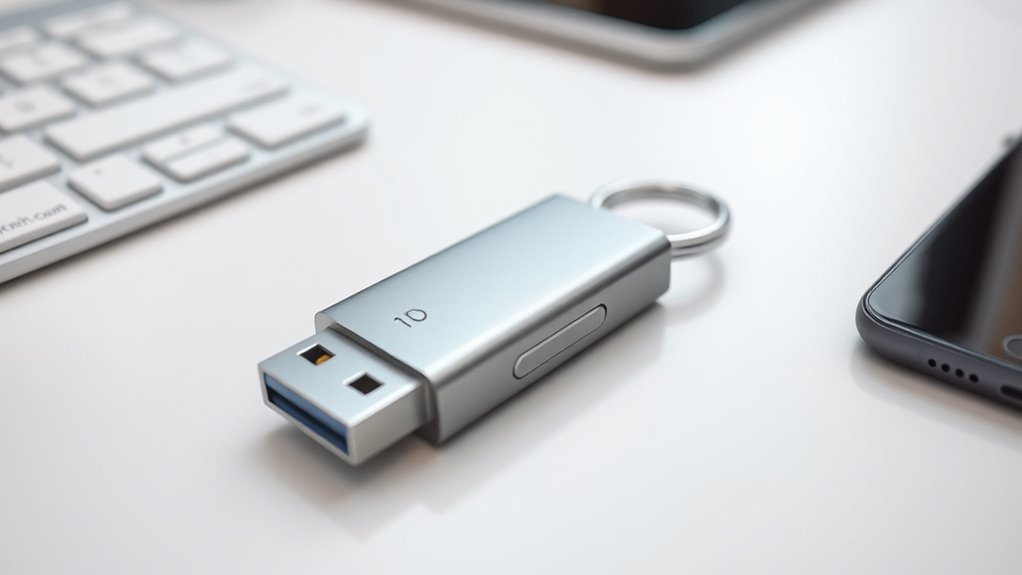

Security keys using FIDO2 protect your online accounts by creating unique cryptographic keys that only your device holds. They verify you through challenge-response signing, making phishing and credential theft nearly impossible. You can set them up using USB, NFC, or Bluetooth on many devices. They support biometrics or PINs for extra security. If you want to learn how these keys can keep you safer across all your devices, keep going for more details.
Key Takeaways
- FIDO2 security keys use cryptography to verify your identity, protecting accounts from hacking and phishing.
- They connect via USB, NFC, or Bluetooth, and are set up by creating cryptographic keys during registration.
- Private keys stay securely on the device, never leaving or being transmitted over the internet.
- They support PINs and biometrics for added user verification and convenience.
- Security keys can replace passwords with passkeys, enabling seamless and secure cross-device login.

Thetis Pro FIDO2 Security Key, Two Factor Authentication NFC Security Key FIDO 2.0, Dual USB A Ports & Type C for Multi layered Protection (HOTP) in Windows/MacOS/Linux, Gmail, Facebook,Dropbox,Github
Check FIDO2 compatibility before purchase – Known limitations: ID Austria is not supported (requires FIDO2 Level 2). Windows…
As an affiliate, we earn on qualifying purchases.
As an affiliate, we earn on qualifying purchases.
How FIDO2 Security Keys Protect Your Online Accounts
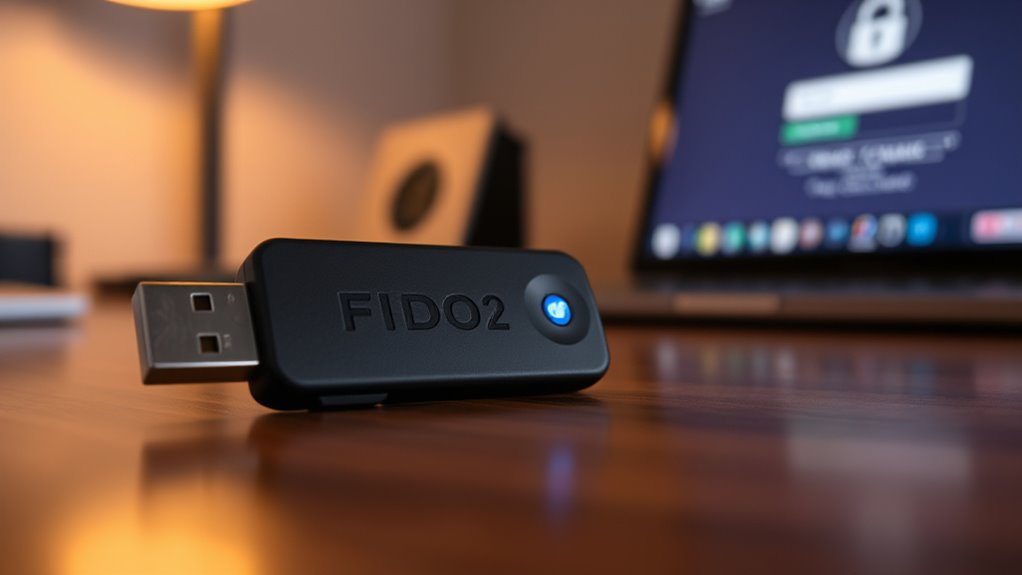
FIDO2 security keys protect your online accounts by using cryptographic techniques that guarantee only you can access them. When you register your key with a service, it creates a unique cryptographic key pair: a public key sent to the service and a private key stored securely in the device. During login, your key signs a challenge from the service with the private key, proving you possess the key without revealing secret information. This process makes it nearly impossible for attackers to steal your credentials or trick you with phishing. Because the private key never leaves the device, even if the service’s database is compromised, your account remains secure. This robust method ensures strong protection against common cyber threats, similar to how security measures like encryption and authentication are vital in safeguarding personal data.

Yubico – YubiKey 5C NFC – Multi-Factor authentication (MFA) Security Key and passkey, Connect via USB-C or NFC, FIDO Certified – Protect Your Online Accounts
POWERFUL SECURITY KEY: The YubiKey 5C NFC is the most versatile physical passkey, protecting your digital life from…
As an affiliate, we earn on qualifying purchases.
As an affiliate, we earn on qualifying purchases.
Setting Up Your FIDO2 Security Key Made Simple
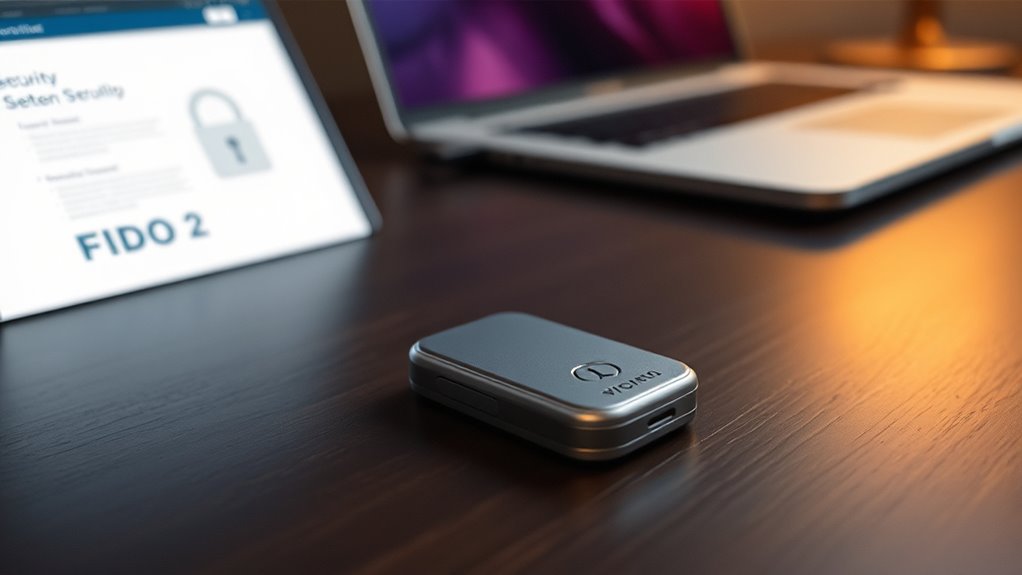
Getting your FIDO2 security key set up is straightforward and designed to be user-friendly. First, connect the key to your device via USB, NFC, or Bluetooth, depending on the model. Follow the on-screen instructions, which typically involve creating a PIN or enrolling biometric verification if supported. For Windows users, built-in tools make this process simple, especially in Chrome browsers. If you’re using a Mac or Linux, check compatibility and use the recommended browser for setup. During registration, your device generates cryptographic keys, and you’ll be prompted to verify your identity through your chosen method. Once configured, your key is ready to authenticate across supported services, providing a secure, passwordless login experience with minimal effort. Utilizing security features like biometric verification can further enhance your protection during setup. Additionally, understanding how hardware compatibility influences your setup process can help ensure a smooth configuration. Moreover, being aware of best practices for security can help you maximize the benefits of your FIDO2 key. Incorporating user-friendly interfaces and clear instructions can also improve your setup experience, especially if you’re new to hardware security keys.
Thetis Pro FIDO2 Security Key, Two Factor Authentication NFC Security Key FIDO 2.0, Dual USB A Ports & Type C for Multi layered Protection (HOTP) in Windows/MacOS/Linux, Gmail, Facebook,Dropbox,Github
Check FIDO2 compatibility before purchase – Known limitations: ID Austria is not supported (requires FIDO2 Level 2). Windows…
As an affiliate, we earn on qualifying purchases.
As an affiliate, we earn on qualifying purchases.
Key Features That Make FIDO2 Secure and Reliable
The key features that make FIDO2 secure and reliable are rooted in advanced cryptographic techniques and hardware protections. These assure your authentication remains safe from hacking and fraud. First, FIDO2 uses strong asymmetric cryptography, generating unique key pairs for each service, with private keys securely stored on the device. Second, private keys never leave the security key, preventing exposure even if the server is compromised. Third, challenge-response signing verifies your identity without transmitting sensitive data, making phishing impossible. Additional security layers include user verification methods like PINs or biometrics, adding extra protection. These features work together to create a trustworthy, durable system that defends against common threats and maintains your security across various platforms.
Yubico – YubiKey 5C NFC – Multi-Factor authentication (MFA) Security Key and passkey, Connect via USB-C or NFC, FIDO Certified – Protect Your Online Accounts
POWERFUL SECURITY KEY: The YubiKey 5C NFC is the most versatile physical passkey, protecting your digital life from…
As an affiliate, we earn on qualifying purchases.
As an affiliate, we earn on qualifying purchases.
Compatibility Tips for Using FIDO2 Keys Across Devices
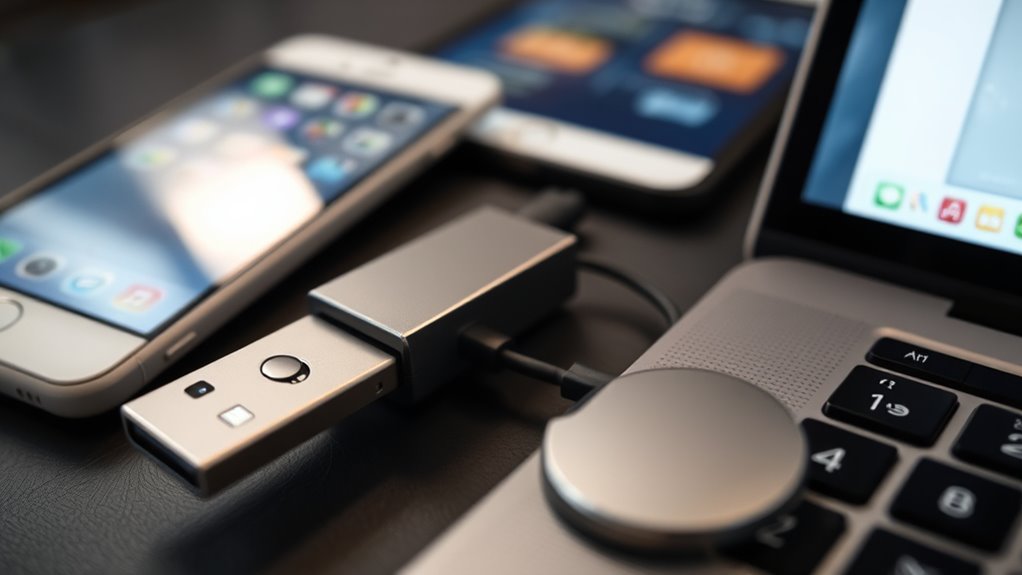
To guarantee your FIDO2 security keys work smoothly across different devices, it’s important to verify compatibility beforehand. First, check your device’s operating system and browser support, as some platforms may have limited features. For example, Windows and Chrome offer full support, while Safari’s features are still evolving. Use this quick reference:
| Device/Platform | Supported Protocols | Compatibility Tips |
|---|---|---|
| Windows/Chrome | WebAuthn, U2F | Use Chrome for full setup and management |
| Mac/Safari | WebAuthn | Confirm support for biometric options |
| Mobile Devices | NFC, Bluetooth | Check device support for wireless connections |
Matching your security key’s features with your devices ensures seamless authentication and avoids surprises. Additionally, verifying device compatibility helps prevent setup issues. Furthermore, understanding platform-specific requirements can facilitate smoother integration across different operating systems. Also, be aware of bank SWIFT codes if you plan to perform international transactions, as they are essential for secure transfers.
The Future of Authentication: Passkeys and Beyond
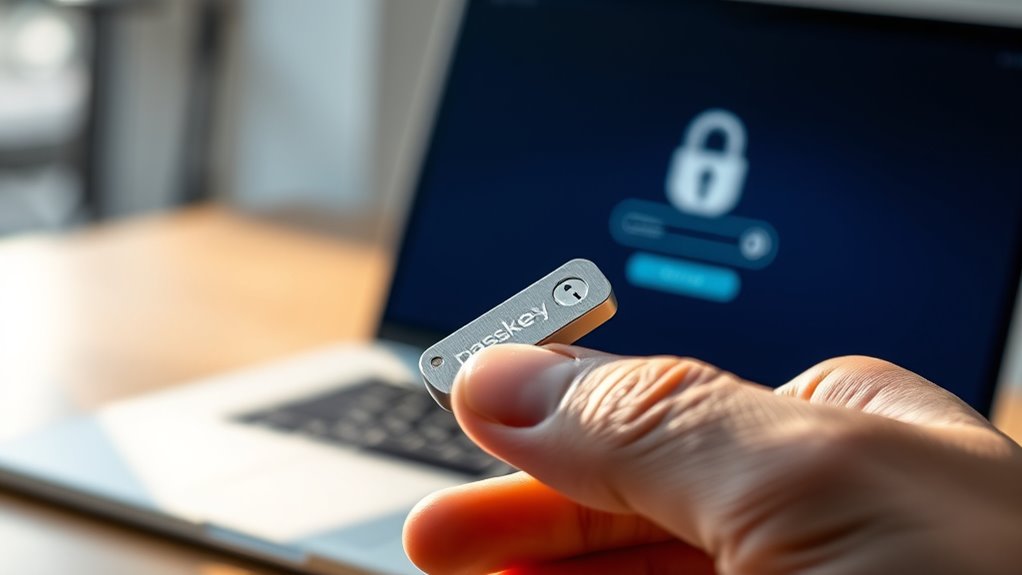
Passkeys are making login easier by eliminating passwords and offering seamless cross-device compatibility. They use strong cryptography to boost security while simplifying user experience. As industry efforts grow, passkeys are poised to transform how we authenticate across all platforms. Additionally, advancements in security key technology are enhancing protection against phishing and unauthorized access. Moreover, integrating these devices can improve indoor air quality, which is vital for health, especially in urban environments. Incorporating AI-driven insights into digital systems can also help make authentication methods more memorable and user-friendly.
Passkeys Simplify Login
Have you ever wished for a hassle-free way to log into your accounts without remembering passwords? Passkeys make that possible. They’re a type of FIDO credential that works across devices and platforms, letting you sign in easily without typing passwords. Instead, your device uses cryptographic keys stored locally or on a security key, ensuring strong security. Privacy policies outline how your authentication data is protected and managed. Compatibility varies across different systems, but ongoing developments aim to improve universal support. These features are especially beneficial for user convenience and enhanced security. Additionally, relationships can benefit from simplified and secure authentication methods, making online interactions more trustworthy. The use of cryptographic keys enhances overall protection against cyber threats. Here’s how passkeys simplify login:
- Sync across devices, so you can access accounts from your phone, tablet, or computer seamlessly.
- Use biometric authentication or PINs for quick verification, adding convenience and security.
- Replace passwords entirely, reducing phishing risks and credential theft.
Passkeys are designed to make login fast, secure, and user-friendly, shaping the future of authentication.
Cross-Device Compatibility
As authentication methods advance, ensuring that your security credentials work seamlessly across all your devices becomes increasingly important. FIDO2 security keys are designed for cross-device compatibility, supporting USB, NFC, and Bluetooth connections. This flexibility allows users to authenticate easily whether they are using computers, smartphones, or tablets, regardless of the platform. Many keys are compatible with Windows, macOS, Linux, Android, and iOS, making it easier to authenticate wherever you go. Some keys support multi-protocol standards like WebAuthn and U2F, broadening their usage across different services. To maximize compatibility, check device and browser support before purchasing. Using the right key, you can enjoy a consistent, secure login experience across all your devices without hassle or sacrificing security. Additionally, understanding juice extraction from fruits like oranges can help you incorporate healthier habits into your routine. Embracing multi-device support and understanding cross-platform functionality ensures you maintain security and convenience no matter which device you are using. Recognizing the importance of industry transformation can help you stay ahead of evolving authentication technologies and security standards. Staying informed about security zone info helps you make smarter choices in your digital security approach.
Enhanced Security Features
Advances in authentication are shaping a future where security features become more seamless and resistant to threats. You’ll benefit from innovations like passkeys, which simplify login while maintaining strong security. These credentials are stored locally or on security keys, enabling cross-device access without passwords. Additionally, security keys are evolving to support features like dual PINs, biometric verification, and resident credentials, offering layered protection. This means you can authenticate easily while staying secure against phishing and credential theft. As these features develop, expect even more integration with your devices and platforms, making secure login faster and more convenient. Moreover, understanding the hours of local supermarkets can help you plan your shopping trips more efficiently, ensuring you access the best security and service during your visits.
Choosing the Right Security Key for Your Needs
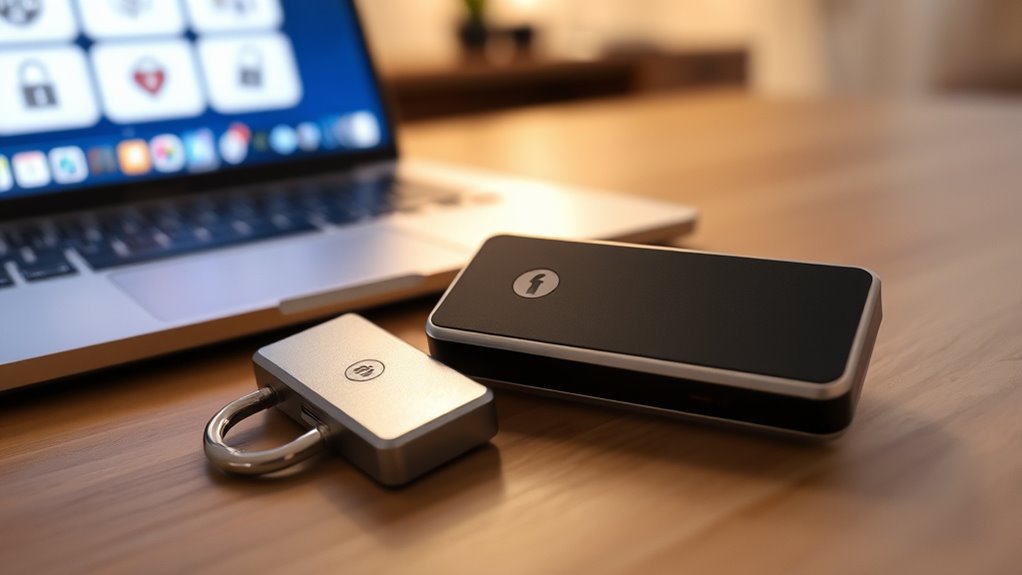
Choosing the right security key depends on your specific usage needs and security preferences. If you frequently use your mobile device, consider a key with NFC or Bluetooth for easy access on the go. For desktop use, a USB key might be more convenient and reliable. Think about your preferred verification method—PINs, biometrics, or physical taps—since some keys support multiple options. Compatibility matters too; ensure the key works with your operating system and browser, especially if you use Safari or older software. Budget is important as well; affordable options around €25 often include essential features. Finally, check if the key is FIDO certified for security assurance. Matching these factors will help you select a device that fits your lifestyle while keeping your accounts safe.
Frequently Asked Questions
Can I Use the Same Security Key for Multiple Accounts?
Yes, you can use the same security key for multiple accounts. When setting up each account, you register the key by linking it to that service. Most FIDO2 keys support multiple credentials, allowing you to manage various accounts securely with one device. Just remember to keep your key safe, and some services might limit the number of accounts per key. Using a single key simplifies your login process while maintaining strong security.
What Should I Do if My Security Key Is Lost or Damaged?
If your security key is lost or damaged, you should immediately use your backup options, such as recovery codes or secondary authentication methods, to regain access to your accounts. Then, replace the lost or damaged key with a new one, ensuring it’s registered with your services. Consider setting up multiple keys for added security and convenience, so you’re prepared for future issues. Always update your account recovery details regularly.
Are FIDO2 Keys Compatible With All Web Browsers and Devices?
Your FIDO2 security key is remarkably versatile, but it isn’t compatible with all browsers and devices. Most major browsers like Chrome, Edge, and Firefox support FIDO2, along with Windows, macOS, and Android systems. However, some browsers like Safari lack full support, so you might face limitations. To guarantee seamless use, verify compatibility with your device and browser before purchasing, and update software regularly for the best experience.
Do I Need Internet Access to Use My FIDO2 Security Key?
You don’t need internet access to use your FIDO2 security key during authentication. Once you’ve set it up, you simply connect or tap the key on your device, and it signs the challenge offline using cryptographic methods. This process verifies your identity without relying on an internet connection. However, initial setup and managing settings might require internet, but everyday login with your key works seamlessly offline.
How Does a Security Key Protect Against Hardware Theft or Physical Damage?
Think of your security key like a tough lock that keeps intruders out. It protects against hardware theft or damage because the private keys stay securely inside the device, not on your computer or online. Even if someone steals your key, they can’t access your accounts without the PIN or biometric verification. This physical security adds an extra layer, ensuring your digital identity remains safe, no matter what happens to the device.
Conclusion
Worried that security keys are complicated? Don’t be. With FIDO2 keys, you get simple, robust protection for your online accounts without the hassle. They work seamlessly across devices and future-proof your login experience. Yes, setting one up might seem intimidating at first, but the security and peace of mind are worth it. Take control today—protect your digital life easily and confidently with a security key that’s built for you.