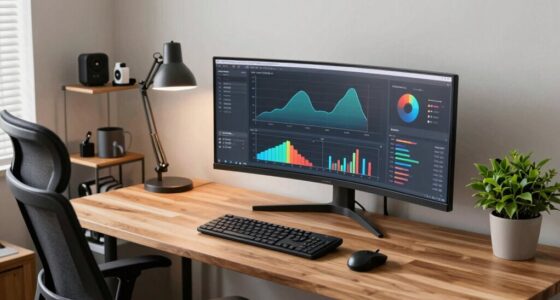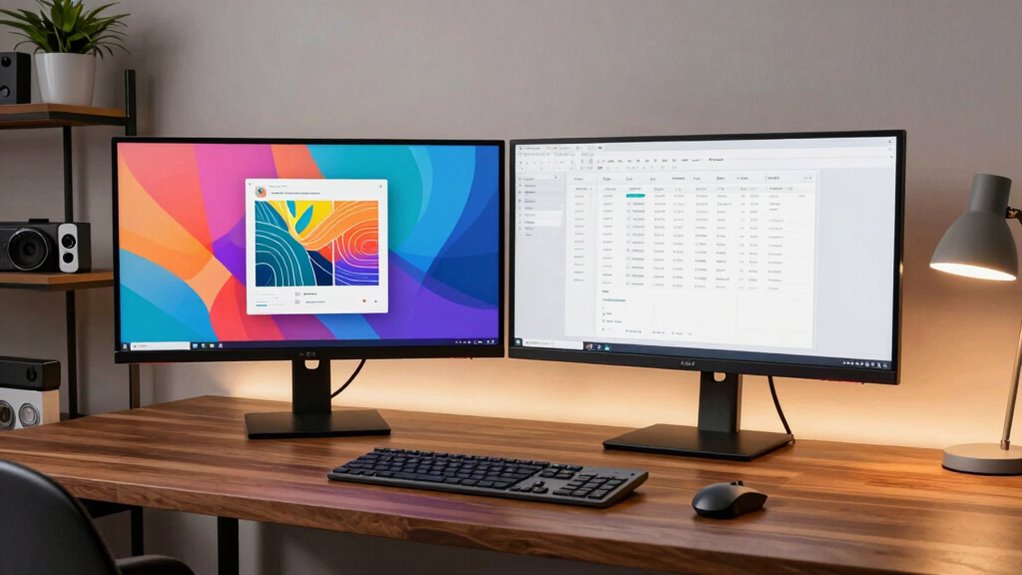
Before building a dual-monitor setup, make certain your desk has enough space and your monitors are compatible with your computer’s graphics card and ports. Focus on ergonomic placement by adjusting monitors to eye level and using supports like wrist rests to prevent strain. Consider monitor size and arrangement based on your tasks, and plan cable management solutions to keep your workspace tidy. Making these thoughtfully will create a comfortable, efficient setup—by exploring further, you’ll discover even more tips for maximum performance.
Key Takeaways
- Ensure your graphics card supports dual monitors and has compatible ports like HDMI, DisplayPort, or DVI.
- Measure desk space to select monitor sizes and arrange them for optimal viewing angles and workflow.
- Prioritize ergonomic accessories such as adjustable stands, wrist rests, and proper monitor height to reduce strain.
- Calibrate display settings regularly for color accuracy and contrast, especially for detailed or creative work.
- Plan cable management solutions to keep the workspace organized, safe, and prevent cable damage.
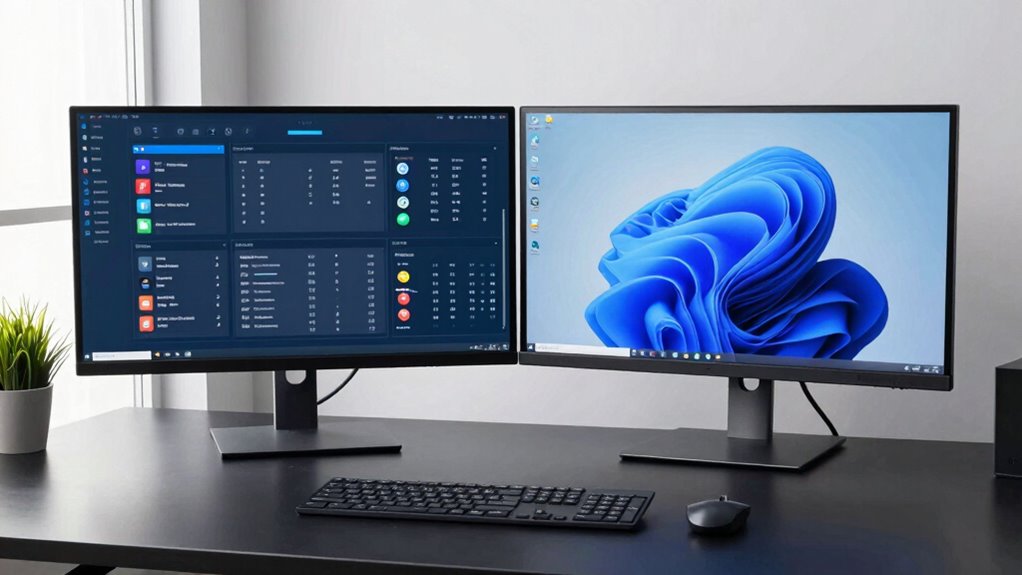
Are you ready to boost your productivity and streamline your workspace? Building a dual-monitor setup can transform how you work, but before you dive in, there are key considerations to keep in mind. First, think about your workspace ergonomics. Investing in ergonomic accessories is essential to prevent strain and discomfort. Adjustable monitor stands or mounts allow you to position your screens at eye level, reducing neck and eye fatigue. A well-placed monitor setup encourages good posture, which is crucial for long work sessions. Additionally, a comfortable keyboard and mouse, paired with ergonomic supports, will complement your dual-screen arrangement and keep you productive without discomfort.
Next, consider your desk space and how your monitors will fit into it. Measure your available area to ensure your chosen monitors will have enough room without cluttering your workspace. Dual monitors come in various sizes, so select screens that are proportionate to your desk and your needs. If you’re working on detailed tasks like graphic design or video editing, larger screens or higher resolutions might be beneficial. On the other hand, for general multitasking, smaller monitors could suffice. Think about how you’ll arrange them—side-by-side or stacked—based on your workflow. Proper placement ensures easy viewing angles and prevents unnecessary head movement. Utilizing high-pressure paint application techniques can also be compared to how you optimize your workspace for efficiency—both require careful planning to achieve the best results. Additionally, understanding the contrast ratio of your monitors can help you select displays with better image depth, especially in varied lighting conditions. To ensure a seamless experience, it’s also important to consider monitor calibration for color accuracy and consistency across screens. Regularly cleaning your monitors and keeping the viewing area well-lit can also improve overall visibility and reduce eye strain. Incorporating ergonomic principles into your setup can further enhance comfort and productivity.
Cable management is another critical aspect when setting up a dual monitor system. As you add more cables for power, video connections, and peripherals, clutter can quickly become overwhelming. To keep your workspace tidy and safe, plan your cable management strategy. Use cable clips, sleeves, or under-desk trays to route cables neatly out of sight. This not only improves aesthetics but also minimizes the risk of accidental disconnections or damage. Proper cable management helps maintain a clean, organized environment, allowing you to focus more on your work and less on untangling cords. Incorporating ergonomic accessories such as wrist rests or adjustable stands can further enhance your comfort during long work sessions. Remember that well-organized cables can also improve airflow around your devices, helping to prevent overheating.
Finally, compatibility is key. Make sure your computer’s graphics card can handle dual monitors, especially if you plan to run high-resolution displays or multiple applications simultaneously. Check the ports on your computer—HDMI, DisplayPort, or DVI—and ensure your monitors have matching inputs. If needed, invest in adapters or docks to connect everything seamlessly. Setting up a dual-monitor system isn’t just about adding screens; it’s about creating a cohesive, functional workspace that suits your needs. With thoughtful planning around ergonomic accessories, cable management, and compatibility, you’ll be ready to maximize your productivity and enjoy a more efficient work environment.
dual monitor ergonomic stand
As an affiliate, we earn on qualifying purchases.
As an affiliate, we earn on qualifying purchases.
Frequently Asked Questions
Can I Use Different Brands of Monitors Together?
Yes, you can use different brands of monitors together. Just keep in mind that brand compatibility isn’t guaranteed, so you might face issues with monitor calibration to achieve color consistency. To get the best experience, make certain both monitors support similar resolutions and refresh rates. You may also need to manually adjust calibration settings to make the displays look uniform, but overall, mixing brands is definitely doable.
How Do I Adjust Monitor Height for Ergonomic Comfort?
Think of your monitors as a symphony, each needing perfect harmony. To adjust monitor height for ergonomic comfort, start by aligning the top of your screens with your eye level, ensuring your neck stays relaxed. Use monitor stands or adjustable mounts to fine-tune the height, focusing on proper monitor alignment. This reduces strain, keeps your head in a natural position, and boosts your productivity throughout the day.
Is a Dual-Monitor Setup Suitable for Gaming?
A dual-monitor setup can enhance your gaming performance if you optimize monitor synchronization and guarantee both screens have similar refresh rates. While it offers immersive multitasking and extended views, it may introduce input lag or synchronization issues if monitors aren’t properly matched. For the best experience, choose monitors with compatible specifications, and adjust settings to minimize lag, so you can enjoy smooth gameplay across both screens.
What Keyboard and Mouse Setup Is Best for Dual Screens?
For dual screens, choose a keyboard with good ergonomics to prevent strain during extended use, like one with adjustable height and wrist support. Opt for a mouse with customizable sensitivity, allowing you to switch from precise control for detailed tasks to faster movement for general navigation. Consider a multi-button mouse for productivity, and position your keyboard and mouse comfortably to reduce fatigue and improve efficiency across both monitors.
How Do I Manage Cable Clutter With Two Monitors?
To manage cable clutter with two monitors, use cable management solutions like cable clips, sleeves, or under-desk trays to keep cords organized and hidden. Monitor placement tips include positioning monitors close to each other and at eye level to reduce slack. Secure cables along the desk edges or behind the monitors, and label cords for easy identification. These steps create a clean, efficient workspace, minimizing distractions and maximizing productivity.
monitor cable management kit
As an affiliate, we earn on qualifying purchases.
As an affiliate, we earn on qualifying purchases.
Conclusion
So, after all this, you’re ready to plunge into your dual-monitor setup—thinking it’ll boost your productivity and make life easier. Ironically, the real challenge might be just deciding which screen to stare at when you’re overwhelmed. But hey, with the right planning, you’ll soon wonder how you ever worked without that extra space. Just don’t forget to actually enjoy the extra room for all those “urgent” emails and endless browsing. Happy multitasking!
adjustable monitor mount
As an affiliate, we earn on qualifying purchases.
As an affiliate, we earn on qualifying purchases.
dual monitor calibration tool
As an affiliate, we earn on qualifying purchases.
As an affiliate, we earn on qualifying purchases.