
To establish a secure guest Wi-Fi with VLAN-style isolation, you need a managed router and switch that support VLANs, along with setting up a separate SSID for guests. Assign the guest network to its own VLAN and configure firewalls to block access to your main devices. Use dedicated gateway addresses and rules that restrict guest traffic from reaching your primary network. Keep exploring these steps to guarantee a fully isolated and secure guest Wi-Fi setup.
Key Takeaways
- Use a managed router and switch supporting VLANs to segment guest network traffic effectively.
- Create a separate SSID linked to the guest VLAN with distinct security credentials.
- Assign a dedicated gateway IP and DHCP scope for the guest VLAN to isolate IP ranges.
- Configure firewall rules to block guest access to main network devices and sensitive resources.
- Test the setup thoroughly to ensure guests can access the internet while being restricted from primary devices.
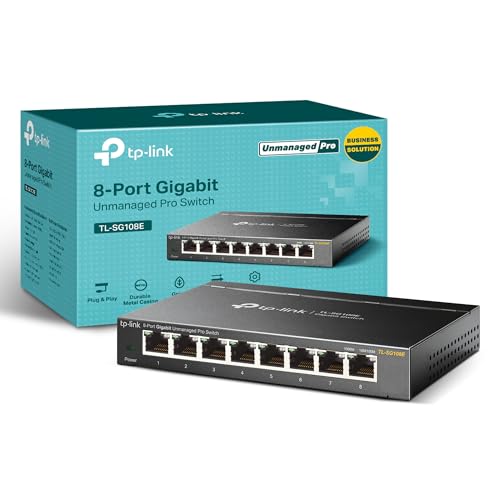
TP-Link 8 Port Gigabit Switch | Easy Smart Managed | Plug & Play | Desktop/Wall-Mount | Sturdy Metal w/ Shielded Ports | Support QoS, Vlan, IGMP and LAG (TL-SG108E)
𝟴 𝗚𝗶𝗴𝗮𝗯𝗶𝘁 𝗘𝘁𝗵𝗲𝗿𝗻𝗲𝘁 𝗣𝗼𝗿𝘁𝘀: expand your network with 8 high-speed ethernet ports
As an affiliate, we earn on qualifying purchases.
As an affiliate, we earn on qualifying purchases.
Essential Hardware Components for Guest Network Segmentation
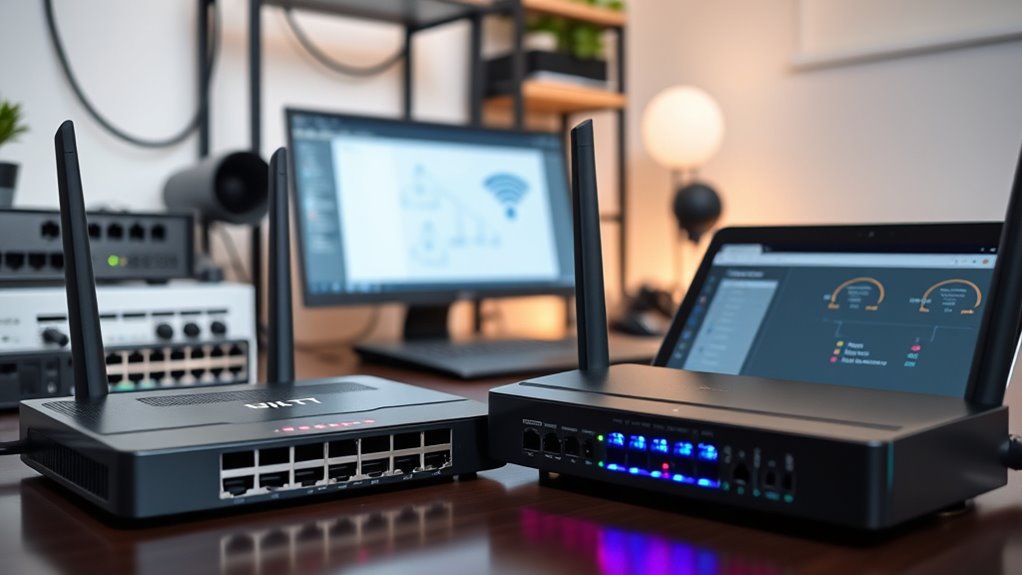
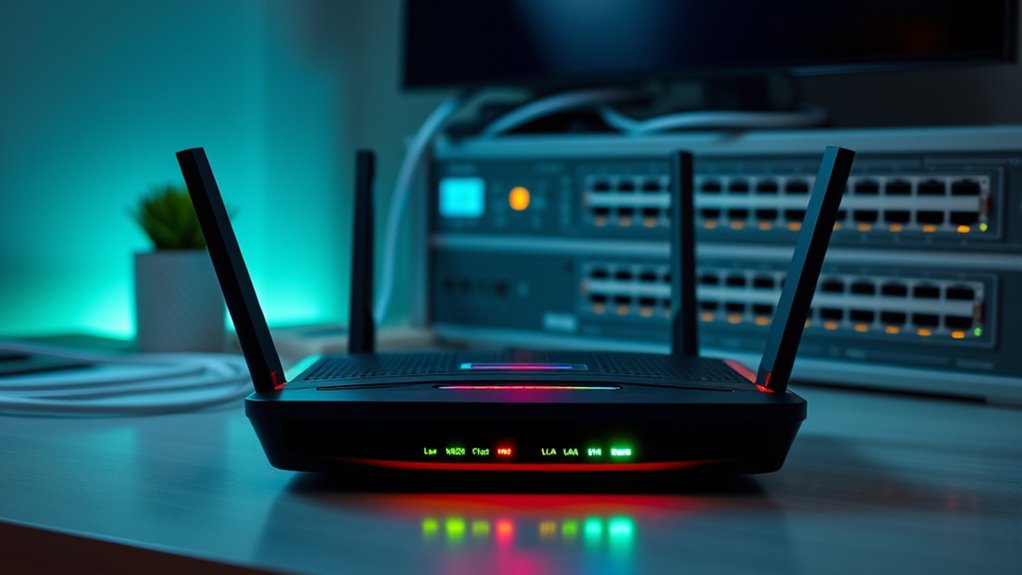
To effectively segment a guest network, you need hardware that supports VLANs and network isolation features. A managed router with VLAN capabilities is essential, as unmanaged models lack this functionality. You’ll also need a managed switch or one with VLAN tagging support to handle traffic segregation. Confirm your wireless access points are compatible with VLAN configuration so you can assign separate SSIDs to guest networks. A dedicated firewall device, like pFsense or a commercial appliance, provides control over network boundaries. For ideal segmentation, use a separate cable modem from your main router. These components work together to create a secure, isolated guest network, preventing guest access to your primary devices while maintaining internet connectivity. Proper hardware setup is the foundation for effective VLAN-style isolation, which is crucial for maintaining security and privacy in your home or business networks. Additionally, selecting hardware with robust security features ensures your network remains protected against potential threats. Regular firmware updates and network monitoring tools further enhance your security posture. Incorporating network segmentation best practices can optimize your setup and bolster your overall network security.

NETGEAR 8-Port Gigabit Ethernet Easy Smart Managed Essentials Switch (GS308E) – Desktop or Wall Mount, Home Network Hub, Office Ethernet Splitter, Silent Operation
8 Gigabit Ethernet ports
As an affiliate, we earn on qualifying purchases.
As an affiliate, we earn on qualifying purchases.
Configuring VLANs for Secure Guest Access
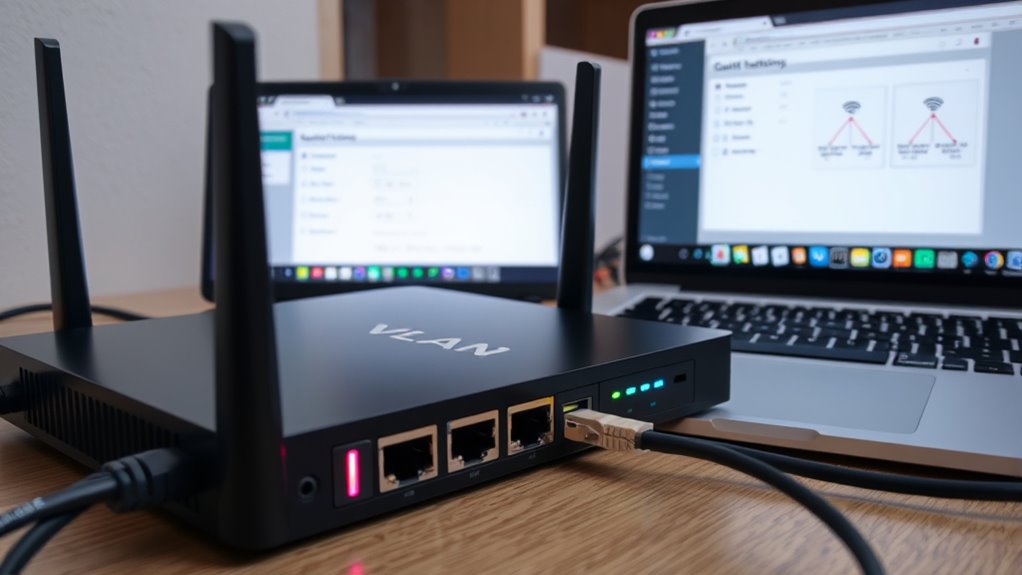
Have you considered how VLANs can enhance your guest network’s security? By configuring VLANs, you isolate guest traffic from your main network, preventing unauthorized access to sensitive devices. Start by assigning a dedicated VLAN ID, such as VLAN 10 or 20, specifically for guests. Then, set up trunk ports on your managed switch to carry multiple VLANs, including your main network and guest VLAN. Next, assign a separate gateway IP address for the guest VLAN, like 192.168.10.1, and establish a DHCP scope that provides IP addresses within this range. Additionally, implementing network segmentation and firewall rules that block guest access to your primary LAN and private IP ranges can further enhance security. This setup guarantees guests can access the internet without compromising your main network’s security. Furthermore, understanding agent programs & merchant services can help ensure your payment systems remain secure in your network infrastructure. Incorporating security best practices such as regular firmware updates and monitoring can also prevent potential vulnerabilities.

TP-Link AC1200 WiFi Router (Archer A54) – Dual Band Wireless Internet Router, 4 x 10/100 Mbps Fast Ethernet Ports, EasyMesh Compatible, Support Guest WiFi, Access Point Mode, IPv6 & Parental Controls
Dual-band Wi-Fi with 5 GHz speeds up to 867 Mbps and 2.4 GHz speeds up to 300 Mbps,…
As an affiliate, we earn on qualifying purchases.
As an affiliate, we earn on qualifying purchases.
Setting Up Wireless SSIDs and Guest Gateway Addresses
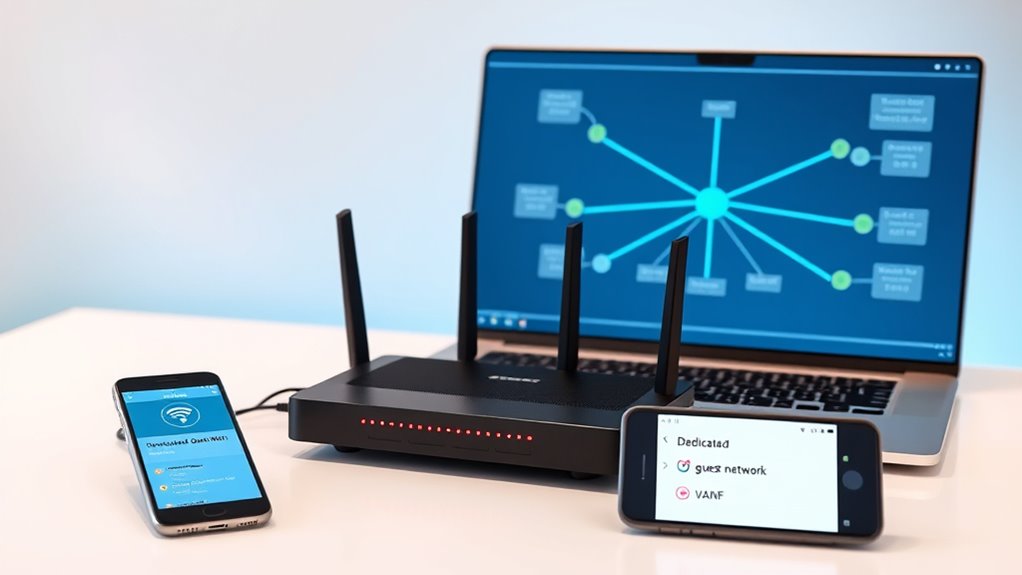
To set up your guest network effectively, you need to assign a unique SSID that guests can connect to separately from your main network. Next, you’ll configure a gateway address specifically for the guest VLAN, ensuring proper routing and management. Additionally, implementing network segmentation helps to isolate guest traffic from your primary devices, enhancing security. Proper user consent management ensures that users are aware of data practices and privacy considerations related to guest access. Configuring firewall rules can further restrict access to sensitive resources while allowing internet connectivity. For example, selecting a popular juice brand for your refreshment station can improve guest satisfaction and promote healthier options. An understanding of eye patch benefits can be useful when considering visual comfort for those working long hours at their devices. Finally, make sure to test the connection to confirm that guests can access the internet without reaching your primary devices.
Assigning Unique SSIDs
Are you wondering how to effectively set up wireless SSIDs for your guest network? First, log into your router’s admin interface and navigate to the wireless settings. Create a new SSID specifically for guests, giving it a clear, distinct name like “Guest Wi-Fi.” Assign a strong, separate password to keep access secure. Verify this SSID is associated with your guest VLAN to keep traffic isolated from your main devices. If your router supports multiple SSIDs, set up each one individually, assigning unique identifiers to easily distinguish between networks. This setup helps you control who connects to your guest network and prevents guests from accessing your main devices. Incorporating VLAN‑style isolation ensures your main network remains protected from guest traffic. Additionally, configuring network segmentation enhances security by limiting potential vulnerabilities. Implementing these configurations can also help address Data Privacy Challenges by maintaining strict separation of network traffic. Properly managing security zones further reinforces your network’s defenses against unauthorized access. Using encryption protocols can further safeguard your network data during transmission.
Configuring Gateway Addresses
Setting up gateway addresses for your guest network guarantees devices can communicate with the internet while remaining isolated from your primary LAN. To do this, assign a unique IP address range, such as 192.168.20.1, to serve as the gateway for your guest VLAN. Access your router’s management interface and configure the VLAN’s gateway IP address accordingly. This address acts as the default route for all guest devices, directing their traffic to the internet through your router. Confirm your DHCP server is set to assign IP addresses within the same subnet, like 192.168.20.x. Properly configuring this gateway prevents guest devices from accessing your main network, maintaining security and isolation while providing reliable internet connectivity. Additionally, ensuring that the VLAN configuration is correctly implemented helps maintain network segmentation and security. Double-check your settings before saving, and verify that your network security protocols are properly configured to protect all devices. Furthermore, reviewing trusted device lists can help enhance network security against unauthorized access. Implementing proper segmentation ensures that your network remains secure and resilient against potential threats.

Firewalla: Cyber Security Firewall for Home & Business, Protect Network from Malware and Hacking | Smart Parental Control | Block Ads | VPN Server and Client | No Monthly Fee (Purple SE)
COMPATIBILITY – This is * Firewalla Purple SE*. The IPS functionality is limited to 500 Mbits. This device…
As an affiliate, we earn on qualifying purchases.
As an affiliate, we earn on qualifying purchases.
Implementing Firewall Rules to Maintain Network Isolation
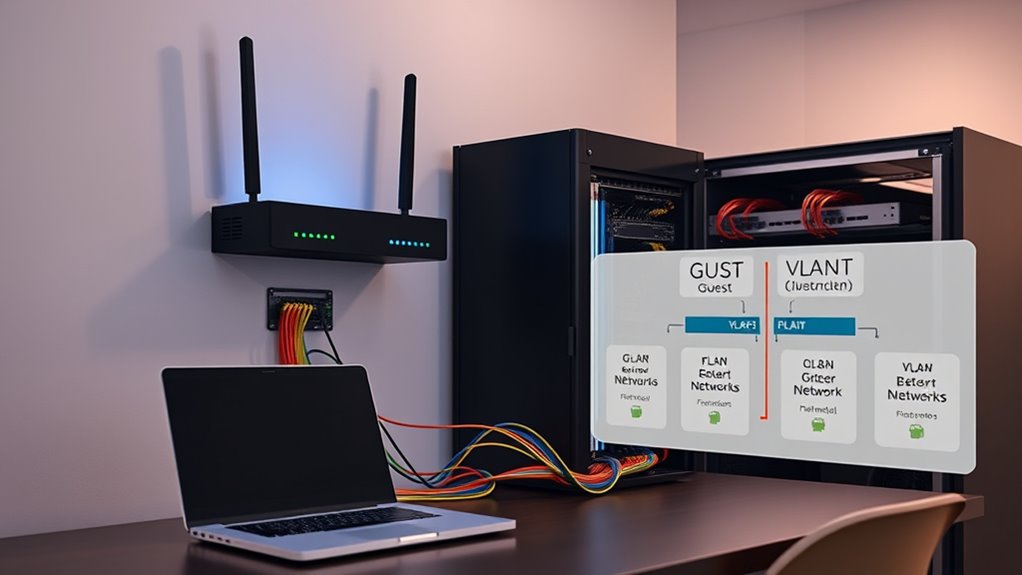
To keep your guest network isolated, you need to craft effective firewall rules that restrict unwanted access. These rules ensure your primary devices stay protected while still allowing guests to browse the internet freely. Properly configuring your firewall is crucial to maintaining strong network segmentation and security. Utilizing network segmentation techniques can further enhance your network’s security and prevent unauthorized access. Additionally, understanding the local laws regarding network security can help ensure your setup complies with regulations and best practices.
Crafting Effective Firewall Rules
Crafting effective firewall rules is essential for maintaining strong network isolation between your guest and primary networks. You need clear rules that restrict access while allowing necessary traffic.
- Block guest VLAN access to your main LAN devices and servers to prevent unauthorized control or data theft.
- Prevent guests from reaching RFC1918 private IP ranges to stop them from scanning or attacking internal resources.
- Restrict guest devices from accessing your firewall’s management interfaces to secure your network configuration.
- Allow unrestricted internet access for guests while blocking any communication with trusted devices or networks.
Always test your rules thoroughly. Confirm that guests can browse the web but cannot access sensitive devices or data. Proper firewall rules keep your network secure and isolated.
Ensuring Robust Network Segmentation
Implementing firewall rules is crucial for maintaining strong network segmentation and guaranteeing your guest network stays isolated from sensitive resources. You need to create specific rules that block guest devices from accessing your primary LAN devices, servers, and private IP ranges. This prevents unauthorized access to your main network and keeps your data secure. Simultaneously, allow the guest network unrestricted internet access to ensure a seamless experience. Restrict guest-to-trusted network communication bidirectionally, so guests can’t reach your personal devices. Make sure to block access to your firewall’s management interfaces from the guest VLAN. Regularly test your rules to confirm isolation works effectively. Clear, well-defined firewall policies are essential to maintaining robust segmentation and protecting your network’s integrity.
Techniques to Ensure Effective Segregation of Network Traffic
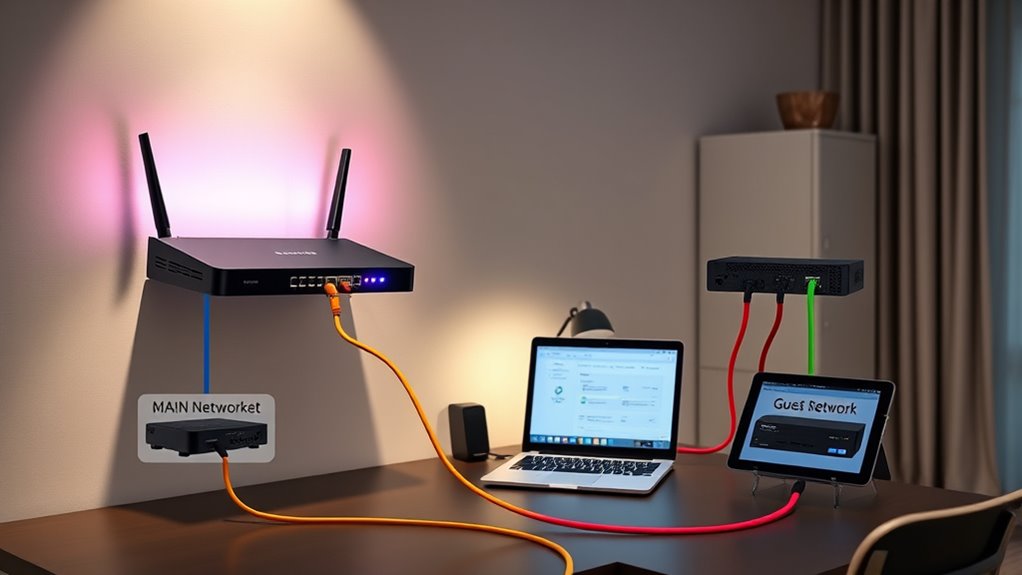
Effective segregation of network traffic relies on a combination of strategic techniques that create clear boundaries between different segments. To achieve this, you should:
- Enable VLANs on your managed switch and router to separate guest and primary networks.
- Configure firewall rules to block guest access to LAN devices and restrict communication between segments.
- Use access point settings to isolate client devices within the same VLAN, preventing peer-to-peer connections.
- Deploy ACLs at switch and firewall levels for granular control over permitted traffic flows.
Tips for Optimizing Performance and Handling Hardware Limitations

Optimizing the performance of your guest network becomes even more important when hardware options are limited. To maximize efficiency, focus on prioritizing critical traffic and limiting bandwidth for guest devices. Use bandwidth throttling to prevent guests from consuming too many resources, which can slow down your primary network. Enable features like Proxy ARP to reduce unnecessary multicast traffic, easing network congestion. If your hardware lacks VLAN support, consider deploying multiple routers or physical segments to isolate traffic effectively. Managed switches with VLAN tagging can also improve performance by reducing broadcast domains. Here’s a quick comparison:
| Hardware Feature | Optimization Strategy |
|---|---|
| VLAN support | Use VLANs for segmentation and traffic control |
| Bandwidth management | Implement QoS and throttling |
| Managed switches | Enable VLAN tagging and traffic prioritization |
| Additional routers | Create separate networks when needed |
Frequently Asked Questions
Can I Set up VLANS With Unmanaged Switches?
You can’t set up VLANs with unmanaged switches because they lack VLAN tagging support and configuration options. To create VLANs, you need managed switches that allow you to assign VLAN IDs, configure trunk ports, and manage VLAN traffic effectively. If you only have unmanaged switches, consider using separate physical networks, multiple routers, or upgrade to managed switches for proper VLAN implementation and network segmentation.
Is VLAN Support Available on All Consumer Routers?
VLAN support isn’t found on all consumer routers, but many newer models are starting to include this feature for better network management. If your router doesn’t support VLANs, don’t worry—you can still create guest networks using built-in features or consider a dual-router setup. Upgrading your hardware or adding managed switches can give you the flexibility to implement VLANs and keep your network segmented and secure.
How Do I Verify VLAN Isolation Effectiveness?
You verify VLAN isolation effectiveness by testing connectivity between the guest network and your primary LAN. Connect a device to the guest Wi-Fi, then try accessing internal resources like servers or shared folders; it should be blocked. Additionally, attempt to reach other VLANs or private IP ranges. Use network scanning tools or ping tests to confirm no cross-VLAN communication occurs, ensuring your segmentation works properly.
What Are Common Issues During VLAN Configuration?
A stitch in time saves nine, so watch out for common VLAN issues. You might misconfigure trunk ports, causing VLAN traffic to leak, or assign incorrect VLAN IDs, leading to network isolation failures. Forgetting to set proper firewall rules can expose your network. Additionally, incompatible hardware or firmware bugs may hinder VLAN setup. Always double-check VLAN tagging, port configurations, and security rules to prevent these pitfalls.
Can Guest VLANS Access Network Printers or Shared Drives?
Guest VLANs are typically isolated from network printers and shared drives to protect your main network. When properly configured, these VLANs block guest devices from accessing internal resources, including printers and shared drives. You can set firewall rules to prevent access to specific IP addresses or subnets, ensuring guests only have internet access. If configured correctly, your guests won’t be able to reach or interfere with your shared network resources.
Conclusion
By setting up your guest Wi-Fi with VLAN-style isolation, you create a fortress that guards your main network like a vigilant gatekeeper. Imagine your data as precious treasures, safely tucked away behind an invisible wall, while visitors enjoy their own space without risking your valuables. With careful configuration, you guarantee seamless traffic flow and peace of mind, turning your home network into a well-guarded haven—where trust and security stand side by side, unbreakable as the strongest fortress.